FAQ
ダウンロード
フォーカスモード
フォントサイズ
How to View Local Logs?
On macOS: Open CodeBuddy IDE, click Help > Open Log Folder in the top menu, and locate the corresponding log (.zip) package.
Windows:
Open CodeBuddy IDE, click Help > Open Log Folder in the top menu, and locate the corresponding log (.zip) package.
Manually locate the log path:
C:\\Users\\<YourUsername>\\AppData\\Roaming\\CodeBuddy\\logs (replace <YourUsername> with your Windows username).Account-Related Issues
What Is the Difference Between Monthly and Annual Subscriptions?
The monthly subscription costs $10.00/month and is billed automatically each month. The annual subscription costs $96.00/year (equivalent to $8.00/month) and is billed annually, making it the most cost-effective option.
Will I Be Affected as an Existing User Without Auto-Renewal Enabled?
Pro users who have not enabled auto-renewal retain their current benefits for the existing subscription period, including automatic access to capability upgrades such as double points. After the benefit period ends, purchase a new plan and enable the subscription in your personal center. You will be billed at the new price.
Does the New Plan Involve a Price Increase?
The new plan is an adjustment based on version upgrades and a significant increase in benefits: Pro points are upgraded from 1,000 to 2,000 per month (doubled), and include benefits such as unlimited code completions and access to all models. The upgraded Pro edition offers more capabilities and enhanced functionality. The price protection for existing users remains at $9.95/month.
Do the Bonus Points Have an Expiration Date? Can They Be Carried Over to the Next Month?
Base credits and bonus credits are issued monthly. They are valid for the current month and do not roll over. Bonus credits are valid for one month from the date of issuance. It is recommended to use them as needed.
What to Do When Points Are Exhausted?
You can wait for points to be credited next month, or purchase a top-up pack (500 points/$15, valid for one month) at any time during your Pro membership period.
Will I Still Have the 100 Free Points After Subscribing to Pro or Starting a 7-Day Pro Trial?
No. The 100 credits from the Free edition are mutually exclusive with the Pro free trial credits and the Pro subscription credits.
After Pro is subscribed to, points are issued according to the Pro quota (2,000 points/month). The additional 100 points are no longer added.
After activating the Pro 7-day trial, a quota of 500 points is issued. This quota is valid for 7 days, and the additional 100 points are not added.
Can I Upgrade My Plan at Any Time?
The current plan (effective August 7, 2026, UTC+8) does not support operations such as directly upgrading from a monthly subscription to an annual subscription during an active subscription period. This feature is under development. Stay tuned.
What Does Auto Model Scheduling Mean in the Free Version?
The system automatically matches a suitable model based on task complexity, ranging from fast response to deep reasoning. You cannot specify a single model. The Pro edition allows you to independently select any model.
What Does the Price Protection of $9.95/Month for Existing Users Mean?
Pro users (monthly or annual) who enabled auto-renewal before August 7, 2026 (UTC+8) can continue to renew at the original price of $9.95/month, provided they do not cancel their subscription. If auto-renewal is disabled, the price protection benefit is forfeited, and subsequent purchases must be made at the new rate of $10.00/month.
What Is the Pro 7-Day Free Trial?
Free users who have never purchased Pro nor claimed a trial can obtain a one-time Pro 7-day free trial and claim 500 credits (valid for 7 days) after binding a credit card and enabling auto-renewal by default. After the trial period ends, you will be automatically billed according to the plan you selected when activating the Pro 7-day free trial ($10.00/month, $96.00/year). If you do not wish to continue, you can cancel auto-renewal during the trial period.
How to Obtain the 250-Point Registration Bonus?
New users automatically receive 250 credits upon registration. These credits are valid for two weeks, allowing you to quickly experience all the capabilities of Buddy AI without any additional steps.
If I Downgrade from Pro to the Free Version, Will I Receive the 100 Free Points Normally?
Yes. After your Pro subscription expires, it automatically downgrades to the Free edition. The 100 credits for the Free edition are issued monthly as usual.
Questions Related to the Limited-Time Daily Activity Event
What Is the Activity Bonus? When Does It End?
The Active User Bonus is a time-limited event. Users who make a conversation request on the same day are considered active. Free users receive 30 credits daily, and Pro users receive 50 credits daily. The event end time will be announced separately.
How to Obtain the Daily Activity Reward?
A user is considered active for the day if they initiate at least one valid AI conversation or task through the WorkBuddy or CodeBuddy client on that day. Valid activity generated through either client is counted. Once the conditions are met, the system automatically calculates the reward, and no manual claim is required. Conversations or tasks generated via the web interface are not counted towards the daily active user determination for this event.
If I Upgrade from the Free Edition to the Pro Edition on the Same Day, Which Edition's Reward Will Be Granted?
The reward is issued only once per active event day. If a version change occurs on that day, the system determines the reward amount based on your actual activity and subscription billing status. The final amount is subject to the details displayed in your points history.
After Unsubscribing from the Pro Edition, Can I Still Receive 50 Points/Day?
While your Pro edition benefits are still active, eligible daily activity is calculated according to the Pro edition standard. After your Pro edition benefits expire or become invalid, the calculation is based on the reward standard corresponding to your current actual edition.
Can the Team Edition Participate?
This event is currently available to Buddy AI International Site Individual Edition users, including both Free and Pro editions. The Team edition is not eligible for this event. For the most accurate information, please refer to the details displayed on the page or official announcements.
Why Have I Not Received the Daily Activity Reward Despite Being Active?
Possible causes include:
Only logging in or opening the client on that day, without initiating a valid conversation/task through the WorkBuddy or CodeBuddy client;
Activity that occurs on the web client is not counted towards the daily active user determination for this event.
The reward is still being settled the next day.
The account, subscription, or payment status is abnormal.
The active behavior is identified by the system as abnormal or non-compliant with the event rules.
Network latency or system data synchronization delay.
If the funds have not been credited for an extended period, you can provide feedback through the official support channel.
Does the Daily Activity Reward Have an Expiration Date?
The validity period of credits is determined by the Buddy AI points system rules, the account backend, and the page displays. It is recommended to check and use them promptly and appropriately after they are credited.
Can the Daily Activity Reward Be Withdrawn?
No. Credits can only be used within the supported credit consumption scenarios in the Buddy AI product. They cannot be withdrawn, cashed out, transferred, or exchanged for cash.
If Multiple Accounts Are Active, Can They Receive Rewards Separately?
Each account must independently meet the event conditions. However, users must not obtain improper rewards through batch registration, account sharing, account trading, or other abnormal means. Violations may result in rewards being canceled or reclaimed.
Can the Daily Activity Reward Be Stacked with Monthly Points?
Yes. The daily activity reward is an additional points reward and does not affect the monthly points benefits already included in your current edition.
Insufficient Credits Balance When logging in is performed after the Ultimate Edition is purchased
1. Check whether the account has purchased the Ultimate edition.
2. Check whether the account has any remaining balance, and click to jump to the enterprise backend for query.
3. Check whether you are logged in to the correct account.
Log out of the current account, and then log in to the Ultimate edition account again using
your mobile number.Remote Development
Connection Failure - Remote SSH Plugin Request/Login Error
Test whether the local IDE can log in normally. If the issue is related to a request from a remote server, confirm whether the server's public network is accessible, for example, by using
ping + URL to verify.If you cannot log in, troubleshoot as follows:
1. Open CodeBuddy IDE settings with
Ctrl/Cmd+,.2. Search for codebuddy.remote.SSH.enableDynamicForwarding.
3. Deselect this option (set it to false).
4. Reconnect SSH.
Connection Failure - Error Opening a Container
The error originates from the
Remote-SSH and dev-container plugins of Vscode used in Codebuddy, and it is a Vscode plugin error.You do not need to install the official Vscode
Remote-SSH and dev-container plugins when using Codebuddy IDE, as the IDE has these plugins built-in. Uninstall the Vscode plugins and use the built-in ones to connect.Network Check
Error Codes 3002 and 3003
Check the network/TCP connection.
curl -v https://copilot.tencent.com
Check for timeout.
timeout 30s curl -v https://copilot.tencent.com
Check the firewall/proxy. (CodeBuddy CN IDE does not require a proxy for use.)
curl -v --trace-time https://copilot.tencent.com
Error Code 3005
1. Click New Chat/Retry. Network fluctuation is the most likely cause.
2. Determine whether the input is too long or contains too many files/context, which may cause the context window to overflow. The window supports
200K. If the text content is large and prone to exceeding the limit, you can read only part of the data to mitigate this.Error Code 10001
If your development environment requires a proxy, check whether the proxy service uses the
HTTP protocol. If not, it is recommended to switch to a proxy service that uses the HTTP protocol. Support for the SOCKS protocol is currently under planning.Figma Usage
Unable to Add Figma to a Conversation?
You need to request Figma edit and development permissions because the Figma view permission does not expose the
Api by default.The development side can request development permissions only. You need to switch to the normal mode first and then to the development mode. (If the mode switch on the Figma web page is unsuccessful, you need to manually switch it once.)
Plugins
Installation Issues
This is usually caused by a previously installed incorrect plugin version or a plugin migration on your local machine. Choose one of the following two solutions to execute:
Solution 1:
1.1 Uninstall the plugin.
1.2 Clear the
cache vsix: help > open Logs Folder > go back to the parent directory > cachedVSIXs folder.(
~/Library/Application\\ Support/CodeBuddy\\ CN/CachedExtensionVSIXs) Clear the local plugins and delete
.codebuddycn/extensions/${plugin-id}.1.3 Reinstall the plugin from the plugin store.
Solution 2:
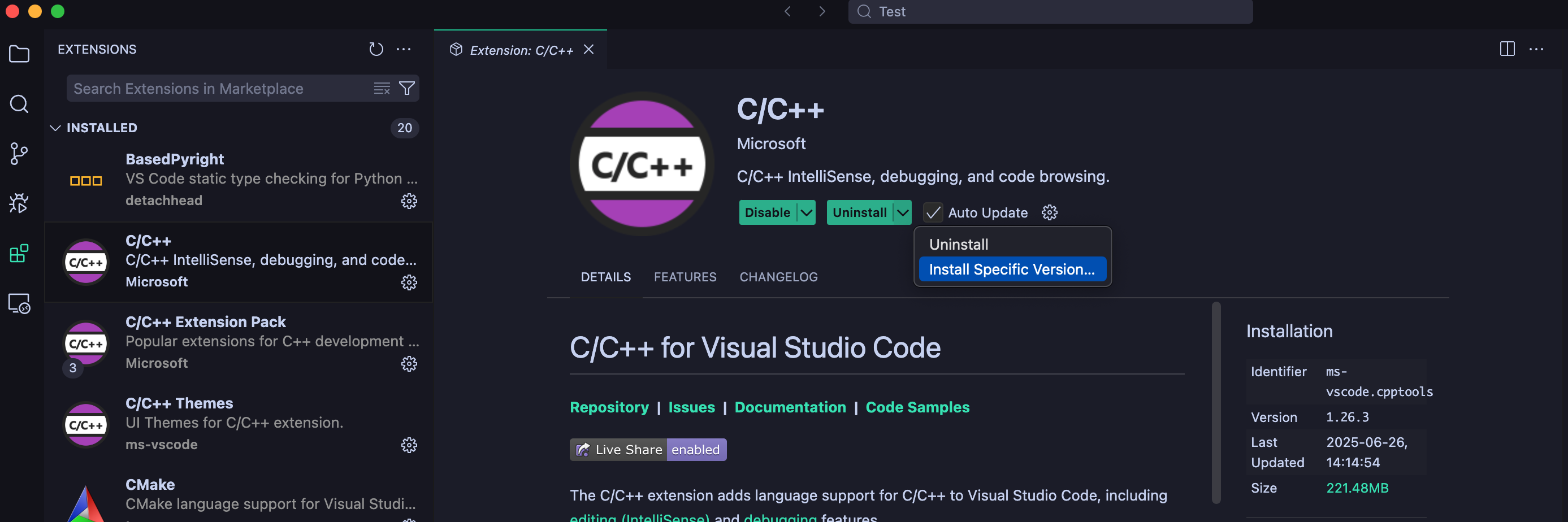
Uninstall the plugin, check the plugin version corresponding to
Vscode 1.100.0, and install the plugin of the specified version.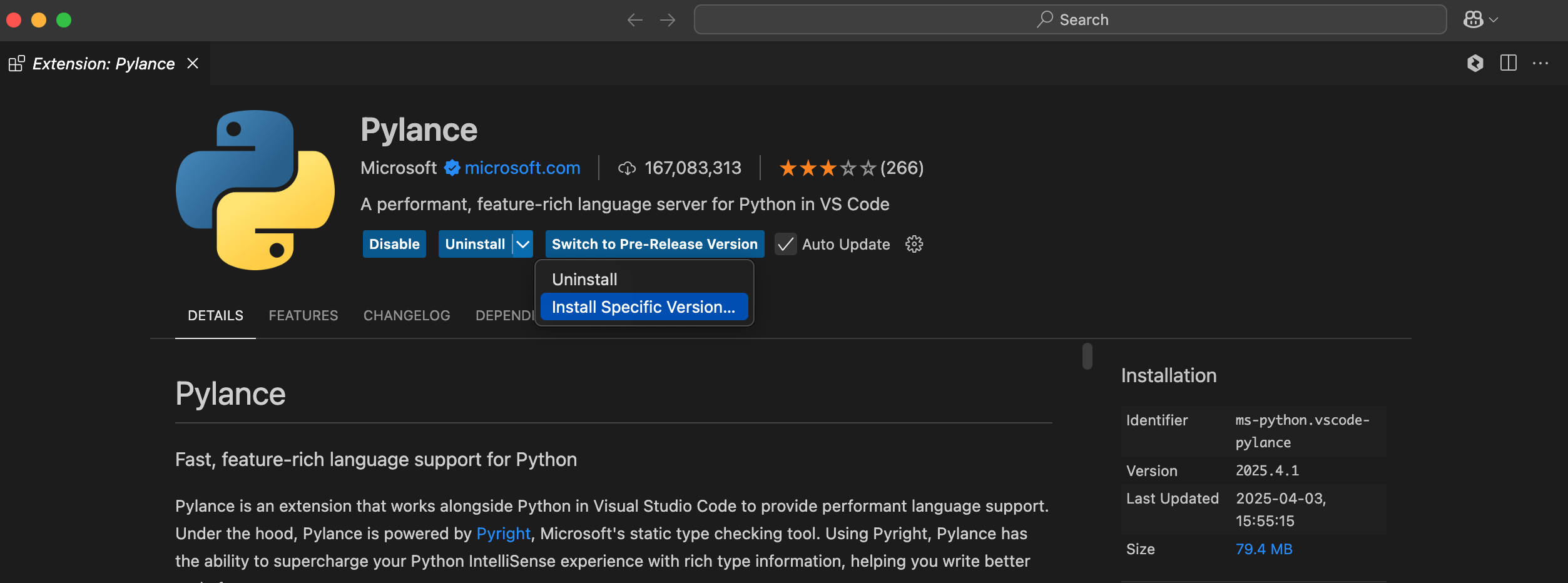
No Syntax Highlighting and Definition Jump for Python
Plance verifies Microsoft's own signature, which can cause third-party applications to fail to run.1. Uninstall
Pylance.2. Install
BasedPyright.3.
BasedPyright performs strict checks by default. If you find them excessive, you can change the setting at this location to standard: basedpyright.analysis.typeCheckingMode.
No Definition Jump/Highlighting for C/C++
1. The official Microsoft
C/C++ plugin has limitations in CodeBuddy IDE. CodeBuddy IDE recommends installing clangd as the lsp (for syntax highlighting and navigation) for C/C++ and suggests installing the clangd plugin for code navigation and highlighting.Note:
Also uninstall the
C/C++ plugin; otherwise, conflicts may occur.2. If issues persist, verify whether the compile_commands.json file exists in the project root directory.
Generate it using the following command:
cmake -B build -DCMAKE_EXPORT_COMPILE_COMMANDS=ON
Terminal
Unable to Open the Terminal
The procedure is as follows: Click CodeBuddy IDE at the top, view Preferences, and select Settings.
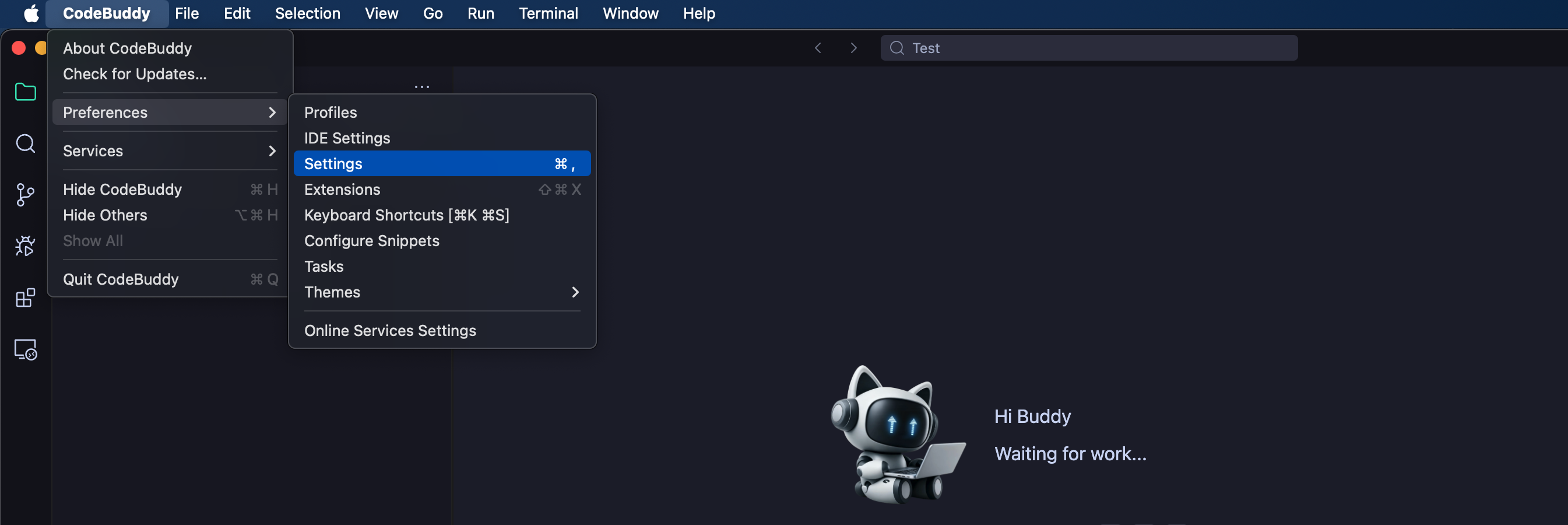
In Settings, search for
Shell and enable Terminal › Integrated › Shell Integration: Decorations to Enabled.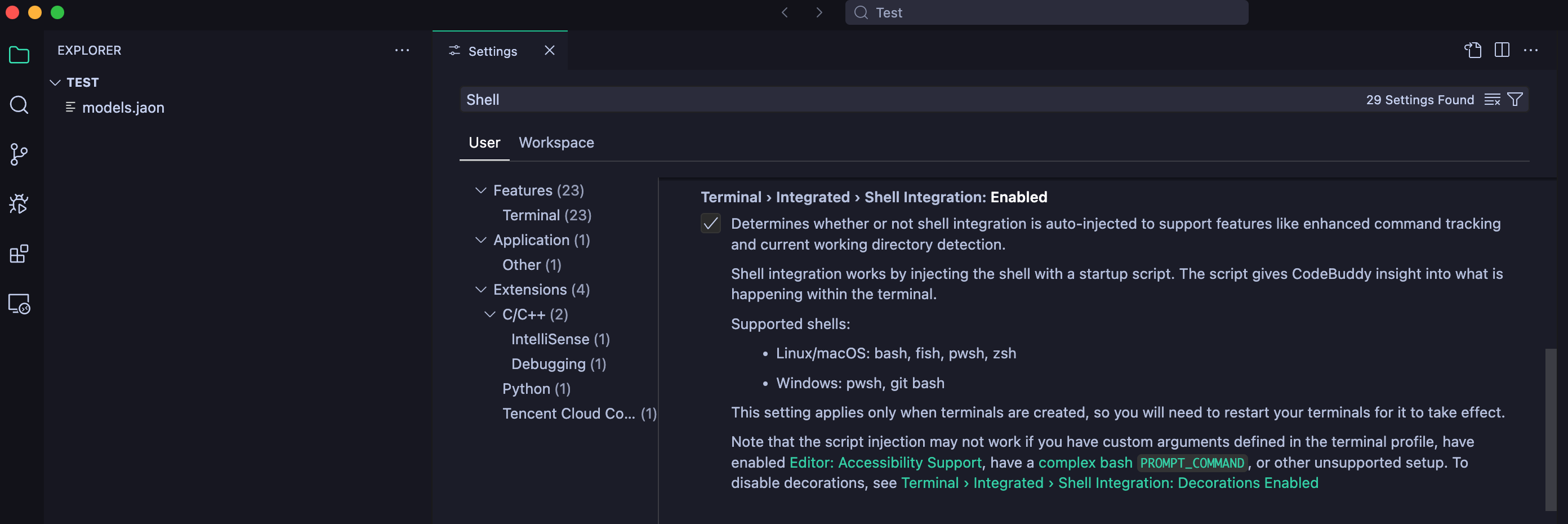
Terminal Cannot Be Reused
MAC
Installing slow components or themes in
zsh can cause failures in obtaining the Terminal status.Users who have no requirement for
zsh can consider switching to a bash theme.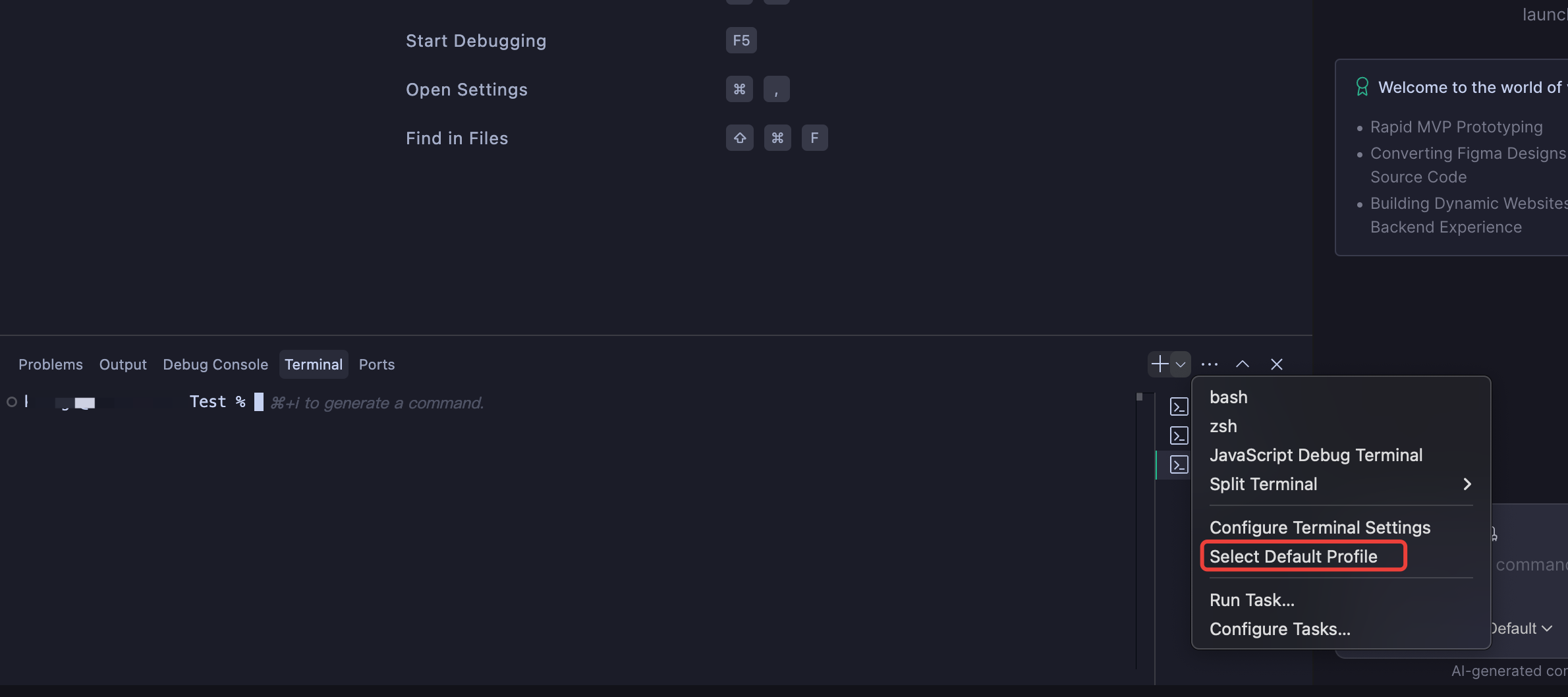
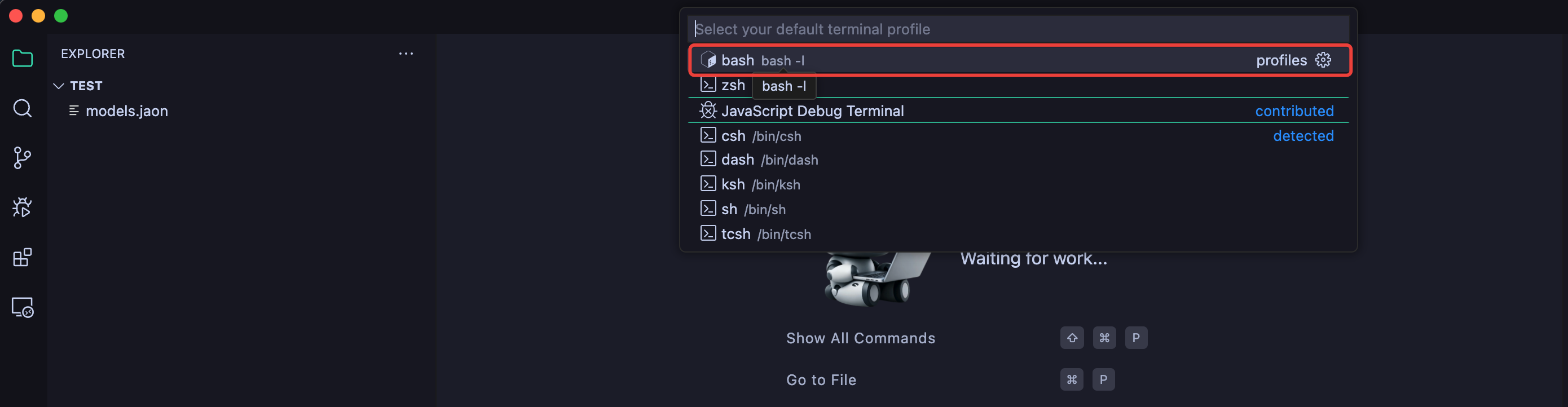
Users who require
zsh can check whether a similar theme is configured in ~/.zshrc.
MCP
MCP Usage
It must be used in
Craft mode. The Ask mode cannot modify files, so Mcp is disabled because Mcp may modify files.Unable to Connect to MCP
Delete the entries in the configuration file where the names contain spaces.
フィードバック