tencent cloud

Tencent Real-Time Communication

Audience List Component(Android)

Baixar
Modo Foco
Tamanho da Fonte
Última atualização: 2026-07-01 17:58:37
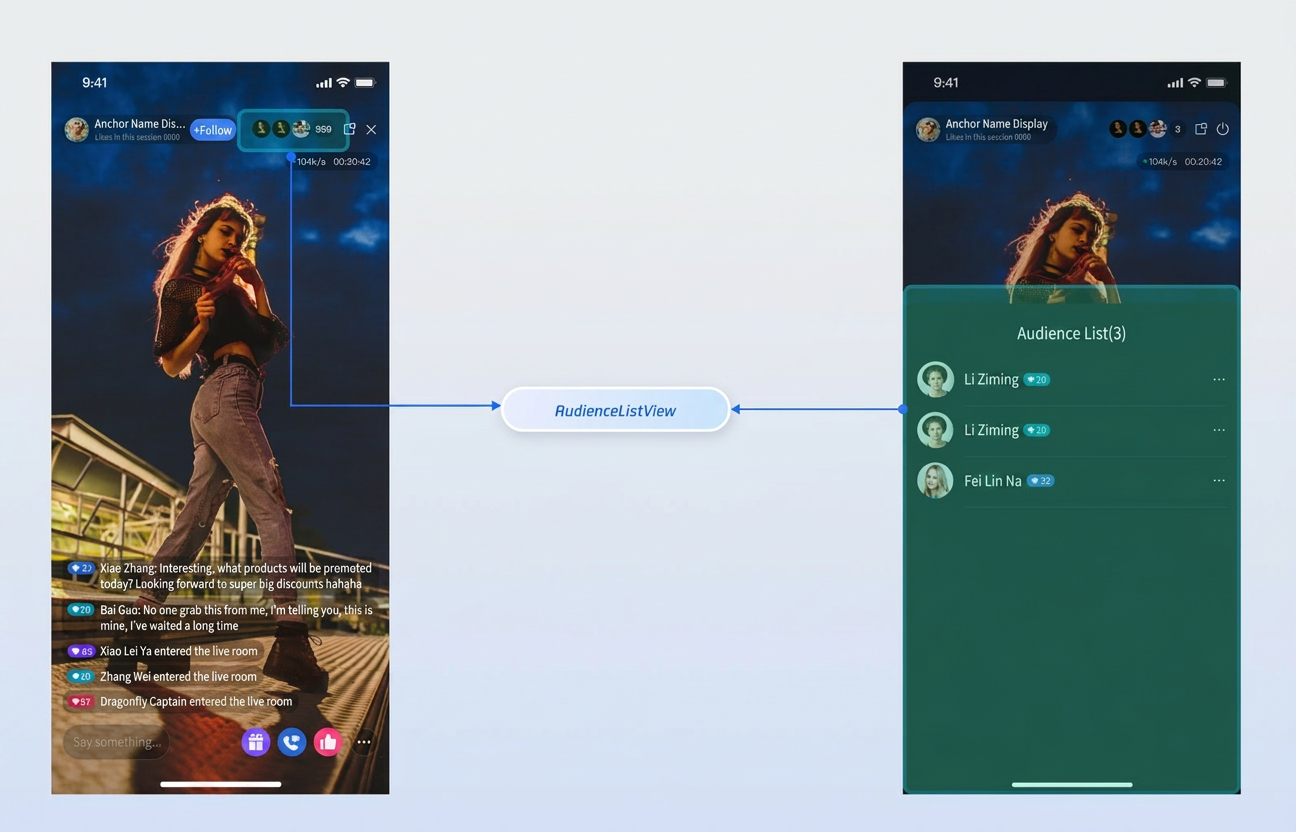
The Audience List component (AudienceListView) enables you to display the current number of online viewers and provides a popup audience list within your live streaming room. Integrate it into your UI to add essential audience interaction features to your live stream.

Demo


Quick Start

Step 1: Activate the Service

Refer to the Activate Service document to enable the Free trial or official package.

Step 2: Integrate the SDK

Refer to Preparation to integrate TUILiveKit into your project.

Step 3: Add the Audience List Component

You can create AudienceListView either programmatically or by declaring it in your XML layout.
Create programmatically:
AudienceListView audienceListView = new AudienceListView(getContext());
Declare in XML layout:
<com.trtc.uikit.livekit.component.audiencelist.AudienceListView
android:id="@+id/audience_list_view"
android:layout_width="135dp"
android:layout_height="24dp"
android:layout_gravity="end" />

Step 4: Initialize the Component

After you have successfully entered the room, call the init method on AudienceListView to bind the relevant data and events.
Note:
This step must be performed in the callback after entering the room successfully.
audienceListView.init(roomInfo);

Customizing the Component

The Audience List component provides a callback interface for audience item clicks inside the live room, allowing you to implement audience management features based on your business needs.

Component Interface

Interface
Parameter
Description
onUserItemClick
LiveUserInfo
Callback triggered when an audience list item is clicked.

Implementing Audience Management

By default, clicking an audience member in the list triggers a management popup. You can implement the onUserItemClick callback and use LiveAudienceStore to execute actions such as removing a user from the live room:
import android.os.Bundle
import androidx.appcompat.app.AlertDialog
import androidx.appcompat.app.AppCompatActivity
import com.tencent.cloud.tuikit.engine.extension.TUILiveListManager
import com.trtc.uikit.livekit.R
import com.trtc.uikit.livekit.component.audiencelist.AudienceListView
import io.trtc.tuikit.atomicxcore.api.live.LiveAudienceStore
import io.trtc.tuikit.atomicxcore.api.live.LiveUserInfo

class YourAnchorActivity : AppCompatActivity() {

override fun onCreate(savedInstanceState: Bundle?) {
super.onCreate(savedInstanceState)
setContentView(R.layout.activity_your_anchor)
// 1. Define the audience list component
var audienceListView = AudienceListView(this@YourAnchorActivity)
var liveInfo = TUILiveListManager.LiveInfo().apply {
roomId = "yourLiveId"
}
// Note: The following initialization and listener setup code must be executed in the callback after entering the room successfully.
// This is a simplified example; in actual development, please call it in the successful room entry callback.
// 2. Initialize the component with live room information
audienceListView.init(liveInfo)
// 3. Set the listener to handle user click events
audienceListView.setOnUserItemClickListener(object :
AudienceListView.OnUserItemClickListener {
override fun onUserItemClick(userInfo: LiveUserInfo) {
// 4. Handle user click events, such as kicking out of the live room
kickUserOutOfRoom(liveInfo.roomId, userInfo)
}
})
}

private fun kickUserOutOfRoom(liveId: String, userInfo: LiveUserInfo) {
AlertDialog.Builder(this@YourAnchorActivity)
.setTitle("Audience Management")
.setMessage("Do you want to kick ${userInfo.userName} out of the live room?")
.setPositiveButton("Confirm") { dialog, which ->
LiveAudienceStore.create(liveId).kickUserOutOfRoom(userInfo.userID, null)
dialog.dismiss()
}
.setNegativeButton("Cancel") { dialog, which ->
dialog.dismiss()
}
.create()
.show()
}
}

Ajuda e Suporte

Esta página foi útil?

comentários