Binding a Virtual MFA Device
다운로드
포커스 모드
폰트 크기
Scenarios
This document guides you on how to bind a virtual MFA device. Tencent Cloud's virtual MFA device supports mainstream TOTP-compliant apps such as Google Authenticator and Microsoft Authenticator.
Attention:
If you need to replace your MFA device, first unbind the current virtual MFA device by following the instructions in Unbinding a Virtual MFA Device. Then, bind a new MFA device according to the steps below.
Operation Steps
1. Log in to the Tencent Cloud console and go to the Security Settings page.
2. In the Account Protection module, locate Virtual MFA and click Bind.
3. On the Identity Verification page that pops up, complete the identity verification as prompted.
4. Go to the Bind MFA Device page. Then, download and install the Google Authenticator or Microsoft Authenticator App on your mobile device as prompted.
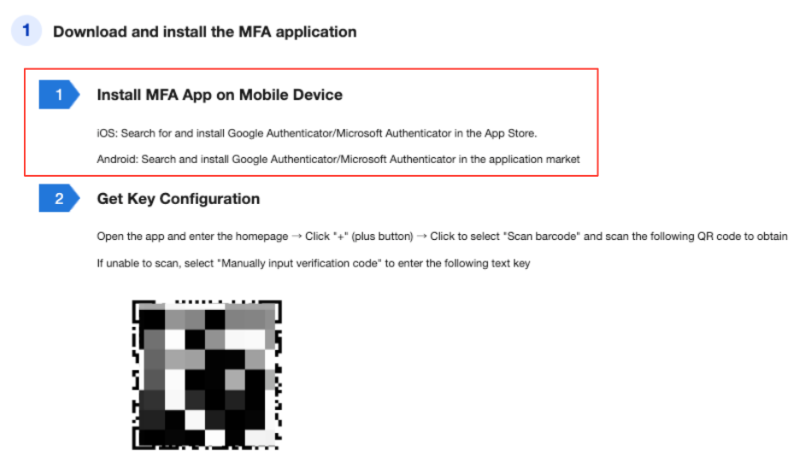
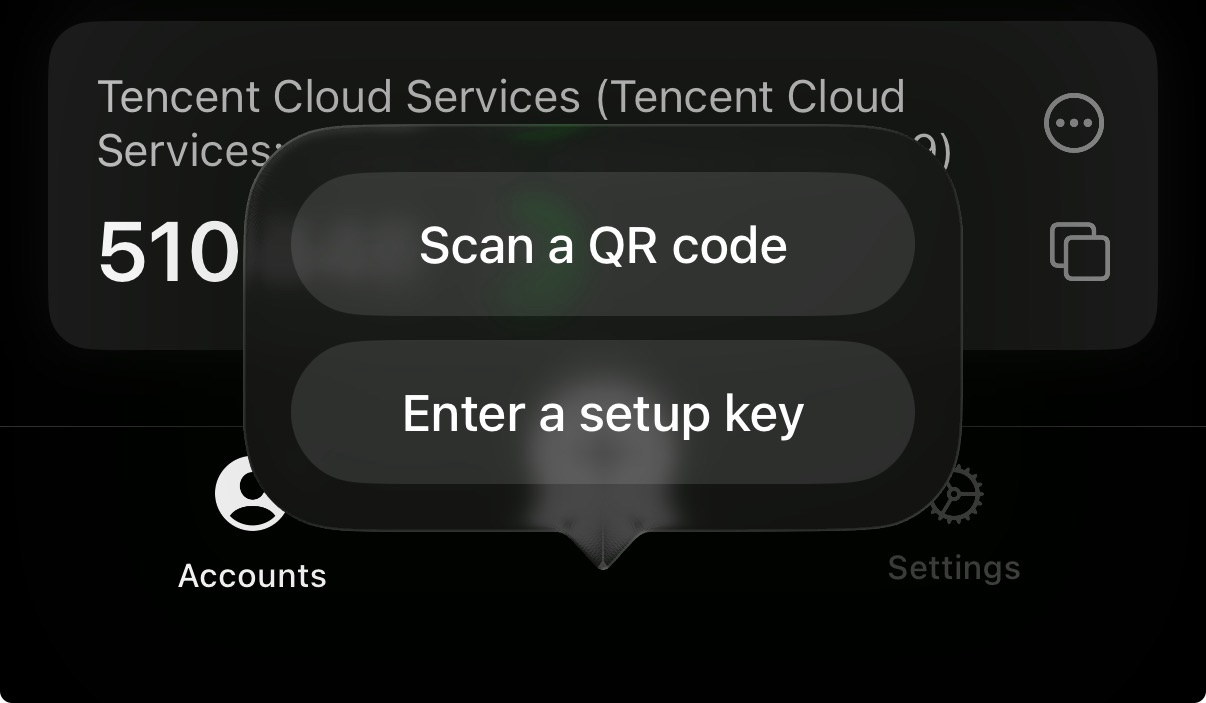
5. Open the App, click the + at the bottom, and then select Scan a QR Code. Finally, scan the QR code on the Bind MFA Device page to obtain the dynamic security code.
Attention:
This document uses binding the Google Authenticator App as an example.
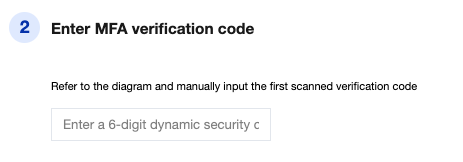
6. On the Virtual MFA Binding page, enter the 6-digit dynamic security code displayed by the app.
Note:
If the app is already bound to multiple accounts, identify the correct one and enter the dynamic code for your current account.
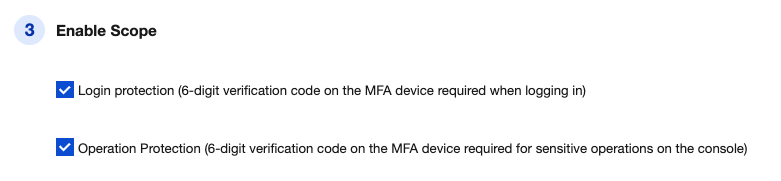
7. Set the scope of enablement: login protection/operation protection.
8. Click Submit to complete the linking of the virtual MFA device.
FAQs
피드백