Viewing and Modifying Cluster Basic Information
다운로드
포커스 모드
폰트 크기
Scenarios
After successfully creating a Pulsar cluster, you can view and adjust its basic information in the console at any time, including the cluster description, resource tag, and access address, ensuring the cluster configuration consistently meets your business requirements. This document describes how to view cluster information in the console and modify or manage these basic configurations.
Viewing Cluster Basic Information
1. Log in to the TDMQ for Apache Pulsar console.
2. In the left sidebar, choose Cluster. After you select a region, you can view the cluster list information.
The lifecycle of a TDMQ for Apache Pulsar cluster refers to the sequence of statuses the cluster goes through, from startup to release. Proper management throughout this lifecycle (from startup to deletion) ensures that applications running on the cluster deliver services efficiently and cost-effectively. A cluster has the following statuses.
Status | Status Property | Status Description |
Creating | Intermediate status | The status after a cluster is created but before it enters the running status. |
Running (Healthy/Alarm) | Steady status | The status in which the cluster is running normally, with node health, disk utilization, and other metrics within normal ranges. |
Migrating | Intermediate status | The status during which data migration occurs as the cluster configuration is being adjusted. |
Deleting | Intermediate status | Delete a cluster via the console or API. |
Isolated | Intermediate status | The status in which the cluster has been isolated due to overdue payment. During this 7-day isolation period, the cluster cannot produce or consume messages, and any stored or unconsumed messages will not be retained. However, cluster configurations remain intact and are not deleted. |
Creation Failed | Intermediate status | A cluster purchase is initiated via the console or API. The deduction is successful, but the cluster allocation fails. If you encounter this situation, contact online customer service for assistance. |
Deletion Failed | Steady status | The status in which the cluster has been manually deleted or has remained unpaid for 7 days after expiration, and TDMQ for Apache Pulsar failed to release the resources. |
3. Click the ID of the target cluster. On the Basic Information page, you can view the following information:
Cluster Statistics: displays metrics such as average message size, average production/consumption rate, number of produced messages, and cumulative storage duration within a specific time range.
Metric | Description |
Real-Time Production Speed | The number of messages produced to the cluster per second at the current time. |
Avg Message Size | The average size of message data within the selected time range, including both the message header and body. |
Avg Production Speed | The average rate of messages produced to the cluster within the selected time range. |
Avg Consumption Speed | The average rate at which the cluster pushes messages to clients within the selected time range. |
Total Produced Messages | The number of messages produced to the cluster within the selected time range. |
Storage Use | The actual storage capacity consumed by message data at the end point of the selected time range. This value only changes with the end point of the time range. |
Basic cluster information: displays details such as cluster name/ID, version, access address, region, cluster specification, and billing mode.
Cluster data statistics: displays the average message size, average production/consumption rate, number of produced messages, and cumulative storage duration within a specific time range.
Note
Clusters running version 2.6.x do not currently support statistics collection.
Metric | Description |
Avg Message Size | The average size of message data within the selected time range, including both the message header and body. |
Production Speed | The average rate of messages produced to the cluster within the selected time range. |
Consumption Speed (messages/s) | The average rate at which the cluster pushes messages to clients within the selected time range. |
Produced Messages | The number of messages produced to the cluster within the selected time range. |
Actual Storage Usage | The actual storage capacity consumed by message data at the end point of the selected time range. This value only changes with the end point of the time range. |
Basic cluster information: cluster name/ID, version, access address (available only for clusters running version 2.7.1 or later), region, billing mode, creation time, description, resource tags.
Cluster configuration:
Configuring Clusters | Configuration Description |
Max Production TPS per Topic Partition | The maximum number of messages that can be produced per second in a topic partition. |
Max Consumption TPS per Topic Partition | The maximum number of messages that can be pushed per second from a topic partition to clients. |
Max Production Bandwidth per Topic Partition | The maximum size of messages that can be produced per second in a topic partition. |
Max Consumption Bandwidth per Topic Partition | The maximum size of messages that can be pushed per second from a topic partition to clients. |
Max Namespaces | The maximum number of namespaces that can be created within a single cluster. |
Max Topics | The maximum number of topics that can be created within a single namespace. |
Max Message Storage | The maximum disk space that can be consumed by message backlogs. Exceeding this limit will prohibit the production of new messages. Under normal circumstances, message backlogs should remain small. If this limit is reached, check whether the messages are being consumed properly. |
Max Retention Period | The longest allowable message retention duration. At the namespace level, you can configure a retention period shorter than this limit. |
Max Message Delay | The maximum message consumption latency. |
Modifying the Basic Cluster Information
On the Basic Information page of the cluster, you can modify the following parameters.
Parameter | Modification Method |
Name | Click the Edit button next to Name, enter the cluster name, and click Submit. The name must be 3 to 64 characters long, and can contain only letters, digits, hyphens (-), and underscores (_). |
Description | Click the Edit button next to Description, enter the description, and click Submit. The cluster description cannot exceed 128 characters. |
Resource Tag | Click the Edit button next to "Resource Tags" to bind or modify Tags for the cluster. For detailed usage of Tags, see Tag Management. |
Version | Click the Edit button next to Version to upgrade the instance minor version to the latest. For detailed instructions on minor version upgrades, see Upgrading the Minor Engine Version. |
Deletion Protection Status | Click the Edit button next to Deletion Protection Status to enable or disable cluster deletion protection. Once enabled, instances cannot be deleted through the console or an API. For details, see Configuring Deletion Protection. |
Change AZ | Click the Edit button next to "AZ" to change the AZ deployment of the current cluster. Switching between a single AZ and multiple AZs is supported. 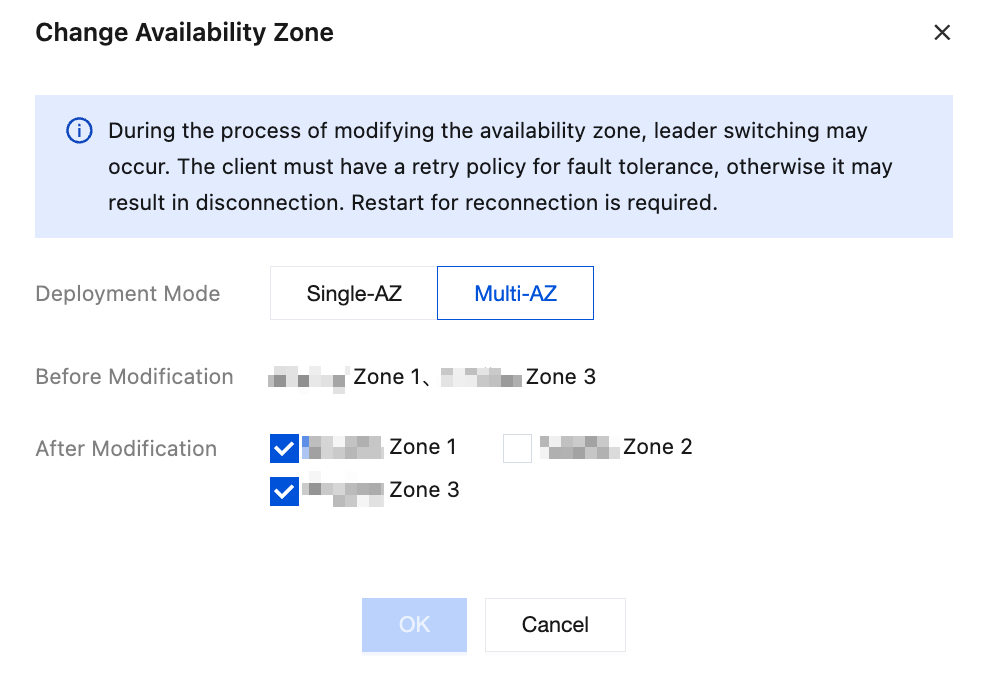 Note: During an AZ change, clients may experience brief disconnections and automatic reconnections, which typically do not affect business operations. It is recommended to perform the change operation during off-peak hours and ensure that the automatic reconnection mechanism is configured on the client side. Single-AZ deployment does not provide cross-AZ disaster recovery capability. When an AZ-level failure occurs, the SLA cannot be guaranteed. It is recommended to select Multiple AZs deployment to achieve higher service continuity and disaster recovery assurance. Go SDK users are advised to use v0.13.1 or a later version to ensure optimal stability. If your current version is earlier than v0.9.0, upgrade the SDK to v0.13.1 first before proceeding. Users with v0.9.0 or later can perform the change directly. For details, refer to Go SDK related content. |
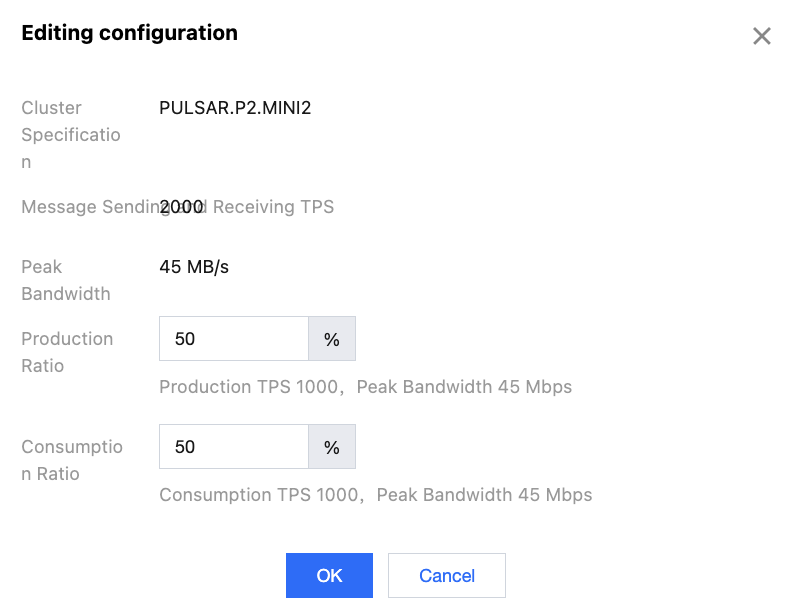
Configuring Sending/Receiving TPS Ratio for a Pro Cluster
In the Cluster Configuration module, you can click Edit in the upper-right corner to configure the TPS/bandwidth ratio for message production and consumption. Cluster specifications are allocated based on this ratio.
피드백