Adjust Cluster Configuration
다운로드
포커스 모드
폰트 크기
Scenarios
If the current cluster specifications do not meet your business requirements, you can upgrade or downgrade your cluster and storage specifications on the console.
Note:
Currently, only pro clusters support specification upgrades/downgrades. Virtual clusters do not currently support this feature. The upgrade/downgrade process is theoretically imperceptible to business operations. However, clients may experience disconnections and reconnections when the server rebalances Topic traffic.
Cluster specification adjustments are limited by the physical resource inventory of the current AZ. If resources in the current AZ are sold out, the specification adjustment change cannot be submitted. You need to first migrate the cluster to an AZ with sufficient resources, and then initiate the specification adjustment again.
Upgrading/downgrading a Pulsar cluster involves data migration. The time required depends on the amount of data in the current cluster and is typically completed within 30 minutes. You can also click the information icon next to the specification adjustment option to view the adjustment progress in real time.
Pulsar employs a storage-compute separation architecture. When cluster specifications are adjusted (upgraded/downgraded), the number of compute-layer Broker nodes is scaled horizontally. Because the monitoring collection component is bound to Broker nodes, the number of monitoring instance nodes changes synchronously and proportionally with the number of Broker nodes.
Operation Steps
Scaling Up a Cluster
1. Log in to the TDMQ for Apache Pulsar console.
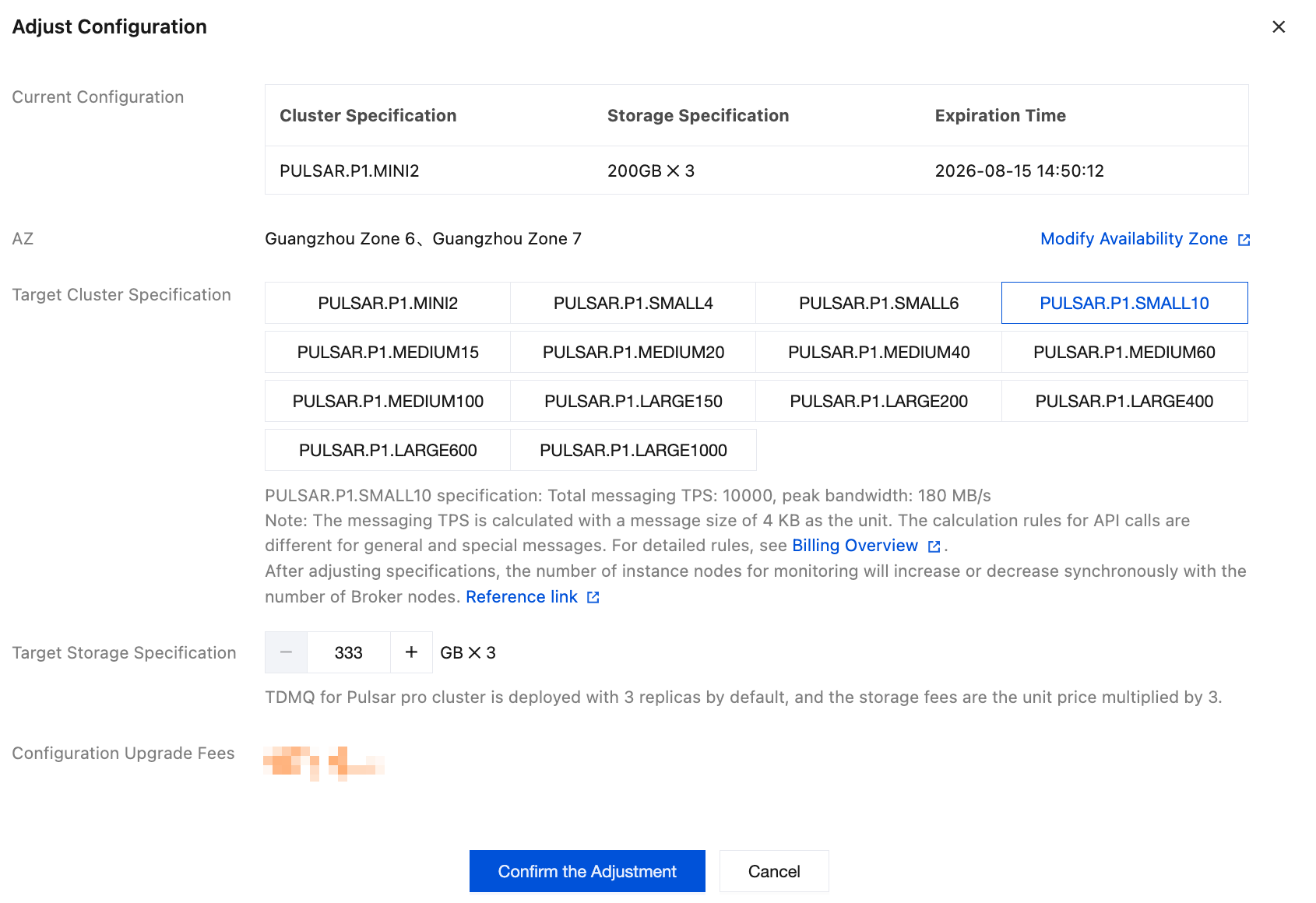
2. In the left sidebar, choose pulsar > Cluster. On the cluster management list page, locate the target cluster, and then choose More > Upgrade in the Actions column.
3. After selecting the target cluster specifications, click Confirm the Adjustment.
Scaling Down a Cluster
1. Log in to the TDMQ for Apache Pulsar console.
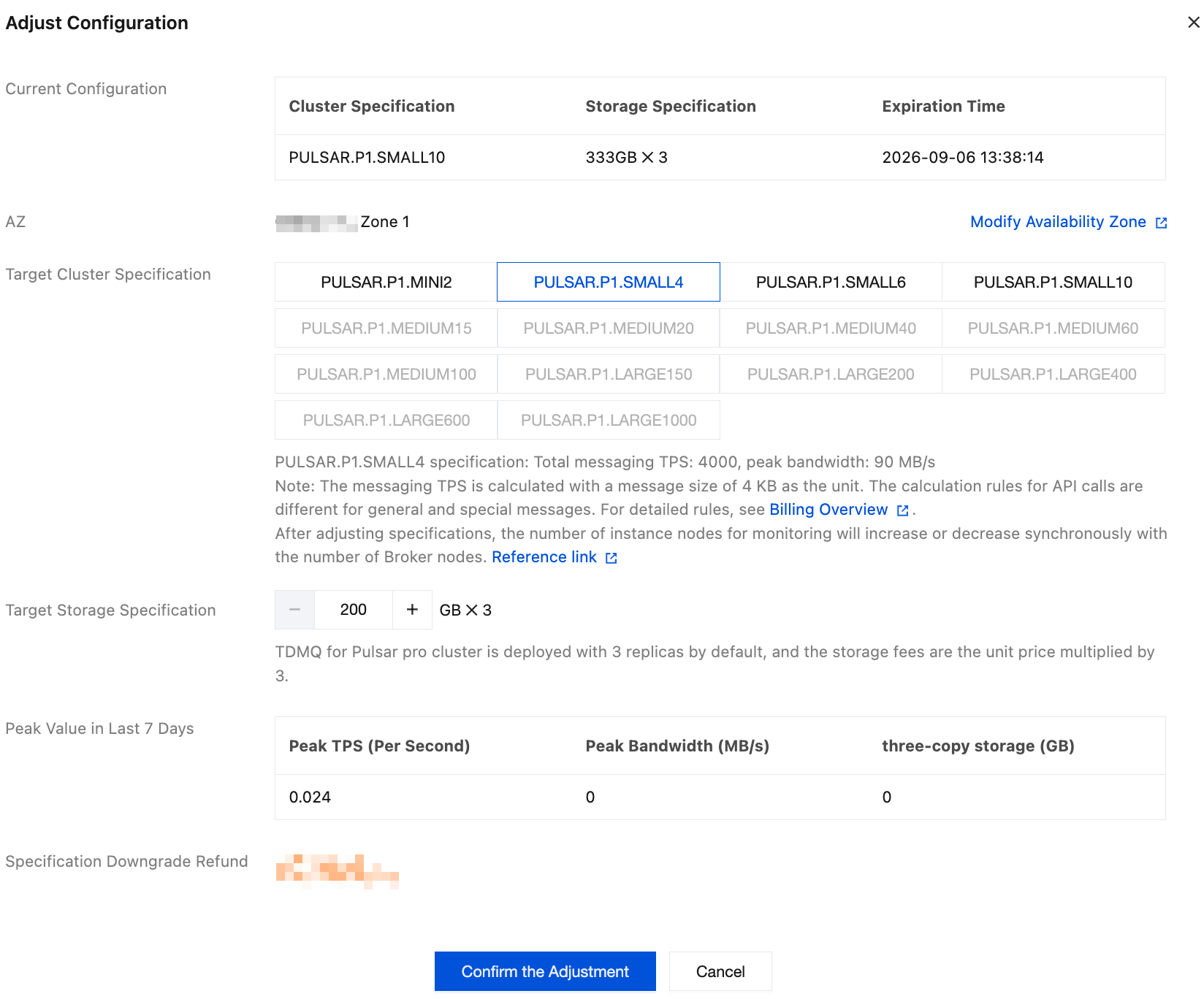
2. In the left sidebar, choose pulsar > Cluster. On the cluster management list page, locate the target cluster, and then choose More > Downgrade in the Actions column.
3. After selecting the target cluster specifications, click Confirm the Adjustment.
피드백