Unsettled Product Usage Tracking
Unduh
Mode fokus
Ukuran font
Background
To address the current issue where nsettled product costs are difficult to track effectively, and cost details are only available after the billing is generated in the following month, resulting in a lag, the Unsettled Product Usage Tracking feature has been launched. For supported products (see the console for details), you can calculate the current month's cost based on the product's usage for that month. This feature helps you understand the usage and cost of unsettled products in advance, allowing you to adjust business decisions and prepare funds in a timely manner, effectively avoiding service suspension and involuntary overdue payment risks caused by insufficient fund preparation.
Feature Introduction
1. Log in to the Billing Center console.
2. In the left sidebar, choose Cost Management > Unsettled Product Usage Tracking to go to the Unsettled Product Usage Tracking page.
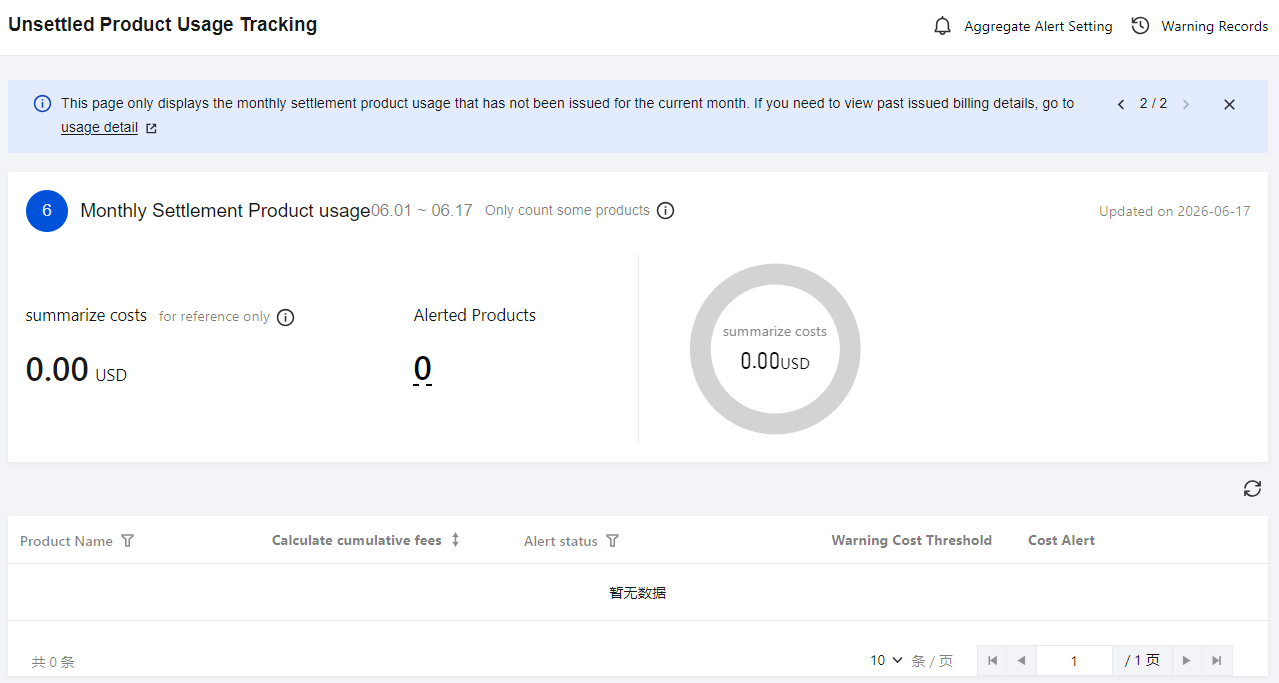
Statistical Period: The current statistical time range is displayed in the upper-left corner of the page, which is from the 1st day of the month to T-1.
Summarize Costs : The total cost of unsettled products calculated through estimation.
Alerted Products: This displays the number of products that have exceeded the preset alert threshold and for which alerts have been sent.
Visualization: Visual charts are used to further display the total cost, as well as the product composition, amount, and amount proportion of the TOP costs.
Product List: The product list below displays details of all products with estimated costs, including Product Name, Calculate cumulative fees, Alert Status, Warning Cost Threshold, and Cost Alert.
Search: This feature allows you to search by Product Name and view the estimated cost and alert details.
Filter: This feature allows you to filter by Product Name and Alert Status to view the estimated cost and alert details.
Note:
The usage and cost data provided by the Unsettled Product Usage Tracking feature are estimated data for reference only and cannot be used for reconciliation purposes. If you need to perform reconciliation, please go to Billing to view the details.
Estimated data is no longer provided on the 1st day of each month. Instead, data from the 1st day to the second-to-last day of the previous month is displayed. For example: On April 30, data from April 1 - April 29 is displayed. On May -1, data from April 1 - April 29 is displayed. On May 2, the cost summary for May 1 - May 1 is displayed.
Alert Settings
Note:
When the estimated cost exceeds the alert threshold you set, the system sends a message alert. For a single product within a month, the alert is sent only once (this also applies to aggregated alerts). If you update to a higher threshold and the cost exceeds it, the system can send another alert (each threshold triggers an alert only once).
Single-Product Alert Settings
1. In the product list at the bottom of the Unsettled Product Usage Tracking page, locate the product for which you need to set an alert, and click the button under the Cost Alert column.

2. In the pop-up input window, you can customize the alert threshold as needed. After setting it, click Save.

3. For a configured alert threshold, you can click the Cancel button or click Modify to change the threshold.
Alert Status Description
The Alert Status column displays one of three statuses based on the actual situation: Not Set, Not Alerted, or Alerted.
Not Set: Indicates that the cost alert has not been set yet.
Not Alerted: Indicates that a cost alert has been set, but the current estimated cost has not reached the configured threshold and no alert has been sent.
Alerted: Indicates that a cost alert has been set, the estimated cost has exceeded the threshold, and an alert has been sent. Hover your mouse over the Alerted alert to display the specific time the alert was sent.
Aggregate Alert Setting
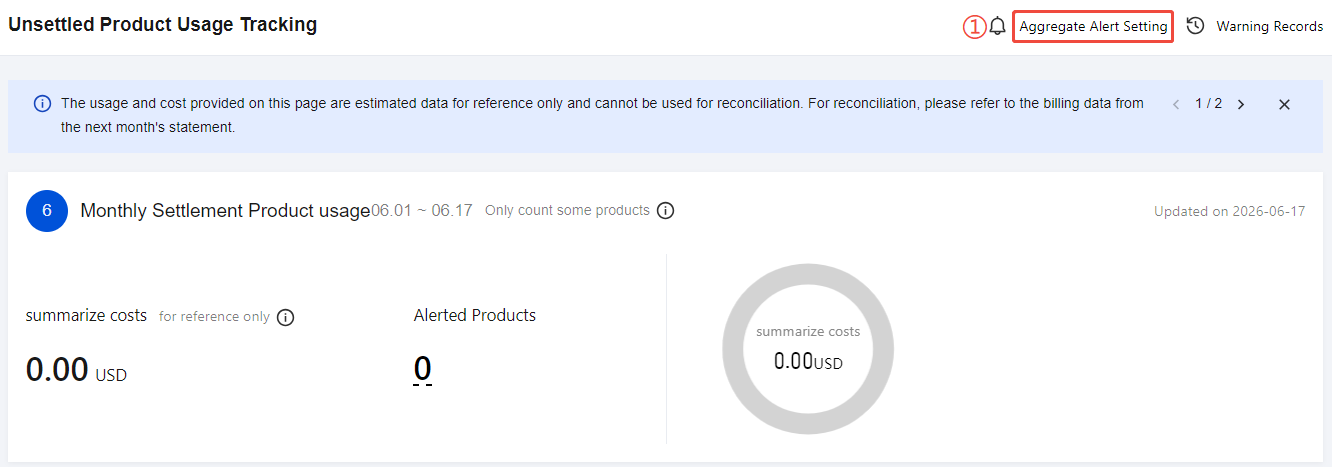
1. In the upper-right corner of the Unsettled Product Usage Tracking page, click Aggregate Alert Setting.
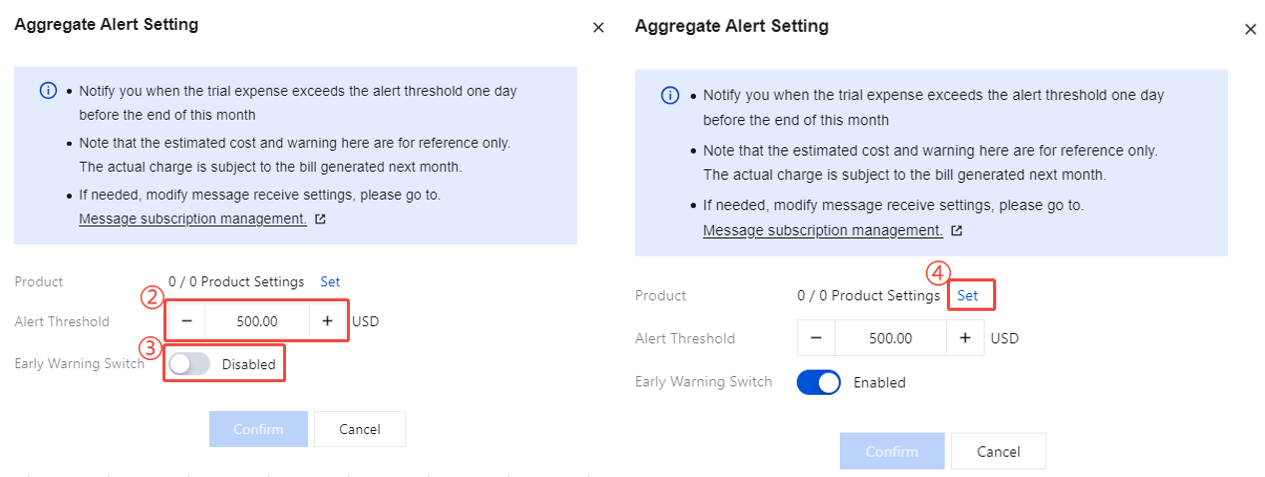
2. In the pop-up Aggregate Alert Setting window, set the alert threshold as needed and turn on the alert switch (the alert switch is disabled by default), then click Confirm.
The Aggregated Alert Settings select All Products by default.
After clicking Set, you can deselect products, keep only the required ones, and then set the alert.
Note:
The Aggregated Alert Settings support only one alert task rule.
Viewing Warning Records
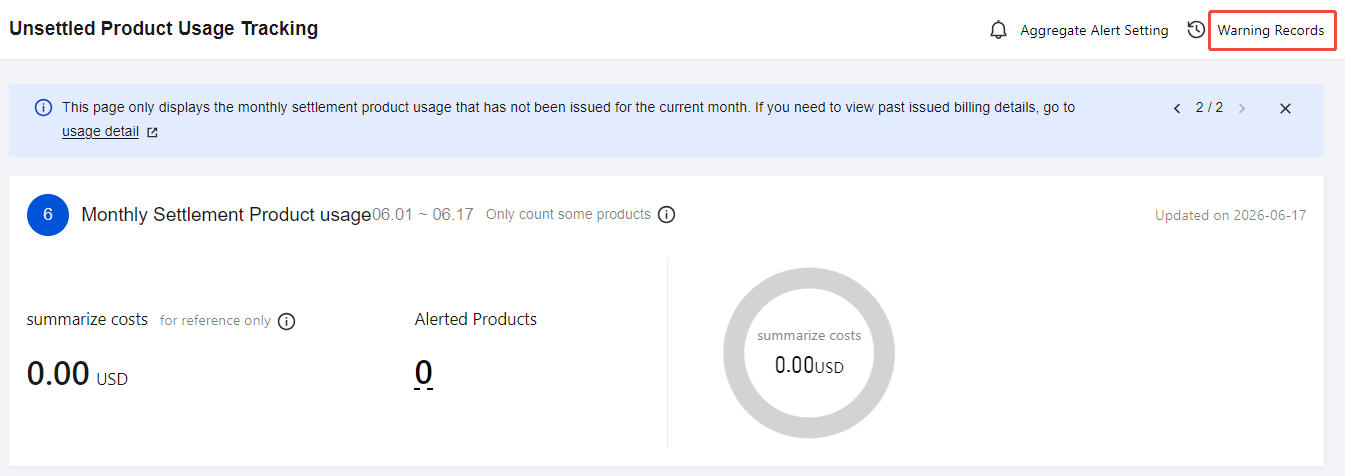
In the upper-right corner of the Unsettled Product Usage Tracking page, click Warning Records to view the alerts that have been sent. The records include the Warning Product Name, Warning Time, Alert Threshold, and Aggregated Amount.
Message Subscription
If you need to add/modify alert message recipients, follow the steps below:
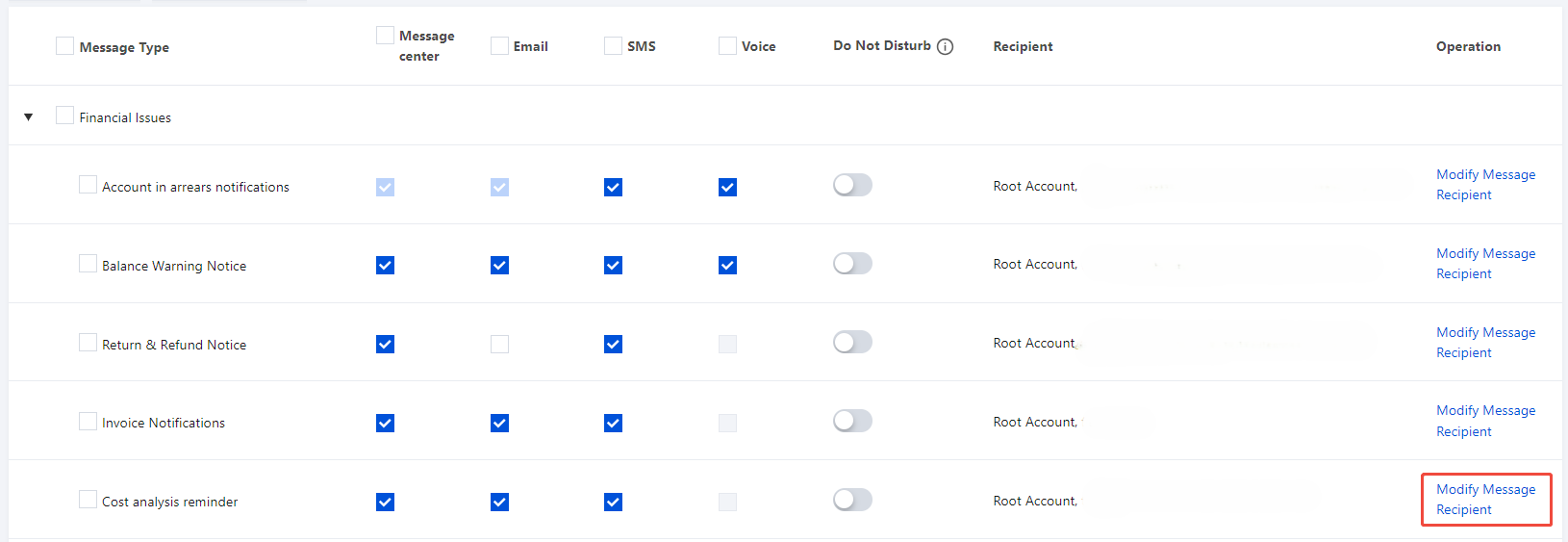
1. Go to Message Center > Message Subscription > Financial Messages, locate Cost Analysis Reminder, and click Modify Message Recipient.
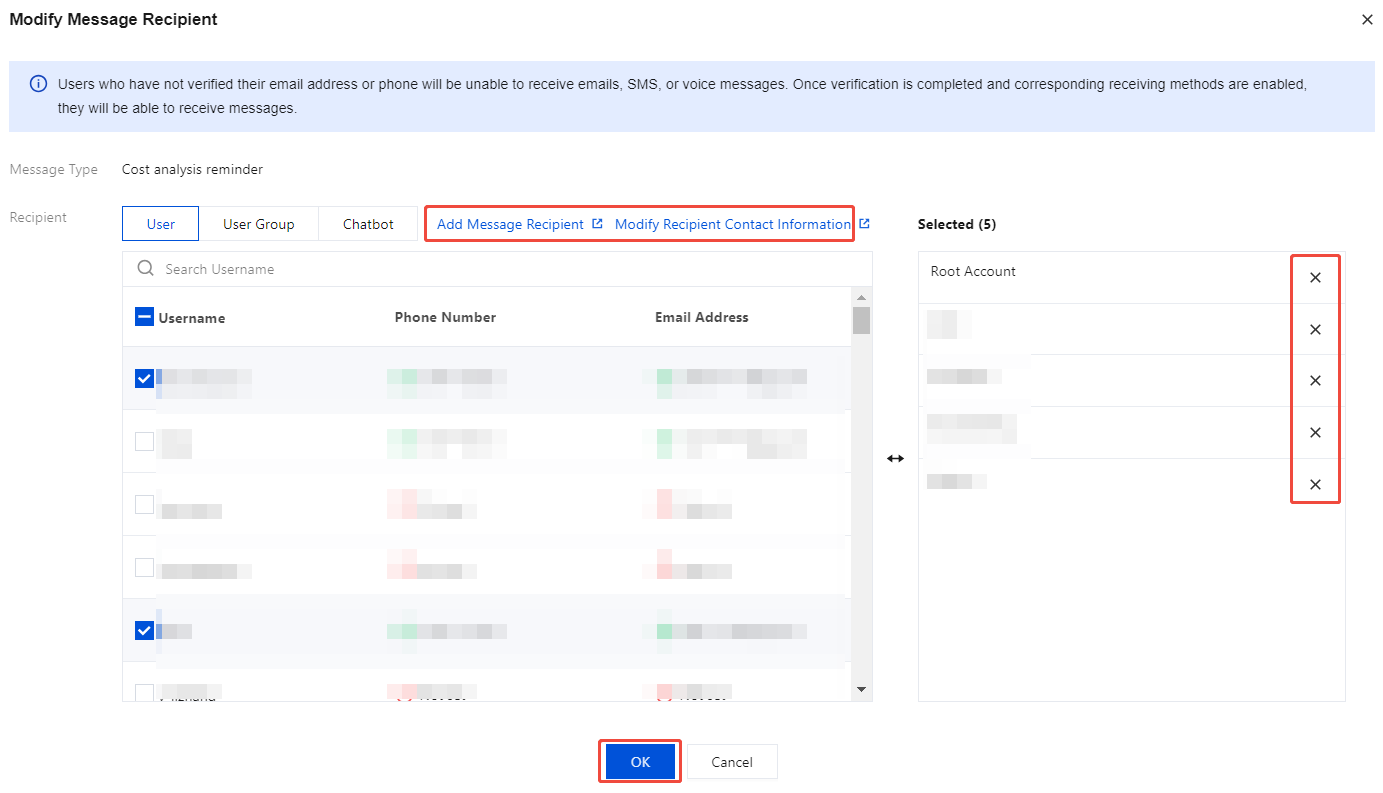
2. On the Modify Message Recipient page, click Add Message Recipient/Modify Recipient Contact , and Recipient Contact Information . Follow the on-page instructions, then click OK to complete the setup. For more information about message subscriptions, see Message Subscription Management.
Bantuan dan Dukungan
Apakah halaman ini membantu?
Anda juga dapat Menghubungi Penjualan atau Mengirimkan Tiket untuk meminta bantuan.
masukan