Creating Managed Rules
Download
Mode fokus
Ukuran font
Overview
This document describes how to create a managed rule in the Config console for auditing and evaluating resources.
Directions
1. Log in to the Config console and click Compliance Audit > Rule in the left sidebar.
2. On the Rule page, select the application scope of the rule (available options: account, global account group, or custom account group).
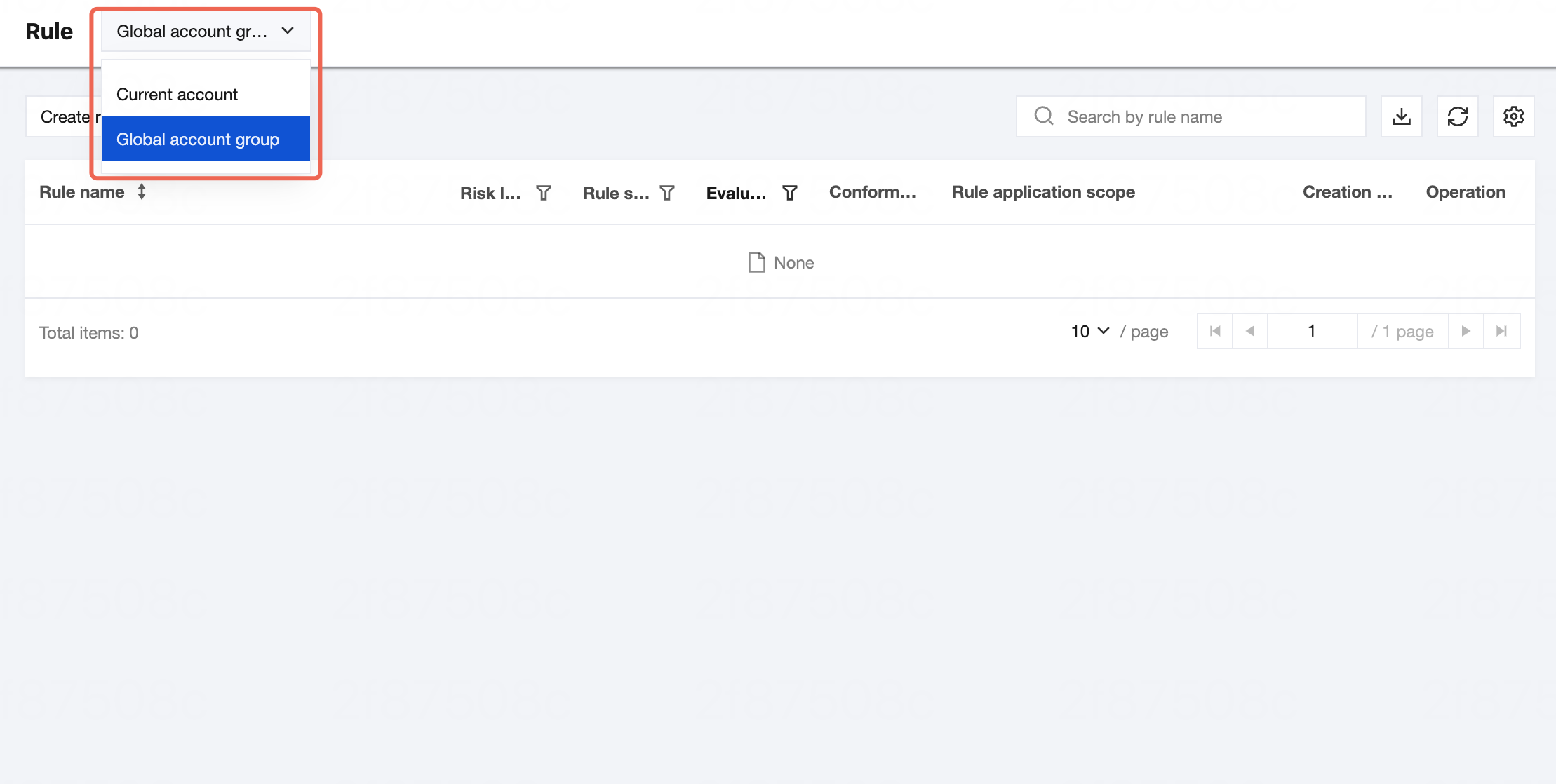
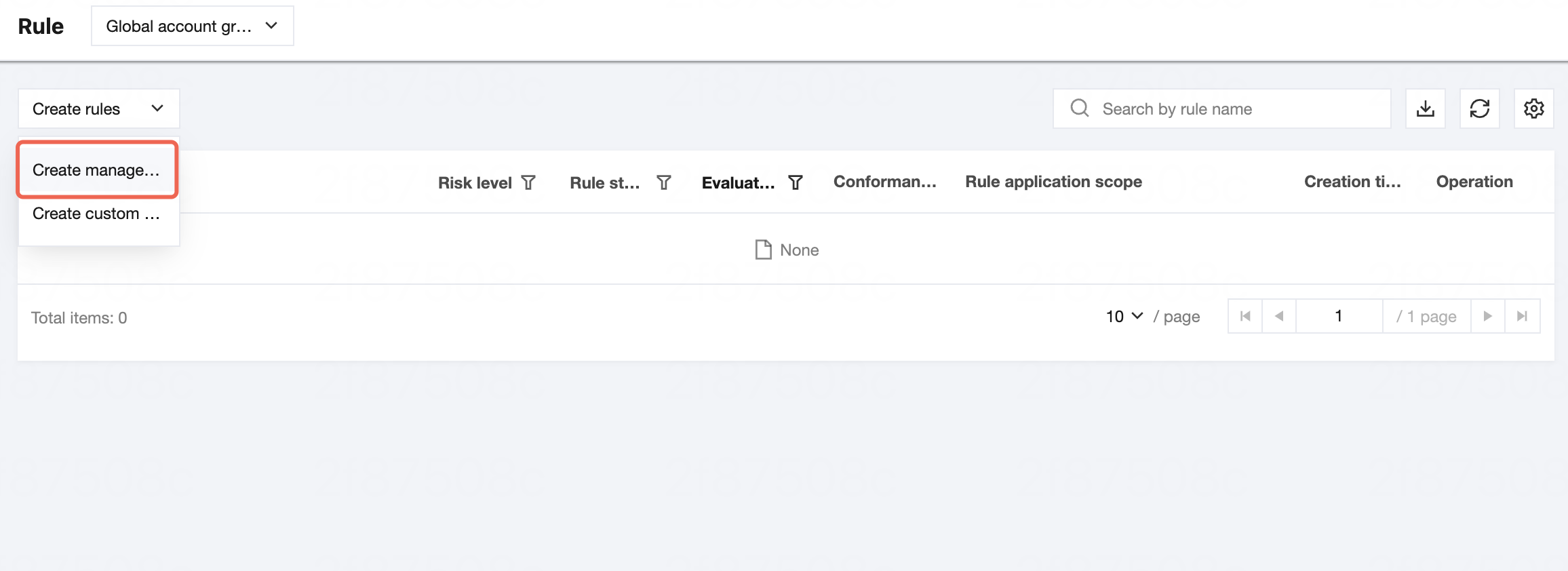
3. After confirming the rule application scope, click Create managed rule。
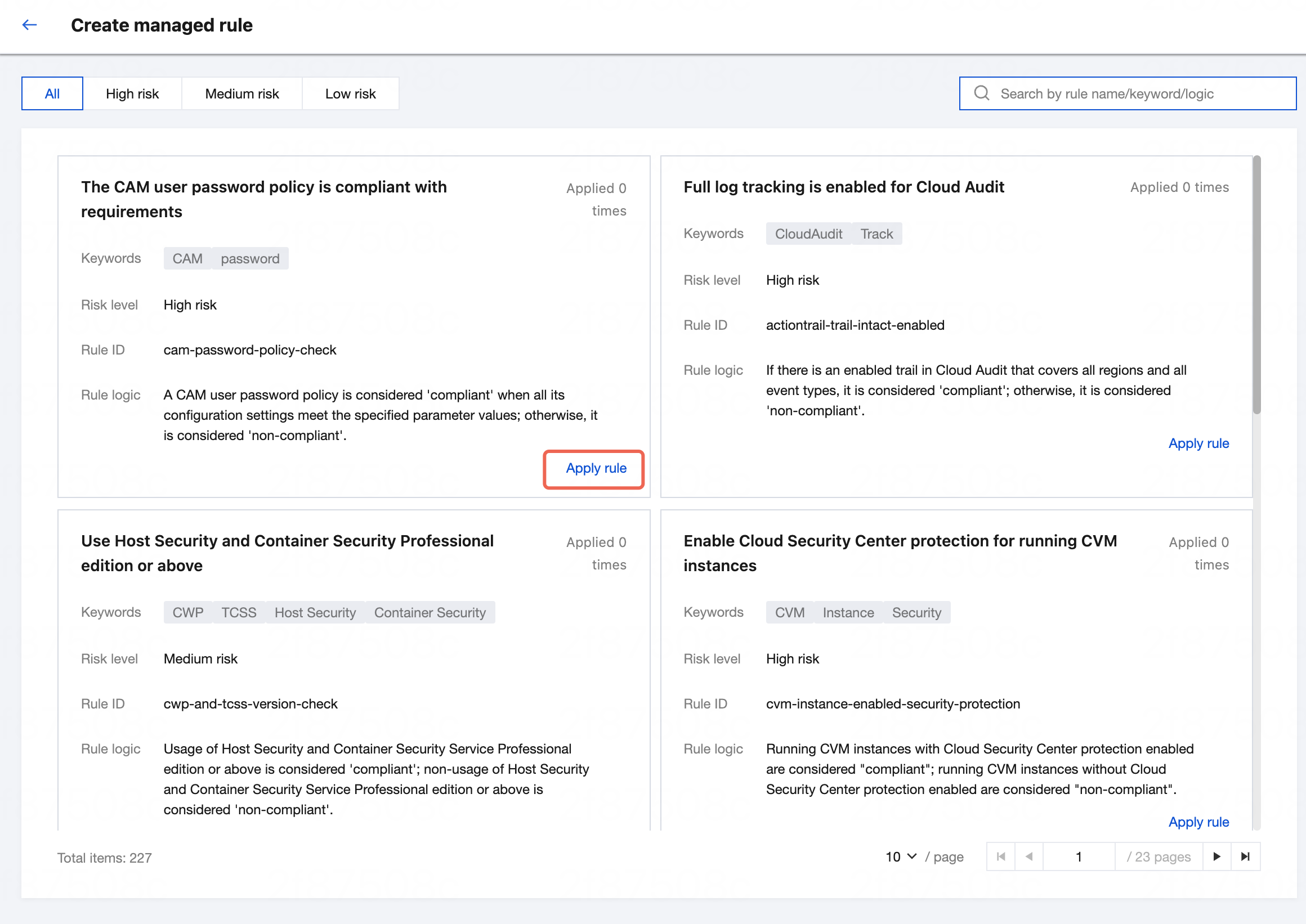
4. On the Create managed rule page, select the managed rule that needs to be applied. For detailed information about supported managed rules, see Supported Managed Rules.
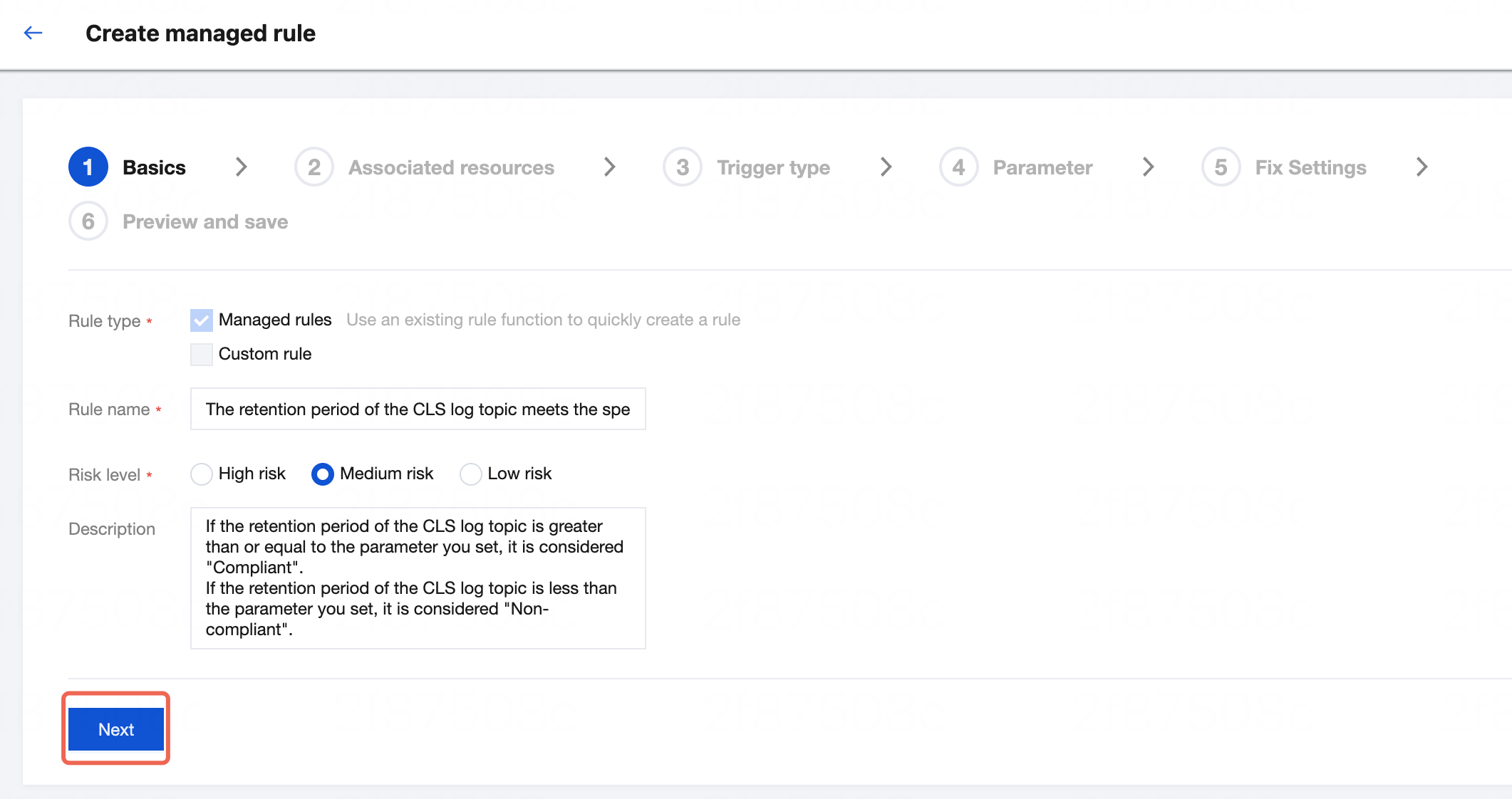
5. On the Basics page, enter the rule name, risk level, and description, and then click Next.
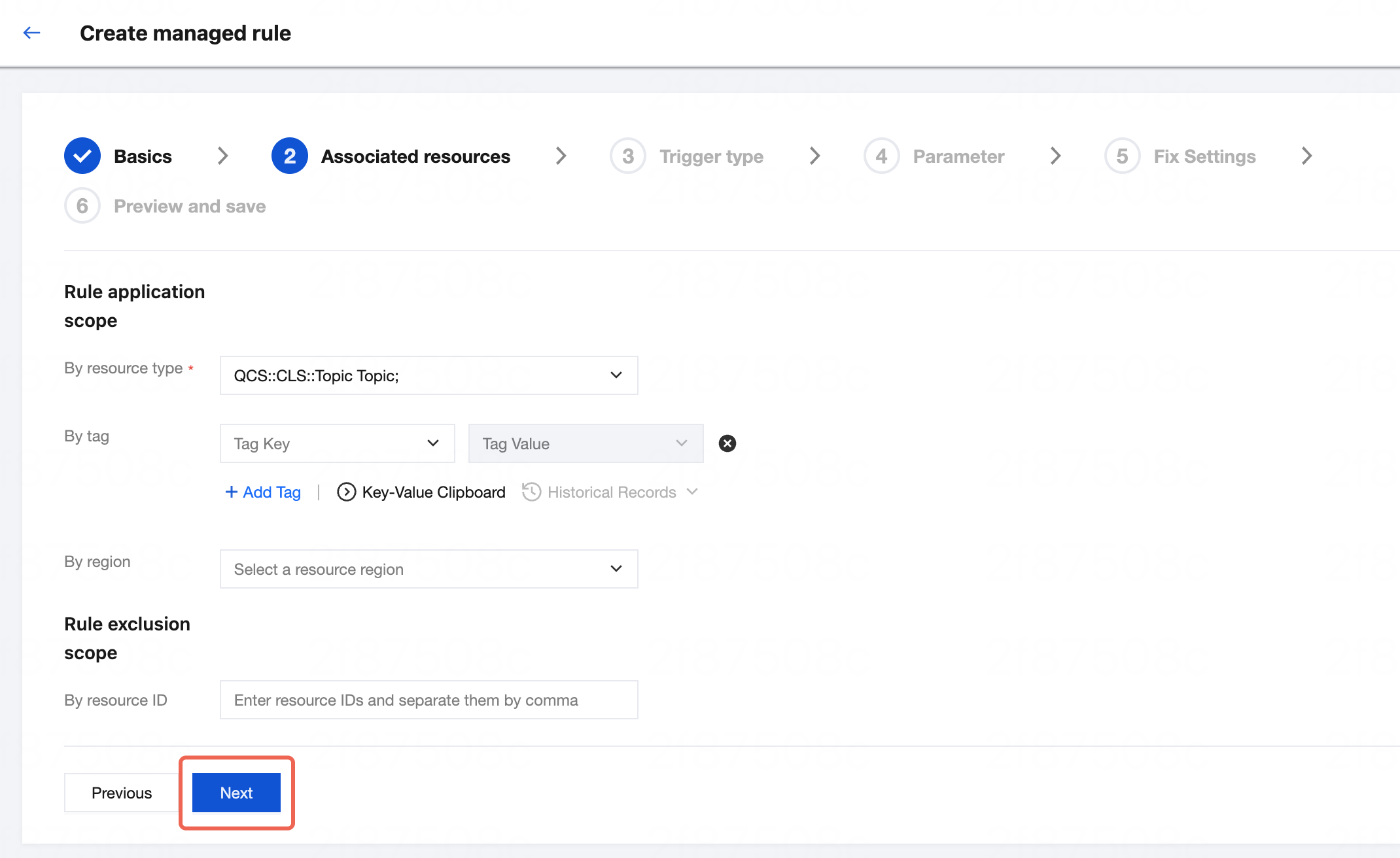
6. On the Associated resources page, select the resources you need to audit. You can also specify the rule application scope by tag or region as needed, or exclude resources by resource ID. Then, click Next.
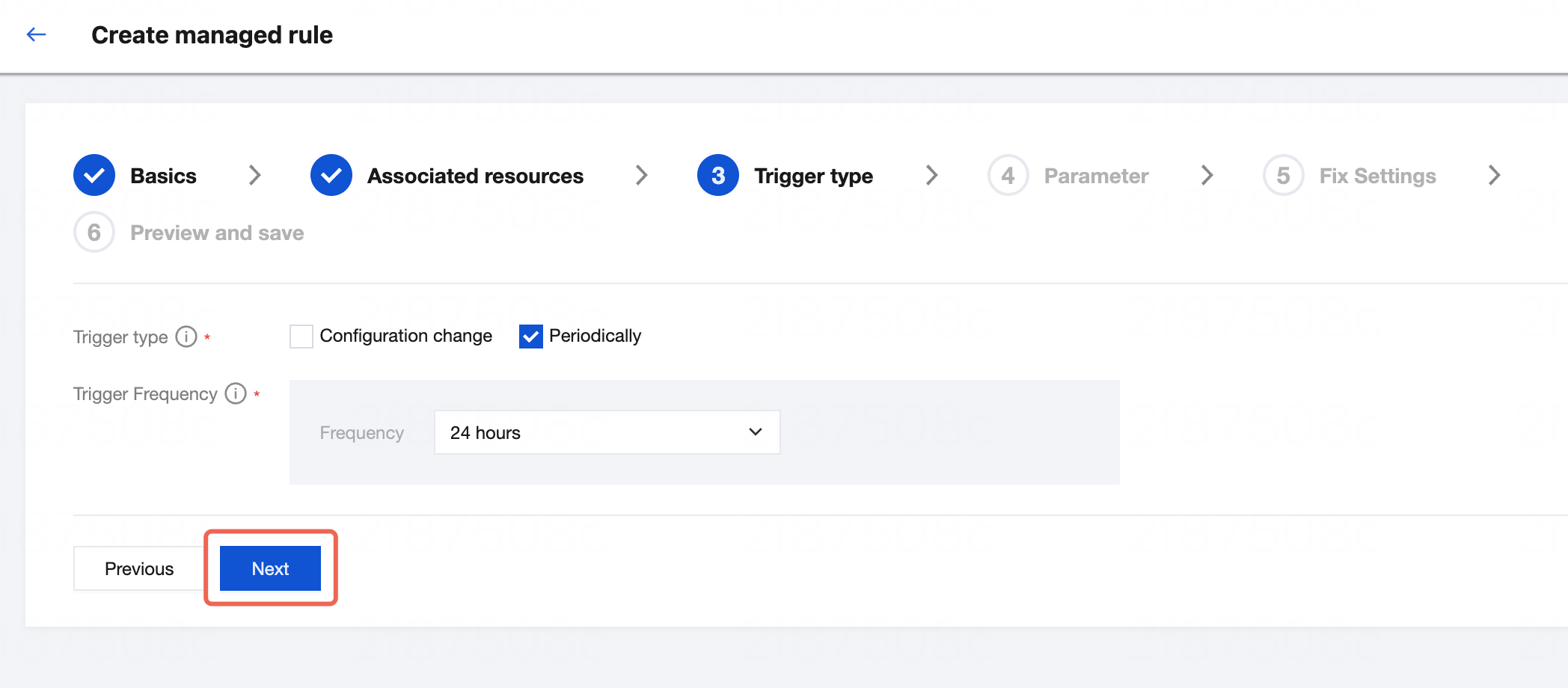
7. On the Trigger type page, select the rule trigger type and trigger frequency as needed, and then click Next.
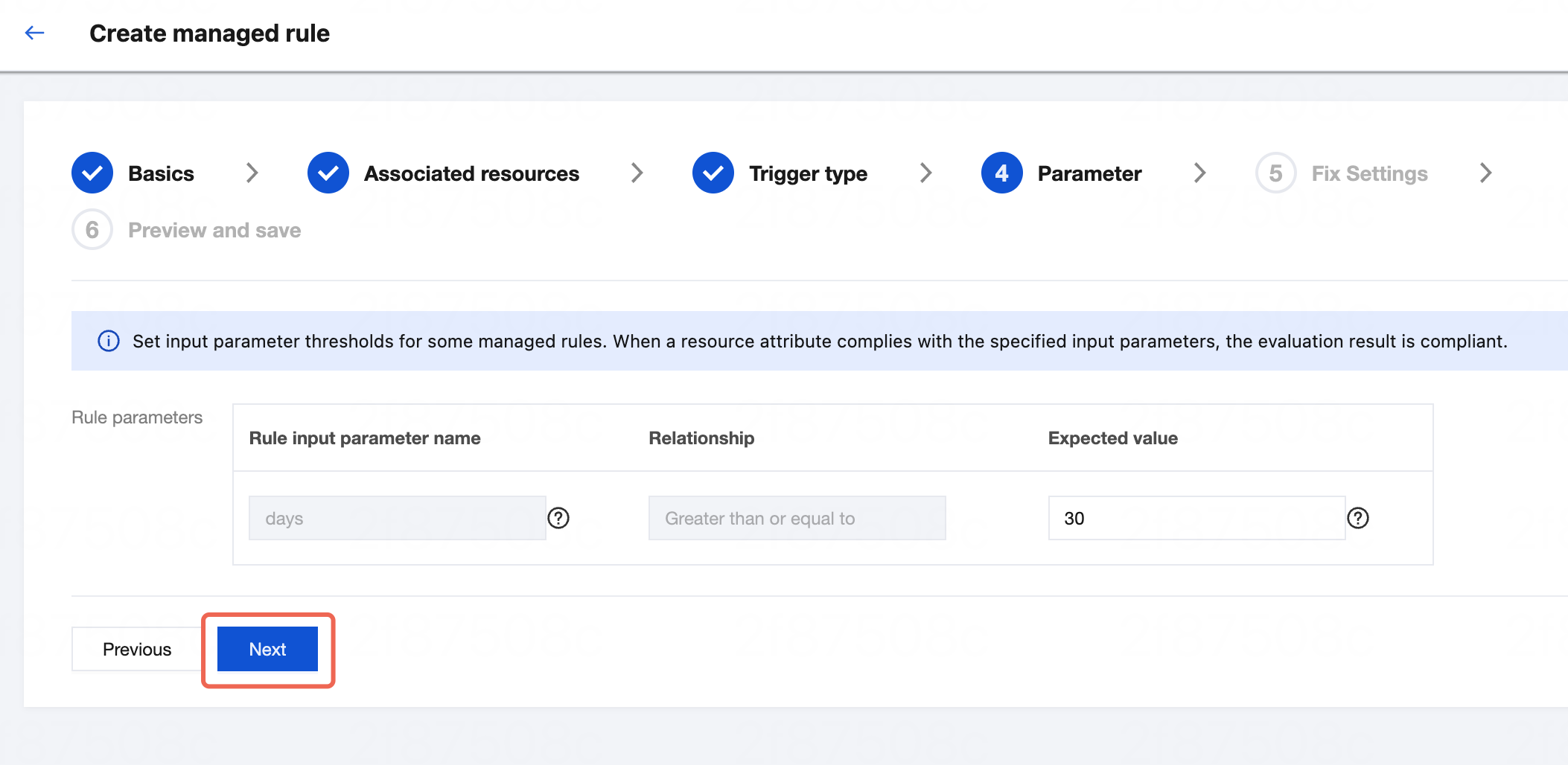
8. On the Parameter page, set the expected values for the rule parameter, and then click Next.
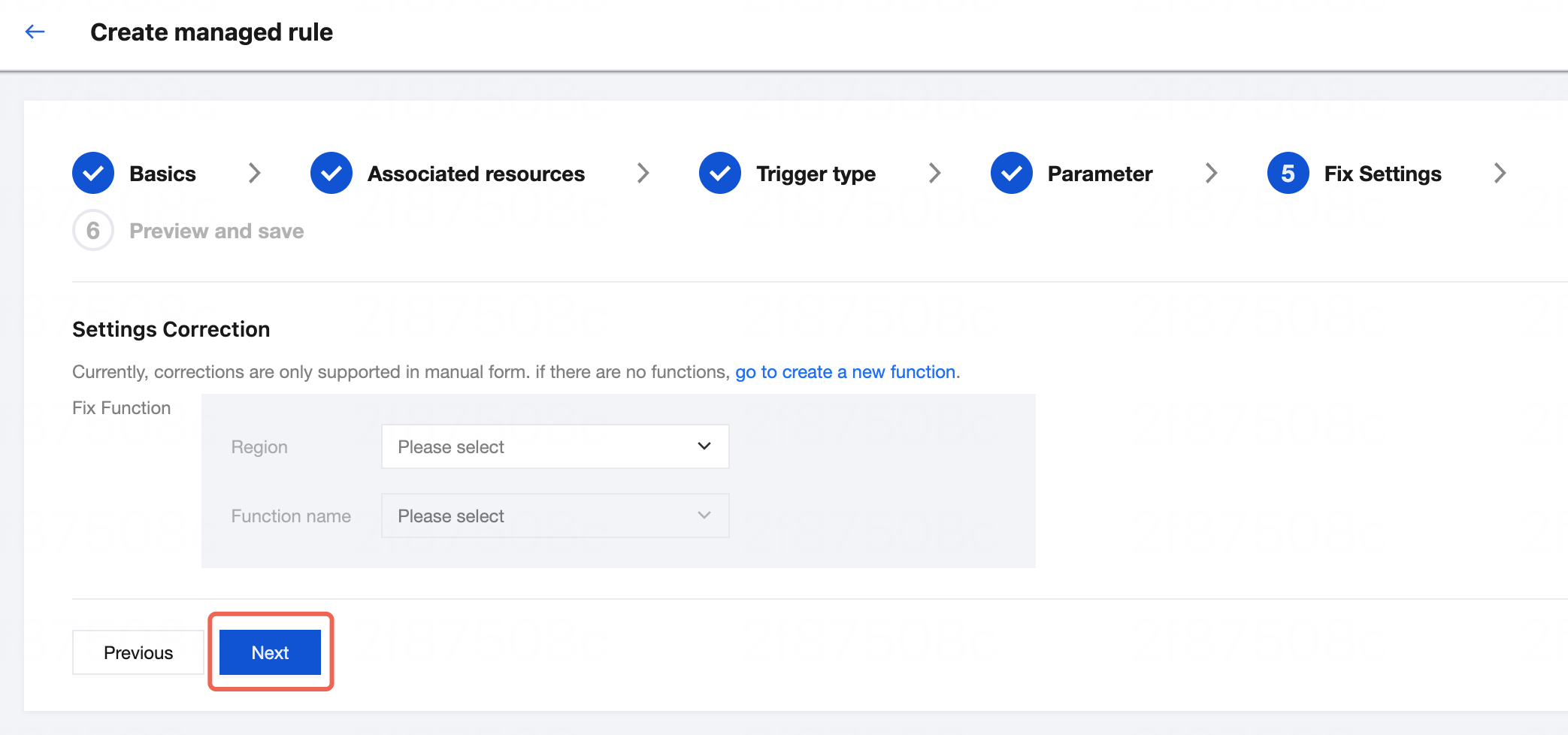
9. On the Fix Settings page, select the region and function name for the fix function, then click Next. If no fix function exists, you can click go to create a new function and perform corresponding actions.
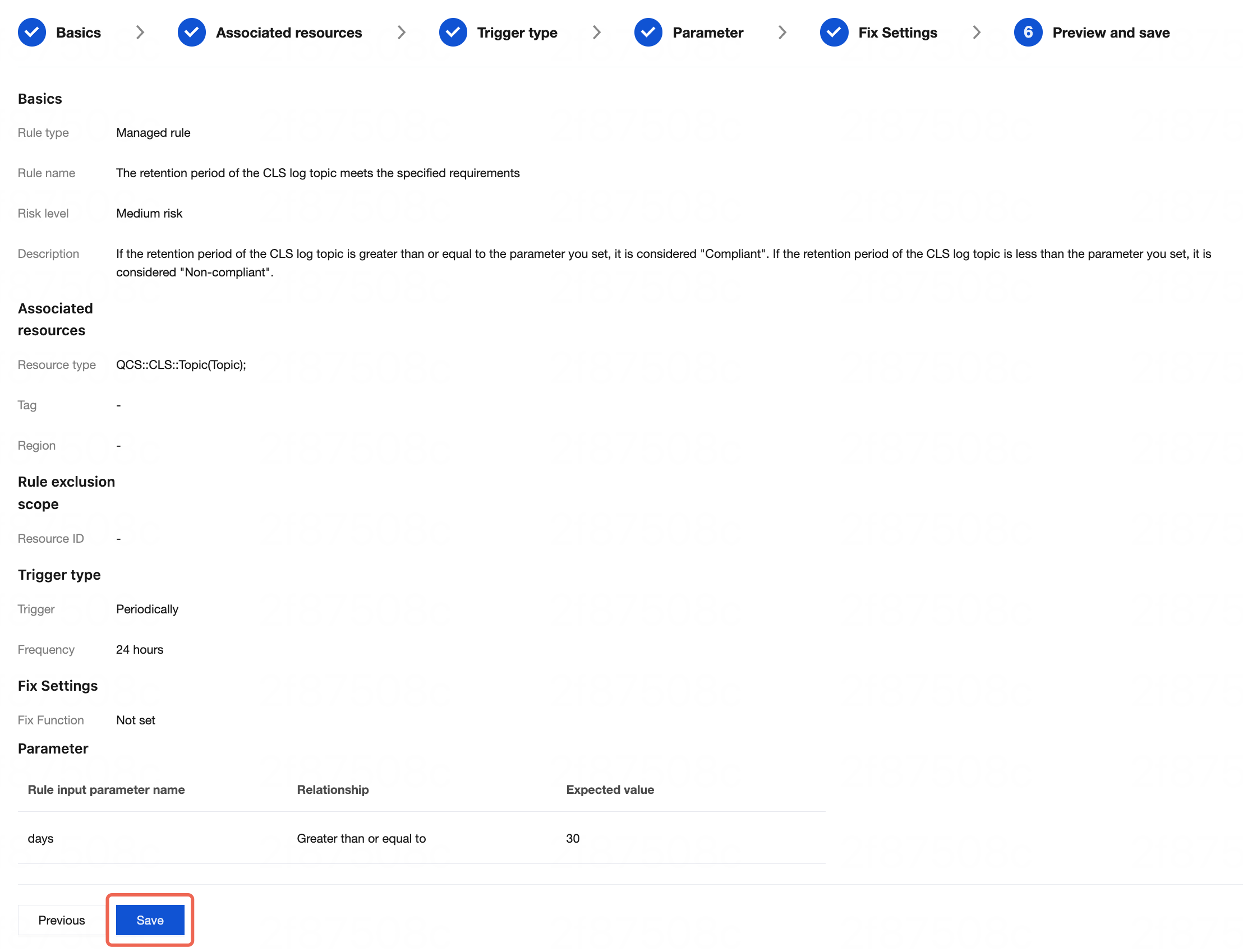
10. On the Preview and save page, check the rule information you have entered. You can click Previous to go to the corresponding step to edit the information if needed. After you confirm that the information is correct, click Save to create the rule.
Note:
When you create or edit a conformance pack, if the select rule is already added to another conformance pack or is a supported managed rule or a rule in the conformance pack template, the system will add the rule to the current conformance pack after you save the changes.
Bantuan dan Dukungan
Apakah halaman ini membantu?
Anda juga dapat Menghubungi Penjualan atau Mengirimkan Tiket untuk meminta bantuan.
masukan