A machine group is a server object from which LogListener collects logs in Tencent Cloud Log Service (CLS). You configure the servers for LogListener to collect logs from by using machine groups. Typically, you can create different machine groups for different business scenarios to facilitate your management of the log service.
The IP address you enter must match the `group_ip` in the /etc/loglistener.conf file under the machine's LogListener installation directory.
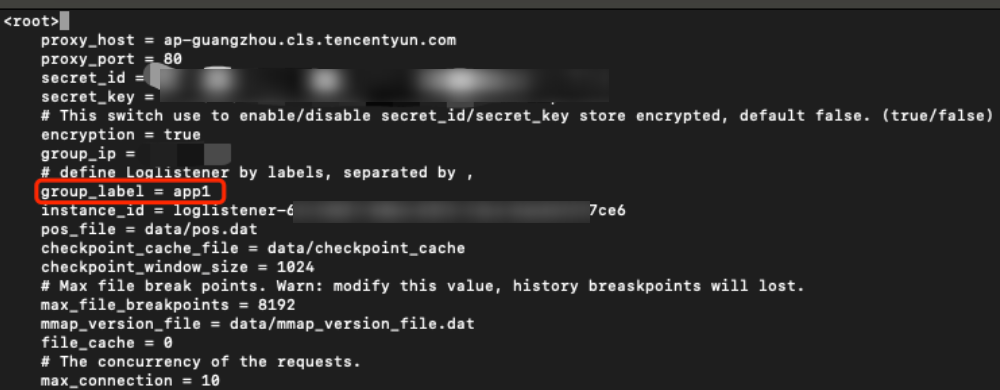
If a machine is configured with a machine id, you can only create a machine group via machine id and cannot use IP addresses. You can determine whether a machine has a machine id configured by checking whether the `group_label` field in the /etc/loglistener.conf file under the machine's LogListener installation directory is left empty.
LogListener Auto Upgrade: Enabled by default and can be configured according to actual requirements.
Note:
If your server is associated with multiple machine groups, as long as LogListener Auto Upgrade is enabled for one of these machine groups, this server will undergo automatic upgrade.
LogListener Service Logs: LogListener service logs are enabled by default, recording important logs such as LogListener running status and collection state. For details, see LogListener service logs.
Tag: Machine group resource tag for resource management.
Machine group metadata: Metadata can be used to distinguish logs. For details, see custom metadata.
5. Click OK to complete the creation.
Creating a machine group by machine ID
Since each time the IP changes requires modifying the corresponding machine group configuration, configuring machine groups with machine IPs is relatively complex if your machine IP address changes frequently.
CLS supports dynamic configuration of machine groups by machine identification. Only fill in the machine identification in the LogListener configuration message, and CLS will recognize and automatically add machines to machine groups.
Note:
Creating a machine group by configuring a machine id is only supported for LogListener version 2.3.0 and above. For upgrade details, see the LogListener Upgrade Guide.
LogListener Auto Upgrade: Enable LogListener auto upgrade. For details, see LogListener Upgrade Guide.
Note:
If your server is associated with multiple machine groups, as long as LogListener Auto Upgrade is enabled for one of these machine groups, this server will undergo automatic upgrade.
LogListener Service Logs: LogListener service logs are enabled by default, recording important logs such as LogListener running status and collection state. For details, see LogListener service logs.
Tag: Machine group resource tag for resource management.
Machine group metadata: Metadata can be used to distinguish logs. For details, see custom metadata.
5. Click OK.
6. Log in to the target machine configured with a machine id, and enter your custom machine id:
LogListener Version ≥3.4.0
LogListener Version <3.4.0
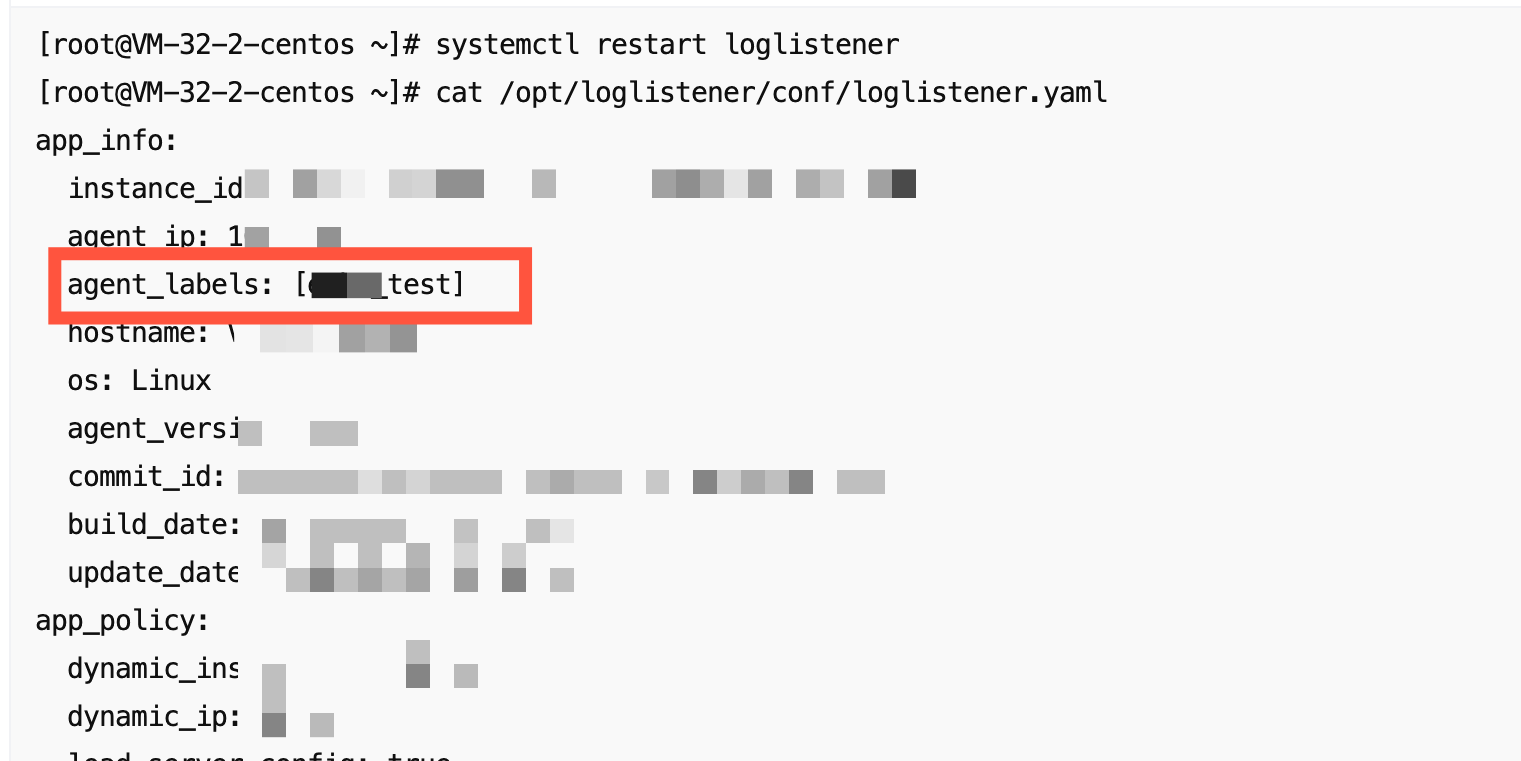
1. Using the installation path /opt/loglistener as an example, you can run the following command in the /opt/loglistener/conf directory to view and configure the LogListener configuration file.
vi /opt/loglistener/conf/loglistener.yaml
2. Press the i key to enter edit mode.
3. Add the agent_labels field under app_info. The agent_labels field must be in array format, enclosed in square brackets []. Use [label1] for a single label, and [label1, label2] for multiple labels.
4. Press the Esc key to exit edit mode, input :wq, and press the Enter key to save the settings.
1. Using /usr/local as the installation directory example, open the /etc/loglistener.conf file under the LogListener installation directory.
vi /usr/local/loglistener/etc/loglistener.conf
2. Press the i key to enter edit mode.
3. Find the group_label parameter, and enter your custom machine identifications and separate them with a comma (multiple identifications are separated by commas).
4. Press the Esc key to exit edit mode, input :wq, and press the Enter key to save the settings.
7. Run the following command, restart LogListener to complete the creation.
Executed by systemd
Not executed by systemd
Applicable to LogListener version 3.4.0 or later, and the operating system has systemd.
systemctl restart loglistener
Run systemctl check loglistener to check whether the restart is successful.
Applicable to LogListener version <3.4.0, and the operating system has systemd.
systemctl restart loglistenerd
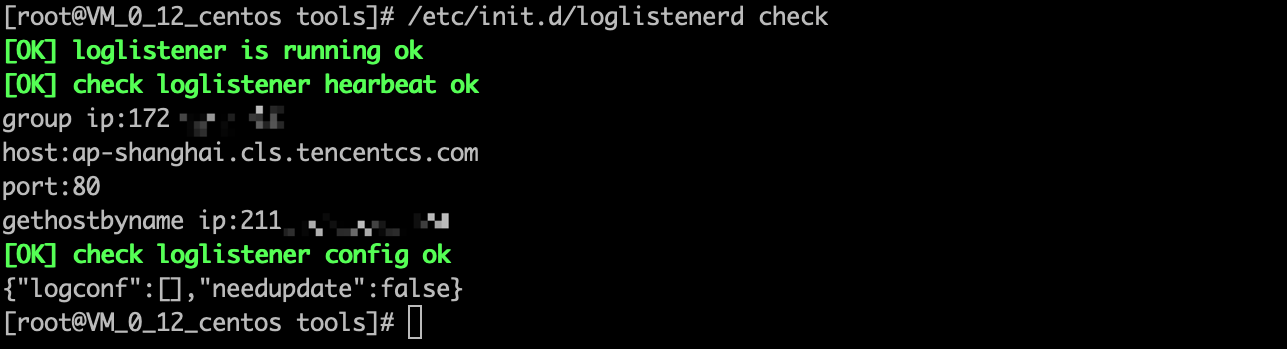
Run /etc/init.d/loglistenerd check to check whether the restart is successful.
Applicable to LogListener 2.8.3 or earlier, or LogListener 2.8.3 or later, but without systemd in the operating system.
/etc/init.d/loglistenerd restart
Return sample of successful reboot
Viewing Machine Status
A machine group uses the heartbeat mechanism to maintain its connection with the CLS system. A machine group that has successfully installed the LogListener will send a heartbeat to the CLS at regular intervals.
2. Click Machine Group Management in the left sidebar.
3. On the machine group management page, find the machine group you need to operate and click View.
4. View the machine group status in the pop-up window.
5. Check the machine group status to see if it works normally. If it works normally, it indicates that your server can communicate with Tencent Cloud Log Service normally.
Automatic Removal for Offline Machines
For a machine group associated via machine id, if a machine goes offline, it will be automatically removed from the machine group and disassociated by default after being offline for 30 days. To shorten the offline removal period, follow these steps: