Border rules are an Access Control capability provided by CFW. They support inspecting and controlling traffic across different network boundaries. When no Access Control rules are configured, CFW passes all traffic by default. By creating Access Control rules, you can implement fine-grained management of traffic passing through the firewall. This allows you to permit, monitor, or block traffic, thereby protecting your cloud-based services from unauthorized access and malicious attacks.
CFW provides three types of border rules, each applicable to different network boundary scenarios:
Internet Border Rule: It controls inbound and outbound traffic (north-south) for public IP addresses on the cloud, defends against attacks and malicious access from the Internet, and restricts unauthorized outbound connections from cloud assets.
NAT Border Rule: It controls inbound and outbound traffic (north-south) passing through the NAT Gateway and protects traffic from VPCs accessing the Internet via the NAT Gateway.
VPC Border Rule: It controls inter-VPC communication traffic (east-west) and provides Access Control for lateral traffic between VPCs.
This document describes how to configure Internet Border Rules, NAT Border Rules, and VPC Border Rules in the CFW console. You can refer to this document to configure rules when you need to implement fine-grained Access Control for traffic across different network boundaries on the cloud.
Note:
Border rules take effect within 1-3 minutes after the rules are saved.
Legacy Data Compatibility
For rules created earlier where the source or destination type is Address Template, the console automatically maps and displays them as the corresponding IP address or domain name type:
Existing Rule Type
Console Display
Edit Behavior
Address template (IP address template)
Mapped to the IP address type, displaying the template name.
Editable normally, and can be switched to manual input.
Address template (domain name template)
Mapped to the FQDN match type, displaying the template name.
Editable normally, and the matching mode can be modified to loose match or strict match (the validation logic is consistent with that for creating a new rule).
Note:
The mapping of existing rules only affects their display in the console and does not affect their actual enforcement logic. When you edit an existing rule, the validation logic is the same as for a new rule. For example, if you switch to the strict match mode and the domain name template contains a wildcard domain, an error message will be displayed.
View Operation Log
1. Log in to the CFW console. In the left sidebar, select Access Control.
2. On the Access Control page, click the corresponding border rule tab as needed.
3. On the corresponding border rule page, you can view recent operation records. These records display the recent operations that users have performed on the rule list:
click Details to view this item's operation record detail.
Click View operation logs to view detailed operation records.
Note:
Because log delivery takes approximately one minute, updates to recent operation records may experience a slight delay.
Add Rule
1. Log in to the CFW console. In the left sidebar, select Access Control.
2. On the Access Control page, click the corresponding border rule tab as needed.
3. On the corresponding border rule page, click the rule type to which you want to add a rule:
The Internet Border Rule and NAT Border Rule provide two Access Control rule lists: the Inbound Rule (which controls north-south traffic from external to internal) and the Outbound Rule (which controls north-south traffic from internal to external).
The VPC Border Rule provides a single Access Control list, which does not distinguish between inbound and outbound traffic.
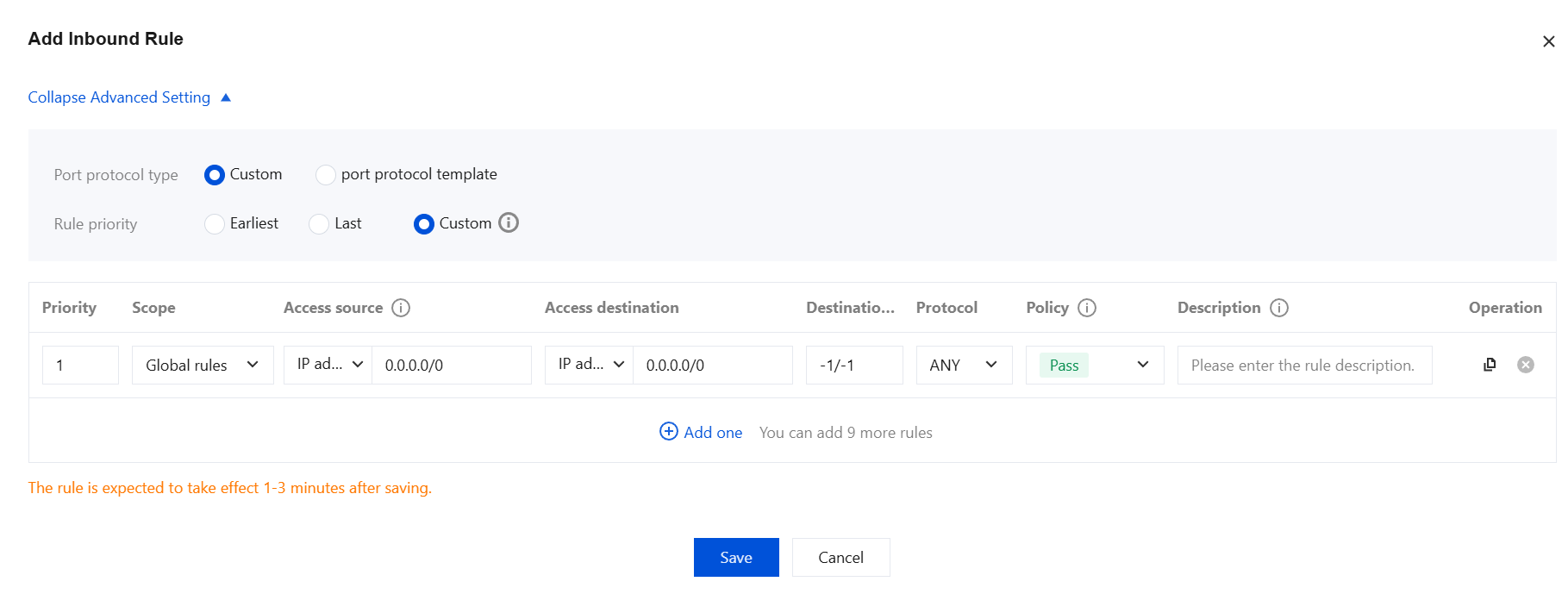
5. After configuring a single rule, you can use the following methods to quickly add other rules:
Click
in the operation bar to add a new row below the current rule, automatically copying all content of that rule.
Click the
below to add a new row at the bottom of the rule list, automatically copying the content of the last rule.
6. After confirming that everything is correct, click Save to complete the configuration.
Note:
You can add up to 10 rules at a time.
After a rule is saved successfully, it will appear in the corresponding rule list, with its status defaulting to Enabled.
The new rule will take effect within 1-3 minutes after it is saved. You can check the hit count in the rule list to confirm whether the rule has taken effect normally.
Advanced Setting
Port Protocol Type:
Custom: Manually enter the destination port and select the protocol.
Port Protocol Template: Select the required template from the created port protocol templates. For custom port protocol templates, refer to Address Template > Add Template.
Rule Priority:
Earliest: Set the priority to 1.
Last: Set the priority to the highest number.
Custom: Customize rule priority. When adding rules in batches, you only need to specify the priority for the first rule. The priorities for subsequent rules will increase sequentially starting from that value.
Priority
This field is editable only when Advanced Settings > Rule Priority is set to Custom. Priorities are numbered starting from 1, with smaller numbers indicating higher priority. When a user customizes a rule's priority, the priorities of other rules are automatically adjusted in sequence.
Scope
Internet Border: Not supported.
NAT Border: The region or firewall instance where the current rule takes effect.
VPC Border: The firewall instance where the current rule takes effect.
Access Source
IP address (Supported by all three types of border rules): Supports both manual input and address templates.
Enter manually: Directly enter any IP address or CIDR format address, such as 10.10.10.10 or 10.10.10.10/24. Multiple objects are supported, separated by commas.
Note:
When 0.0.0.0/0 is entered, the backend automatically associates all public IP addresses. The same applies when a CIDR address is entered, where the rule only takes effect for public IP addresses within that CIDR block.
Address template: Select from the created IP address templates. For custom address templates, refer to Address Template > Add Template.
Location (Supported by Internet Border Rules and NAT Border Rules): This refers to the actual geographic location corresponding to an IP address, covering provinces within the Chinese mainland, the Hong Kong/Macao/Taiwan (China) region, and continents overseas.
Asset instance (Supported by all three types of border rules): A specific instance is selected as the access source.
Resource tag (Supported by all three types of border rules): Select the access source based on the resource's Tag. The IP addresses of instances associated with the Tag will match the corresponding border rule.
Asset group (Supported by all three types of border rules): Select a user-defined asset group as the access source.
Access Destination
IP address (Supported by all three types of border rules): Supports both manual input and address templates.
Enter manually: Directly enter any IP address or CIDR format address, such as 10.10.10.10 or 10.10.10.10/24. Multiple objects are supported, separated by commas.
Note:
When 0.0.0.0/0 is entered, the backend automatically associates all public IP addresses. The same applies when a CIDR address is entered, where the rule only takes effect for public IP addresses within that CIDR block.
Address template: Select from the created IP address templates. For custom address templates, refer to Address Template > Add Template.
Domain name (Supported by all three types of border rules): Supports both manual input and address templates as input methods, and allows you to choose from the following three matching modes:
FQDN Matching: Performs identifier matching based on the Host header field or the SNI extension field in the application-layer packet.
Loose Matching: A match occurs if the FQDN matching rule is satisfied, or if the destination IP address of the access belongs to any IP address in the current DNS resolution results for that domain name. Meeting either condition triggers a match.
Strict Matching: A match occurs only if both of the following conditions are met: the FQDN matching rule is satisfied, and the destination IP address of the access belongs to any IP address in the current DNS resolution results for that domain name.
Note:
Loose Matching and Strict Matching are only supported in the Enterprise Edition and above. To use these features, go to the Purchase & Upgrade page to upgrade your CFW edition.
When the domain name type is selected, you must select the input method and matching mode in sequence:
Enter manually > FQDN Matching, Loose Matching, or Strict Matching: Enter the domain name directly.
Note:
When * is entered, the backend automatically associates all domain names.
When a wildcard domain name (such as *.example.com) is entered, the backend automatically associates all second-level domain names that start with *.
Address template > FQDN Matching, Loose Matching, or Strict Matching: Choose from the created domain name templates.
Note:
If an address outside the CIDR of the local VPC or the peer VPC is entered in a VPC Border Rule, the rule will not take effect.
Strict Matching mode does not support domain name templates that contain wildcard domain names (such as *.example.com). If the selected domain name template contains a wildcard domain name, an error will be reported upon submission.
Asset instance (Supported by all three types of border rules): Select a specific instance as the access destination.
Resource tag (Supported by all three types of border rules): Select the access destination based on the resource's Tag. The public IP addresses of instances associated with the Tag will be matched by the corresponding border rule.
Asset group (Supported by all three types of border rules): Select a user-defined asset group as the access destination.
Destination port
It supports single port numbers, '/' based port ranges, and comma-separated discrete port values.
Destination Port Instance
Description
-1/-1
Indicates all ports.
80
Indicates port 80.
80,443,3389
Indicates that the rule applies to ports 80, 443, and 3389.
80/443
Indicates that the rule applies to all ports from 80 to 443.
80/443,3389
Indicates that the rule applies to all ports from 80 to 443 and port 3389.
Protocol
The relationship between access destination types and supported protocols for each border scenario is shown below:
Internet Boundary Rule
Direction
Destination Type
Supported Protocol
Inbound
IP address (Enter manually/Address template)
ANY, TCP, UDP, ICMP, FTP (supported only for exact IP addresses)
Domain name > FQDN match (Enter manually/Address template)
ANY, HTTP/HTTPS, HTTP, HTTPS, SMTP/SMTPS, SMTP, SMTPS, DNS (supported only for domain names)
Domain name > Loose match, Domain name > Strict match
Not supported.
ANY, TCP, UDP, ICMP\\HTTP/HTTPS, HTTP, HTTPS, SMTP/SMTPS, SMTP, SMTPS, DNS (supported only for domain names), FTP (supported only for exact IP addresses)
Asset instance, Resource tag, Asset group
ANY, TCP, UDP, ICMP, FTP (supported only for exact IP addresses)
Outbound
IP address (Enter manually/Address template)
ANY, TCP, UDP, ICMP, FTP (supported only for exact IP addresses)
Domain name > FQDN match (Enter manually/Address template)
ANY, HTTP/HTTPS, HTTP, HTTPS, SMTP/SMTPS, SMTP, SMTPS, DNS (supported only for domain names)
Domain name > Loose match (Enter manually/Address template), Domain name > Strict match (Enter manually/Address template)
TCP,UDP
Location
ANY,TCP,UDP,ICMP
NAT Boundary Rule
Direction
Destination Type
Supported Protocol
Inbound
IP address (Enter manually/Address template), Asset instance, Resource tag
ANY,TCP,UDP
Domain name (Enter manually/Address template)
Not supported.
Outbound
IP address (Enter manually/Address template), Location
ANY, TCP, UDP, ICMP, FTP (supported only for exact IP addresses)
Domain name > FQDN match (Enter manually/Address template)
ANY, HTTP/HTTPS, HTTP, HTTPS, SMTP/SMTPS, SMTP, SMTPS, DNS (supported only for domain names)
Domain name > Loose match (Enter manually/Address template), Domain name > Strict match (Enter manually/Address template)
TCP,UDP
VPC Border Rule
Destination Type
Supported Protocol
IP address (Enter manually)
ANY, TCP, UDP, ICMP, FTP (supported only for exact IP addresses)
IP address (Address template), asset Instance, Resource tag, Asset group
ANY,TCP,UDP,ICMP
Domain name > FQDN match (Enter manually/Address template)
ANY, HTTP/HTTPS, HTTP, HTTPS, SMTP/SMTPS, SMTP, SMTPS, DNS (supported only for domain names)
Domain name > Loose match (Enter manually/Address template), Domain name > Strict match (Enter manually/Address template)
TCP,UDP
Policy
Pass: Allow the traffic that hits rules, record the number of hits and traffic logs, but do not record access control logs.
Observe: Allow traffic that hits rules and record the hit count, access control logs, and traffic logs.
Block: Block the traffic that hits rules, record the hit count and generate access control logs, and record the complete data packet information of the current request in traffic logs.
Description
Used to describe rules, supports up to 50 characters.
Managing Rules
1. Log in to the CFW console. In the left sidebar, select Access Control.
2. On the Access Control page, click the corresponding border rule tab as needed.
3. On the corresponding border rule page, click the rule type that you want to manage.
4. On the rule type page, you can manage added rules:
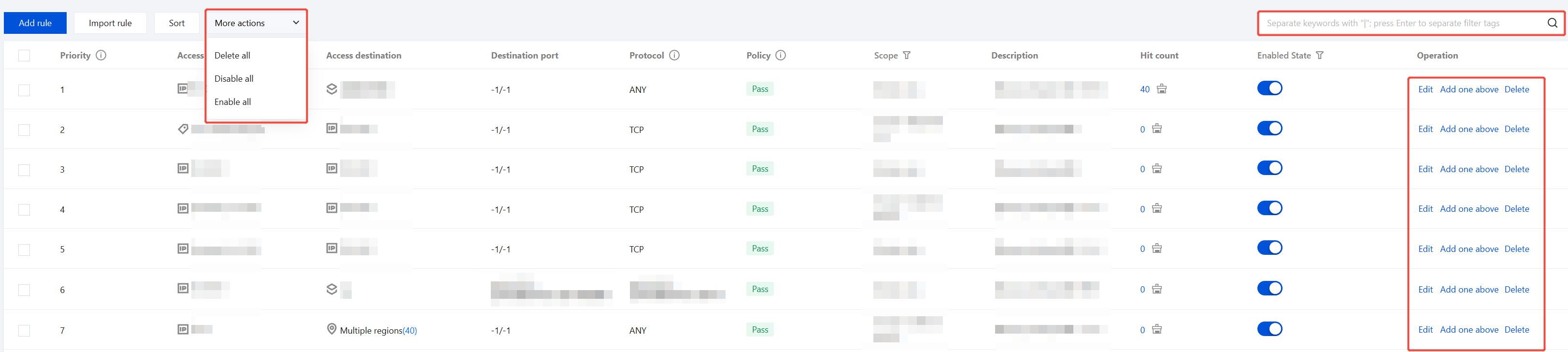
You can query by selecting multiple resource attributes, edit or delete rules in the corresponding column of the operation column, and perform batch operations.
Sort: The top-to-bottom order of rules in the list represents their priority from high to low. To adjust, follow these steps:
a. Click Sort, and hover the mouse over any blank area in the rule row that needs adjustment.
b. When the cursor changes to a draggable state, hold down the left mouse button and drag it up or down to the target position.
c. After the adjustment is complete, click Save to make it effective.
Import rule: Click Import rule to select and import a file from your local machine. In the import file, the access source or destination type supports the following specific types: IP address, FQDN match, loose match, strict match, and geographic location. The system automatically identifies the input method based on the format of the access source or destination field value:
A value starting with ip- (for example, ip-abc12345) is identified as an IP address template ID.
A value starting with dm- (for example, dm-abc12345) is identified as a domain name template ID.
Other formats: Identified as a manually entered IP address or domain name.
Note:
If a template ID does not exist, the corresponding row will fail to import. A domain name template used in strict matching mode cannot contain a wildcard domain; otherwise, the corresponding row will fail to import. The system is compatible with the "Address Template" type in legacy import files: IP address templates (starting with ip-) are automatically mapped to the "IP Address" type, and domain name templates (starting with dm-) are automatically mapped to the "FQDN Match" type.
Export Rules: Click the export icon above the rule list to open the custom list export window. Select Export all or Export matched results, choose the search criteria, and then click Export to export the rules.
Backup and Rollback Rules: See the Rule Backup documentation.
Note:
Rules backed up before the revision do not support rollback. If needed, please submit a ticket to contact us.
Related Information
If you need to learn about the special use cases of the access control feature of CFW, see Special Scenarios.