Log Analysis supports advanced search, query, and statistical analysis of CFW logs. You can use various search modes to find log details and leverage the statistical chart feature for data visualization. This document describes how to use the Log Analysis feature.
Prerequisite
You have purchased the CFW Premium Edition or a higher edition.
The Log Analysis feature is enabled. If it is not enabled, go to the CFW purchase page to purchase it.
Operation Steps
Log Search
1. Log in to the CFW console. In the left sidebar, click Log Analysis.
2. On the Log Analysis page, select the search scope:
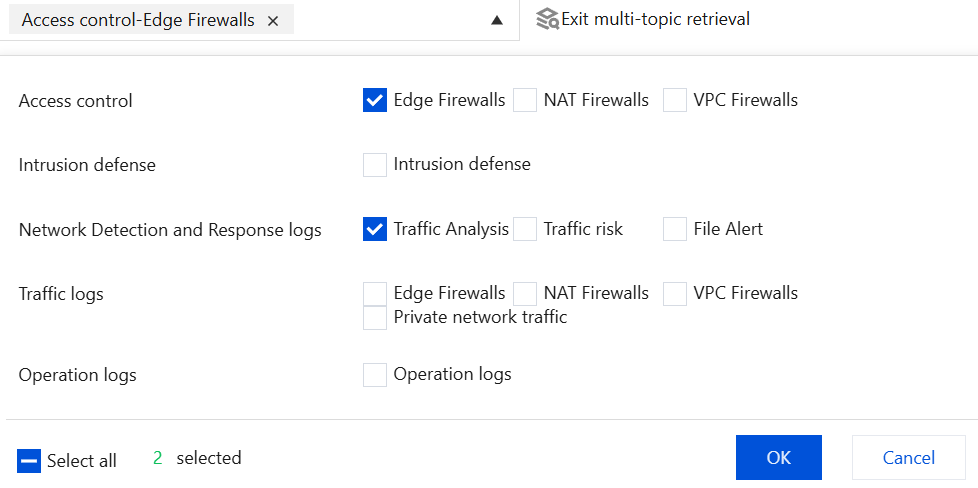
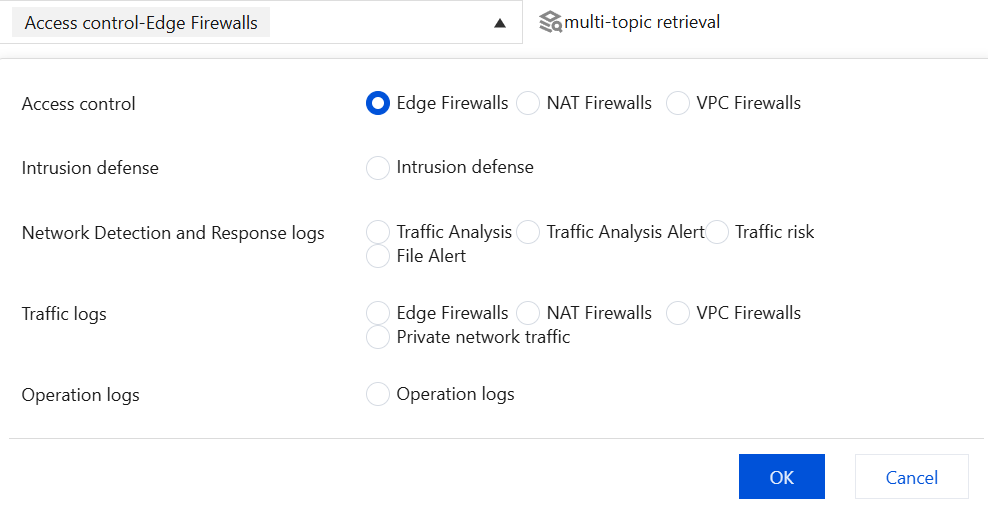
multi-topic retrieval: Select multiple modules to search together.
Exit multi-topic retrieval: Select a single module to search.
3. Set the time range and click
.
4. Select the search mode:
Interactive mode: Search logs based on the interactive mode.
a. On the Log Analysis page, select Interaction mode.
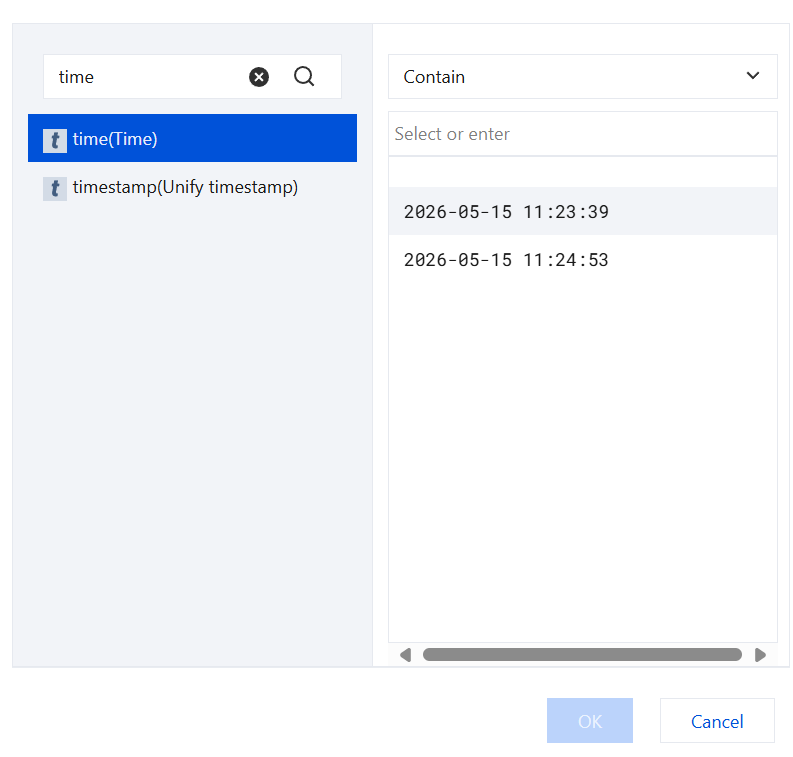
b. Click Add Creteria and select the log detail field, logical relationship, and specific parameters. For descriptions of log detail fields, see Log Detail Field Description.
c. Repeat the previous step until all search conditions are added, and then click OK.
Statement mode: Search logs based on the search statement.
a. On the Log Analysis page, select Statement mode.
b. Enter the search statement in the statement box and click
1. Log in to the CFW console. In the left sidebar, click Log Analysis.
2. On the Log Analysis page, click Raw Logs.
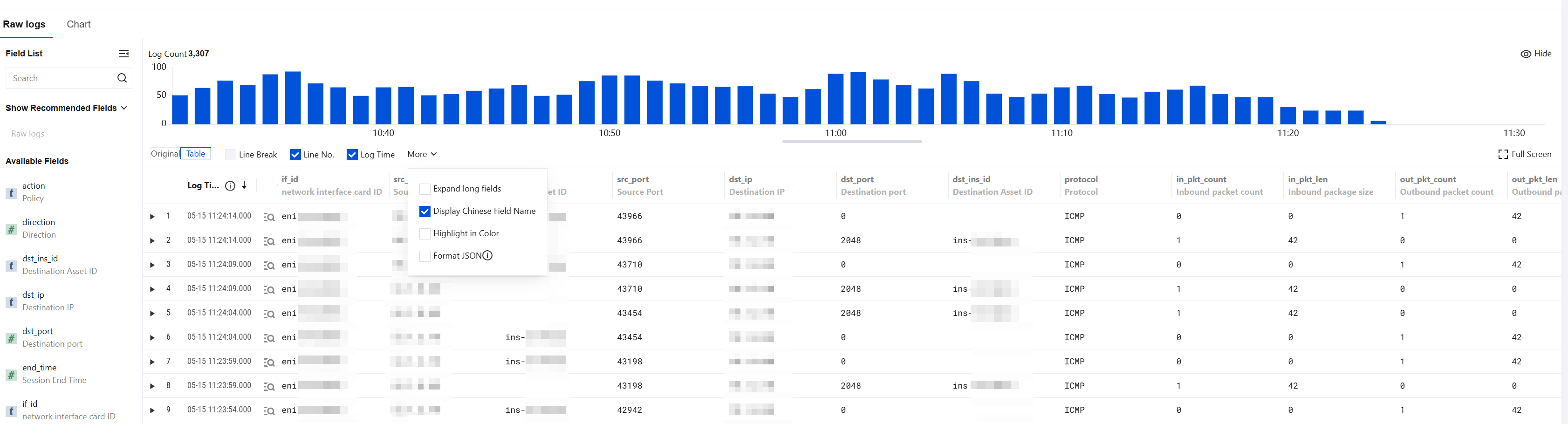
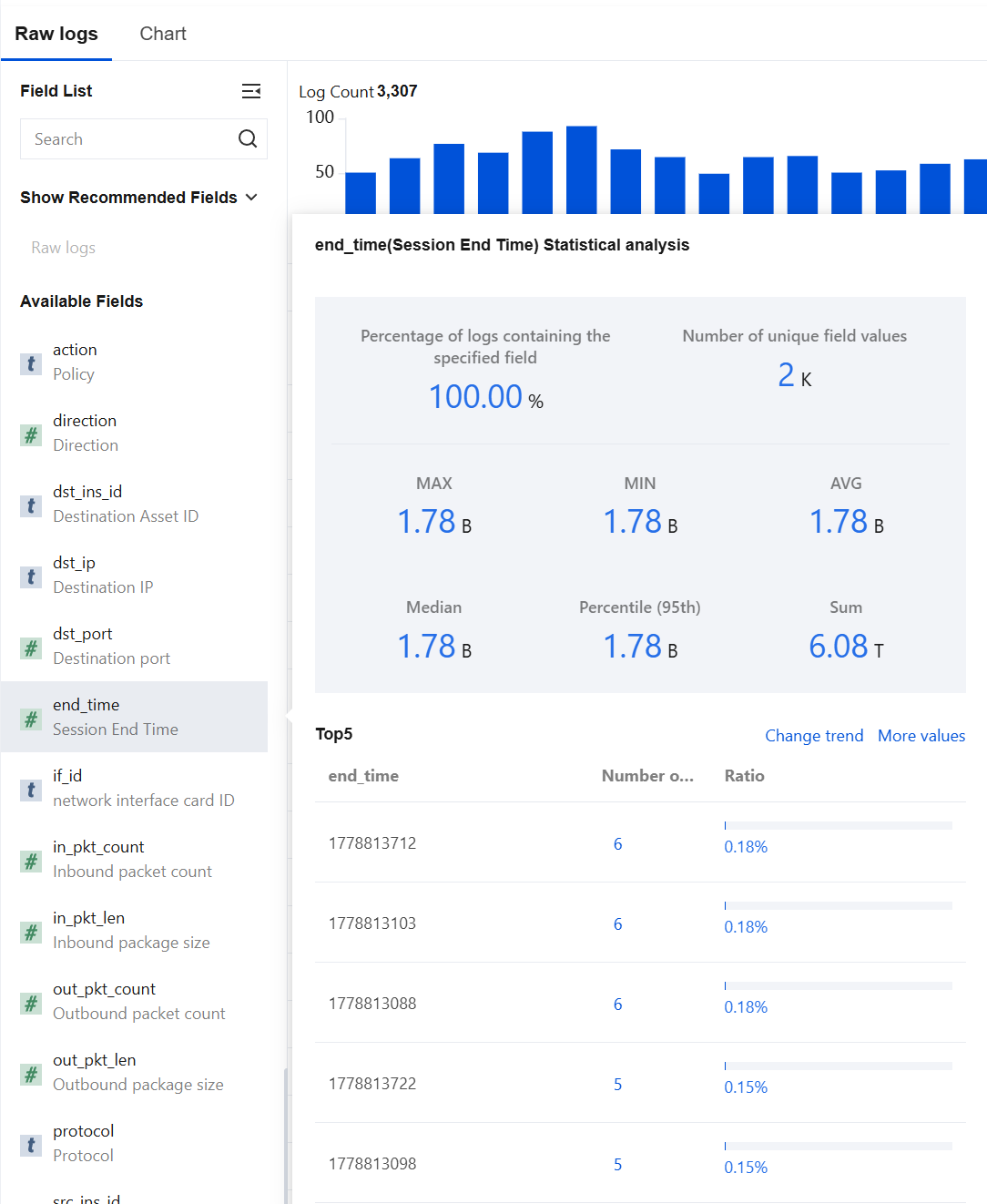
Above the raw logs, you can view key information such as the total number of logs that meet the current search criteria and their time distribution. You can also switch the display style of the raw logs using the settings bar below.
On the left side of the raw log data list, click the name of Available Fields. The TOP 5 field details that match this field and their percentages of the number of logs are displayed, sorted by the number of logs. For descriptions of each field, see Log Detail Field Descriptions.
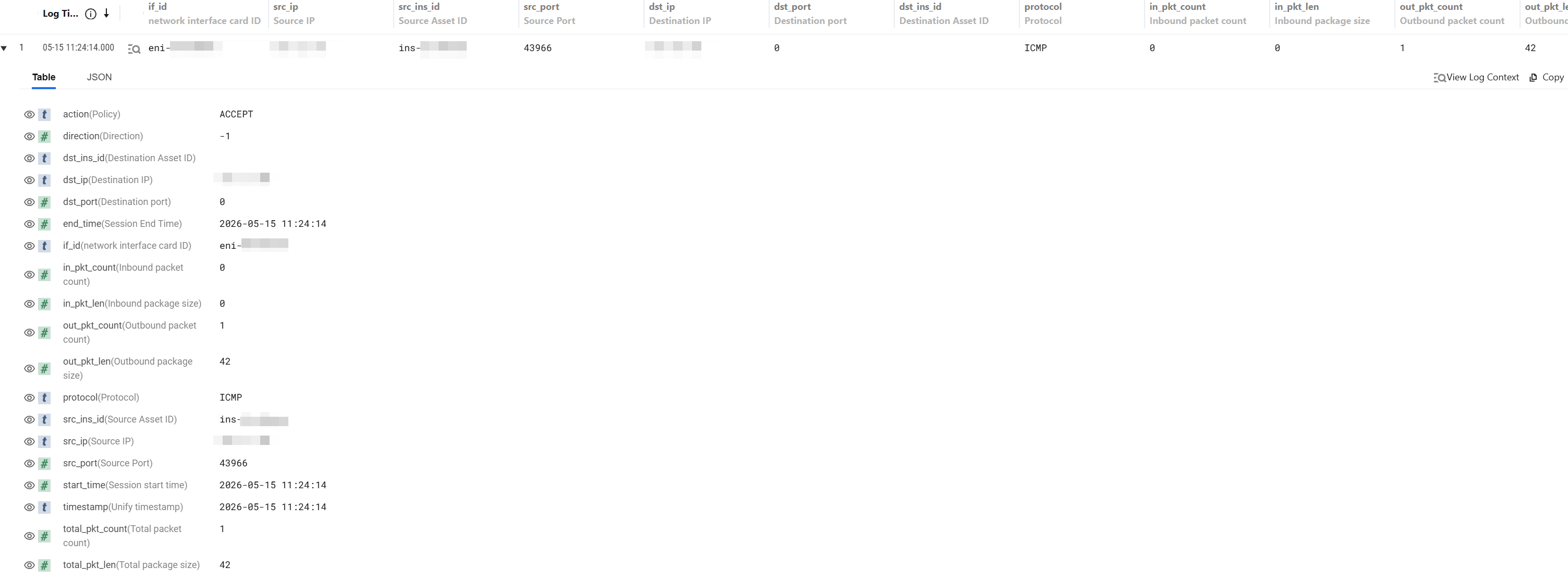
In the raw log data list, click
to the left of the occurrence time of each displayed log to view field details. Click JSON to view field details in JSON format. For descriptions of each field, see Log Detail Field Description.
Statistical Charts
1. Log in to the CFW console. In the left sidebar, click Log Analysis.
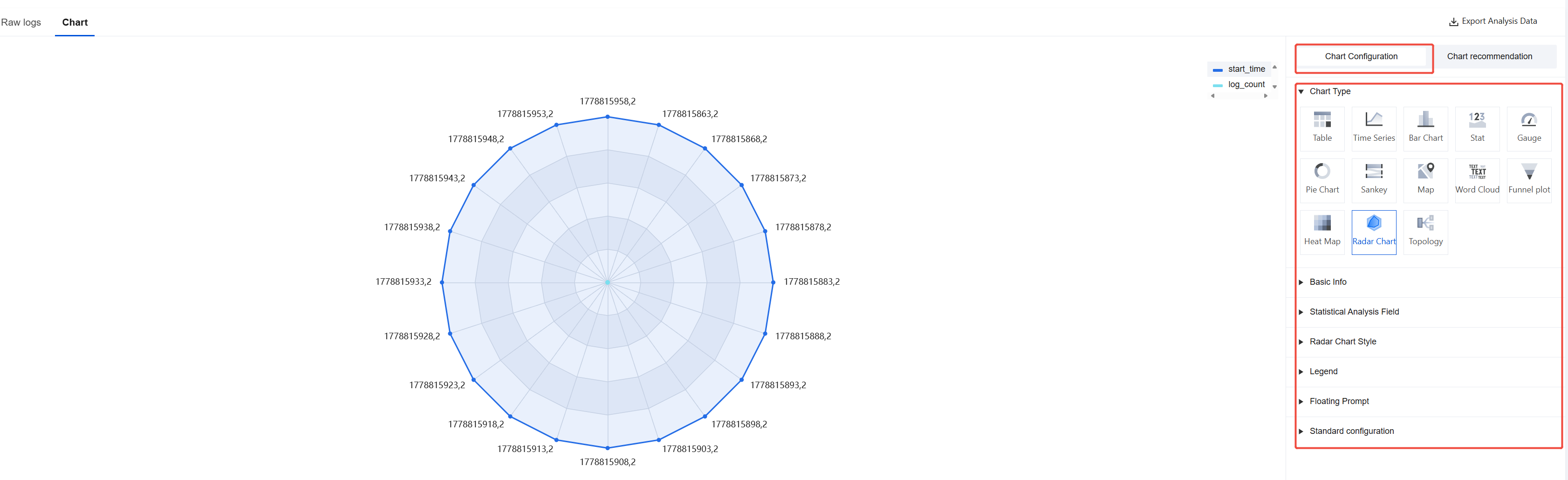
2. On the Log Analysis page, click Chart.
3. When generating charts, you can choose from the following options:
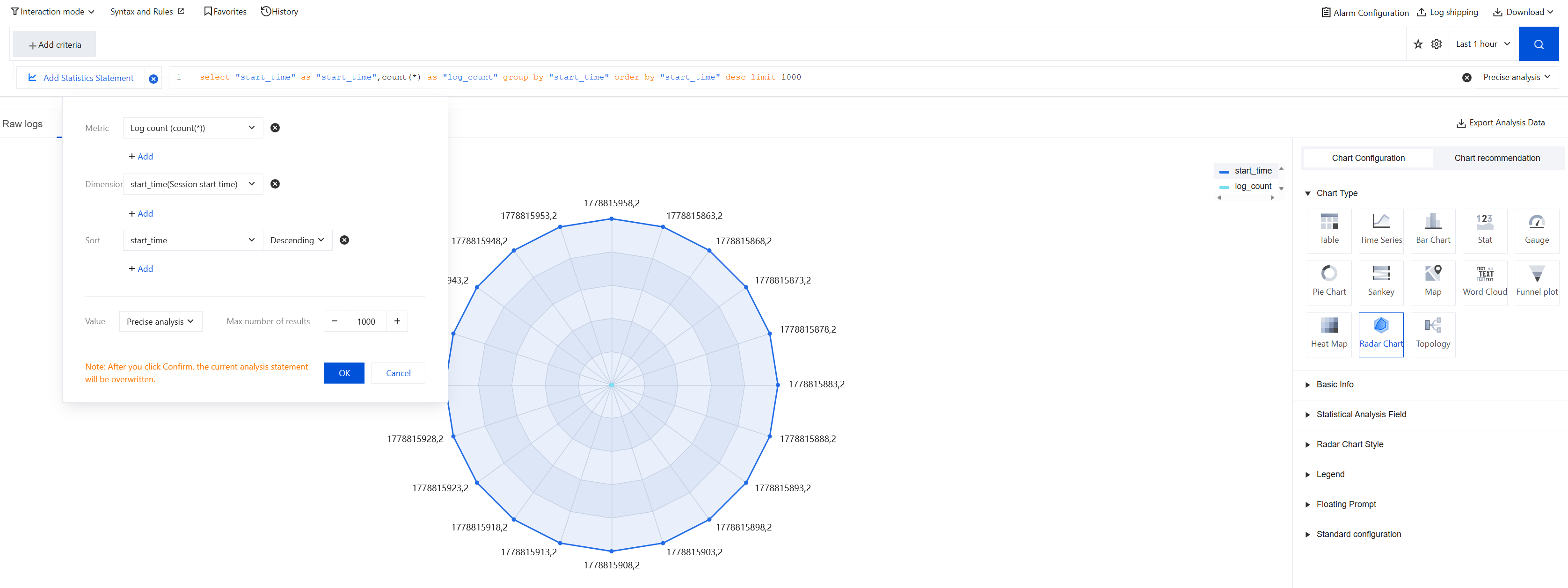
Interaction mode: Generate charts by adding statistical statements.
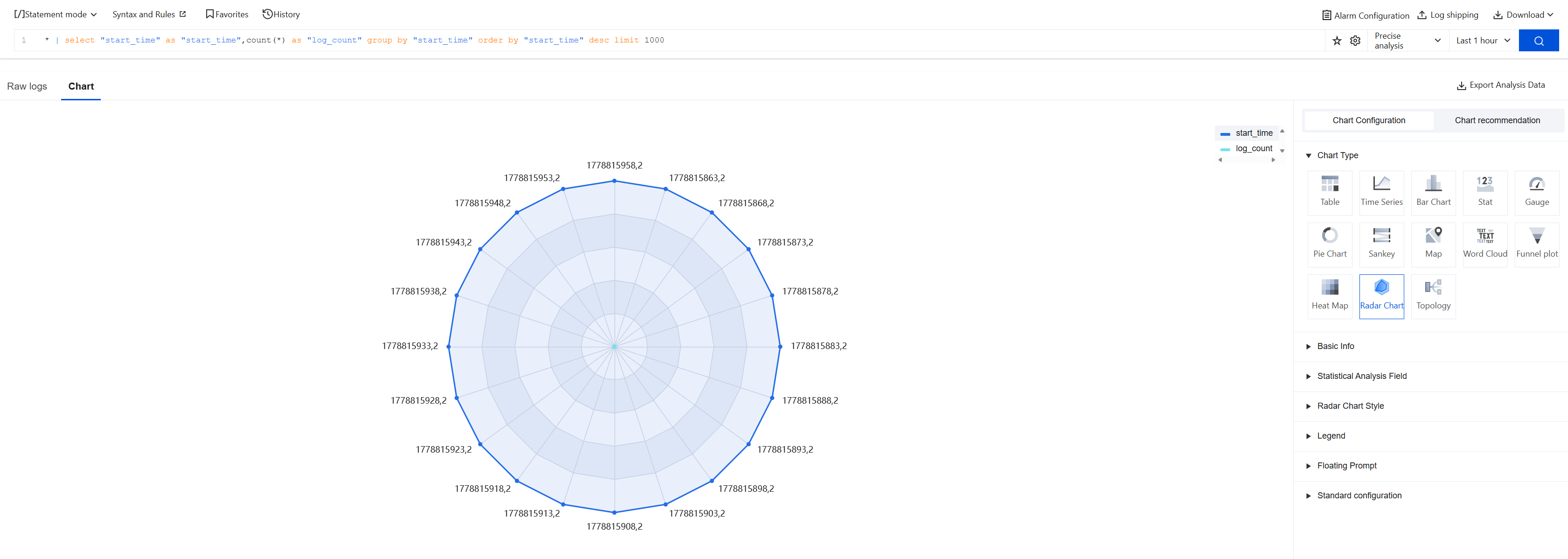
Statement mode: Plot directly using the query statement.
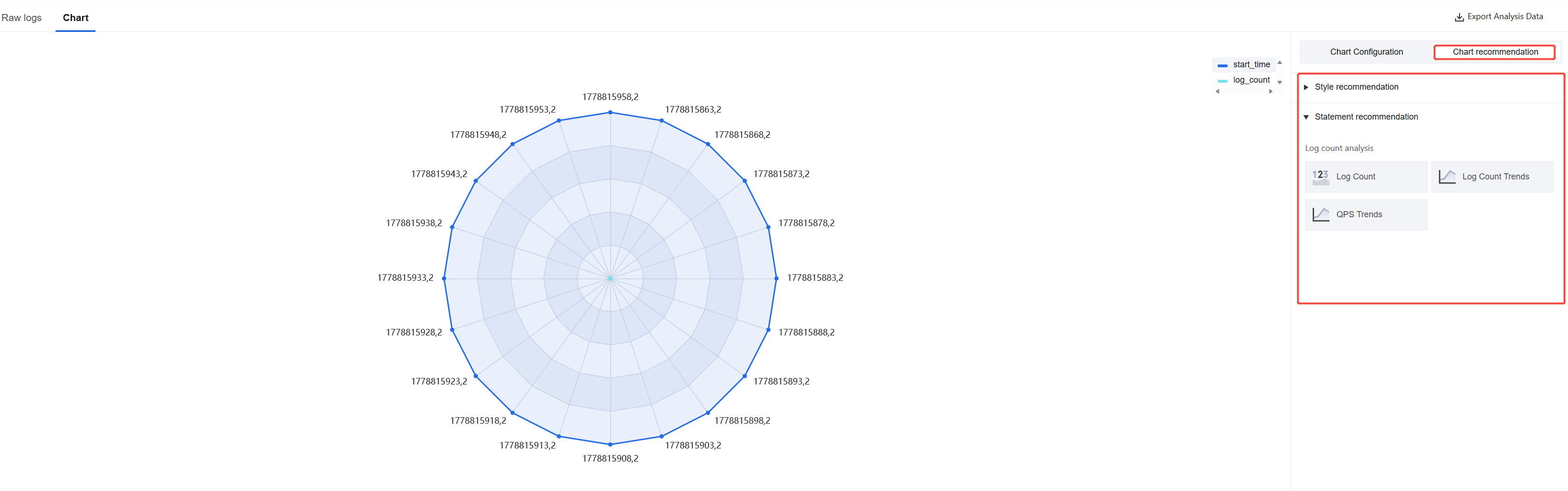
4. After a chart is generated, you can adjust its display effect in the following two ways:
Directly modify the chart type in the chart configuration.
Use the styles or sentence templates provided by chart recommendation to quickly optimize the presentation.
Log Download
1. Log in to the CFW console. In the left sidebar, click Log Analysis.
2. In the upper-right corner of the Log Analysis page, click Download to expand the sidebar and display the download task page.
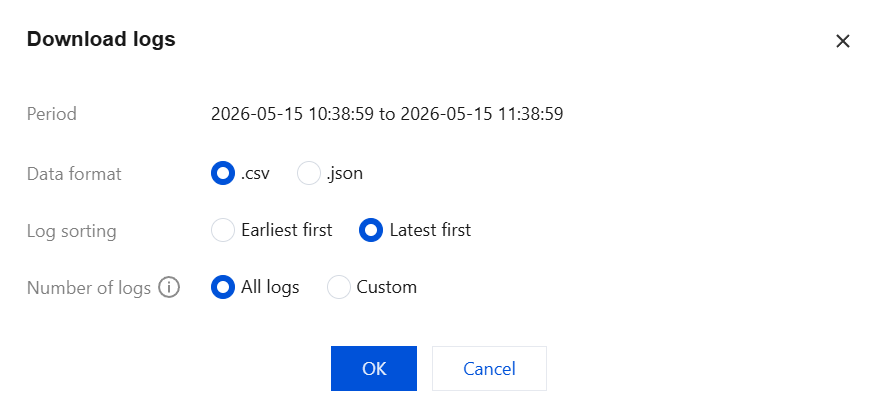
Click Download logs to go to the Download Log Data page. Configure options such as data format, log sorting, and number of logs as needed, and then click OK.
Note:
By default, the logs within the current search scope are downloaded.
A single download is limited to a maximum of 50 million logs. If you need to download more than 50 million logs, we recommend that you split the download into multiple tasks.
You can create a maximum of five download tasks. Please note the number of download tasks.
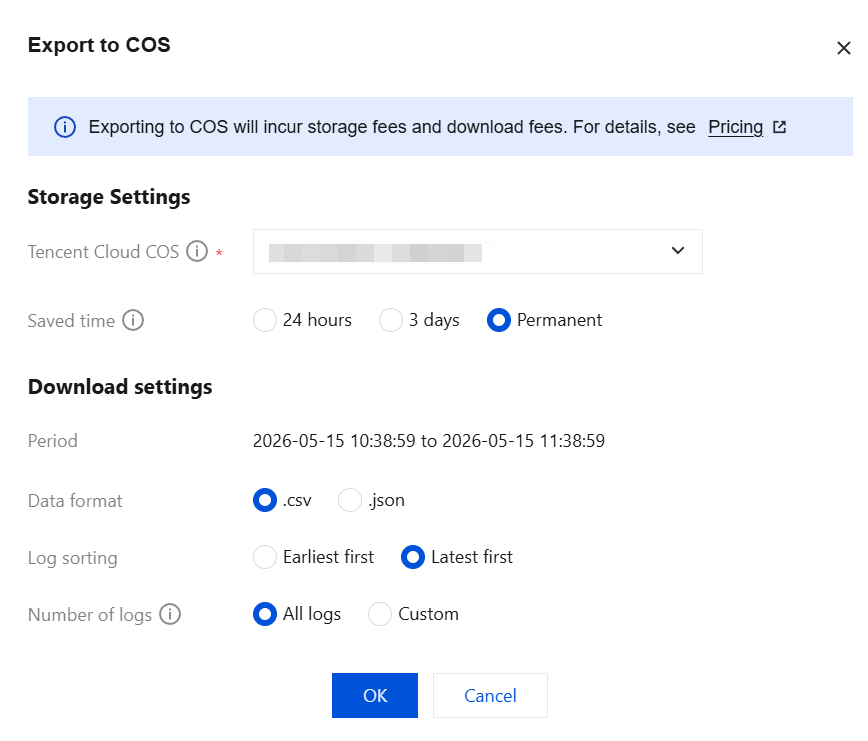
Click Export to COS to go to the Export to COS page. Select a bucket and set the save time. Configure the download settings, and then click OK.
Note:
Files are automatically deleted after the retention period expires.
Exporting to COS may incur certain storage and download fees. For details, refer to Billing Overview.
The total volume exported to COS per month must not exceed 1 TB. Exporting to your own COS is not subject to this quota restriction.
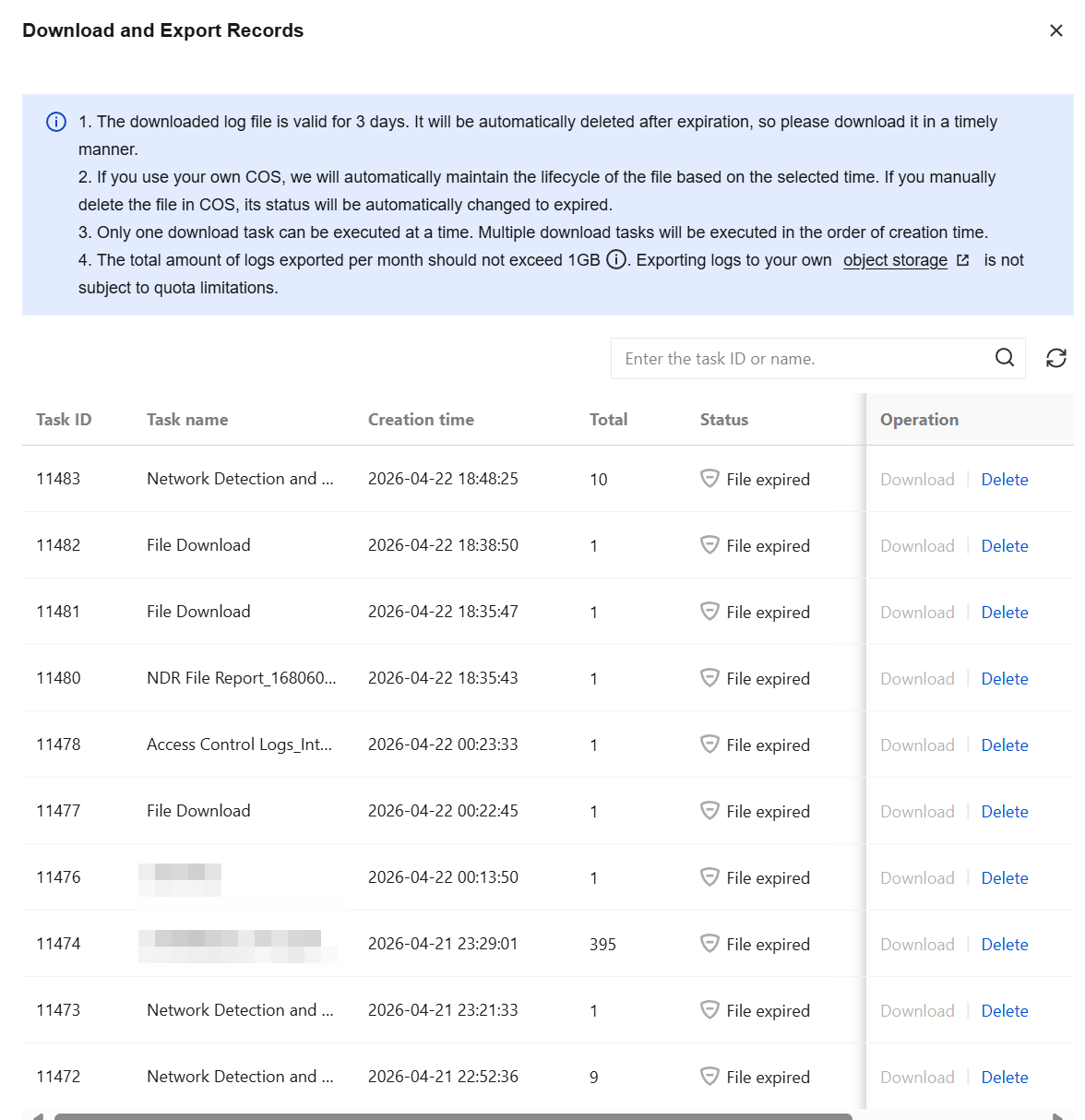
Click Download and Export Records to go to the Download and Export Records page. On this page, you can view all information related to download and export tasks, and perform delete or download operations on completed download and export tasks.
Note:
A downloaded log file is valid for 3 days after its creation. It is automatically cleared upon expiration. Please download it promptly.
When you use your own COS, we automatically manage the file lifecycle based on the selected time. If you manually delete a file in COS, its status is automatically changed to Expired.
Only one download task can be executed at a time. Multiple download tasks are executed sequentially based on their creation time.
Related Information
If you encounter issues related to log shipping, see the Log Shipping documentation.
If you encounter issues related to alarm configuration, see the Alarm Configuration documentation.