Enterprise Security Group Flow Logs
Unduh
Mode fokus
Ukuran font
Feature Introduction
Enterprise Security Group flow logs record in real time all traffic that transit through security group rules, including interception and observation rules, which can assist in cloud isolation and private network traffic auditing.
Note:
Users below the Ultimate Edition please submit a ticket to request the use of Enterprise Security Group flow logs.
Configuration Guide
Enterprise Security Group logs rely on FL and require collecting raw log data from your CLS for processing. Therefore, you need to create a CLS-authorized role and authorize CLS to collect FL.
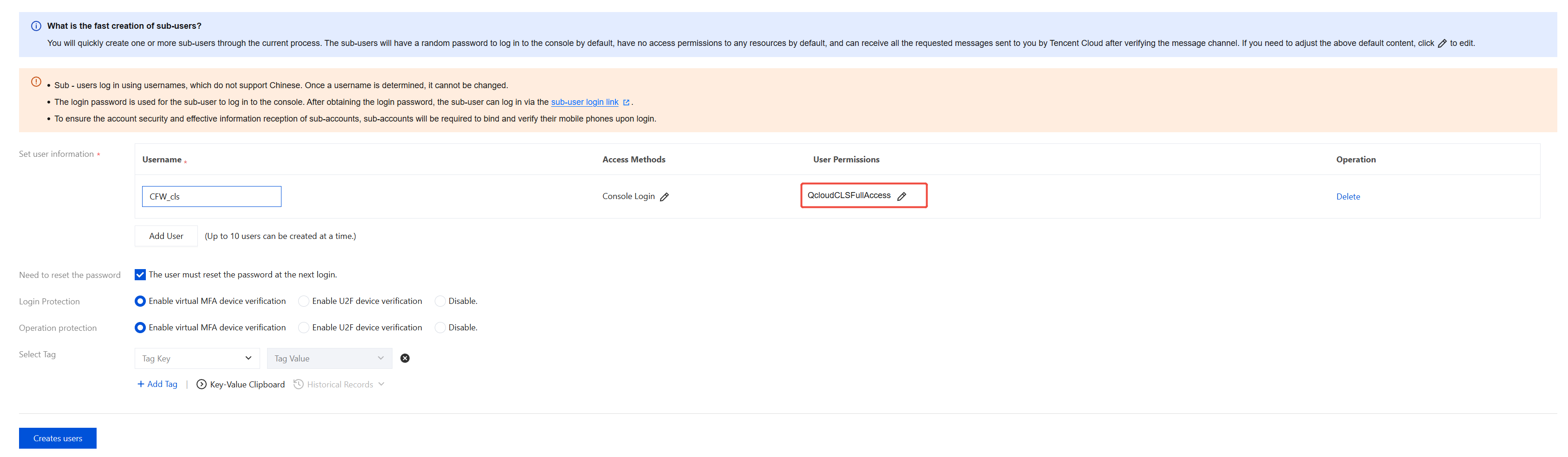
1. Use the root account to go to the CAM - User List page to create a dedicated API calling account for the firewall log shipping task, create a new user and grant full read-write permissions to CLS (QcloudCLSFullAccess). For more details, see Creating Sub-Users - Quick Creation.
2. On the Enterprise Security Group (New) page, click Enterprise security group log and then Settings details.
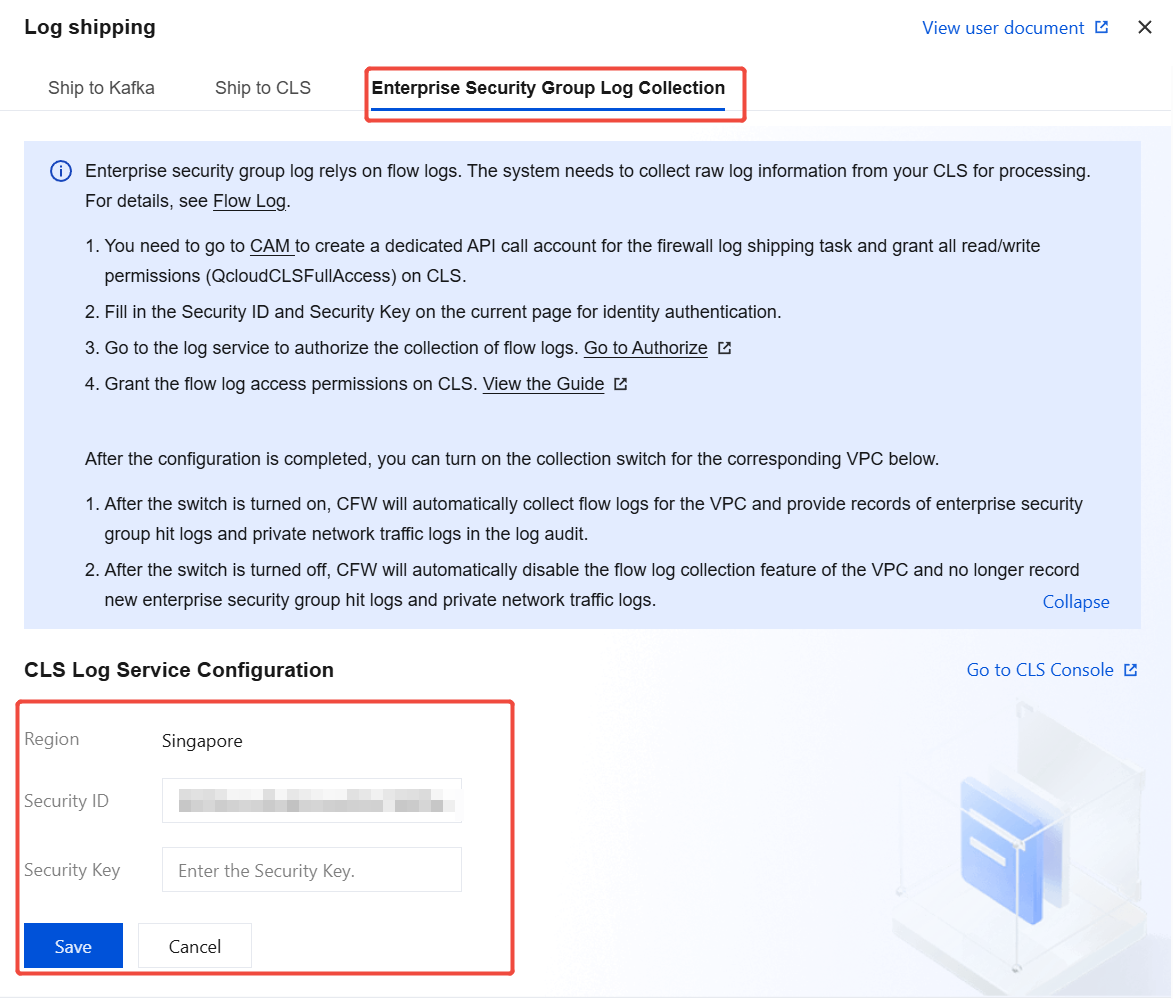
3. On the Enterprise Security Group log collection page, click Configure CLS Log Service and then Edit, fill in the SecurityID and SecurityKey for authentication, and click Save.
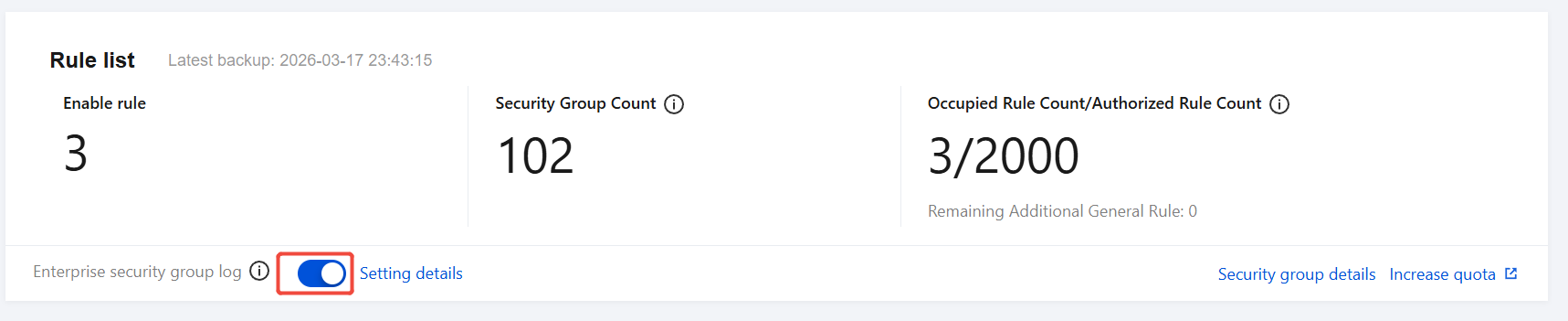
4. On the Enterprise Security Group (New) page, click the toggle for Enterprise security group log to enable the flow log feature.
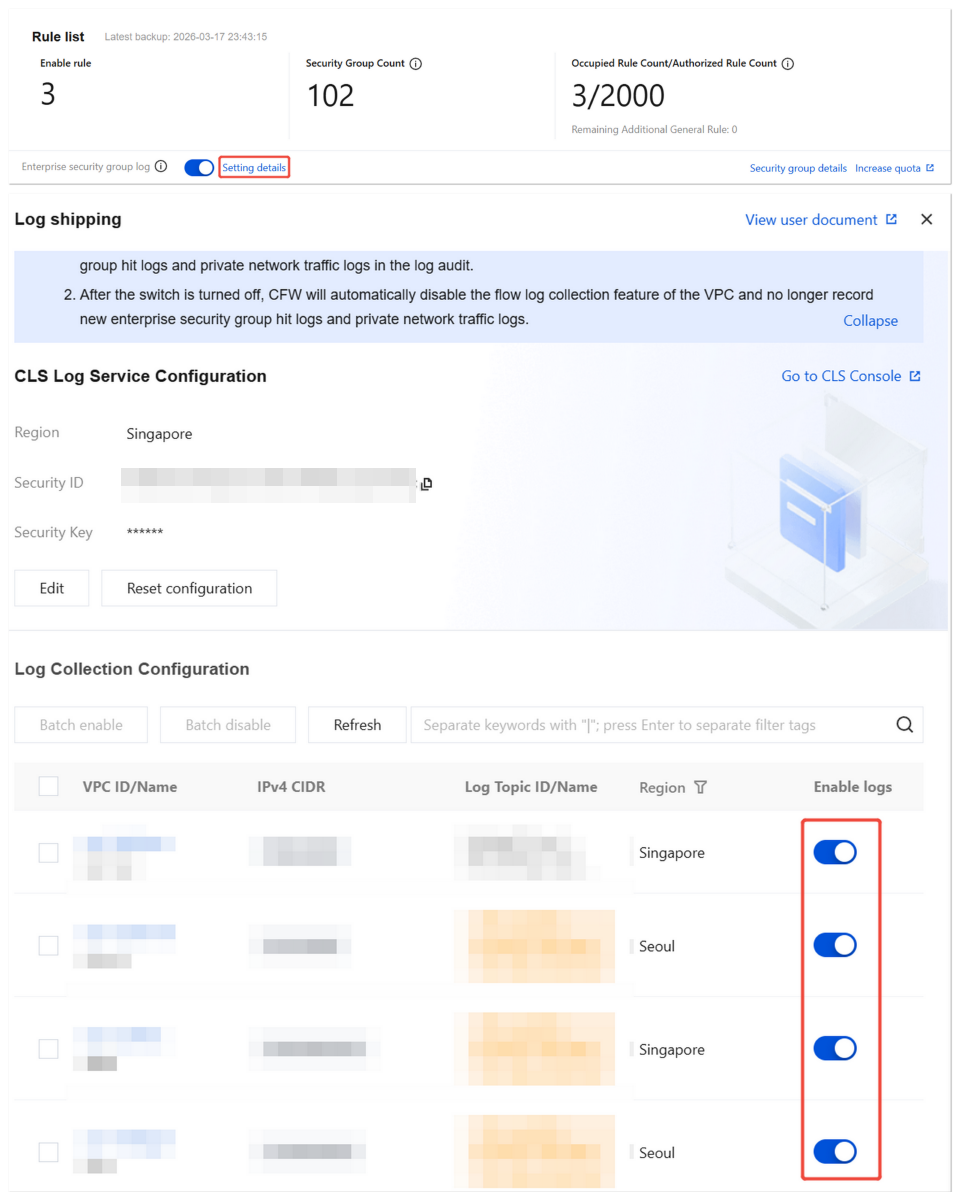
5. Click Settings details to enable the VPC toggle for collecting traffic between private networks.
Use Cases
Scenario 1: Auditing Enterprise Security Group (New) Interception Hits
When traffic is blocked by the Enterprise Security Group (New), the troubleshooting process should focus on identifying which specific rule caused the interruption by examining the Enterprise Security Group (New) that hit the blocking policy, ultimately determining the exact rule that intercepted the traffic.
1. On the Enterprise Security Group (New) page, click Settings details to enable the toggle for the VPC that needs troubleshooting.
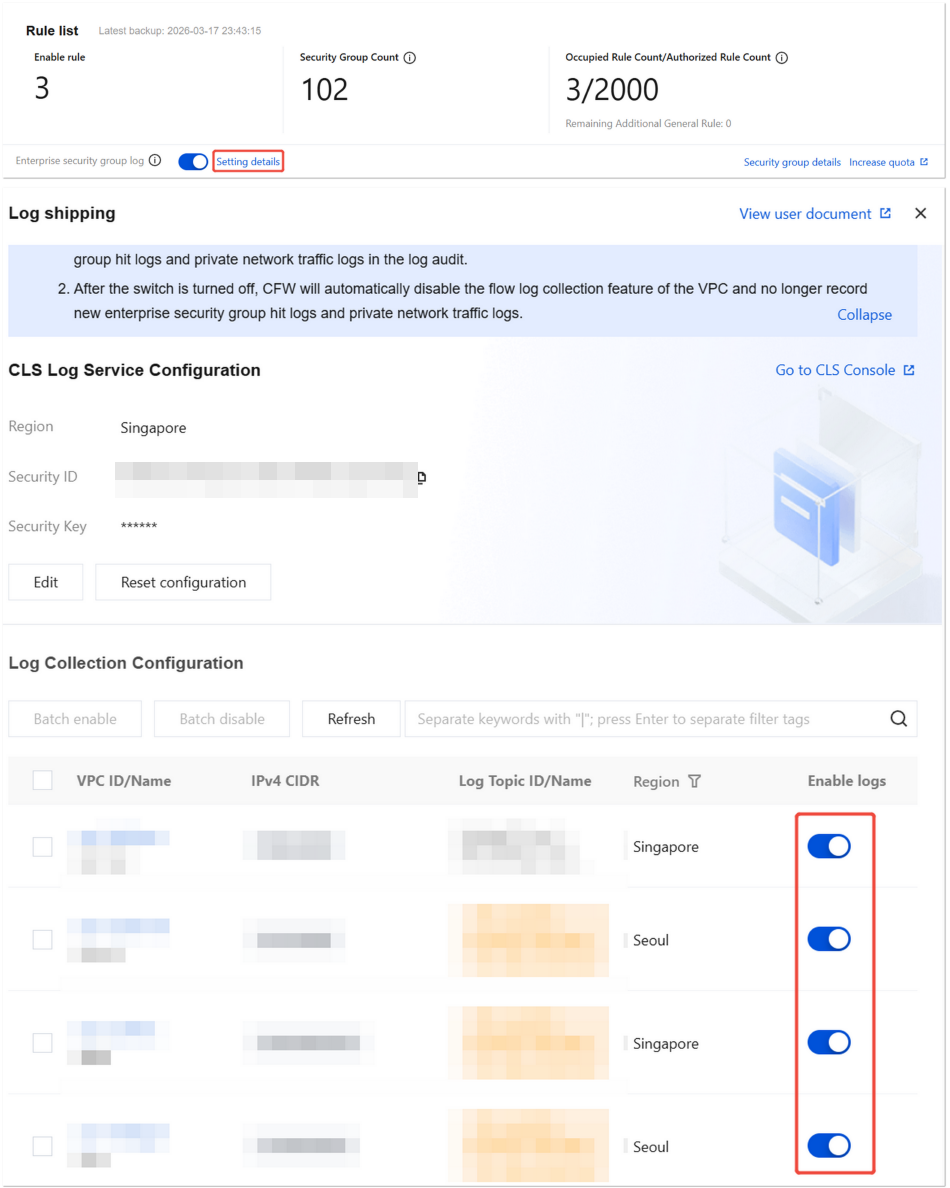
2. Enterprise Security Group (New) automatically logs security group block hit logs.
3. Reproduce the intercepted traffic connection request, in the Access Control Log - Enterprise Security Group flow logs, filter by source/destination, and locate the security group rule that hit the blocking policy.

Scenario 2: Monitoring Traffic Within the VPC (Between Subnets and Within a Subnet)
Monitor traffic within all VPCs, including traffic between subnets and within subnets.
1. On the Enterprise Security Group (New) page, click Settings Details to enable the toggle for the VPC that needs troubleshooting.
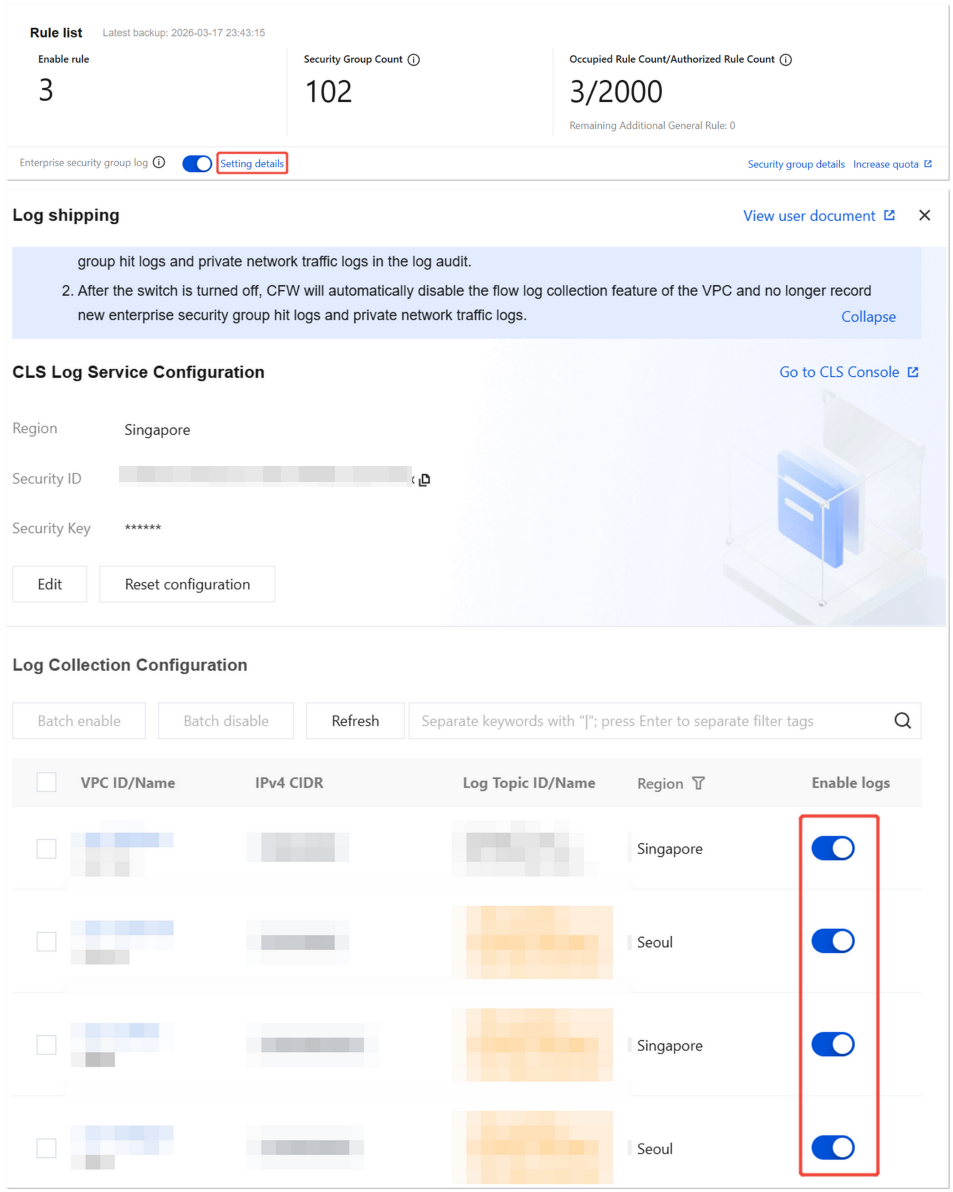
2. Enterprise Security Group flow logs automatically log all traffic within the VPC, including traffic between subnets and within subnets.
3. On the Traffic Log - Private Network Traffic Log page, record and troubleshoot traffic between subnets and within subnets.
Scenario 3: VPC Traffic Monitoring
Monitor all inbound and outbound private network traffic for VPCs.
1. On the Enterprise Security Group (New) page, click Settings details to enable the toggle for the VPC that needs troubleshooting.
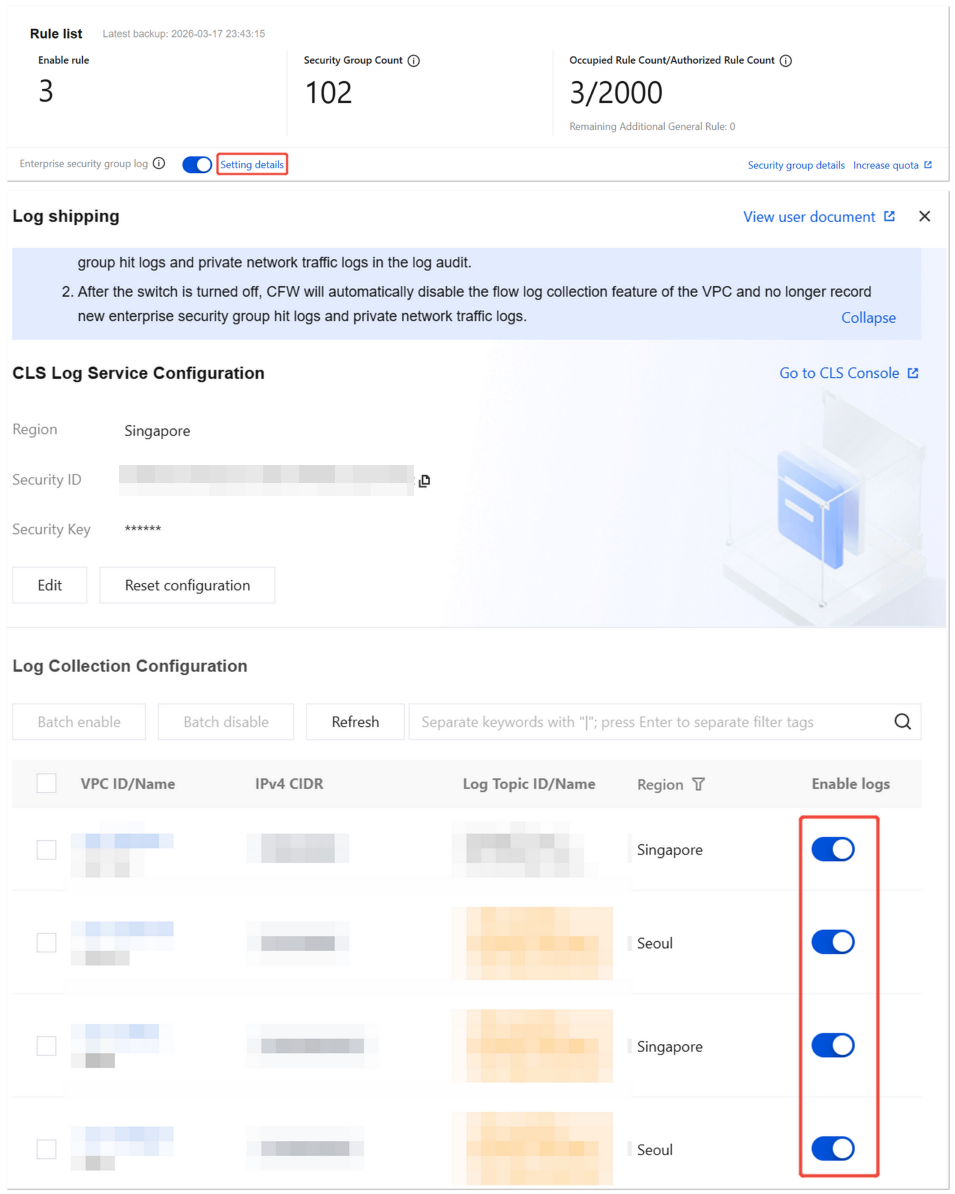
2. Enterprise Security Group flow logs will automatically log all traffic entering and exiting the VPC.
3. On the Traffic Log - Private Network Traffic Log page, record and troubleshoot inbound and outbound traffic for the VPC.
Bantuan dan Dukungan
Apakah halaman ini membantu?
Anda juga dapat Menghubungi Penjualan atau Mengirimkan Tiket untuk meminta bantuan.
masukan