Automatic Backup
Download
Focus Mode
Font Size
TDSQL-C for MySQL supports both automatic backup and manual backup to back up your data. Within automatic backup, snapshot backup is enabled by default, while logical backup requires manual enabling. You can also configure a backup policy for automatic backup to achieve long-term backup retention and ensure data security.
Upon cluster creation, TDSQL-C for MySQL generates data backups (automatic snapshot backups) based on factors such as log generation rate and write volume. By default, a backup is performed once per day. If the write volume exceeds 4 GB and more than 24 hours have passed since the last backup, a backup is triggered immediately. You can also enable automatic logical backups on the backup management page according to your business needs, and configure the retention period for automatic logical backups.
This document describes how to configure automatic backup in the console.
Note:
To ensure the stability of the backup system, the current system allows only one backup to be initiated per hour.
If your cluster storage usage exceeds 2 TB, it is not recommended to use logical backup, as this may lead to backup failure.
Note
Backup files generated by automatic backup cannot be deleted. You can use the Automatic Backup Retention option in the automatic backup settings to configure the retention period for automatic backups, thereby controlling the lifecycle of automatic backup files to achieve the effect of deletion.
You can view the Backup Time field in the data backup list to determine the exact time point of the data snapshot in the backup file.
For Serverless clusters/instances, automatic backup is currently not supported when the Serverless cluster/instance is paused. If the automatic backup cycle you set falls within the paused period of the Serverless cluster/instance, the automatic backup for that Serverless cluster/instance will not take effect at the set time. To back up a Serverless cluster/instance promptly and automatically, pay attention to the automatic backup time window you select and ensure that it matches the time when your cluster/instance is automatically started.
Logical backup may have a certain performance impact on the instance and affect database usage during automatic logical backup. Therefore, it is recommended that you set the start time of automatic logical backup to off-peak hours.
Operation Steps
Automatic Snapshot Backup Settings
1. Log in to the TDSQL-C for MySQL console.
2. Select a region at the top of the page based on your actual console view mode and perform corresponding operations.
Click the target cluster in the cluster list on the left to enter the cluster management page.

Find the target cluster in the cluster list on the left, and click Cluster ID or Operation column's Manage option to enter the cluster management page.

3. On the cluster management page, select the Backup Management page and click Auto-Backup Settings.
4. In the pop-up dialog box, complete the following configurations and click OK.
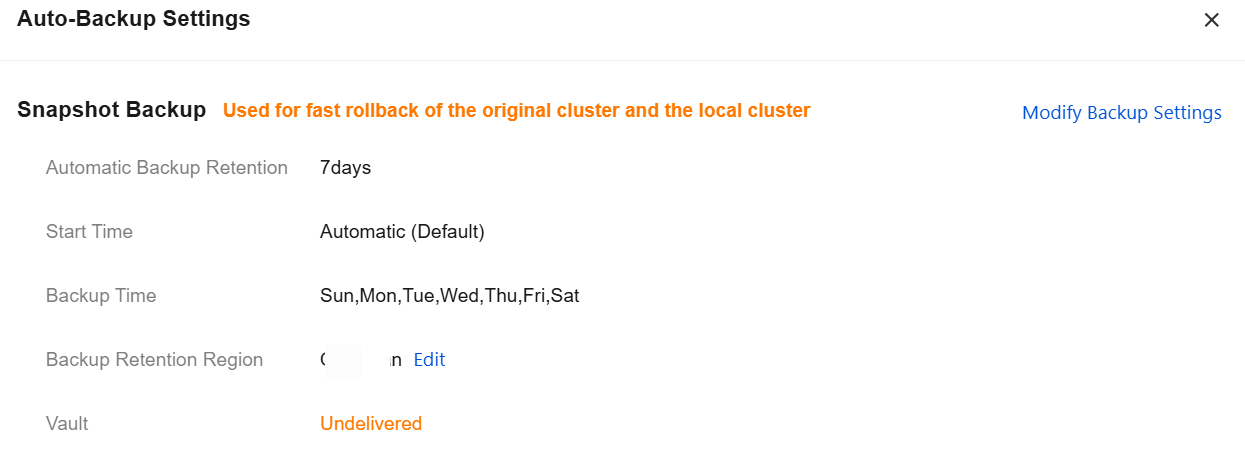
Configuration 1: snapshot backup
Under Snapshot Backup, you can view the current configuration policy of the cluster. Click Modify Backup Settings to make changes. The configurations and their descriptions are listed in the following table.
Parameter | Description |
Start Time | Start time of automatic snapshot backups. The default option is Automatic (default), which means the system determines the start time and you cannot specify an exact time. You can also specify a time range in the drop-down list. The start time range of automatic snapshot backups is a fixed 2-hour period, for example, 00:00 - 02:00. The actual start time is subject to the actual task. |
Backup Frequency | Select the backup frequency. By week. High-frequency backup: If the start time is "Automatic (default)", you can set the backup frequency to high-frequency backup and select the backup cycle in hours. Note: If the backup cycle is selected in hours, all backups on a given day except the first one will expire after 24 hours. |
Backup Cycles | If the backup frequency is set to "By week": you can select from Monday to Sunday. At least one day must be selected. Multiple selections are allowed. If the backup frequency is set to "High-frequency backup": you can select to back up every 6, 8, or 12 hours. |
Store to Vault | If this option is enabled, automatic snapshot backups will be delivered to the backup vault for storage. For details on the backup vault, see Backup Vaults. |
Select Vault | If "Store to Vault" is enabled, you can select the target backup vault for storage. |
Automatic Backup Retention | Set the data backup retention period. Value range: 7 - 1830 days. The value cannot exceed the binlog backup retention period of the current cluster. |
Configuration 2: logical backup
If you only need to configure snapshot backup for automatic backups, you do not need to enable and configure logical backup. If you need to enable and configure logical backup, see the steps below.
Enabling Automatic Logical Backup
1. Log in to the TDSQL-C for MySQL console.
2. Select a region at the top of the page based on your actual console view mode and perform corresponding operations.
Click the target cluster in the cluster list on the left to enter the cluster management page.
Find the target cluster in the cluster list on the left, and click Cluster ID or Operation column's Manage option to enter the cluster management page.
3. On the cluster management page, select the Backup Management page and click Auto-Backup Settings.
4. Under Logical Backup, click Enable and Set.

5. In the pop-up dialog box, complete the following configurations and click OK.
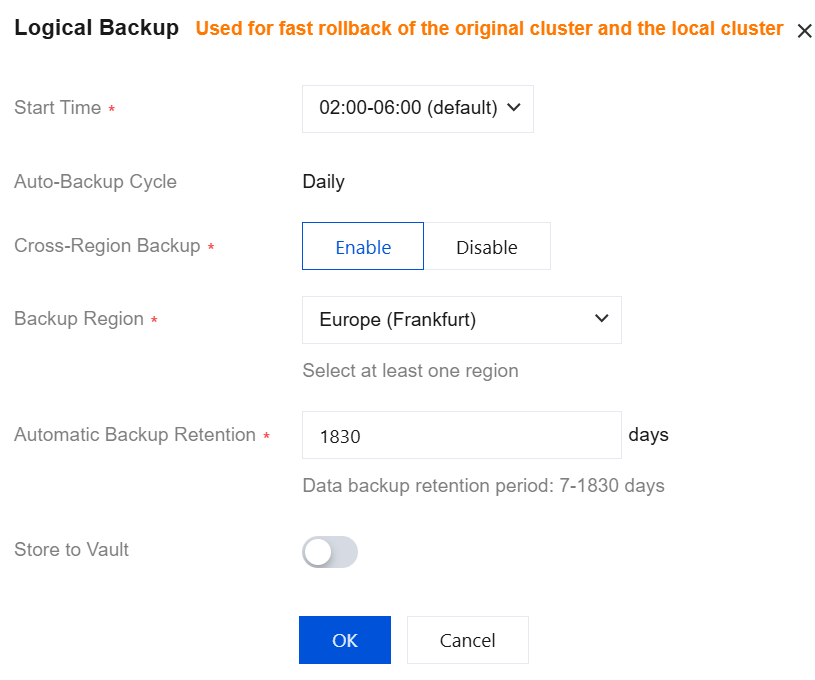
Parameter | Description |
Start Time | Sets the daily start time for automatic logical backups. The default is 02:00-06:00. |
Auto-Backup Cycle | The default value is daily. Note: The current version only supports a daily automatic backup cycle. Due to the logical backup rate limit, the backup cycle for certain clusters with large data volumes may extend beyond one day (if a logical backup is not completed on a given day, the next automatic logical backup will be performed on the day after the current one completes). |
Cross-Region Backup | Select whether to enable cross-region backup. After enabling this feature, you can save automatic logical backup files to other regions. For details, see Cross-Region Backup. If not enabled, the retention region for automatic logical backups defaults to the region where the current cluster resides. |
Backup Region | When cross-region backup is enabled, you can select the region for storing backups. A maximum of three regions can be set. |
Automatic Backup Retention | Backups can be retained for 7 - 1830 days. |
Store to Vault | If this option is enabled, automatic logical backups will be delivered to the backup vault for storage. For details on the backup vault, see Backup Vaults. |
Select Vault | If "Store to Vault" is enabled, you can select the target backup vault for storage. |
6. After enabling and configuring successfully, click OK in the lower-right corner to complete the logical backup setup.
7. You can also modify or disable the backup settings.
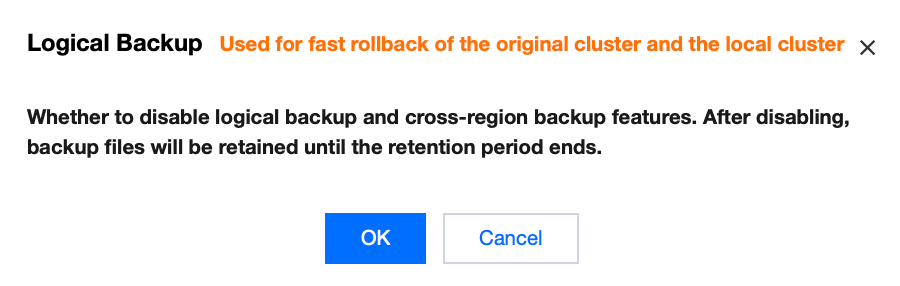
Modify backup settings: You can change the start time and adjust cross-region backup settings (modify the cross-region backup region, or enable/disable cross-region backups).
Disable backup settings: You can disable the cross-region backup feature for logical backups and automatic logical backups. After disabling, backup files will continue to be retained until the backup cycle ends.
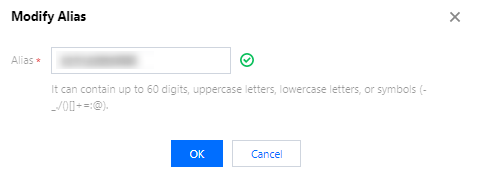
8. The filename for automatic logical backups is automatically generated. In the backup list, you can click the edit icon next to the remarks name to configure or modify it.
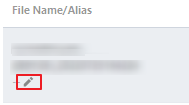
Configure the window as follows:
Related APIs
API | Description |
This interface (DescribeBackupConfig) is used to obtain the backup configuration information of a specified cluster, including the full backup time window and the backup file retention period. | |
This interface (ModifyBackupConfig) is used to modify the backup configuration of a specified cluster. |
Help and Support
Was this page helpful?
You can also Contact sales or Submit a Ticket for help.
Help us improve! Rate your documentation experience in 5 mins.
Feedback