Barrage Component(iOS UIKit)
Baixar
Modo Foco
Tamanho da Fonte
Feature Overview
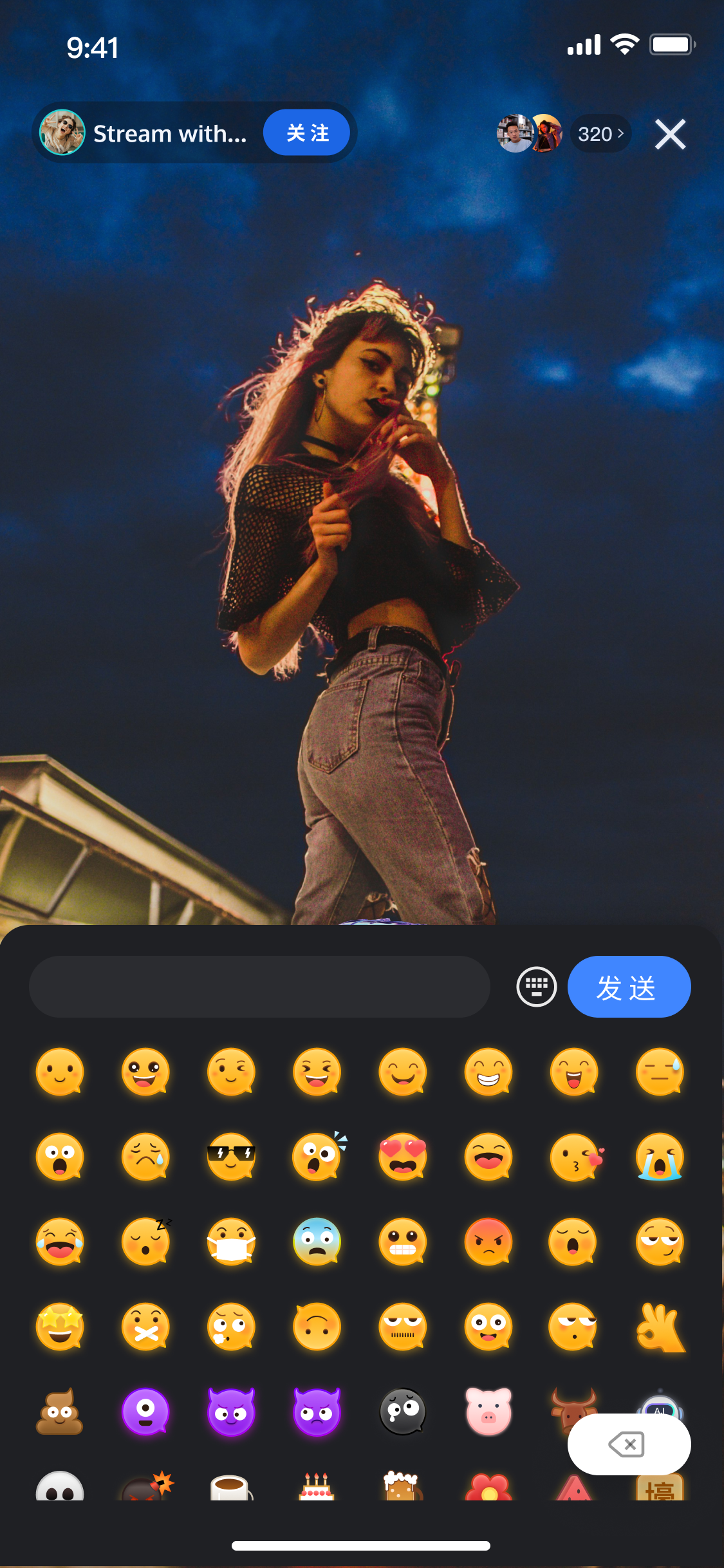
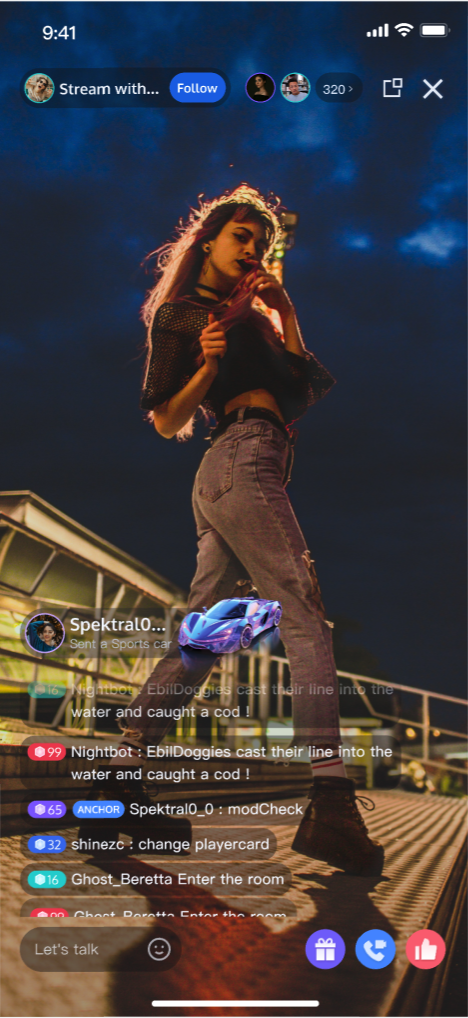
TUILiveKit live comments deliver a robust solution for interactive live streaming, enabling real-time engagement and entertainment within your broadcasts. This guide walks you through quickly integrating live comment features into your live room, with deep customization options to fit your business needs.Live Comment Sending Component ( BarrageInputView) | Live Comment Display Component ( BarrageStreamView) |
 |  |
Component Structure
Component Name | Description |
Live Comment Display Component ( BarrageStreamView) | Handles real-time rendering and management of live comment streams. Supports message list rendering, time aggregation, user interaction, and responsive design. |
Message Sending Component ( BarrageInputView) | Provides rich text editing and message sending, including emoji picker, character limit, state management, and cross-platform support for a seamless input experience. |
Quick Start
Step 1: Activate the Service
Step 2: Integrate the TUILiveKit
Step 3: Integrate the Live Comment Sending Component
Add the live comment sending component to your app so hosts and audience members can send live comments. Use the sample code below to create the
BarrageInputView and add it to your view hierarchy.// 1. Create BarrageInputView objectlet roomId = "your_room_id" // Replace with your actual roomId (LiveID)let barrageInputView = BarrageInputView(roomId: roomId)// ...Add barrageInputView to your parent view and adjust layout here
Note:
1. The live comment sending component allows switching between the system keyboard and an emoji keyboard.
2. To comply with emoji design copyrights,
TUILiveKit does not include full emoji asset packs. Before launching commercially, replace the default emojis with your own designs or packs you have rights to use. The default yellow face emoji pack shown below is owned by TRTC and available for commercial licensing. For authorization, submit a ticket to contact us.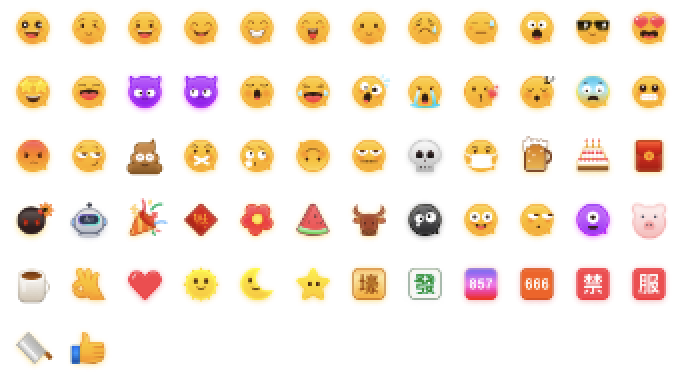
Step 4: Integrate the Live Comment Display Component
Create and initialize
BarrageStreamView where you want to present live comments. Use the ownerId parameter to customize the display for hosts and audience members.let liveID = "your_live_id" // Replace with your actual LiveIDlet ownerId = "your_owner_id" // Replace with your actual ownerId// 1. Create BarrageStreamView objectlet barrageDisplayView = BarrageStreamView(liveID: liveID)// 2. Add barrageDisplayView to your parent view and adjust layout herebarrageDisplayView.setOwnerId(ownerId)
Step 5: Insert Local Live Comment Messages
Use
BarrageStore's appendLocalTip interface to insert custom messages (such as gift notifications or announcements) into the live comment stream. Custom styles can be used to differentiate these messages.Note:
This action must be performed after successfully entering the room.
import TUILiveKitimport AtomicXCore// Example: Insert a gift message into the live comment arealet barrage = Barrage()barrage.textContent = "gift"barrage.liveID = "your_live_id" // Replace with your actual LiveIDbarrage.sender.userID = "sender.userId"barrage.sender.userName = "sender.userName"barrage.sender.avatarURL = "sender.avatarUrl"barrage.timestampInSecond = Date().timeIntervalSince1970let giftCount = 1barrage.extensionInfo = ["TYPE": "GIFTMESSAGE","gift_name": gift.name,"gift_count": "\\(giftCount)","gift_icon_url": gift.iconURL,"gift_receiver_username": userName]// Get BarrageStore instancelet barrageStore = BarrageStore.shared(liveID: "your_live_id") // Replace with your actual liveIDbarrageStore.appendLocalTip(message: barrage)
Custom Live Comment Message Styles
Example Effect
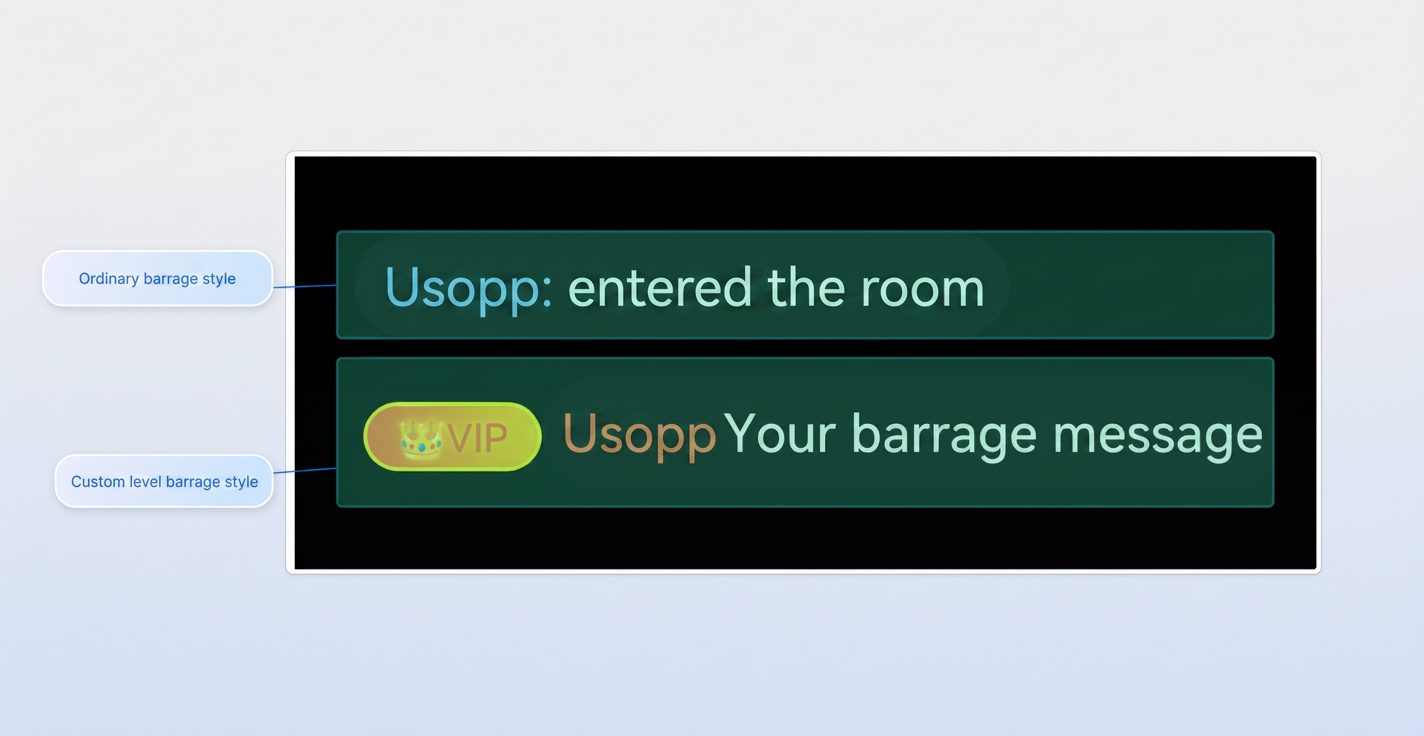
By default, two live comment message styles are provided: standard (style 0) and custom. For additional styles, implement the
BarrageStreamViewDelegate protocol for BarrageStreamView.import UIKitimport TUILiveKitimport AtomicXCoreclass MyViewController: UIViewController, BarrageStreamViewDelegate {let liveID = "your_live_id" // Replace with your actual liveIDlet barrageDisplayView = BarrageStreamView(liveID: liveID)override func viewDidLoad() {super.viewDidLoad()barrageDisplayView.delegate = self // Assign delegate// ...}func onBarrageClicked(user: LiveUserInfo) {// Handle live comment click events here. 'user' contains sender information.}func barrageDisplayView(_ barrageDisplayView: BarrageStreamView, createCustomCell barrage: Barrage) -> UIView? {guard let type = barrage.extensionInfo?["TYPE"], type == "GIFTMESSAGE" else {// Return nil if no custom UI is neededreturn nil// If needed, you can return specific styles based on message type// return GiftBarrageView(barrage: barrage)}// Return custom message style UIreturn CustomBarrageView(barrage: barrage)}}// Custom UIclass CustomBarrageView: UIView {let barrage: Barrageinit(barrage: Barrage) {self.barrage = barragesuper.init(frame: .zero)setupUI()}required init?(coder: NSCoder) {fatalError("init(coder:) has not been implemented")}// ...Define your custom UI layout here}
FAQs
Why can't I see live comment messages?
Please check the following:
Ensure you have passed the correct
roomId to BarrageInputView and the correct LiveID to BarrageStreamView.Check that your network connection is normal.
How do I distinguish between host and audience in live comment messages?
When initializing
BarrageStreamView, provide the ownerId parameter. The component automatically detects messages sent by the host based on ownerId and applies the appropriate style. You can also customize styles by checking the user.userId field in the Barrage object and render effects as needed.
Ajuda e Suporte
Esta página foi útil?
Você também pode entrar em contato com a Equipe de vendas ou Enviar um tíquete em caso de ajuda.
comentários