Modify Sync configuration
Baixar
Modo Foco
Tamanho da Fonte
Overview
After a newly configured sync task has started, you can modify the sync configuration to add or delete sync objects and modify sync parameters as follows.
When you modify the sync configuration, existing sync tasks are not paused or affected.
Adding an object: When the sync task type is set to full + incremental sync, adding a new sync object will result in DTS syncing both the existing and incremental data of the added object to the target database. Conversely, when the sync task type is set to incremental sync only, adding a new sync object will result in DTS syncing only the incremental data of the added object to the target database.
Deleting an object: After the configuration is modified, the incremental data of the deleted object will no longer be synced to the target database, but the data already synced before the modification will be retained.
Modifying the primary key conflict resolution policy: The new policy will be applied only to the data synced after the configuration is modified.
Modifying where filter conditions: For synchronization objects that already have where condition filters, you can directly edit the existing filter rules without reselecting the objects. The modified filter rules will be applied to data synced subsequently.
Application Scope
Only the following links support the modification of synchronization configuration operations.
MySQL/MariaDB/Percona/TDSQL-C MySQL/TDSQL MySQL > MySQL
MySQL/MariaDB/Percona/TDSQL MySQL > MariaDB
MySQL/MariaDB/TDSQL-C MySQL/TDSQL MySQL > TDSQL-C MySQL
MySQL/MariaDB/Percona/TDSQL-C MySQL/TDSQL MySQL > Kafka
TDSQL MySQL > TDSQL MySQL
PostgreSQL > PostgreSQL
Notes
1. After the sync configuration modification feature is launched, you can modify only newly initiated tasks.
2. The configuration of a sync task can be modified only if the task is in the Incremental Sync stage and in Running/Task error status and the data gap between the source and target databases is less than 1 GB.
3. When you add or delete objects, be sure to select associated objects together; otherwise, the sync task will fail.
4. When modifying the sync configuration, you can rename only newly added database/table objects. If you modify previously selected objects, the system will report an error during verification, and you need to change them back to the original names.
5. Upon initial modification of the full-speed parameters within the speed limit settings (including full export thread data and RPS, as well as the full import thread count and RPS), subsequent modifications to the sync objects will first redirect users to the speed limit parameter adjustment interface. It is recommended that users increase the full-speed parameters as much as possible (based on a comprehensive assessment of the load conditions of the source and target databases) to prevent prolonged duration of full sync for newly added objects.
Directions
1. Log in to the DTS console, select Data Sync on the left sidebar, select the target sync task, and click Modify Sync Configuration in the Operation column.
The configuration of a task can be modified only if the task is in the Incremental Sync stage and in Running/Task error status and the data gap between the source and target databases is less than 1 GB. It cannot be modified in other statuses such as Task failed.
2. (Optional) Verify if there is a need to adjust the speed parameters, and upon confirmation, click OK.
Note:
If you modify the full speed parameters (number of full export threads and RPS; number of full import threads and RPS) in rate limiting for the first time, when subsequently performing the operation to modify synchronization objects, you will first be redirected to the rate limiting parameter adjustment page. It is recommended that you increase the full speed parameters as much as possible based on a comprehensive assessment of the load on the source and target databases to avoid prolonged full synchronization for added objects.
3. On the sync task configuration page, in Set sync options and objects, modify relevant parameters such as objects and the primary key conflict resolution policy, and click Save and Go Next. Except data initialization options, all options can be modified.
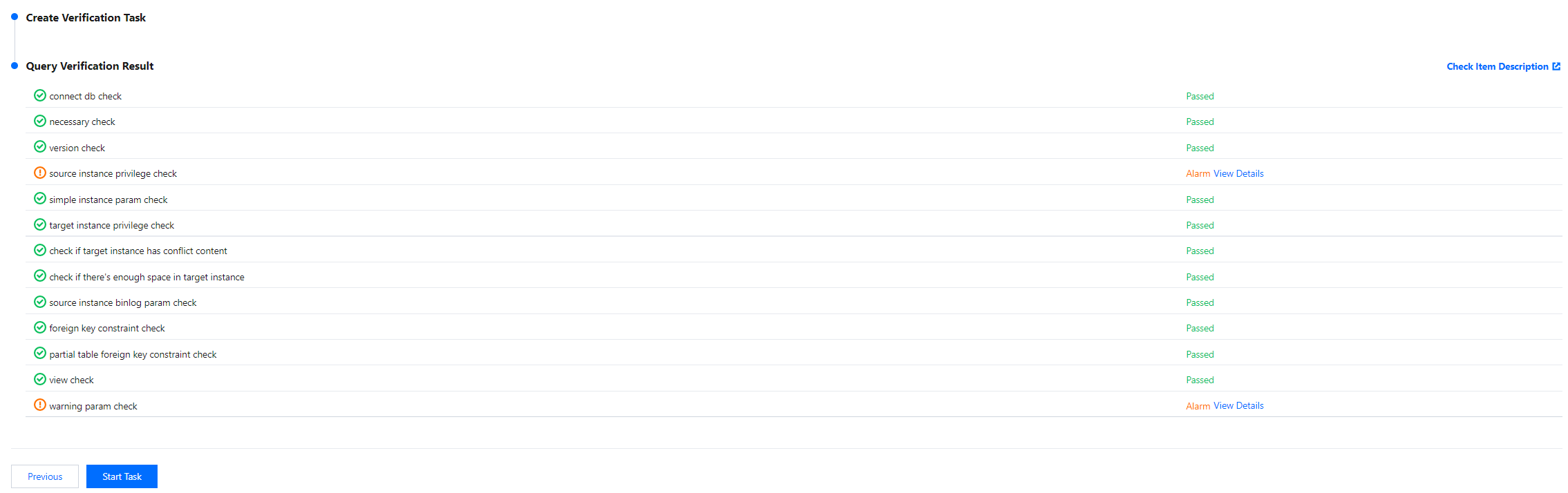
4. Verify the task again. After the verification is passed, click Start Task.
5. Return to the task list, and you can see that the task status is Running (dynamically modifying configuration), meaning that DTS is processing the data after modification.
Notes:
After the sync configuration is modified, when the task is in Running (dynamically modifying configuration) status, do not perform DDL operations on the source database; otherwise, the task may fail.
When you add a sync object, DTS will first sync the existing data of the object to the target database. If the volume of the existing data is high, the task will remain in Running (dynamically modifying configuration) status for a long time.
When the task status becomes Running, the configuration has been modified, and you can modify the configuration again if needed.
Viewing Sync Configuration Modification Records
After the sync configuration is modified, you can view the modification records in the task log to compare the configuration differences before and after the modification.
Operation Steps
1. Log in to the DTS console, and select Data Sync on the left sidebar.
2. Select the specified sync task, and click its task ID to go to the task details page.
3. Select the Task Log tab, and find the operation record of the Modify Synchronization Objects type.
4. In the Operation column of the corresponding record, click View to view the details of the sync configuration modification record.
Ajuda e Suporte
Esta página foi útil?
Você também pode entrar em contato com a Equipe de vendas ou Enviar um tíquete em caso de ajuda.
comentários