Managing VPN Tunnels
Baixar
Modo Foco
Tamanho da Fonte
Viewing a VPN Tunnel
After the VPN tunnel is created, you can view the tunnel details on the VPN Tunnel management page.
Operation Steps
1. Log in to the VPC console.
2. In the left-side menu, click VPN Connections > VPN Tunnel to enter the management page.
3. On the VPN Tunnel management page, click the tunnel instance to enter the VPN Tunnel details page.
Basic information
The Basic Info tab displays information such as Tunnel Name, Tunnel ID, Protocol, Network, Pre-shared Key, Negotiation Mode, DPD Parameters, and Communication Mode.
Advanced Configuration Information
The Advanced Information tab displays IKE and IPSec related configuration information such as Encryption Algorithm, Authentication Algorithm, and so on.
Modifying a VPN Tunnel
After the VPN tunnel is created, you can modify the Tunnel Name, Pre-shared Key, Negotiation Mode, Tags, and other information in the Basic Information, as well as the IKE and IPSec configurations in the Advanced Configuration. You can also reset all configurations for the tunnel.
Impact on the System
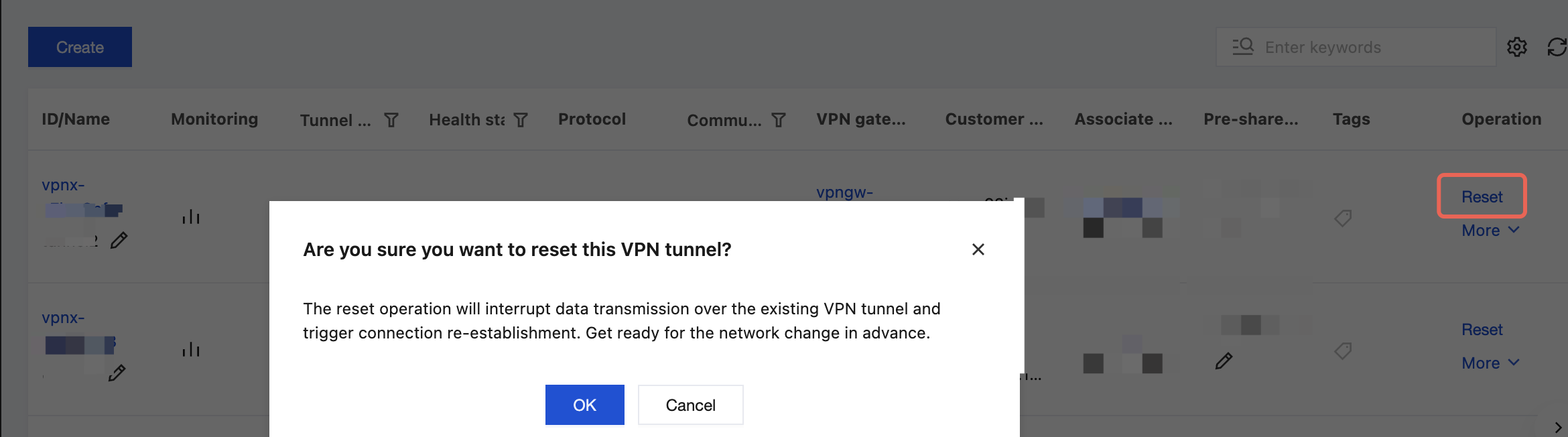
Note: The reset operation interrupts existing VPN tunnel data transmission and re-establishes the connection. Please prepare for the network change in advance.
Operation Steps
1. Log in to the VPC console.
2. In the left-side menu, click VPN Connections > VPN Tunnel to enter the management page.
3. On the VPN Tunnel management page, click the ID of the VPN tunnel instance you want to modify to go to its details page.
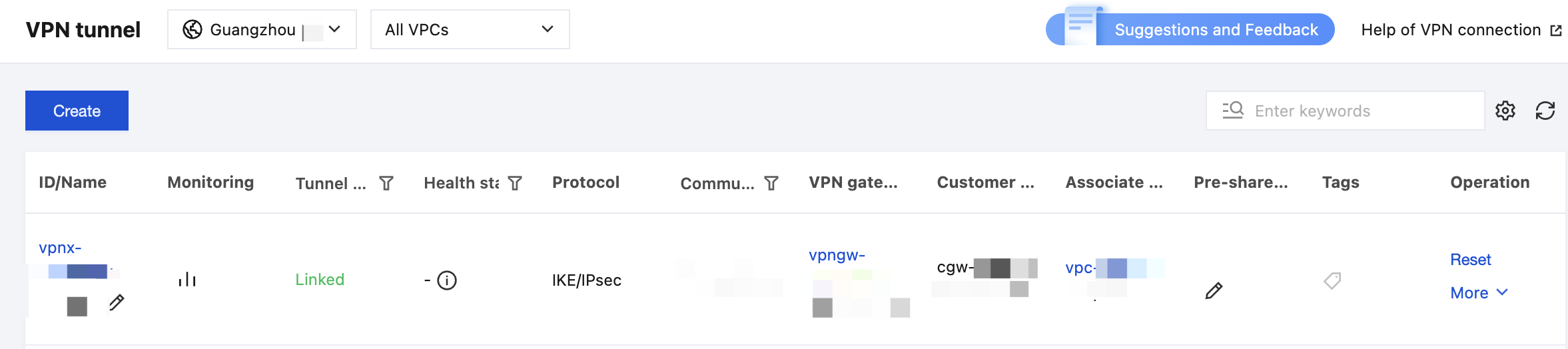
4. On the Basic Information page, click the edit icon in the figure to modify the VPN tunnel name, pre-shared key, negotiation mode, DPD parameters, and tags. After making changes, click OK.
Among them, the tunnel name and pre-shared key can also be modified directly by clicking the edit icon on the VPN tunnel list page, as shown in the following figure.
5. Click the Advanced Information tab to modify the IKE and IPSec configurations on the Advanced Information page. After making changes, click OK.
6. Clicking Reset will interrupt the data transmission of the current VPN tunnel and re-establish the connection. Please be aware of the risks and proceed with caution.
Deleting a VPN Tunnel
When a VPN tunnel is no longer in use, you can delete it.
Operation Steps
1. Log in to the VPC console.
2. In the left-side menu, click VPN Connections > VPN Tunnel to go to the list management page.
3. On the VPN Tunnel management page, click More > Delete on the right side of the tunnel instance.
4. In the confirmation dialog box, click OK to complete the operation.
Ajuda e Suporte
Esta página foi útil?
Você também pode entrar em contato com a Equipe de vendas ou Enviar um tíquete em caso de ajuda.
comentários