Large Model Audio-Video Understanding Access
다운로드
포커스 모드
폰트 크기
Feature Overview
Large Model Audio-Video Understanding leverages industry-leading multimodal large models to comprehend video and audio content. Users can utilize prompts to define the focus of content comprehension and specify the output format of the text results.
Key Advantages
Easy to Use: Requires no complex setup. Users can achieve bulk content understanding simply by using prompts to define the desired output format.
High-Quality Results:
In educational scenarios, it can evaluate aspects like color, brushwork, shape, and structure in artwork.
In music performance scenarios, it provides professional feedback and suggestions for improvement regarding rhythm, pitch, fingering, and more.
Versatile Use Cases: Applicable to a wide range of scenarios, including short video summaries, video script breakdowns, video/audio evaluations, and storyboard understanding.
Prerequisites
Before integration, you need to activate the MPS (Media Processing Service) on the Media Intelligence Template page. This can be found under Media Processing > Media Processing Template within the VOD (Video on Demand) Console.
Note:
The Large Model Audio-Video Understanding feature is powered by MPS (Media Processing Service). To use this feature, you must activate both the VOD and MPS services.
Feature usage data and billing will be displayed on the MPS platform. For pricing details, please refer to MPS Media AI Pay-As-You-Go Pricing.
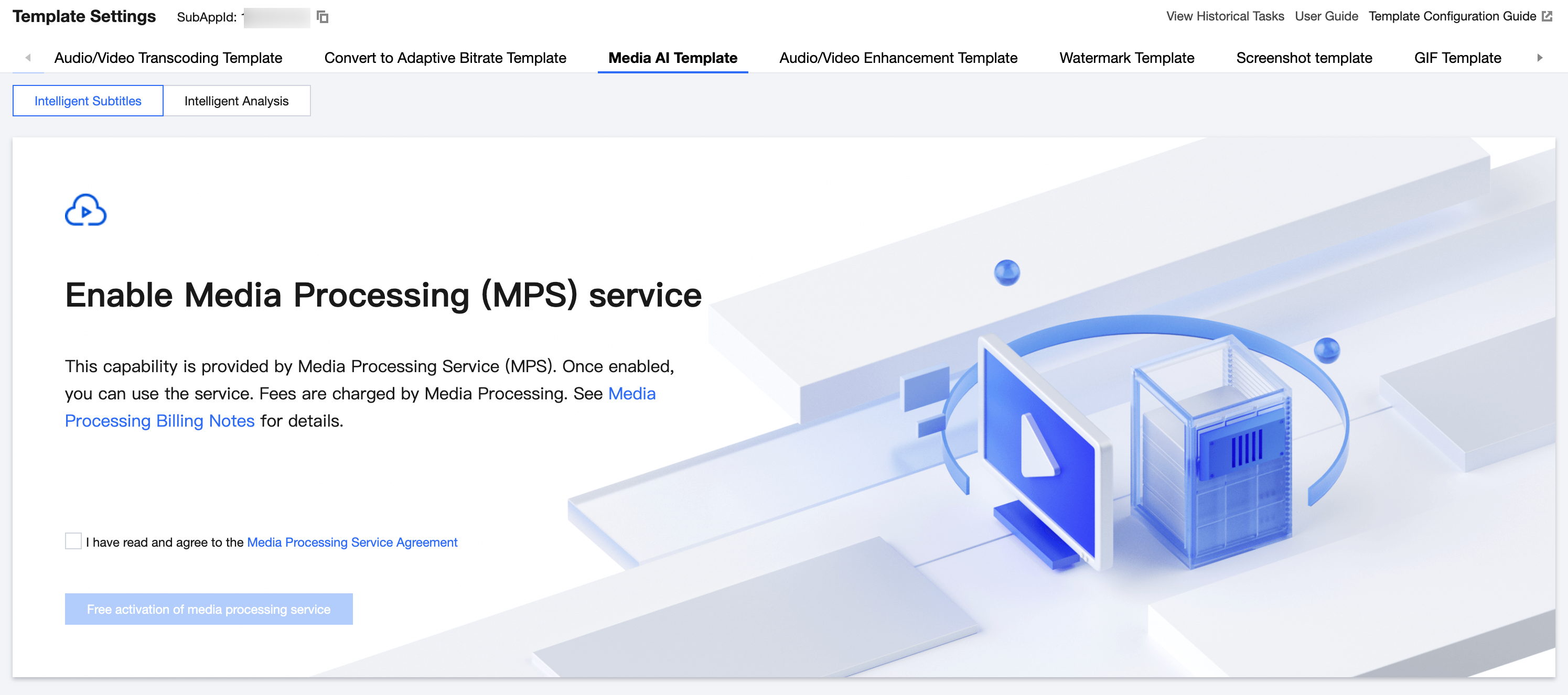
Method 1: Operating via the Console
Initiating a Task
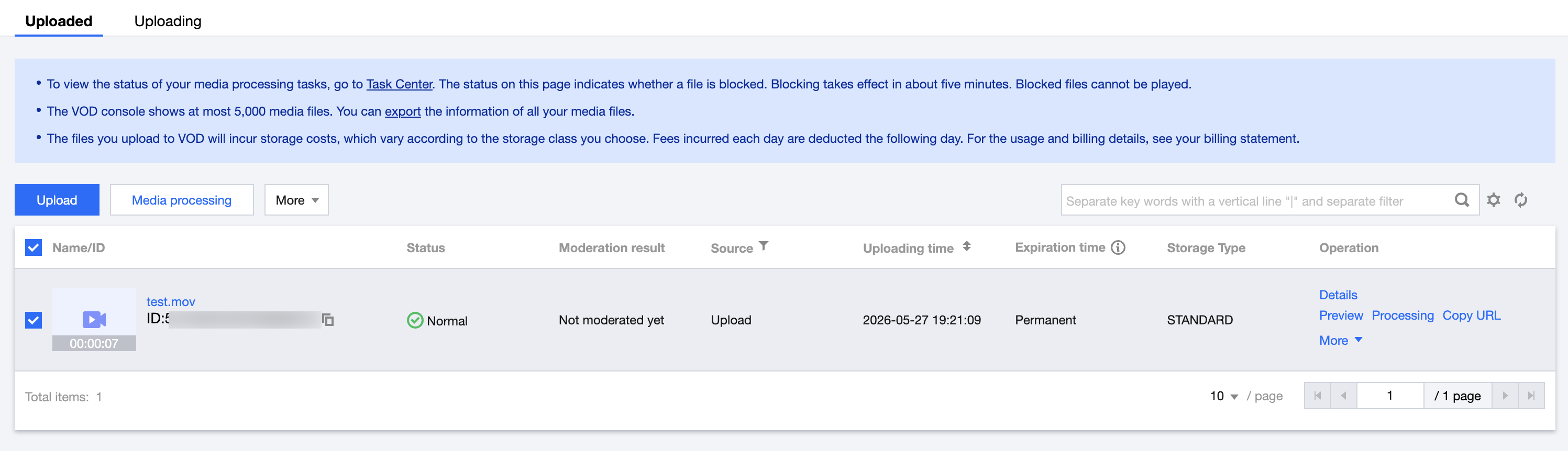
You can initiate a task by navigating to the Intelligent Media Asset Management > Audio/Video Management page in the VOD Console.
1. Select the video for which you want to initiate a task, and then click Media Processing.
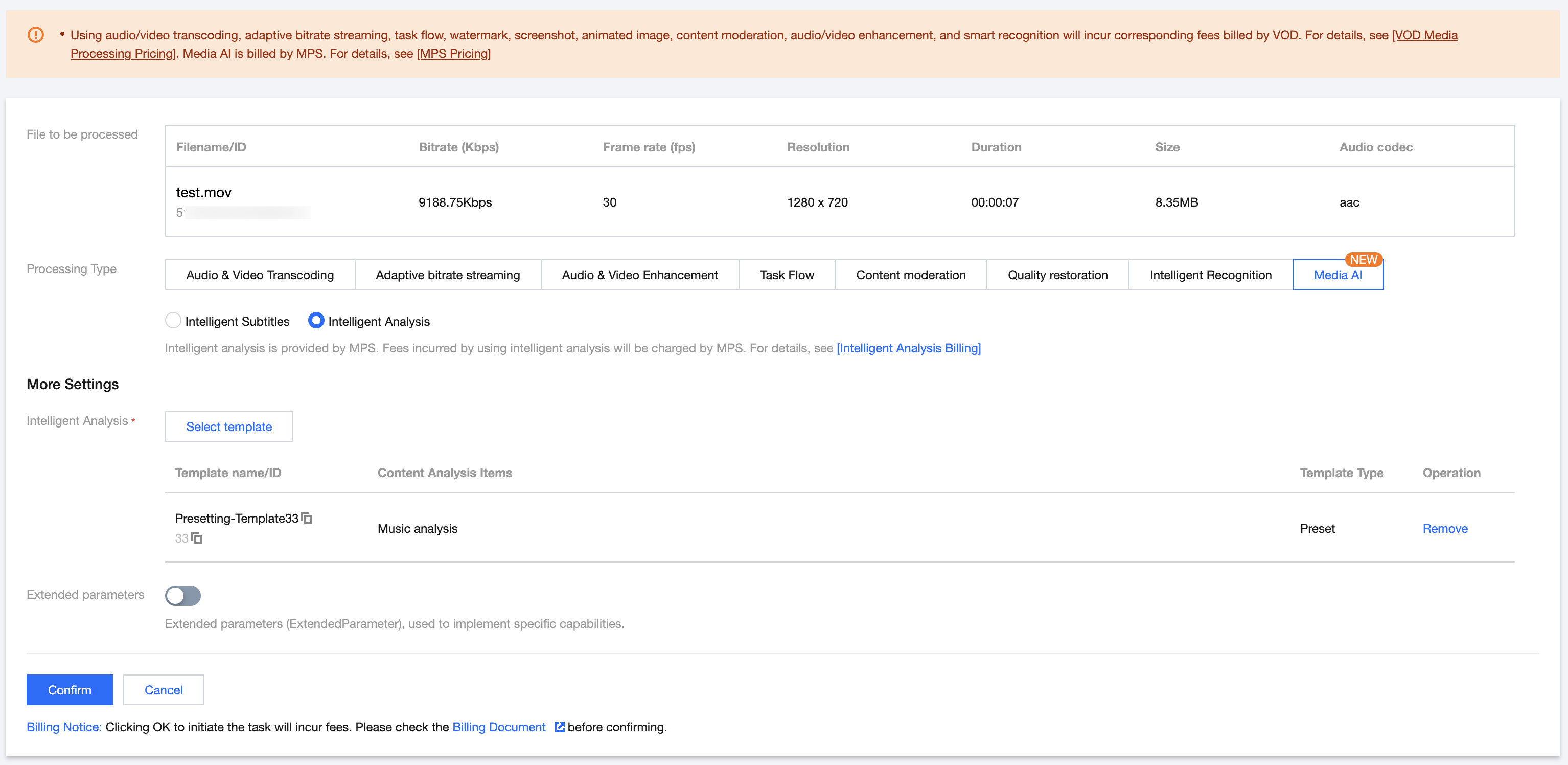
2. Select Intelligent Analysis under the "Media AI" processing type. You can then choose preset template No. 33 and initiate the task by passing the required parameters as described in the Extension Parameter Description section below.
Note:
The console automatically handles string escaping. Please input the raw JSON data directly instead of an escaped string; otherwise, the task will fail.
Checking Task Results
Navigate to the Task Center page in the VOD Console, locate the corresponding task, and click Details to view the results.
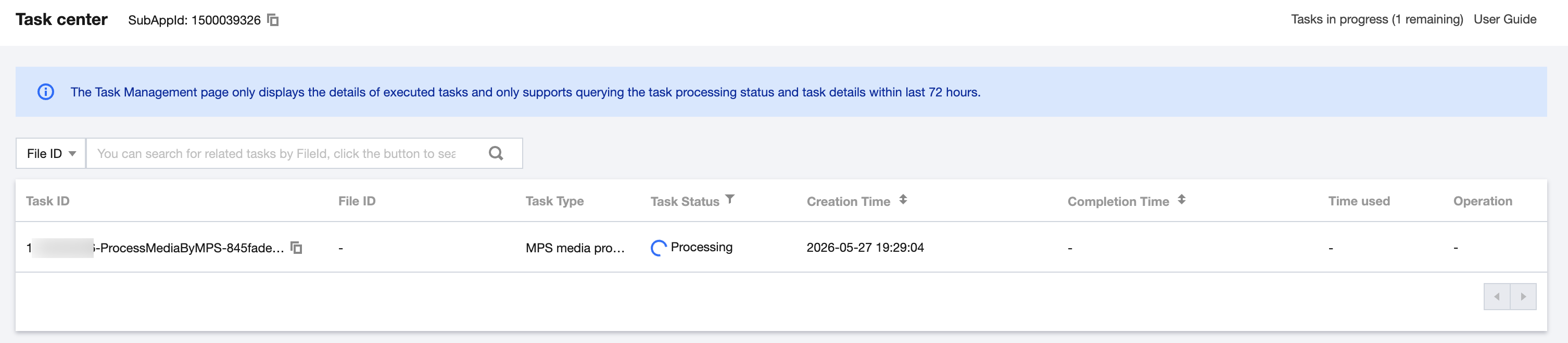
You can also call the DescribeMediaInfos API to query the results saved to your media assets.
Note:
For tasks using the same template, only the latest task result will be retained in your media assets.
Method 2: API Integration
Initiating a Task
Call the ProcessMediaByMPS API. Fill in the FileId field with the ID of the media asset to be processed, and enter the sub-application ID in the SubAppId field. Within the AiAnalysisTask, set the Definition to
33 (the preset template). Use the ExtendedParameter field to pass additional custom parameters to enable specific capabilities.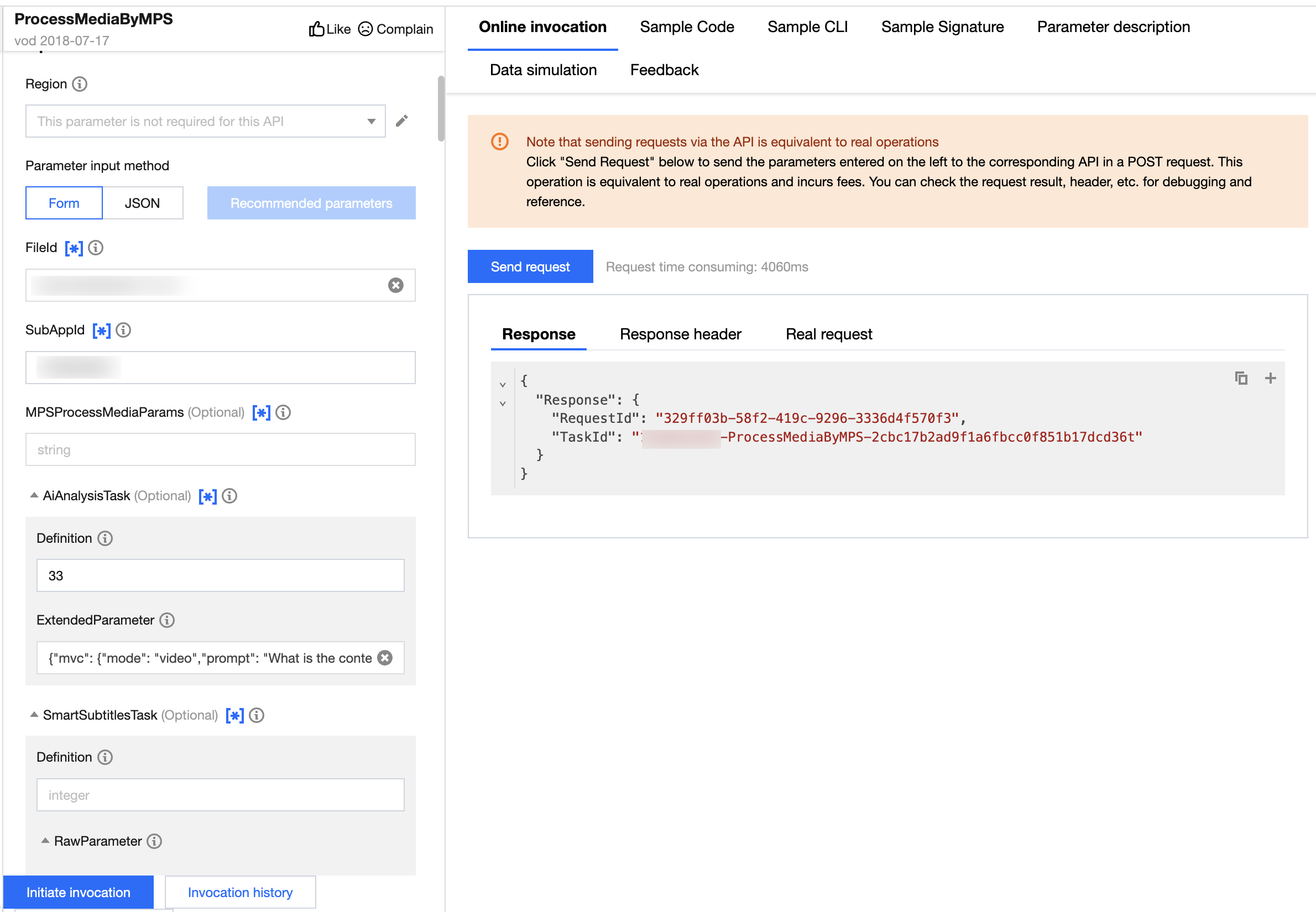
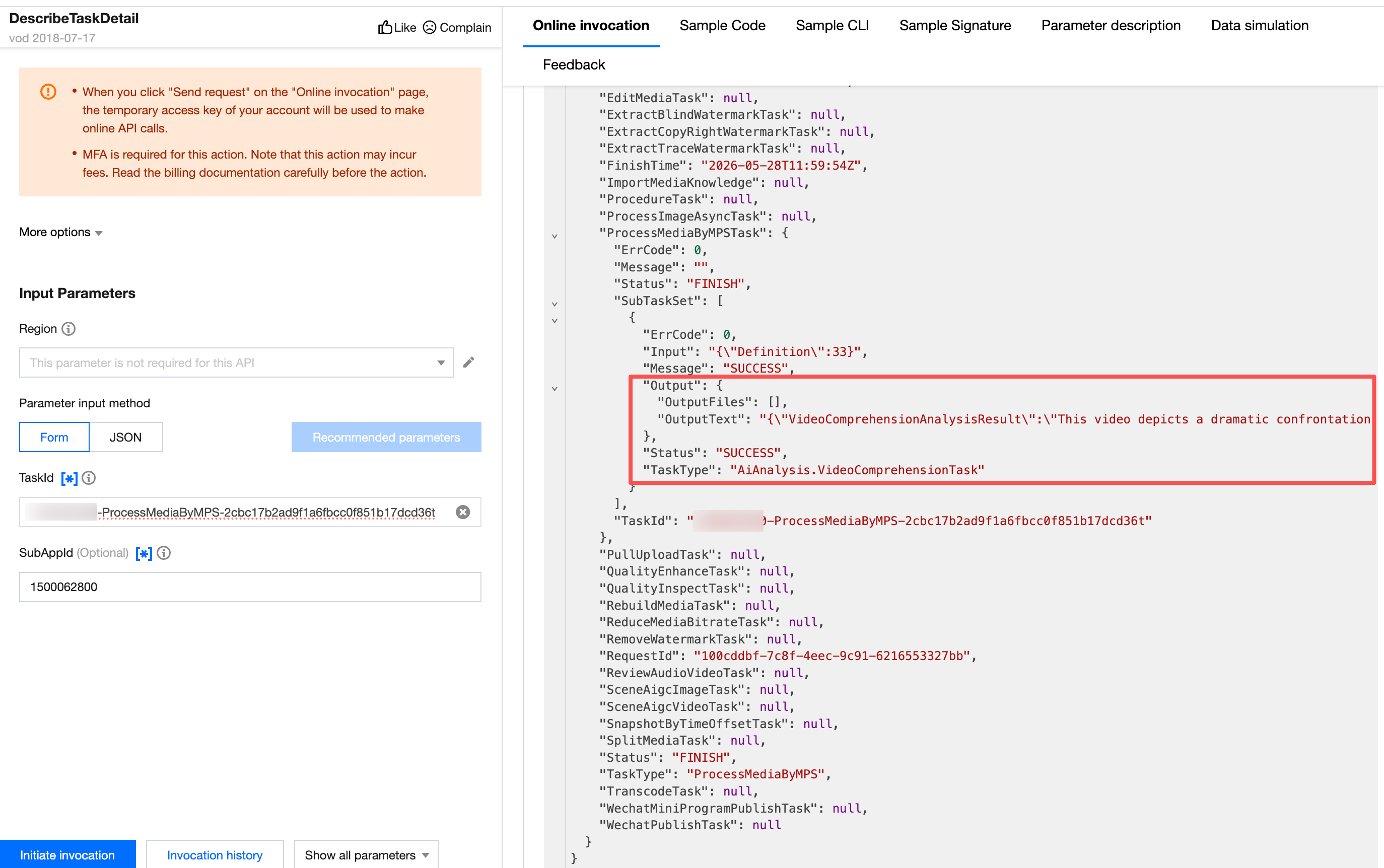
Querying Task Results
The generated results can be found within the output information of the API response.
Extension Parameter Description
The
ExtendedParameter is used to customize the video understanding task. Refer to the table below for all available options and descriptions:Parameter | Type | Required | Description |
mode | String | Yes | Understanding mode: video or audio. In audio mode, if a video file is uploaded, the service will automatically extract the audio track from it. |
prompt | String | Yes | The prompt for the large model. |
extendData | Array | No | Extended data. If there are additional audio/video files, they can be included in this field. Currently, a maximum of 2 files is supported. |
extendData[i].url | String | No | The URL of the data file. |
Request parameter example:
{"mvc": {"mode": "audio","prompt": "...","extendData": [{"url": "..."}]}}
피드백