Rolling Back to an Existing Instance (Cross-region)
다운로드
포커스 모드
폰트 크기
TencentDB for SQL Server provides a rollback tool that allows you to roll back an instance and reconstruct historical data through regular backups and real-time logs. This document describes how to roll back a single database, multiple databases, or all databases to a cross-region instance based on a point in time or a backup set.
Note:
Rolling back to a cross-region instance refers to achieving cross-region recovery through cross-region backup for the purpose of disaster recovery.
For example, if an instance in Region A has the cross-region backup feature enabled and the cross-region backup files are stored in Region B, you can use the rollback feature to restore the cross-region backup files to an instance in Region B when the original instance fails or is damaged.
Prerequisites
To use the rollback feature, a TencentDB for SQL Server instance must already exist. To create one, see Create a TencentDB for SQL Server Instance.
To use the rollback feature, a database must exist under the instance. To create one, see Database Creation.
Cross-region backup has been enabled and cross-region backup files have been generated. For more information, see Cross-Region Backup.
Note
Before a rollback is performed, ensure that the target instance has sufficient storage space.
Before performing a rollback, ensure that no other tasks are running on the source instance.
The database edition of the target instance for rollback must be greater than or equal to that of the source instance.
For example, a source instance of the 2012 Enterprise edition cannot be rolled back to a target instance of the 2008R2 Enterprise edition. It can only be rolled back to an instance of the 2012 Enterprise edition or a later edition.
The target instance architecture for rollback must be the same as the source instance architecture.
For example, a dual-node (cloud disk) instance can only be rolled back to another dual-node (cloud disk) instance instead of a single-node (cloud disk) instance or a dual-node (local disk) instance.
When you choose to overwrite the original database during a rollback operation, if the rollback database instance has a read-only instance, the read-only instance will resynchronize data. During the resynchronization period, operations cannot be performed on the read-only instance. After synchronization is completed, operations can be performed.
Operation Steps
1. Log in to the TencentDB for SQL Server console.
2. Select a Region at the top, locate the required instance, and click its Instance ID or Manage in the Operation column to go to the instance management page.

3. Choose Backup Management and click Rollback on the right, or click Rollback in the Operation column of the corresponding backup file under Backup Management > Data Backup.

4. In the pop-up rollback settings page, after completing the corresponding configuration based on the selected rollback method, click OK.
Scenario One: Rollback by Time Point
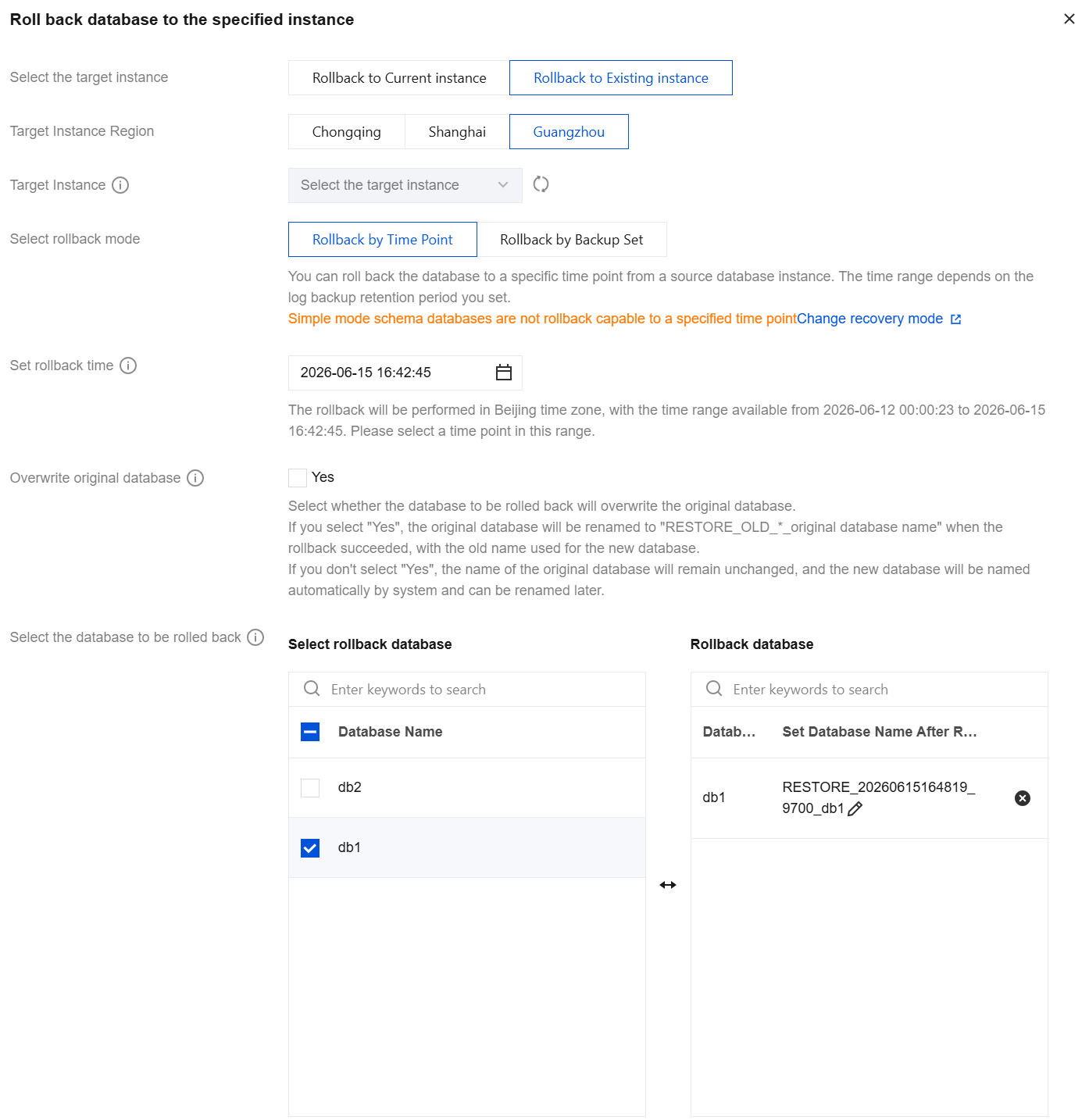
Parameter | Description |
Select the target instance | Select to roll back to an existing instance here. |
Target Instance Region | Select a region other than the one where the current instance resides here. |
Target Instance Name | Select the cross-region target instance to roll back to. You can quickly search by instance ID/instance name, which supports fuzzy search. You can also select cross-AZ instances within the selected region. |
Select rollback mode | Select to roll back to a specific point in time. Databases can be rolled back to a specific point in time from the source database instance. The selectable time point range is determined by the log backup retention period you set. Note: Databases in Simple recovery mode are not available for rollback to a specified time point. To learn about or modify the recovery mode, see Modify Recovery Mode. |
Set rollback time | Select the rollback time. Please select Beijing time for the rollback operation. Databases within the same instance can only be set to a uniform rollback time. Note: The time displayed here by default is the current time. At this moment, the databases shown in the rollback database list below may not be fully backed up because log backups are performed sequentially for all databases. Therefore, the number of databases displayed might be incomplete. We recommend that you: Wait a moment and select the current time only after all log backups are completed. Alternatively, select a time point a few minutes earlier to ensure that the rollback database list is fully displayed. |
Overwrite original database | Select whether the database to be rolled back should overwrite the original database. If you select "Yes", after the rollback is successful, the original database will be renamed to RESTORE_OLD_*_original_database_name, and the new database generated from the rollback will use the original database name. If you do not select "Yes", after the rollback is successful, the original database remains unchanged, and the new database generated from the rollback is named with a user-defined name (by default, the system automatically generates the name). |
Select the database to be rolled back | Select the database(s) to be rolled back. The operation supports rolling back a single database, multiple databases, or all databases. You can also filter databases quickly by searching for their names. If you choose not to overwrite the original database, the selected database(s) can be renamed under the Rollback Database section on the right. If no rename is performed, the new database name generated after rollback defaults to a system-generated name in the format of a prefix plus the original database name. The database name after rollback supports only letters, digits, underscores (_), and hyphens (-), must start with a letter, and can contain up to 128 characters. If you choose to overwrite the original database, renaming under the Rollback Database section on the right is not required. |
Scenario Two: Rollback by Backup Set
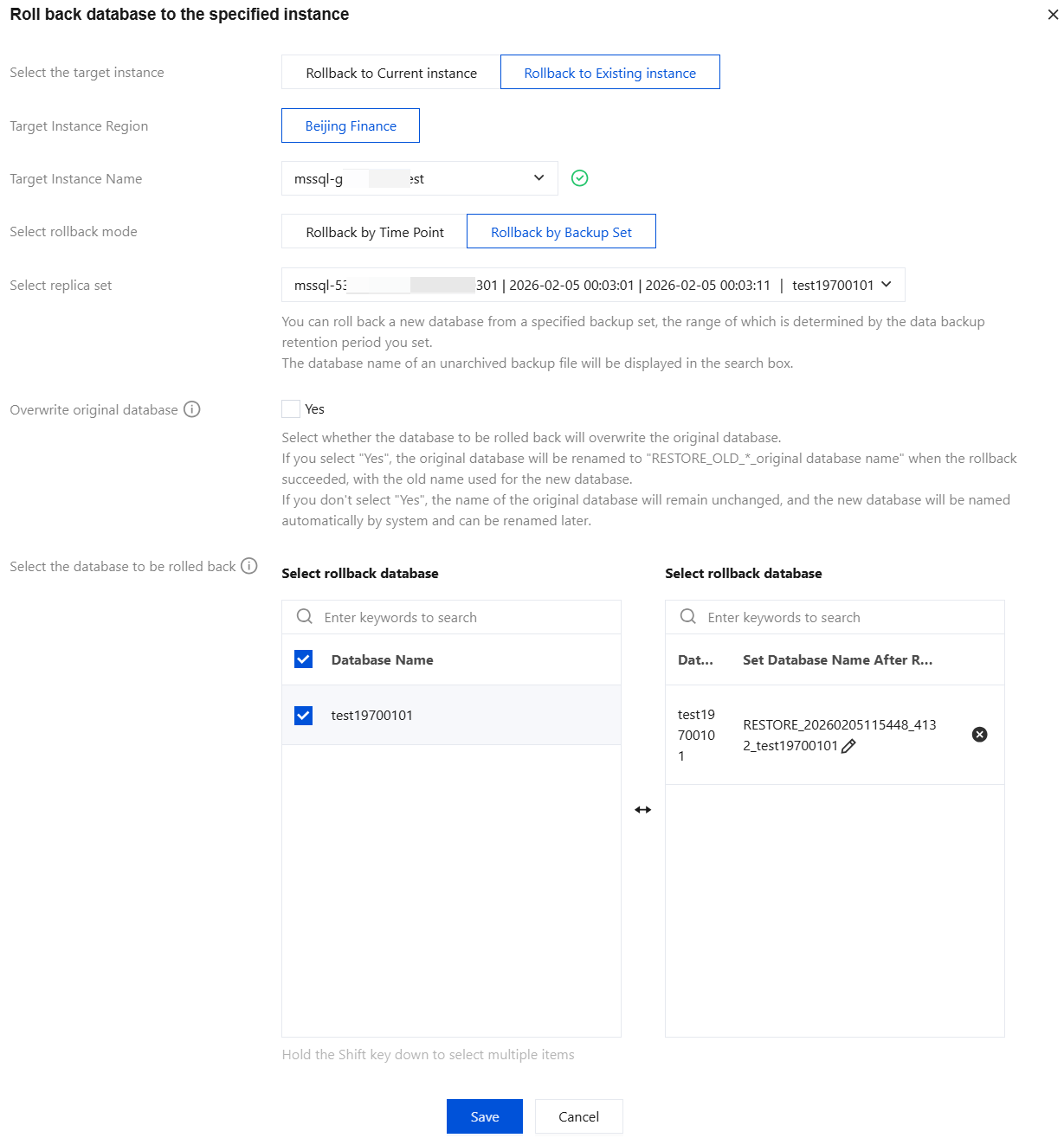
Parameter | Description |
Select the target instance | Select to roll back to an existing instance here. |
Target Instance Region | Select a region other than the one where the current instance resides here. |
Target Instance Name | Select the cross-region target instance to roll back to. You can quickly search by instance ID/instance name, which supports fuzzy search. You can also select cross-AZ instances within the selected region. |
Select rollback mode | Select to roll back using a backup set. |
Select replica set | Select the backup set for rollback. A new database can be rolled back from a specified backup set. The range of backup sets available for selection is determined by the data backup retention period you configured. When the backup file is in the form of a single-database backup, the database name in the backup file is displayed in the search bar. |
Overwrite original database | Select whether the database to be rolled back should overwrite the original database. If you select "Yes", after the rollback is successful, the original database will be renamed to RESTORE_OLD_*_original_database_name, and the new database generated from the rollback will use the original database name. If you do not select "Yes", after the rollback is successful, the original database remains unchanged, and the new database generated from the rollback is named with a user-defined name (by default, the system automatically generates the name). |
Select the database to be rolled back | Select the database(s) to be rolled back. The operation supports rolling back a single database, multiple databases, or all databases. You can also filter databases quickly by searching for their names. If you choose not to overwrite the original database, the selected database(s) can be renamed under the Rollback Database section on the right. If no rename is performed, the new database name generated after rollback defaults to a system-generated name in the format of a prefix plus the original database name. The database name after rollback supports only letters, digits, underscores (_), and hyphens (-), must start with a letter, and can contain up to 128 characters. If you choose to overwrite the original database, renaming under the Rollback Database section on the right is not required. |
5. Rollback status and records can be queried on the Rollback History tab. You can also click the task icon in the upper-right corner of the Backup Management page to view the rollback progress.

피드백