Creating Account
ダウンロード
フォーカスモード
フォントサイズ
Scenarios
In addition to the accounts created by the system by default, you can create other business accounts through the TDSQL Boundless console based on your business needs.
Note:
A TDSQL Boundless instance provides a pre-configured high-privilege account named dbaadmin by default. This account has all database management permissions except superuser privileges and can be used to manage the database instance.
The system will automatically pre-configure the high-privilege management account dbaadmin in the following editions. If you need to add this account to instances created earlier, submit a ticket to apply.
V21.6.2.0 and later versions (including V21.6.x, V21.7.x, and all subsequent major/minor versions).
V21.2.7.0 and later versions in the V21.2.x release line.
Warning:
The default account list for TDSQL Boundless is as follows. To avoid causing database issues, it is recommended not to delete the default accounts.
System Default Account | Host | Description |
root | % | Administrator account with all privileges, capable of performing all operations. |
mysql.sys | localhost | Account for managing and accessing the built-in sys database, enabling users to quickly understand system metadata information through the sys database. |
mysql.session | localhost | Account for internal plugins to access the server. |
mysql.infoschema | localhost | Account for managing and accessing the built-in information_schema database. |
Operation Steps
1. Log in to the TDSQL Boundless console. In the Instance List, click the Instance ID to go to the Instance Details page.
2. Select the Account Management tab and click Create Account.

3. In the Create Account dialog box, configure the following information and click OK.
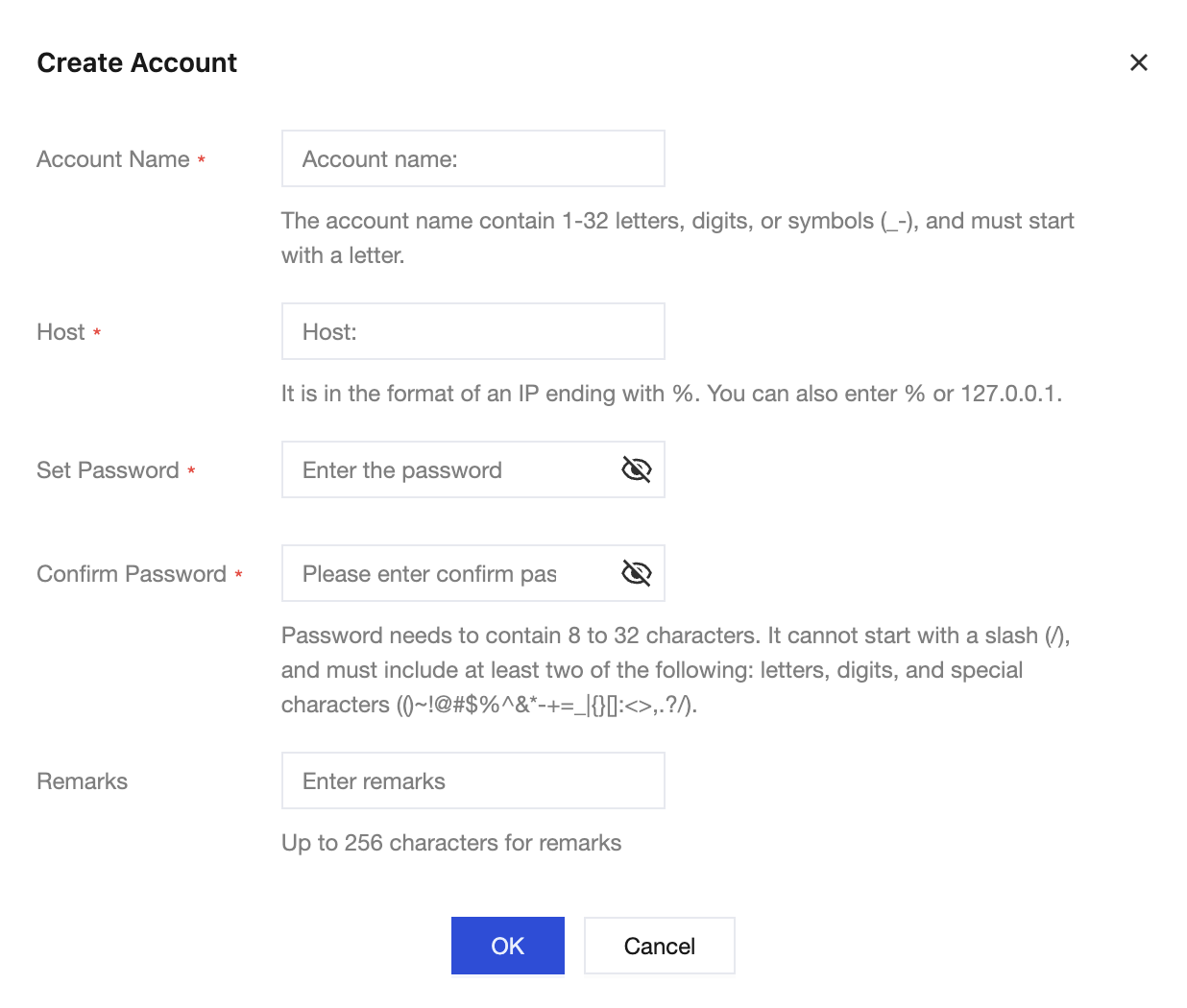
Parameter | Description |
Account Name | The account name must be between 1 and 32 characters. Consist of letters, numbers, or special characters _-.Must start with a letter. |
Host | Specify the host address to access the database, which supports IP addresses or ranges of IP addresses. Single IP address: such as 10.10.10.10.IP address range: Use % at the end to represent an IP address range. For example, 10.10.10.% (allowing access from 10.10.10.1 to 10.10.10.254 for IP addresses of all hosts).All IPs: Use a single % to allow all IP addresses.Note: Entering % in the host field may lead to security risks to the account, such as malicious connections, brute force attacks, and other risks. It is recommended to specify specific host addresses to access the database. |
Set Password | The password length must be between 8 and 32 characters. It is recommended to use a password with 12 or more characters. Must not start with /.Must include the following four items. Lowercase letters a to z Uppercase letters A to Z Numbers 0 to 9 Special characters ()~!@#$%^&*-+=_|{}[]:<>,.?/ |
Confirm Password | Re-enter the password. It must match the first entry. |
Remarks | Add remarks to the account, with a maximum of 255 characters allowed. |
4. After a database account is created, it has no permissions by default. Grant permissions as needed through Modifying Account Permissions.
FAQs
フィードバック