CFW provides a cluster mode VPC Firewall Toggle feature. On the VPC Firewall page, you can automatically detect CCN instances under your account and configure the corresponding Firewall Toggle.
Log in to the CFW console. In the left sidebar, choose Firewall Toggle > VPC Firewall to configure the cluster mode VPC Firewall.
Access Impact
When the VPC Firewall is connected to, a network jitter of 1-2 seconds occurs at the moment the route takes effect, as route rules need to be dynamically published to achieve traffic steering. During this period, traffic between CVMs across VPCs or within the same VPC is not interrupted and is only perceived as brief latency fluctuations.
Note:
This network jitter is a normal technical phenomenon during route publishing. It is recommended to perform the Firewall Toggle enabling operation during off-peak business hours and verify the automatic reconnection capability of critical services in advance.
Firewall Toggle
1. Log in to the CFW console. In the left sidebar, select Firewall Toggle >VPC Firewall.
2. On the VPC Firewall page, locate the CCN instances requiring protection in the Protection Objects column and enable the Firewall Toggle.
Note:
Enabling protection for each CCN instance consumes 1 general instance quota. Make sure sufficient quota is available before enabling.
3. In the pop-up window, select the access mode:
Automatic Access: CFW automatically coordinates with CCN to configure the policy-based routing table based on the configured VPC traffic steering policy.
Note:
The automatic access mode relies on the policy-based routing feature of CCN. This feature is currently in public beta and is unavailable by default. To try this feature, submit a ticket to CFW.
Manual Access: In manual access mode, you need to manually configure traffic diversion in the CCN console.
5. In the instance list, you can disable or edit CCN instances that have protection enabled.
Note:
After the Firewall Toggle is disabled, relevant network assets (such as VPCs and subnets) used by the current CCN-type instance to access the firewall will be automatically cleared.
If the access mode of the current protection object is Manual Access, you must manually cancel the access of this CCN instance in the CFW console before disabling the Firewall Toggle. Otherwise, directly disabling the toggle may cause network interruption. For detailed steps, see Disconnecting a CCN Instance from CFW (Multi-Route Table).
Spec Adjustment
On the VPC Firewall (Cluster) page, click Scale Out to redirect to the purchase page, where you can scale out parameters such as bandwidth and log storage capacity.
In cluster mode, all CCN instances with the toggle enabled share the VPC firewall bandwidth, so you don't need to adjust settings for individual instances.
The cluster mode has enabled the service traffic overrun control mechanism. When service bandwidth exceeds the VPC Firewall bandwidth limit, it may impact your services. For details, see Will service be affected if service bandwidth exceeds the VPC Firewall bandwidth limit? in Bandwidth.
Synchronizing Assets
The background system polls user asset information at a 5-minute interval. If asset scale changes within this interval but has not been synchronized by the background system, you can click Sync assets above the list to promptly call the background API to re-read and synchronize asset information and data.
If newly added assets do not appear in the Firewall Toggle list, you can click Sync assets above the list to attempt synchronization.
Transparent Mode
On the VPC Firewall (Cluster) page, click More and select Enable Transparent Mode from the dropdown menu. In transparent mode, the current firewall instance only forwards network traffic, and the Access Control and Intrusion Defense features will not take effect. This mode is recommended for debugging purposes and takes effect within approximately 1 minute after enabling. After debugging is complete, manually disable transparent mode. If further assistance is needed, submit a ticket.
Firewall Status Monitoring
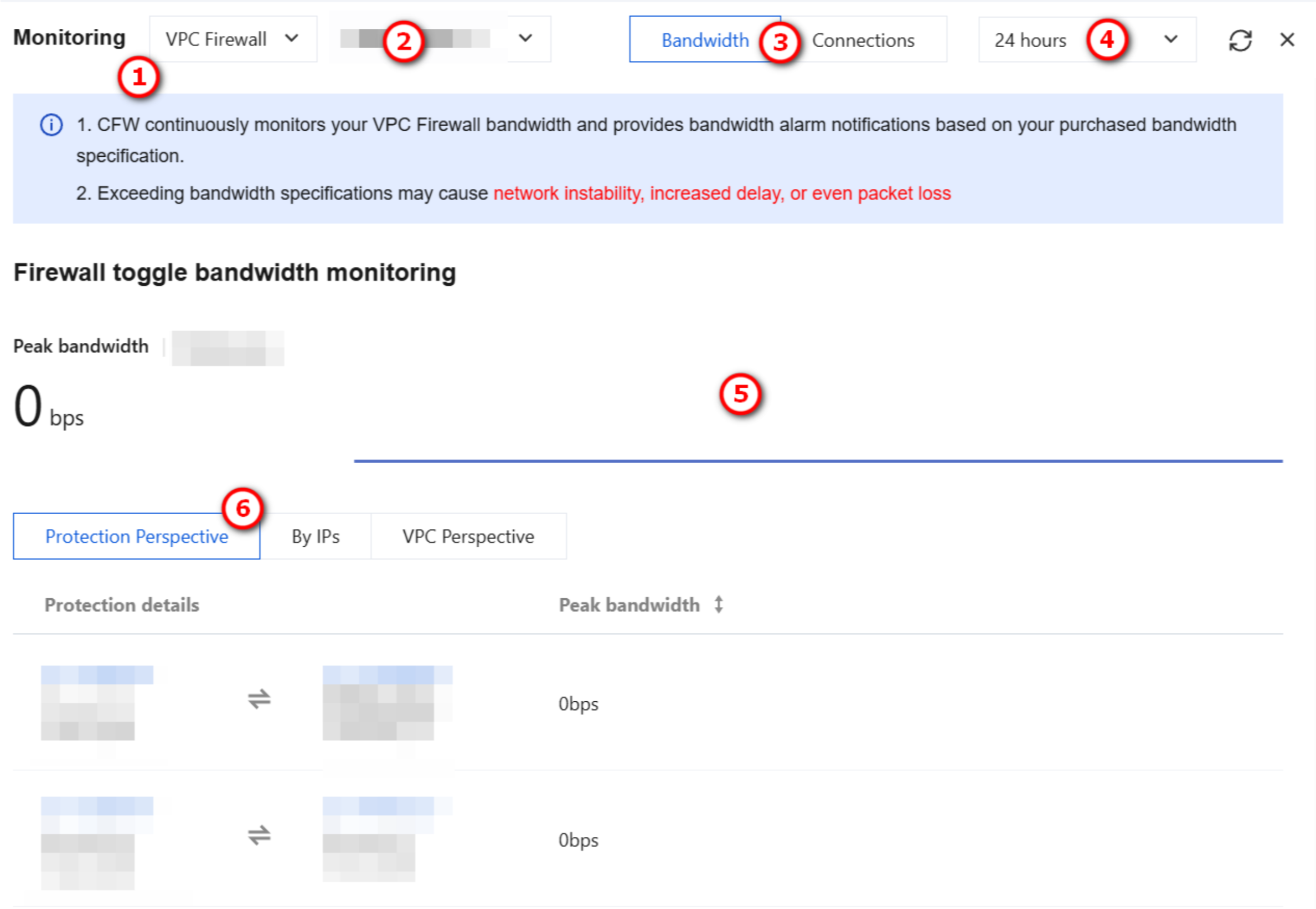
VPC Firewall status monitoring supports statistics on the bandwidth of each CCN instance.
1. In the upper-right corner of the bandwidth configuration panel, click View Monitoring.
2. On the Status Monitoring - VPC Firewall page, you can filter the bandwidth monitoring dimension based on CCN instance names, switch to view connection counts, and modify the statistical dimension by selecting a time range. You can also view monitoring curves and examine monitoring data from different perspectives.
Note:
Due to differences in statistical models and collection frequencies, there may be normal deviations between monitoring data and the Observability Platform.
Differences Between Primary/Secondary Mode and Cluster Mode
For differences between the primary/secondary mode and cluster mode editions of VPC Firewall, see the following table.