Creating a DLC Shipping Task
Baixar
Modo Foco
Tamanho da Fonte
Prerequisites
Enable Cloud Log Service, create a logset and log topic, and ensure log data has been successfully collected.
Activate Tencent Cloud DLC service and create a database and data table in the region of the log topic to be delivered. See SQL editor.
If you select the "Create DLC Table" mode, ensure you have administrator permissions for the DLC database. Otherwise, table creation will fail, and subsequently added log fields cannot be written to the DLC table.
If you select the "Existing DLC Table" mode, you must create a database and table in the region of the log topic to be delivered. For details, see SQL Editor.
Sub-account/Collaborator requires root account authorization. For authorization steps, see CAM management permissions. For authorization policy, refer to CLS Access Policy Template.
The Tencent Cloud CLS service role has been authorized to access DLC. When most users operate through the console, the system will guide the user to complete authorization; a small number of users cross the console and directly call the API, and these customers need to manually authorize. For details, please refer to Delivery Task Role Authorization.
Directions
1. Log in to the Cloud Log Service console.
2. Select Log Topic in the left sidebar.
3. Click the log topic ID/name to deliver, and enter the log topic management page.
4. Click the Shipping to DLC tab, enter the Send to DLC configuration page, and click Create.
Basic Configuration Item | Description | Rule | Required |
Shipping Task Name | Name of the delivery task. | - | Required |
Service log | Write the monitoring metrics of the delivery task running to the free log topic cls_service_log. | - | No |
Shipping Mode | Currently only support Batch Shipping. | - | No |
File Size | The size of the raw log file to be delivered works in conjunction with the delivery interval time. Whichever condition is met first will trigger the rule to compress the file, and then deliver it to DLC. For example: if you configure 256MB and 15 minutes, and the file size reaches 256MB in just 5 minutes, then the file size condition will trigger the delivery task first. | 5 - 256, unit: MB. | No |
Shipping Interval | Specify the interval to trigger a delivery. This works with the delivery file size. Whichever condition is met first will trigger the rule to compress the file and deliver it to DLC. For example, if you configure 256MB and 15 minutes, and the file size is only 200MB after 15 minutes, then the interval time condition will trigger the delivery task first. | 300 - 900, unit: s. | No |
5. Click Next to enter Data Table Configuration.
Data Table Configuration Item | Description | Rule | Required |
Data Catalogs | Currently, only DataLakeCatalog is supported. | - | No |
Database | Select your DLC database. | - | Required |
Data Table Configuration Method | Supports selecting an existing DLC table and creating a DLC table. | - | Required |
Data Table Configuration Item | Description | Rule | Required |
Data Table | Select your DLC data table. | - | Required |
data Field | Map Fields: After this button is clicked, field names in the log topic that are identical to those in the DLC data table will be automatically filled into the log field names below (see the figure below). For field names that differ from the DLC data table, you need to manually fill them in. You can refer to the log sample in the upper right corner of the page to help you select fields and fill them into the log field names. 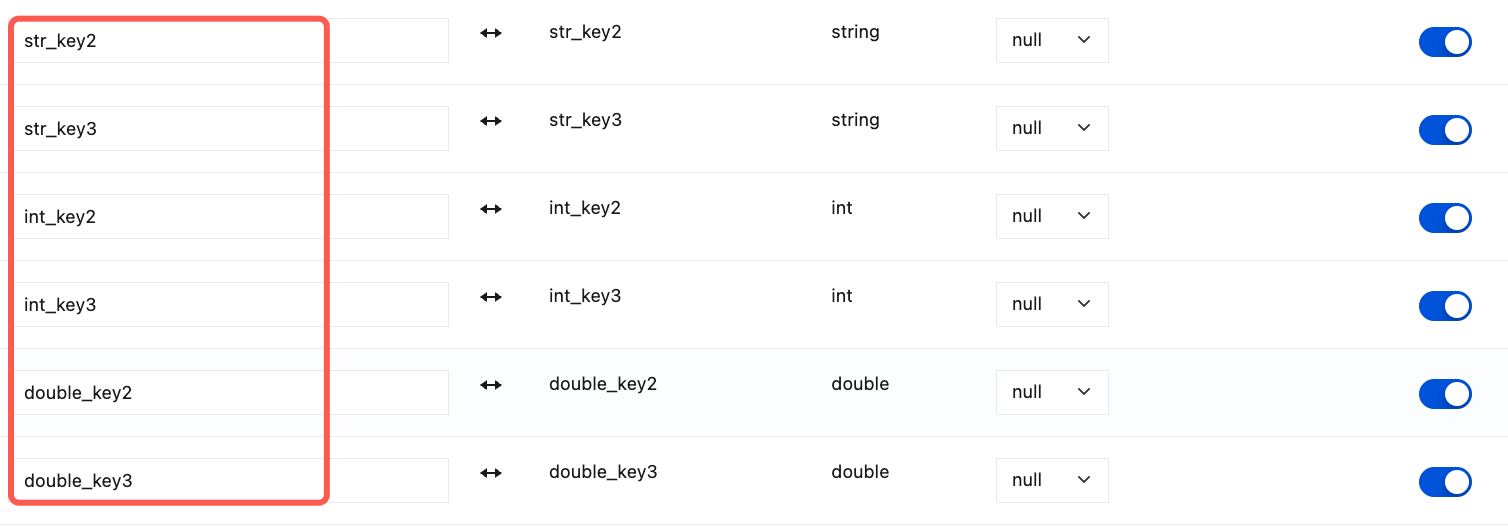 Log Field Name: Map fields in the CLS log to corresponding DLC fields, as shown in the log in figure: Only support filling in the key of the first-layer node in JSON, such as app_name. Nested nodes like details.request_id are not supported.
Data Table Field Name: The data table field is read from DLC and cannot be modified here. Please go to DLC to edit. Field Type: Type of DLC field, not supported here. Please go to DLC to modify. Assignment on Parsing Failure: When field value parsing fails, this value is used to write to DLC. You can choose to use NULL, empty (empty string), or a custom value. For custom values, the following values are recommended: int/bigint: corresponds to 0 float/double/decimal: corresponds to 0 date: today timestamp: corresponding current timestamp Enable Mapping: whether to map this field to the DLC table. If not required, toggle off. Date:1970-01-01 TIMESTAMP:2025-01-01 00:00:00 Note: If a field does not exist in the log, it will have a Null value on the DLC side. If field parsing to the specified type fails: If parsing fails, the field is assigned a Null value, and it will be Null on the DLC side. If parsing fails and a non-Null value is assigned, the system will attempt to parse that assigned value. If the parsing succeeds, the value is written. Otherwise, the field is represented as a Null value on the DLC side. Enable Mapping: Whether to map this field to the DLC table. If not needed, disable the switch. | - | Required |
Auto-increment Field | This configuration is enabled by default and is used to synchronize new fields from logs to DLC: the system monitors the log data stream in real time, identifies new fields in logs that have never been delivered to DLC, automatically infers field types, and delivers them to DLC. Selected: The system automatically identifies new fields in the logs, infers their types, and adds these data fields to the DLC table. Partition fields remain unchanged. DLC field names are kept the same as the raw log field names. Not Selected: Only existing fields that are configured in the delivery task and have their mapping switch enabled are delivered and written to DLC. Exception scenario that triggers the failure of an entire log delivery: Field type mismatch: The actual data type in the log conflicts with the defined field type in DLC (for example, the log contains the string "abc", but the DLC field is defined as INT). Single-time field addition limit exceeded: This occurs when a single log triggers automatic field addition and the number of new fields is greater than 50. Field name too long: the character length of any field name is greater than 128. | Enabled by default. | No |
Partition Field | Log Field Name: the field name of the log, used for Mapping the partition field in DLC. If your DLC table is partitioned by time, we recommend using the log time field here, such as __TIMESTAMP__. Data Table Field Name: partition field, read from DLC, cannot be modified here. Please go to DLC to edit. Field Type: type of partition field, read from DLC, not supported here. Please go to DLC to modify. | - | Required |
Time Partition Format | For the time partition format, configuration examples, and parameter details, see the following description. Note: The time partition format takes effect only when the log field name in the DLC partition column is configured as __TIMESTAMP__. We recommend partitioning by day. Using minutes or seconds would result in too many partitions in the DLC table. Examples of the time partition format are as follows: %Y-%m-%d-%H-%M:2025-07-09-20-30 %Y-%m-%d-%H:2025-07-09-20 %Y-%m-%d:2025-07-09 %Y-%m:2025-07 | Used in conjunction with the time zone. | No |
Time Zone (UTC) | This time zone is used to format time and time partitions. | Used in conjunction with the time partition. | No |
Data Table Configuration Item | Description | Rule | Required |
Data Table | Enter the name of the data table, and the system will automatically create a DLC native table for you. Table properties such as edition, lifecycle, and expiration configuration use default settings. To modify them, go to DLC edit table. | - | Required |
data Field | Map Fields: After you click this button, the system samples the latest log, parses the top-level JSON keys, and generates the DLC table Schema. Refer to the figure below. Since a single log cannot cover all log fields, the system enables automatic field addition by default to monitor new fields in the log stream in real time and deliver them to DLC. 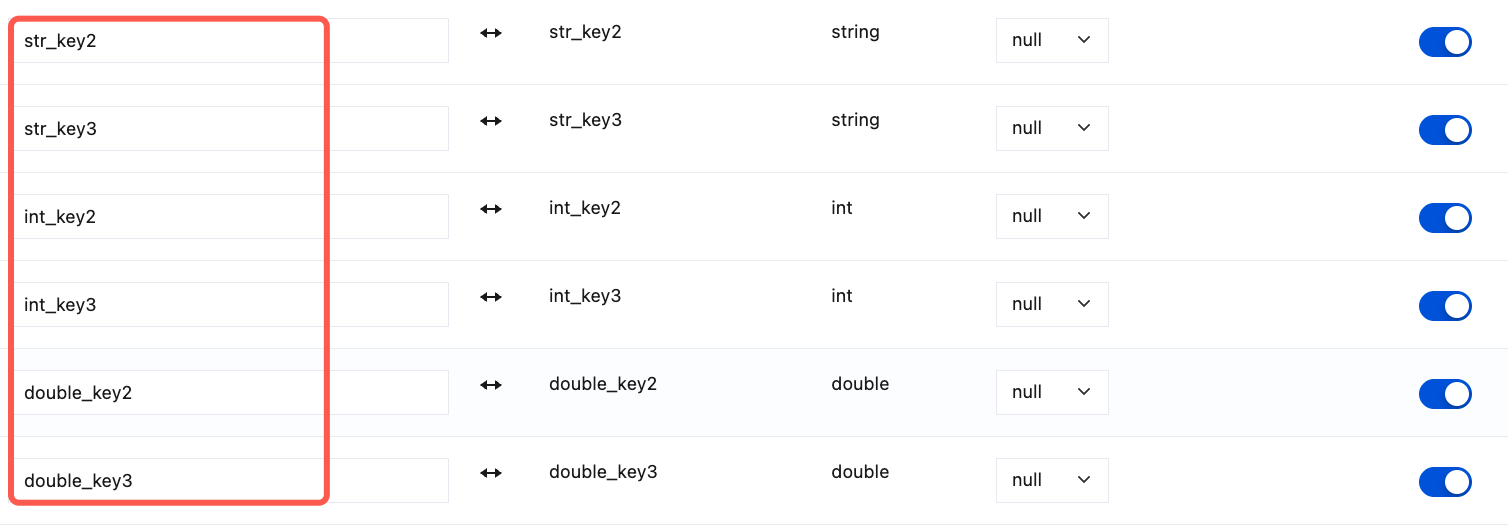 Log Field Name: Map fields in the CLS log to corresponding DLC fields, as shown in the log in the figure. Only the key of the first-layer node in JSON, such as app_name, is supported. Nested nodes like details.request_id are not currently supported.
Data Table Field Name: same as the first-layer key of the log JSON, cannot be modified here. Please go to DLC to edit. Field Type: type of DLC field. CLS infers the field type and pre-fills it. You can modify it. Note: When log field names are mapped to DLC field names, the handling of field name length and illegal characters is determined by the DLC processing result. You can go to DLC to view it. Assignment information returned upon resolution failure: NULL/empty/custom value. If the user's raw field cannot be parsed as the specified type, the system will attempt to parse the unresolved field. If the unresolved field also cannot be parsed, it will fill the default zero value. int/bigint: corresponds to 0 float/double/decimal: corresponds to 0 date: today timestamp: corresponding current timestamp Enable Mapping: whether to map this field to the DLC table. If not required, toggle off. Date:1970-01-01 TIMESTAMP:2025-01-01 00:00:00 Note: If a field does not exist in the log, it will have a Null value on the DLC side. If field parsing to the specified type fails: If parsing fails, the field is assigned a Null value, and it will be Null on the DLC side. If parsing fails and a non-Null value is assigned, the system will attempt to parse that assigned value. If the parsing succeeds, the value is written. Otherwise, the field is represented as a Null value on the DLC side. Enable Mapping: controls whether the current field is synchronously delivered to the DLC table. After mapping is disabled, the field will not be delivered to DLC even if automatic field addition is enabled. Fields whose mapping has been disabled and need to be re-delivered: Create the corresponding fields on the DLC side. The CLS mapping is enabled by default. Note: When a delivery task is viewed, CLS only pulls the existing fields from the DLC table to maintain field consistency. This means that fields with disabled mapping will not appear in the data fields. | - | Required |
Auto-increment Field | This configuration is enabled by default and is used to synchronize new fields from logs to DLC: the system monitors the log data stream in real time, identifies new fields in logs that have never been delivered to DLC, automatically infers field types, and delivers them to DLC. Selected: The system automatically identifies new fields in the logs, infers their types, and adds these data fields to the DLC table. Partition fields remain unchanged. DLC field names are kept the same as the raw log field names. Not Selected: Only existing fields that are configured in the delivery task and have their mapping switch enabled are delivered and written to DLC. Exception scenario that triggers the failure of an entire log delivery: Field type mismatch: The actual data type in the log conflicts with the defined field type in DLC (for example, the log contains the string "abc", but the DLC field is defined as INT). Single-time field addition limit exceeded: This occurs when a single log triggers automatic field addition and the number of new fields is greater than 50. Field name too long: the character length of any field name is greater than 128. | Enabled by default. | No |
Partition Field | Log Field Name: the time field of the log, with __TIMESTAMP__ as the default. Data Table Field Name: DLC partition field, with __TIMESTAMP__ as the default. It cannot be modified here. Please go to DLC to edit. Field Type: type of partition field. Modification is not supported here. Please go to DLC to edit. | - | Required |
Time Partition Format | For the time partition format, configuration examples, and parameter details, see the following description. Note: The time partition format takes effect only when the log field name in the DLC partition column is configured as __TIMESTAMP__. We recommend partitioning by day. Using minutes or seconds would result in too many partitions in the DLC table. Examples of the time partition format are as follows: %Y-%m-%d-%H-%M:2025-07-09-20-30 %Y-%m-%d-%H:2025-07-09-20 %Y-%m-%d:2025-07-09 %Y-%m:2025-07 | Used in conjunction with the time zone. | No |
Time Zone (UTC) | This time zone is used to format time and time partitions. | Used in conjunction with the time partition. | |
Handling of failed delivery logs: You can choose to have logs that failed to be delivered sent to a DLC table you specify.
Store failed delivery logs to DLC table. | A method for handling failed delivery data. Disabled by default. You can enable this configuration to write the failed delivery log data to a specified DLC table. | - | No |
Store failed delivery logs to DLC table. | Configure this item only when you enable store failed delivery logs to DLC table. Configuration method for failed log table: Automatically create a DLC table: Failed Log Table Name: The system automatically creates a table to store failed logs. The default table name is cls_2_dlc_shipping_failed. Failed Log Field Name: The system writes logs that failed to be delivered into this field. The default value is log_deliver_failed. Select an existing table: Failed Log Table: Select a table from the existing DLC tables to store failed logs. Failed Log Field Name: The system writes logs that failed to be delivered into this field. You need to manually enter a field name of type String. | - | No |
6. Click Submit to complete the configuration of the new task.
FAQs
Issue Description
Using the __TIMESTAMP__ log time field as the DLC partition mapping field: If log timestamps are scattered, for example, if data reported on the current day contains logs from yesterday or even earlier, DLC partitions the data based on log timestamps during write operations. This generates many fragmented parquet files, leading to increased batch write latency, decreased write throughput, and in severe cases, a batch of data may take over 5 minutes to be written.
Problem-solving Ideas
If this scenario is involved, it is recommended to use __TAG__.receive_time as the DLC time partition mapping field. Data is partitioned based on CLS time, which reduces fragmented parquet files and improves write throughput. An additional effect is that data is not partitioned by log time, so you need to pay attention to data statistics.
Ajuda e Suporte
Esta página foi útil?
Você também pode entrar em contato com a Equipe de vendas ou Enviar um tíquete em caso de ajuda.
comentários