Adding Secondary Nodes
Unduh
Mode fokus
Ukuran font
Overview
Adding secondary nodes primarily helps scale read performance, improve availability, achieve resource isolation, and handle anticipated traffic growth. Resource allocation can be dynamically optimized to align with evolving business needs.
Address read performance bottlenecks
Adding secondary nodes can distribute read requests across more replicas, linearly scale the overall read throughput of the cluster, and ensure query performance and response speed.
Enhance high availability
Adding secondary nodes increases the number of members participating in primary node elections, providing the cluster with more candidate nodes during failover and improving system robustness and availability.
Prepare for anticipated business peaks
When predictable business peaks such as e-commerce major promotions or product launches are approaching, perform capacity planning in advance, add secondary nodes, and proactively improve the overall processing capability of the cluster to smoothly handle the upcoming traffic surge.
Meet specific business requirements
Add a secondary node and direct specific analysis, reporting, or backup tasks to this node to achieve resource isolation and ensure the stability of core transactions.
Feature Description
To meet diverse scenario requirements, TencentDB for MongoDB offers three high-availability cluster configurations: 3 nodes (1 primary and 2 secondary), 5 nodes (1 primary and 4 secondary), and 7 nodes (1 primary and 6 secondary). You can flexibly adjust the number of secondary nodes based on business traffic changes. Scale out resources during business peaks to ensure performance, and scale in during business troughs to reduce costs, maximizing pay-as-you-go efficiency and resource utilization.
Impacts and Constraints
Impact and Constraint | Description |
Service Impact | During the period when new nodes join the cluster and synchronize data, the business is unaware of the change and services remain unaffected. |
Connection impact | After the number of nodes is adjusted, the instance name, private network address, and port remain unchanged. You do not need to modify the application configuration. |
Billing Impact | After the number of nodes is adjusted successfully, the system immediately starts billing based on the new cluster specifications, for example, from 3 nodes to 5 nodes. Before the operation, ensure that the account has sufficient balance. For more information, see Billing Instructions for Configuration Changes. |
Operational Constraints and Limitations | The task is irreversible. Once a configuration adjustment task is initiated, it cannot be canceled midway. Confirm carefully before proceeding. Avoid parallel operations. To ensure system stability, do not initiate multiple types of configuration change tasks at the same time, such as adjusting the node quantity, node compute specifications, and storage capacity. |
Prerequisites
Please ensure that your Tencent Cloud account has sufficient balance.
The instance is in the normal state (running), and no tasks are currently being executed.
Adding a secondary node (replica set)
1. Log in to the TencentDB for MongoDB console.
2. In the MongoDB drop-down list on the left sidebar, select Replica Set Instance.
3. Above the instance list on the right, select the region.
4. In the instance list, find the target instance.
5. Click the Instance ID to enter the Instance Details page and click the Node Management tab.
6. On the Mongod Node tab on the Node Management tab, click Add Secondary Node.
7. In the Adjust Node Quantity pop-up window, read the notes on node quantity adjustment, and proceed to confirm and configure the parameters as detailed below:
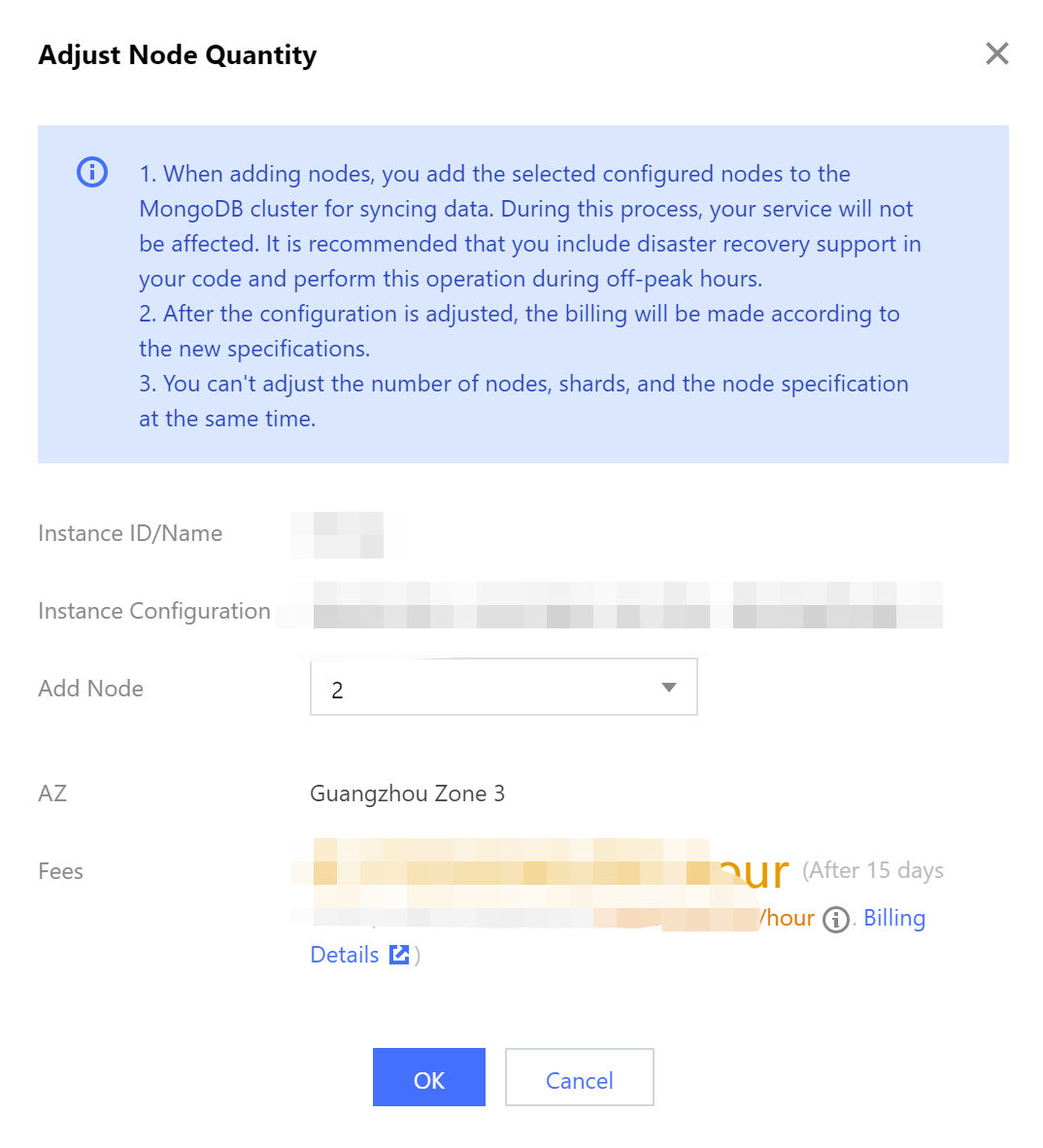
Parameter | Parameter Description |
Instance ID/Name | The name of the instance that requires node quantity adjustment. |
Expiration time | The expiration time of the instance, specifically for subscription-based billing, serves as a reminder for the instance's expiration date. |
Instance Configuration | Check the current specification of the instance, including the CPU core quantity, memory, disk capacity, and node quantity. The node quantity includes all primary and secondary nodes. You should determine the number of nodes to be added based on the current specification. |
Add Node | Select the number of secondary nodes to be added from the drop-down list. |
AZ | This parameter will be displayed if the instance nodes are in the same AZ. It indicates the AZ where all instance nodes are deployed. |
Secondary Node-n | This parameter will be displayed if the instance nodes are in different AZs. It indicates the AZs of different nodes and ranges from 0 to 6. Select the AZs for the new secondary nodes from the drop-down list. |
Fees | Pay-as-you-go: the billing unit price per hour after the instance configuration is adjusted. Click Billing Details to view billing items and billing formulas, and confirm the fees. Yearly/monthly subscription: the total cost within the validity period after the instance configuration is adjusted. For billing details after configuration adjustment, see Billing Instructions for Configuration Change. |
8. Conform the fees and click OK.
9. On the left sidebar, select Task Management, and you can view the ongoing task. Wait until Task Progress becomes 100% and Task Status becomes Completed.
Increasing the node quantity per shard (for sharded cluster instance)
1. Log in to the TencentDB for MongoDB console.
2. In the MongoDB drop-down list on the left sidebar, select Shard Instance.
3. Above the instance list on the right, select the region.
4. In the instance list, find the target instance.
5. Click the Instance ID to enter the Instance Details page and click the Node Management tab.
6. On the Mongod Node tab on the Node Management tab, click Add Secondary Node.
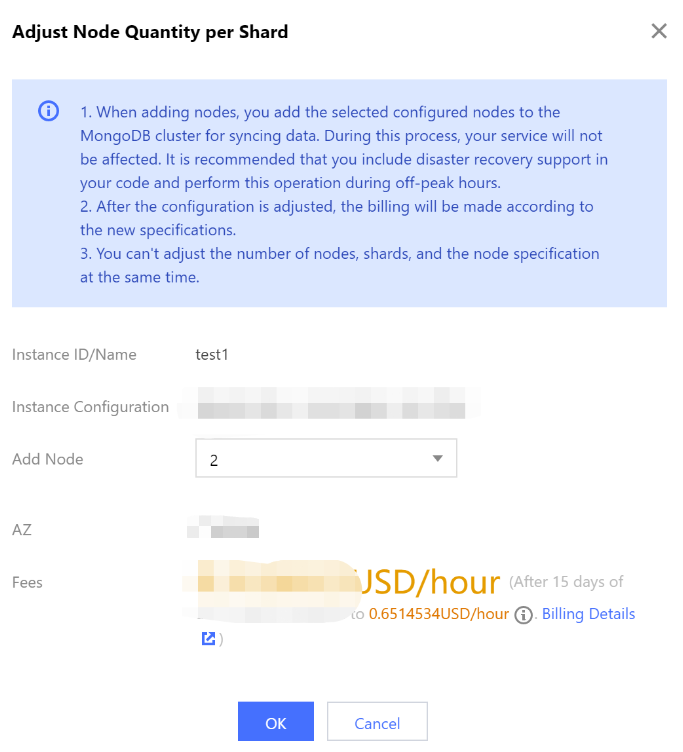
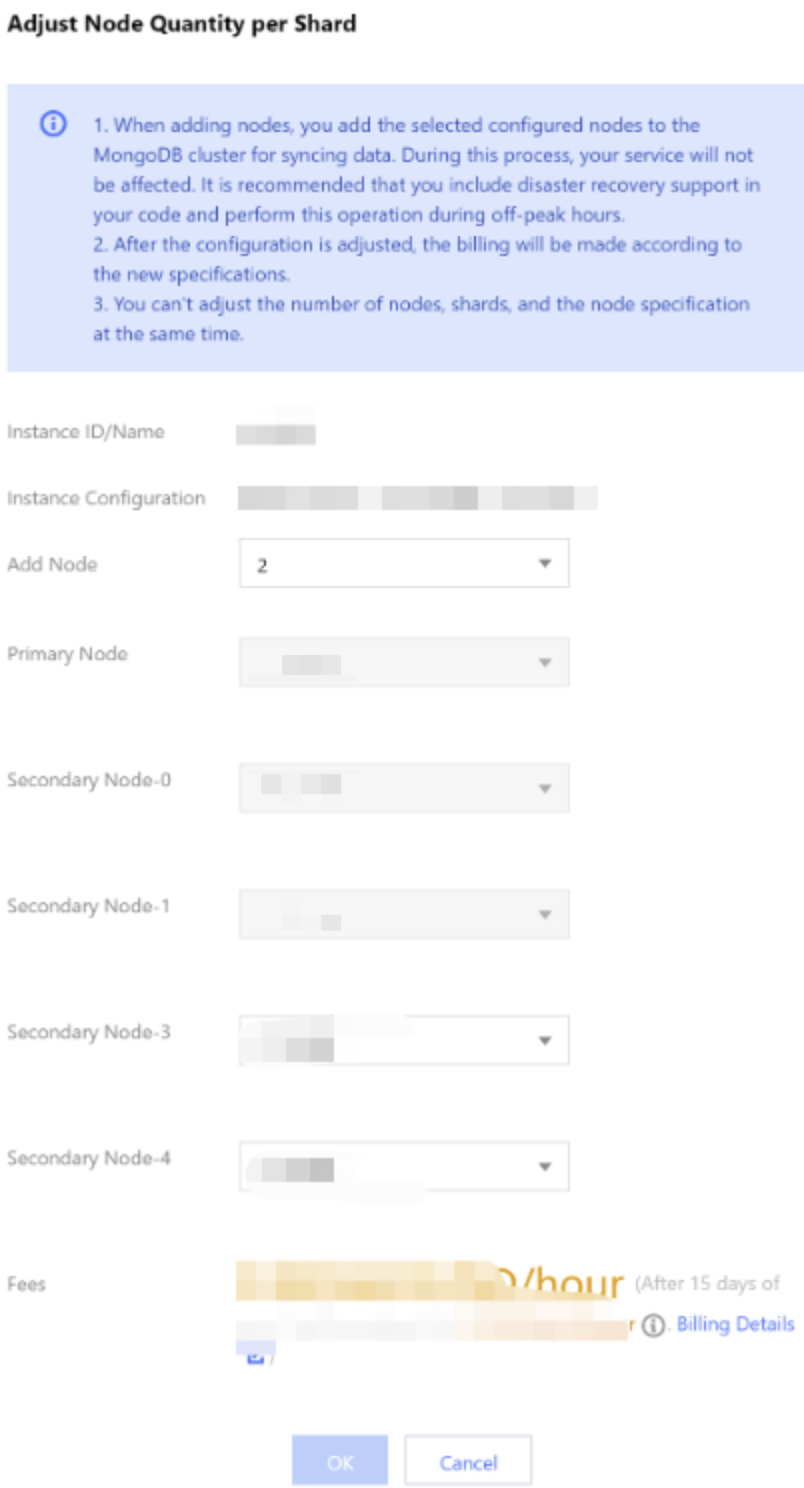
7. In the Adjust Node Quantity per Shard pop-up window, read the notes on node quantity adjustment, and proceed to confirm and configure the parameters as detailed below:
The instance nodes are deployed in the same AZ:
The instance nodes are deployed in different AZs:
Parameter | Parameter Description |
Instance ID/Name | Confirm the name of the instance that requires node quantity per shard adjustment. |
Instance Configuration | Check the current specification of the instance, including the CPU core quantity, memory, disk capacity, and node quantity. The node quantity includes all primary and secondary nodes. The nodes are evenly distributed to shards; for example, if there are two shards and eight nodes, each shard will have four nodes. You should determine the number of nodes to be added based on the current specification. |
Add Node | Select the number of secondary nodes to be added per shard from the drop-down list. |
AZ | This parameter will be displayed if the instance nodes are in the same AZ. It indicates the AZ where all instance nodes are deployed. |
Secondary Node-n | This parameter will be displayed if the instance shard nodes are in different AZs. It indicates the AZs of different nodes and ranges from 0 to 6. Select the AZs for the new secondary nodes from the drop-down list. |
Fees | Pay-as-you-go: Hourly unit price after instance speciation adjustment. You can click Yearly/monthly subscription: the total cost within the validity period after the instance configuration is adjusted. For billing details after configuration adjustment, see Billing Instructions for Configuration Change. |
8. Conform the fees and click OK.
9. On the left sidebar, select Task Management, and you can view the ongoing task. Wait until Task Progress becomes 100% and Task Status becomes Completed.
Related APIs
API | Feature Description |
Adjusts the cloud database instance configurations | |
Queries the sales specifications of cloud databases | |
Queries node properties, including the AZ where the node resides, node name, address, role, status, primary-secondary delay, priority, voting rights, tags, and other properties. |
Bantuan dan Dukungan
Apakah halaman ini membantu?
Anda juga dapat Menghubungi Penjualan atau Mengirimkan Tiket untuk meminta bantuan.
masukan