Enabling Backup Encryption
Unduh
Mode fokus
Ukuran font
Scenarios
Backup encryption is used to statically encrypt and store backup files for cloud database instances. After you enable backup encryption, the system encrypts the backup files before writing them to COS. It uses the AES-256-CBC algorithm combined with the Envelope Encryption mechanism. This effectively prevents backup data from being stolen or leaked, ensures the static storage security of backup data, and helps you meet the compliance requirements for encrypting static data (Data at Rest) as specified by standards such as Classified Protection 2.0, ISO 27001, and GDPR.
How It Works
Backup encryption uses the envelope encryption mechanism. It employs a two-level key system to separate data encryption from key protection.
Data Backup and Encryption Process
Generate a data key: The system calls the Key Management Service (KMS) and uses the Customer Master Key (CMK) to generate a Data Encryption Key (DEK). KMS returns both the plaintext DEK and the ciphertext DEK.
Data encryption: The system uses the AES-256-CBC algorithm and the plaintext DEK to locally encrypt the backup files. After encryption is complete, the plaintext DEK is immediately and securely erased from memory.
Persistent storage: The ciphertext DEK and the encrypted backup files are written to COS together. The CMK is always kept within the trusted boundary of KMS, achieving secure isolation between keys and data.
Data Restoration and Decryption Process:
Restore the data key: When you initiate data restoration or an instance clone, the system calls KMS and uses the CMK to decrypt the ciphertext DEK back to the plaintext DEK.
Data decryption: The system uses the restored plaintext DEK and the AES-256-CBC algorithm to decrypt the backup files and restore the data to the target instance. After decryption is complete, the plaintext DEK in memory is immediately erased again.
Key Modes and Billing
Backup encryption supports two key modes. Their core difference lies in the ownership and management party of the Customer Master Key (CMK). The encryption algorithm and encryption effect are completely identical.
Note:
The CMK is used only to encrypt and protect the Data Encryption Key (DEK). It does not directly participate in the encryption and decryption operations of backup files, and it does not increase the key invocation overhead during backup and restoration processes.
Key Mode | Managed By | Applicable Scenario | Billing |
Tencent Cloud Provided (Default) | The CMK is created and managed by Tencent Cloud in your Key Management Service (KMS) for cloud product keys, and you can independently control enabling, disabling, and rotation. | Scenarios requiring out-of-the-box use with no need for self-managed keys. | Free to use. |
User-defined (KMS) | The CMK is created and managed by you in your Key Management Service (KMS), and you can independently control enabling, disabling, and rotation. | Compliance scenarios requiring self-managed keys that do not leave the trusted boundary. | The backup encryption feature is free of charge, but invoking your CMK may incur KMS service fees. For details, refer to the Key Management Service Billing Instructions. |
Must-Knows
Scope of Effect: The backup encryption setting takes effect immediately on subsequent new backups. It does not affect historical backups that existed before you enable it. To encrypt your backup data, you can manually initiate a new backup after enabling the feature.
Key Availability: When you use the custom key (KMS) mode, the CMK that has been used for backup encryption is protected by the system. It cannot be disabled or deleted during the backup lifecycle, ensuring that encrypted backups can be normally created, restored, and cloned.
Performance Impact: Backup encryption is completed before the backup files are written to disk, so it does not affect the online read/write performance of the instance. The time required for cloning and restoring encrypted backups is essentially the same as that for non-encrypted backups.
Purpose of Key Download: The downloaded key is used only for locally and offline decrypting downloaded encrypted backup files. For cloud-based cloning and restoration, the system automatically decrypts the data, so you do not need to download the key.
Prerequisites
You have purchased a Tencent Cloud Distributed Cache (Redis-compatible) instance, and the instance status is Running.
If you select the Custom Key (KMS) mode, you must additionally meet the following conditions:
You have activated the Key Management Service (KMS) and created an available Customer Master Key (CMK) in the target region.
You have completed the key authorization in CAM, allowing the Distributed Cache service to invoke your KMS key.
The region where your instance is located must be within the service coverage of KMS. For specific supported regions, please refer to the KMS Region List.
Enabling Backup Encryption
1. Log in to the Distributed Cache Database Console. In the instance list, click the target instance ID to go to the instance details page.
2. Switch to the Backup and Restoration tab, and click Backup Encryption in the upper-right corner.
3. In the Backup Encryption window that pops up, switch the Backup Encryption toggle to Enabled, and select a key mode based on your security and compliance requirements:
Provided by Tencent Cloud (Default): Tencent Cloud automatically manages the encryption keys, requiring no additional configuration and is ready to use out of the box.
User-Defined (KMS): Select your self-built KMS key from the drop-down list. If no key is available, click Go to Create to navigate to the Key Management page and create one. For detailed operations, see Key Management.
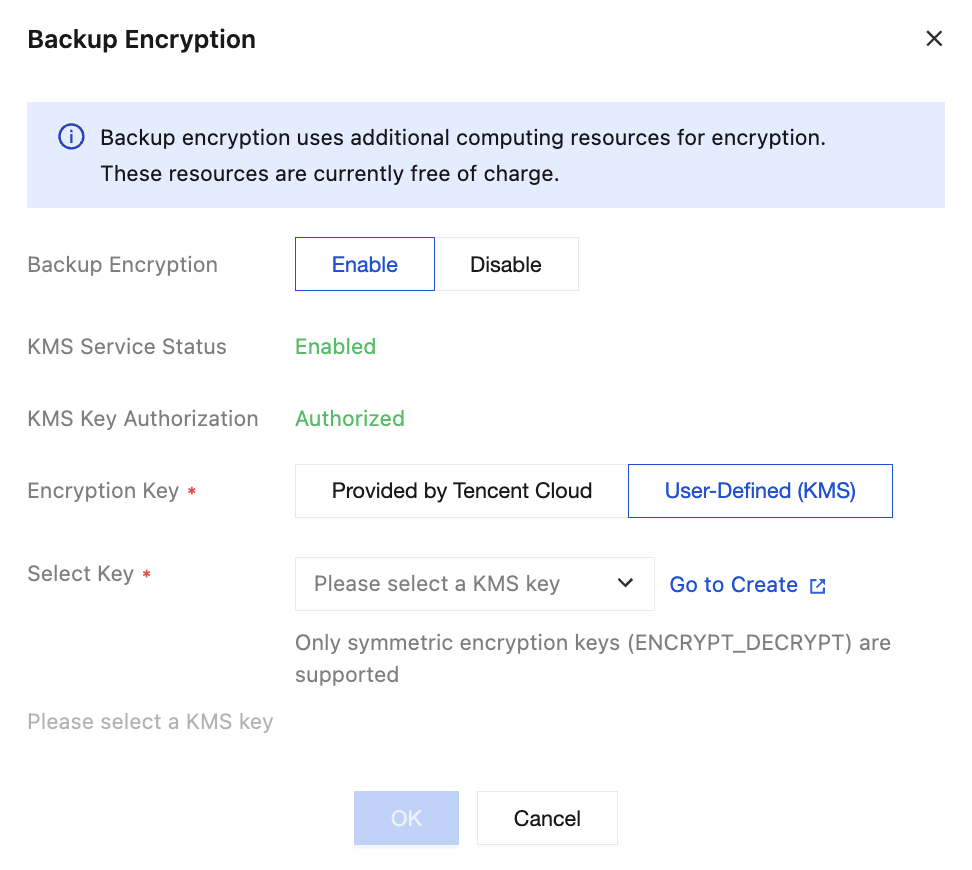
4. After confirming the configuration, click OK. After the switch is enabled, subsequent newly generated backup files will be automatically encrypted (historical backup files that were already generated will not have encryption automatically added). In the backup list, an explicit "Encryption" tag will be added to the backup method column for the corresponding backup file, facilitating your daily verification of security and compliance status.

Disabling Backup Encryption
Note:
After the feature is disabled, subsequent newly generated backup files will no longer be encrypted, while historical backups that are already encrypted will retain their encrypted status.
1. Go to the Backup and Restoration tab on the instance details page, and click the Backup Encryption button in the upper-right corner.
2. In the Backup Encryption window that pops up, switch the Backup Encryption toggle to Disabled, and click OK to complete the operation.
Downloading Keys and Decrypting Backup Files Locally
When you download encrypted backup files to your local environment for offline analysis or restoration in a self-built environment, you need to use a key to decrypt them locally.
1. Go to the Backup and Restoration tab on the instance details page, and locate the target encrypted backup record in the backup list.
2. In the Actions column, click Download Key. The system will automatically download a key file named in the format
backup-{BackupId}.key (for example, backup-436105034-53787845-322020982.key).
3. Use the downloaded key file to decrypt the locally encrypted backup file, obtaining a plaintext backup file. You can directly use the built-in openssl tool in the terminal to perform the decryption:
openssl enc -d -aes-256-cbc -salt -pbkdf2 -in <encrypted_backup_filename> -out <decrypted_filename> -pass file:<key_file_path>
Note:
The downloaded key is used only for locally decrypting downloaded encrypted backup files. For cloud-based operations such as cloning and restoration performed within the Tencent Cloud console, the system automatically completes the decryption, so you do not need to download the key or perform manual decryption.
Cloud Operations for Encrypted Backups (Clone / Restoration)
When you use encrypted backups for cloud-based cloning or restoration, the system automatically adapts to the encrypted backups. When the backend reads an encrypted backup file, it automatically calls KMS to decrypt the file using the corresponding CMK. The key does not leave the trusted boundary, so you do not need to be aware of the key or perform manual decryption. The time required for cloning or restoring encrypted backups is essentially the same as that for non-encrypted backups.
Note:
In the user-managed key (KMS) mode, if the corresponding CMK is disabled, cloud-based cloning and restoration operations will fail and return the error code
FailedOperation.KmsKeyDisabled. In this case, go to the Key Management Service (KMS) console to re-enable the CMK, and then retry the operation.FAQs
Does Enabling Backup Encryption Affect Instance Performance?
The encryption and decryption computations for backup encryption are completed during the backup task execution process, and they do not affect the normal read/write request processing of the instance. Encryption applies only to the backup file generation phase and has no impact on the request latency of online services.
What Is the Impact on Backup Encryption After a KMS Key Is Disabled?
In the user-managed key (KMS) mode, if the CMK status is abnormal (disabled or deleted), it will cause the creation of new encrypted backups to fail. Additionally, when you use historical encrypted backups for cloud-based cloning or restoration operations, the operations will also fail, and the system will return the error code FailedOperation.KmsKeyDisabled. You must ensure that the CMK remains enabled throughout the entire lifecycle of the backup. If it has been disabled, go to the KMS console to re-enable it and then retry the operation.
Bantuan dan Dukungan
Apakah halaman ini membantu?
Anda juga dapat Menghubungi Penjualan atau Mengirimkan Tiket untuk meminta bantuan.
masukan