Private Network
Download
Mode fokus
Ukuran font
Feature Introduction
The Private Network - Security Group module under Rule Management provides the capability to view and filter security groups across accounts. After selecting Private Network - Security Group, you can view the configuration details, associated instances, and risk status of security groups under each member account from both the security group perspective and the instance perspective.
Note:
Currently, only viewing and filtering are supported. Creating, editing, or deleting security group rules through Rule Management is not supported. To modify rules, go to the VPC console.
Before using multi-account security group management, you must first enable VPC hosting for the corresponding account in Member Management. For details, see Set VPC Management.
Operation Steps
Viewing Security Group Perspective
1. Log in to the FWM console. In the left-side navigation pane, select Rule Management.
2. On the Rule Management page, select Private Network - Security Group as the product to be issued.
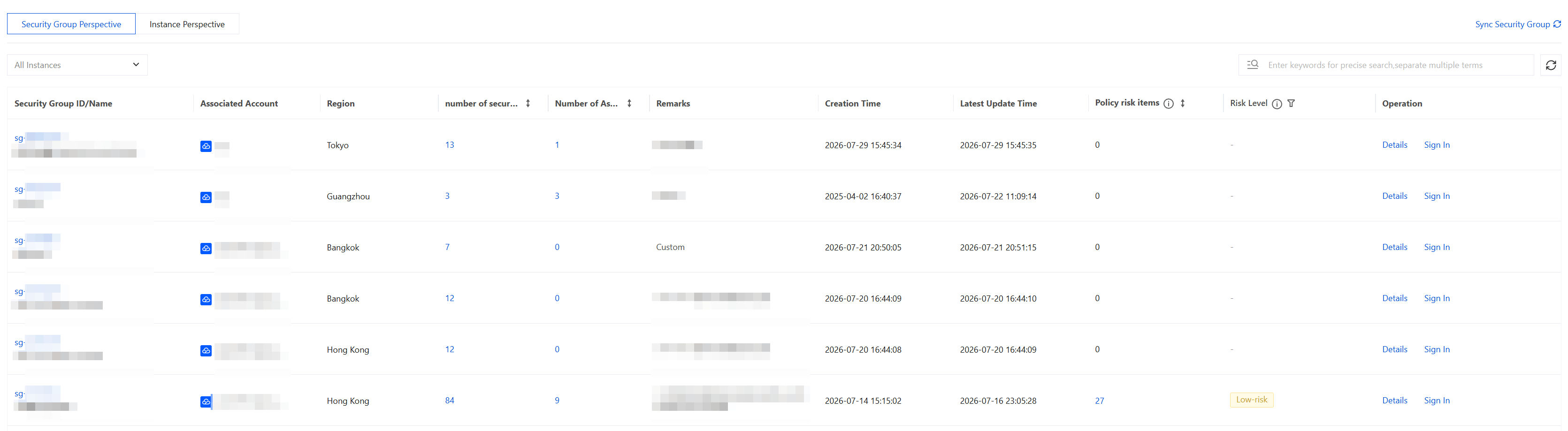
3. Click Security Group Perspective. From the security group perspective, you can view the following information:
Field | Description |
Security Group ID/Name | Security Group ID: the unique identifier of a security group. Click it to open the details page. Security Group Name: the name of the security group. |
Associated Account | The member account to which the security group belongs. |
Region | The region where the security group resides. |
Number of Security Group Rules | The number of inbound and outbound rules. Click to view the rule list. |
Number of Associated Instances | The number of instances associated with the security group. Click to view the list of associated instances. |
Remarks | Remark information. |
Creation Time | The creation time of the security group. Sorting is supported. |
Latest Update Time | The latest update time of the security group. |
Policy Risk Items | The number of risk types pending rectification in the policy analysis module for this security group. |
Risk Level | The highest severity level of risks pending rectification in the policy analysis module for this security group. |
Operation | Click Details to go to the security group details page, where you can view information such as inbound rules, outbound rules, and associated instances. Click Sign In to navigate to the VPC - Security Groups page of the corresponding member account for Ops operations. |
View Instance Perspective
1. Log in to the FWM console. In the left-side navigation pane, select Rule Management.
2. On the Rule Management page, select Private Network - Security Group as the product to be issued.
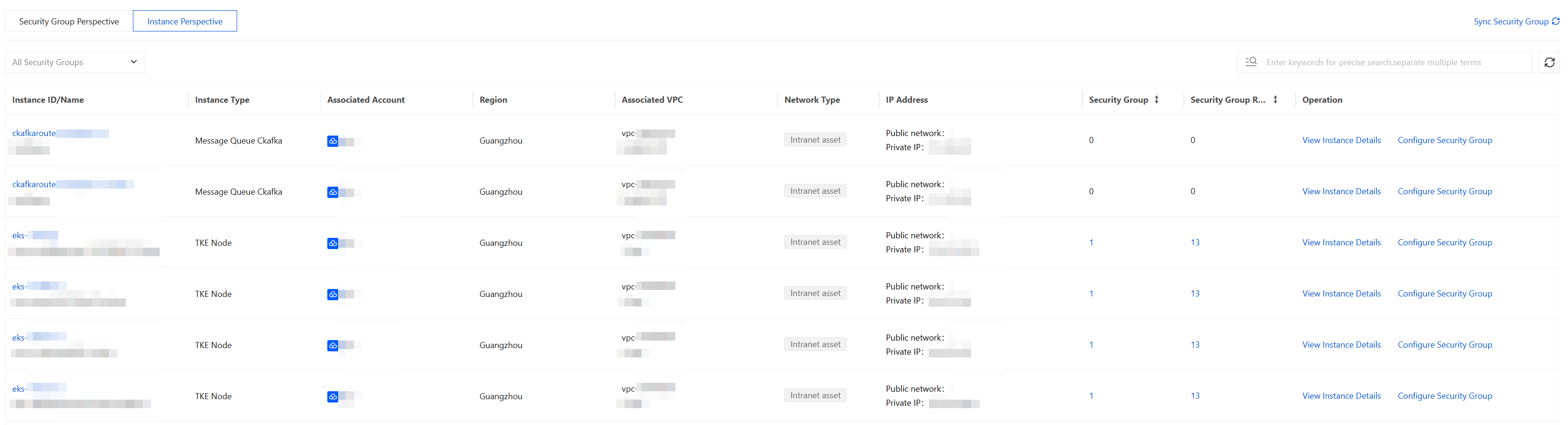
3. Click Instance Perspective. From the instance perspective, you can view the following information:
Field | Description |
Instance ID/Name | Instance ID: the unique identifier of an instance. Click it to open the details page. Instance Name: the name of the instance. |
Instance type | The specific type of the instance. |
Associated Account | The member account to which the instance belongs. |
Region | The region where the instance is located. |
Associated VPC | The VPC ID and name to which the instance belongs. |
Network Type | The network asset type of the instance. |
IP Address | The public and private IP addresses of the instance. |
Security Group | The number of security groups bound to the current instance. Click to navigate to the security group view for filtering. |
Security Group Rules | The number of inbound and outbound rules of the security groups associated with the current instance. Click to navigate to the security group view for filtering. |
Operation | Click View Instance Details. Use the sign-in feature to navigate to the corresponding member account and view detailed instance information. Click Configure Security Group. Use the sign-in feature to navigate to the VPC - Security Groups edit page. |
Query and Filter
You can perform a precise search using the search box above the list, filtering by criteria such as security group name, security group ID, associated account, and region. Separate multiple criteria with the Enter key.
Synchronizing Assets
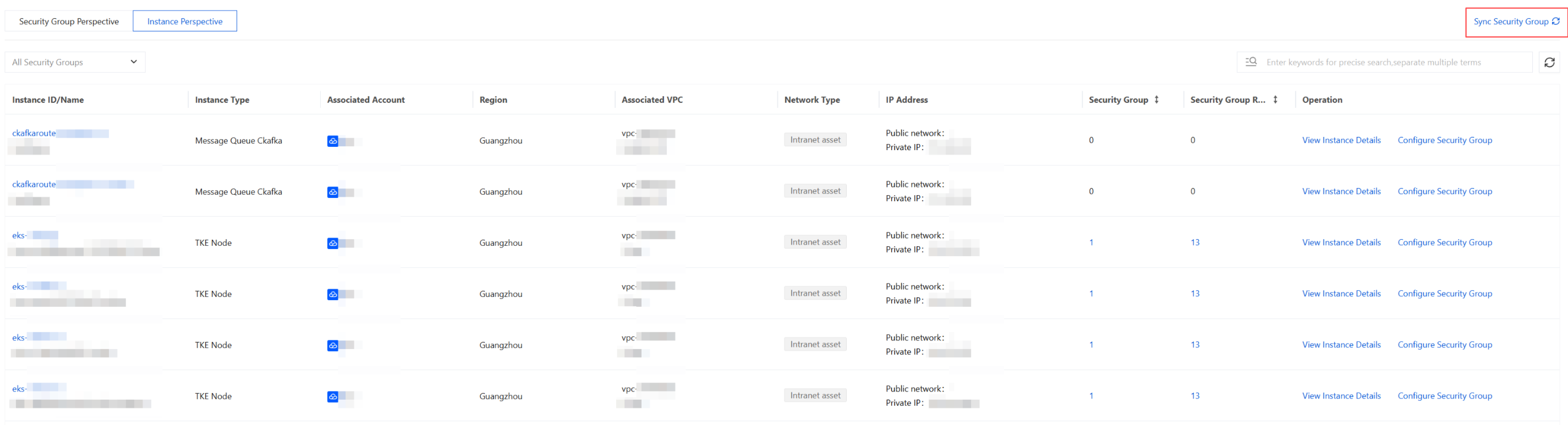
Asset data is updated periodically. To obtain the latest data, you can manually trigger a sync by clicking the Sync Security Group button in the upper-right corner of the page.
Bantuan dan Dukungan
Apakah halaman ini membantu?
Anda juga dapat Menghubungi Penjualan atau Mengirimkan Tiket untuk meminta bantuan.
masukan