Operation Overview (Read-Only Analysis Instances)
Unduh
Mode fokus
Ukuran font
This document describes the features and operations available on the Instance List page and the Management page of the TDSQL Boundless console, guiding you to manage your TDSQL Boundless databases with ease.
Instance List Page
On the Instance List page of the TDSQL Boundless console, you can view instance-related information and manage instances.

Function | Description |
Log in | Click Operation column Log In to log in to the database using the new-generation database tool. For details, see Connecting via DMC. |
Adjust Configurations | Click Operation column Adjust Configurations to adjust the configuration of the database instance, supporting instance upgrade and downgrade. For details, see Adjusting Configurations. |
Renew | Select the target instance(s), click Renew above the instance list to manually renew instances billed on a yearly/monthly subscription basis. For details, see Renewal. |
Enable Auto-Renewal | Select the target instance(s), click  |
Pay-as-You-go to Yearly/Monthly Subscription | Click Operation column More > Pay-as-You-Go to Monthly Subscription to modify the billing mode of pay-as-you-go instances. |
Cancel Auto-Renewal | Select the target instance(s), click  |
Edit Tag | Click Operation column More > Edit Tag to edit and manage Tags for instance resources. For details, see Editing Tag. |
Create Instance | Select Create Instance above the instance list to jump to the purchase page and create an instance. For details, see Creating a Pre-configured Resource Instance. |
Rename Instance | Click  |
Restart | Click Operation column More > Restart to perform a rolling restart of a single instance. For details, see Restarting Instance. You can also select multiple target instances (for batch restart), then click More > Restart above the instance list to restart the selected instances. During a rolling restart, existing connections to the instance need to be re-established. Please prepare accordingly to avoid any impact. Ensure you restart during business off-peak hours to guarantee a successful restart and minimize the impact on your business. |
Terminate Instance (Return) | Click Operation column More > Terminate (Return) to self-service terminate an instance. For details, see Terminating Instance. |
Instance Management Page
Log in to the TDSQL Boundless console. On the Instance List page, click the Instance ID to go to the Instance Details page.
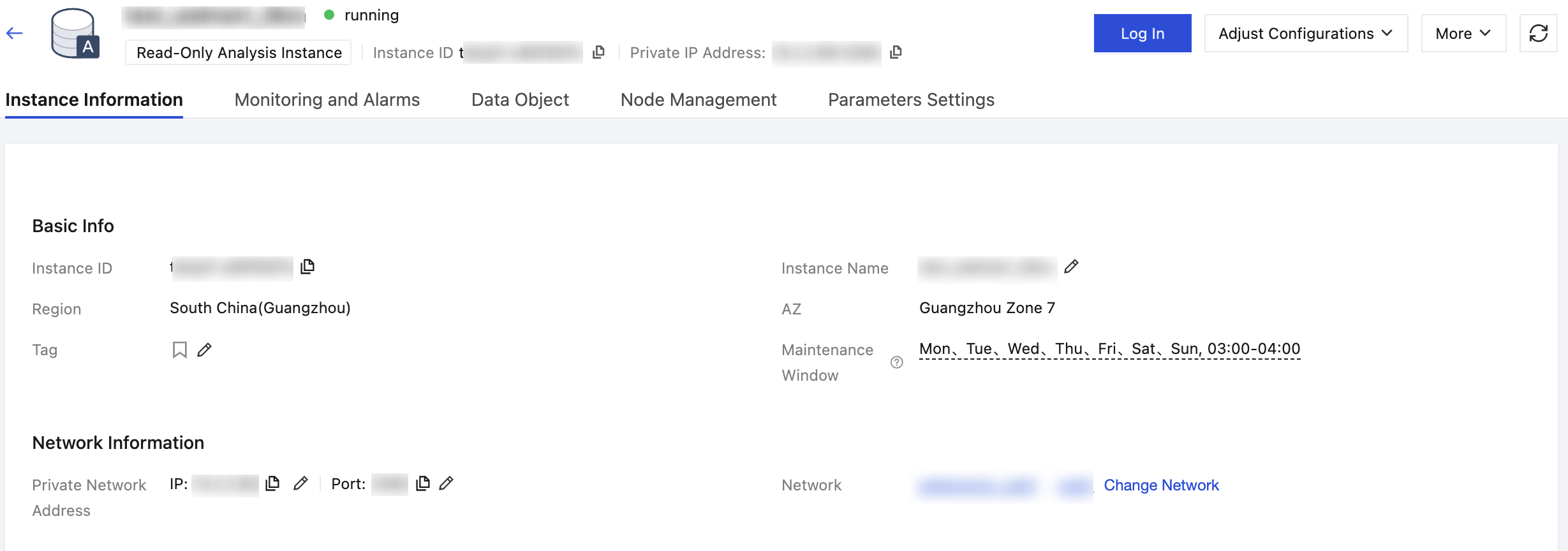
Feature Page | Feature Item | Description |
Instance Information | Adjust Configurations | Click Adjust Configurations > Adjust Configurations in the upper right corner of the page to adjust the instance specification. For details, see Adjusting Configurations. |
| Modifying the Instance Maintenance Time | In the Basic Info area, click Edit at Maintenance Window to set an acceptable maintenance time for the business instance. For details, see Modifying the Instance Maintenance Time. |
| Changing the Network | In the Network Information area, click Change Network after the Network field to adjust the business network plan. For details, see Changing the Network. |
| Modify Network Address | In the Network Information area, click  |
Monitoring and Alarms | View Monitoring Metrics | On the Monitoring tab, select to query the monitoring status of resources, connections, and access for instances or nodes. You can add time comparison, filter time granularity, and view monitoring metrics. For details, see Monitoring and Alarms. |
| Verify Instance Alarms | TDSQL Boundless supports setting alarms for monitoring metrics. By monitoring performance metrics in real time, you can understand the resource usage and operational status of the database. By setting alarm notifications, you can obtain alarm information in a timely manner. By viewing alarm history, you can review alarm history details, which helps improve the operational status of the database. For details, see Alarms. |
Data Object | - | On the Data Object tab, load data into the columnar read-only analysis engine of TDSQL Boundless to use the columnar engine for efficient data analysis queries. For details, see Data Loading. |
Node management | - | |
Parameter Settings | - | On the Parameter Settings tab, manage the database parameters of the read-only analysis instance. For details, see Parameter Management. |
Bantuan dan Dukungan
Apakah halaman ini membantu?
Anda juga dapat Menghubungi Penjualan atau Mengirimkan Tiket untuk meminta bantuan.
masukan