The type of a data job cannot be changed. To change it, create a new data job as instructed in Creating Data Job.
1. Log in to the Data Lake Compute console, select the service region, and select Data job on the left sidebar.
2. Find the target data job and click Edit.
3. Edit the content and click Save.
Starting and stopping a data job task
You can start and stop a created data job to generate corresponding tasks. A data job can generate multiple task instances and be executed multiple times.
Data task statuses are as follows:
Status
Description
Not started
Initial status after creation.
Running
The data task is running, during which the data job cannot be edited or deleted.
Successful
The task is executed successfully.
Failed
Failed to run the task. You can query the error message through the log or SparkUI.
Canceled
The task is manually canceled.
You can start and stop a data job task in the following steps:
1. Log in to the Data Lake Compute console, select the service region, and select Data job on the left sidebar.
2. Find the target data job and click Running to change the task status.
Note:
Starting a task instance will use compute engine resources. If the usage exceeds the configured upper limit, the task will be put into a queue.
Viewing the Data Job and Task Details
1. Log in to the Data Lake Compute console, select the service region, and select Data job on the left sidebar.
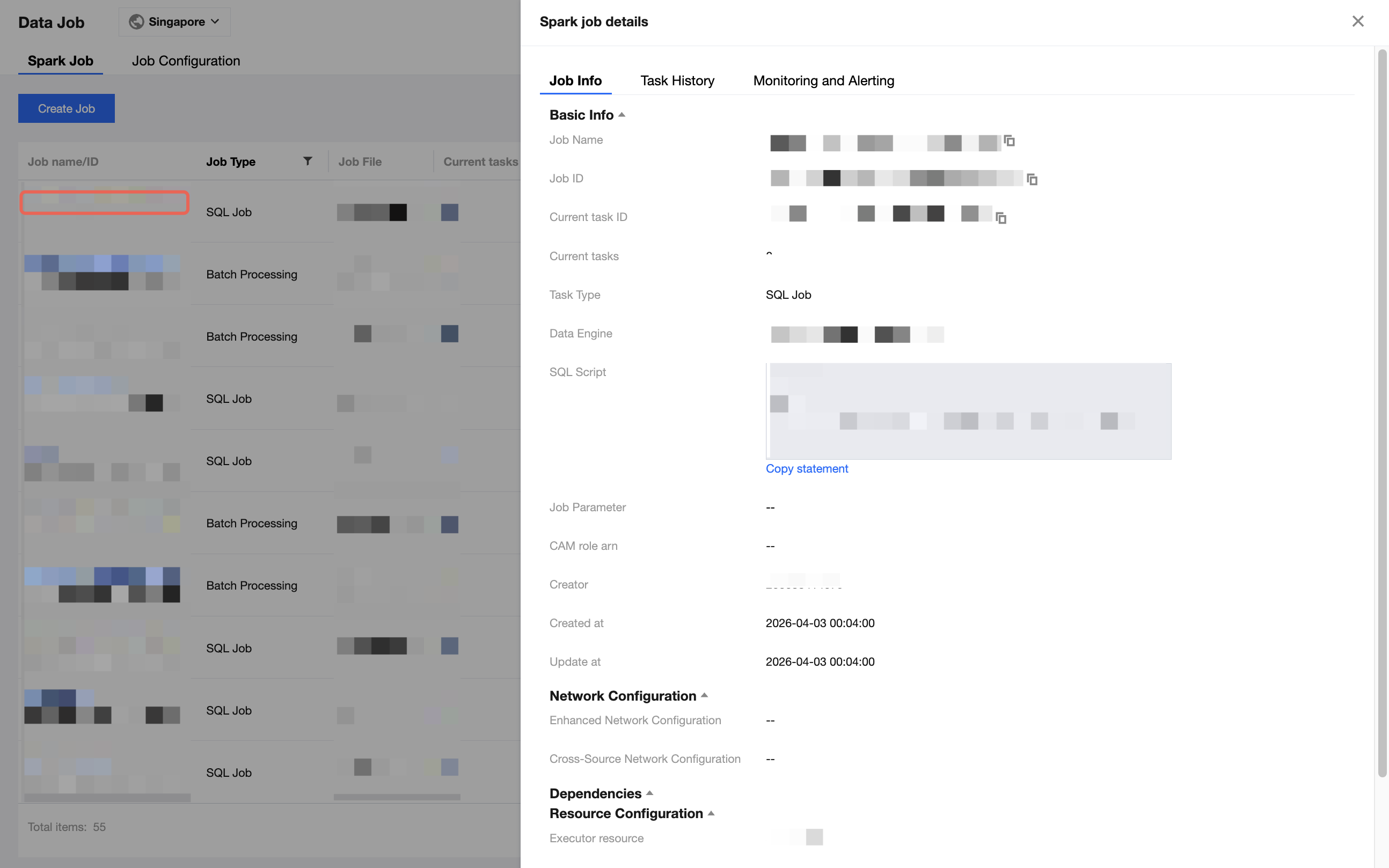
2. Click Job name to enter the data job details page.
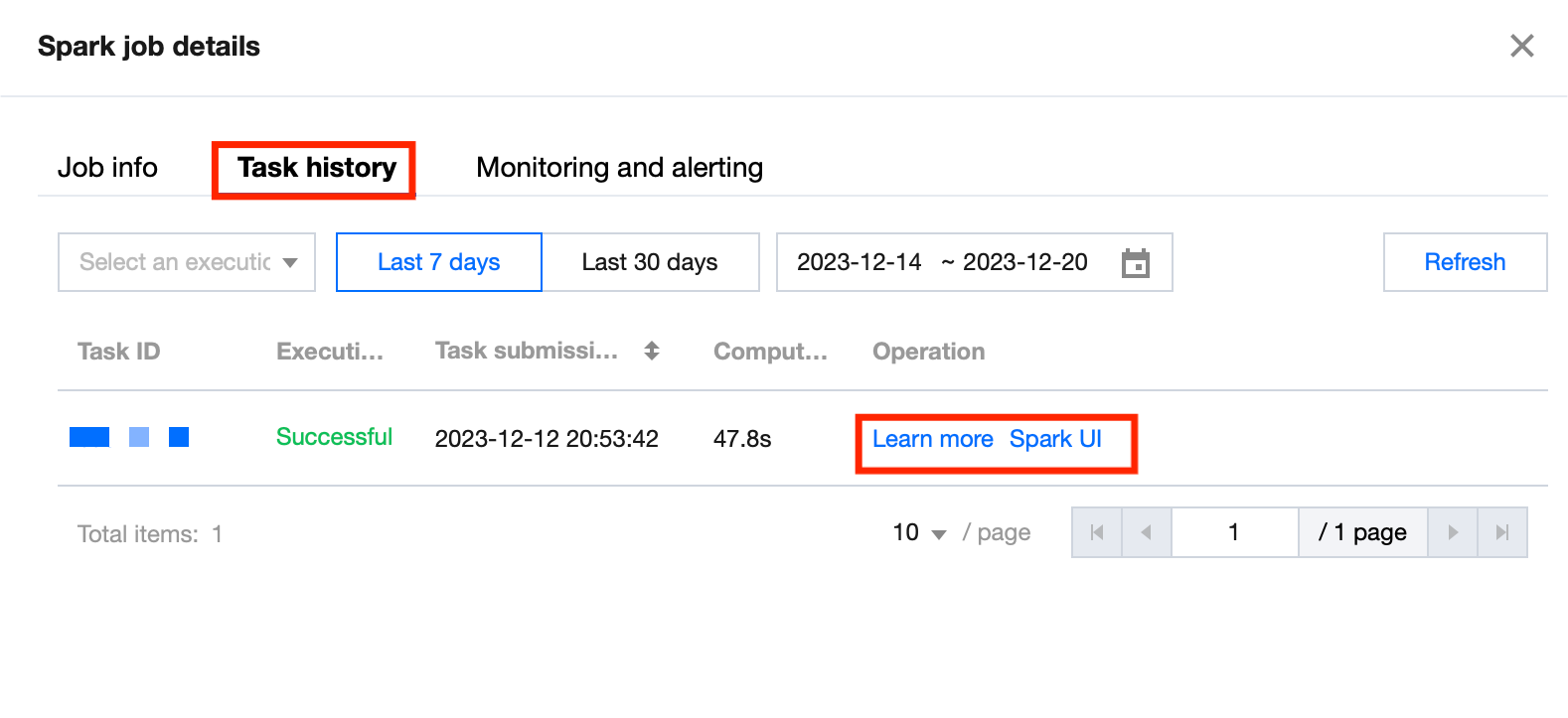
3. On the details page, you can view the basic information and task list of the data job. The task list contains the data task information of the data job. You can view the task run log and SparkUI.
4. Click Learn more or Task ID to view the task details, which include the Basic Information、Running Result、Task Insight、Task Logs of the task. Currently, the run log allows you to view the last 1,000 data entries.
5. You can select the Task Logs and click the Export Log button to export them. Once exported, proceed with a full download. In the Export Records pop-up, click Save to Local under the Action column.
Note:
The download record will be saved for three days, after which you cannot save the log locally and need to create a new download task.
Deleting a data job
Note:
A data job with a running data task cannot be deleted.
1. Log in to the Data Lake Compute console, select the service region, and select Data job on the left sidebar.
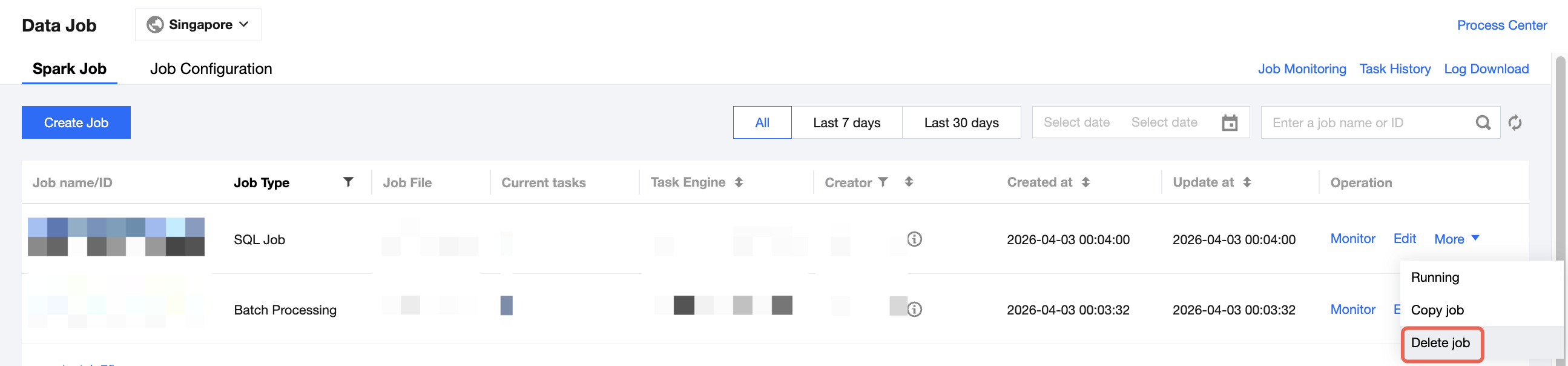
2. Locate the target data job you want to delete and click the More button. Select Delete Job from the drop-down menu, and confirm the action to complete the deletion.
Note:
Note that deleting a data job will delete its data task information. Proceed with caution.