Participant Management (iOS)
다운로드
포커스 모드
폰트 크기
RoomParticipantStore is a specialized module within AtomicXCore designed for managing room participants. It provides essential functionality for conference scenarios, enabling you to build a robust participant management system.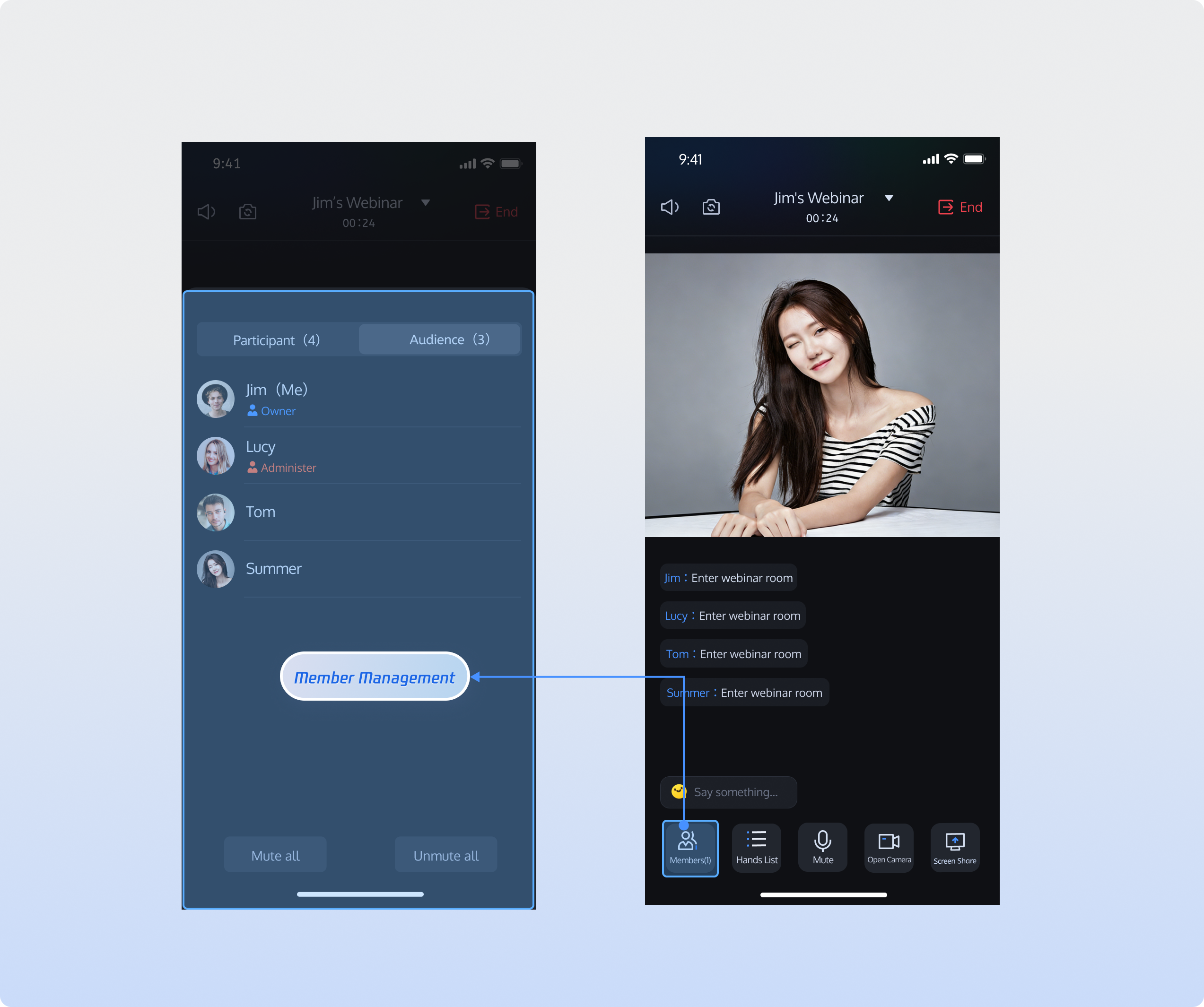
Feature Overview
The conference participant management module supports comprehensive user information display and permission management within a room:
Dual Role List Display: Dynamically displays both the guest list and audience list, showing nickname, role, and audio status.
Role Switching Between Guest and Audience: Allows hosts or admins to promote audience members to guests with speaking privileges, or demote guests to audience members.
Permission Control: Enables the host or admin to perform actions such as removing participants from the room or muting all members.
Hierarchical Management: Supports differentiated permissions for hosts, admins, guests, and audience members.
Core Functions
Retrieve Guest List: Fetch the current guest list in the room. Guests can enable their microphones and communicate with other guests via audio.
Retrieve Audience List: Obtain information for current audience members in the room.
Search Room Members: Search for specific users within the room.
Promote Audience to Guest: Promote an audience member to guest status. Promoted users can enable their microphones and communicate with other guests.
Demote Guest to Audience: Demote a guest to audience status. Demoted users lose the ability to interact via audio.
Set/Revoke Admin: Hosts can grant admin privileges to other room members or revoke admin status from existing admins.
Remove Member from Room: Hosts or admins can remove any participant from the room.
Core Concepts
Core concepts of
RoomParticipantStore are summarized in the table below:Core Concept | Type | Main Responsibilities & Description |
struct | Represents the core data model for guests, encapsulating complete information and state management capabilities, including microphone control. Main functions include: basic guest information management (user ID, user name, avatar, room role), device state management (microphone status, camera status, screen sharing status, message status). | |
struct | Provides the data structure for managing participant states within the room, maintaining relevant status information. Main properties: participantList: Guest list.audienceList: Audience list.adminList: Admin list.localParticipant: Information about the current user in the room. | |
enum | Represents real-time events related to room participants. | |
class | Core class for participant control. Functions include: guest audio/video control, participant management, role switching between guest and audience, and subscribing to participantEventPublisher for real-time events. |
Implementation Steps
Step 1: Integrate Components
Follow the Integration Overview to integrate the AtomicXCore SDK. Ensure you have completed the Login Logic Implementation.
Step 2: Retrieve Guest List
After entering the room, use the
getParticipantList method in RoomParticipantStore to obtain the guest list.import Foundationimport AtomicXCorefunc getParticipantList() {// Prerequisite: User must have entered the room and created a RoomParticipantStore instance using the roomIDlet participantStore = RoomParticipantStore.create(roomID: "webinar_123456")// Retrieve the initial guest list (pagination supported; cursor parameter for incremental fetch)var initialCursor: String? = nil // nil fetches from the first pageparticipantStore.getParticipantList(cursor: initialCursor) { result inswitch result {case .success(let participantInfo):print("Successfully retrieved participant list, count: \\(participantInfo.0.count)")case .failure(let error):print("Failed to retrieve participant list [Error code: \\(error.code)]: \\(error.message)")}}}
Step 3: Retrieve Audience List
After entering the room, use the
getAudienceList method in RoomParticipantStore to fetch the audience list.import Foundationimport AtomicXCorefunc getAudienceList() {// Prerequisite: User must have entered the room and set roomType to WEBINARlet participantStore = RoomParticipantStore.create(roomID: "webinar_123456")// Retrieve the initial audience list (pagination supported; cursor parameter for incremental fetch)let initialCursor: String? = nil // nil fetches from the first pageparticipantStore.getAudienceList(cursor: initialCursor) { result inswitch result {case .success(let audienceInfo):print("Successfully retrieved audience list, count: \\(audienceInfo.0.count)")case .failure(let error):print("Failed to retrieve audience list [Error code: \\(error.code)]: \\(error.message)")}}}
Step 4: Search Room Members
After entering the room, call the
searchUsers method in RoomParticipantStore to search for members.import Foundationimport AtomicXCorefunc searchUsers() {// Prerequisite: User must have entered the roomlet participantStore = RoomParticipantStore.create(roomID: "webinar_123456")// Search for members by keyword (user name)let keyword = "userName"participantStore.searchUsers(keyword: keyword) { result inswitch result {case .success(let usersInfo):print("Successfully searched room members, count: \\(usersInfo.0.count)")case .failure(let error):print("Failed to search room members [Error code: \\(error.code)]: \\(error.message)")}}}
Step 5: Promote Audience to Guest
As a host or admin, use the
promoteAudienceToParticipant method in RoomParticipantStore to promote an audience member to guest.import Foundationimport AtomicXCorefunc promoteAudienceToParticipant(userID: String) {// Prerequisite: User must have entered the roomlet participantStore = RoomParticipantStore.create(roomID: "webinar_123456")// Only host or admin can perform this actionparticipantStore.promoteAudienceToParticipant(userID: userID) { result inswitch result {case .success():print("Promotion to guest successful")case .failure(let error):print("Promotion to guest failed [Error code: \\(error.code)]: \\(error.message)")}}}
To receive notifications when an audience member is promoted to guest, subscribe to the
onAudiencePromotedToParticipant event in participantEventPublisher:import Foundationimport AtomicXCoreimport Combineprivate var cancellableSet = Set<AnyCancellable>()private func subscribeParticipantEvent() {// Prerequisite: User must have entered the room and created RoomParticipantStore instancelet participantStore = RoomParticipantStore.create(roomID: "webinar_123456")participantStore.participantEventPublisher.receive(on: DispatchQueue.main).sink { event inswitch event {case .onAudiencePromotedToParticipant(userInfo: let userInfo):print("Audience promoted to guest, userInfo: \\(userInfo)")default: break}}.store(in: &cancellableSet)}
Step 6: Demote Guest to Audience
As a host or admin, use the
demoteParticipantToAudience method in RoomParticipantStore to demote a guest to audience.import Foundationimport AtomicXCorefunc demoteParticipantToAudience(userID: String) {// Prerequisite: User must have entered the roomlet participantStore = RoomParticipantStore.create(roomID: "webinar_123456")// Only host or admin can perform this actionparticipantStore.demoteParticipantToAudience(userID: userID) { result inswitch result {case .success():print("Demotion to audience successful")case .failure(let error):print("Demotion to audience failed [Error code: \\(error.code)]: \\(error.message)")}}}
To receive notifications when a guest is demoted to audience, subscribe to the
onParticipantDemotedToAudience event in participantEventPublisher:import Foundationimport AtomicXCoreimport Combineprivate var cancellableSet = Set<AnyCancellable>()private func subscribeParticipantEvent() {// Prerequisite: User must have entered the room and created RoomParticipantStore instancelet participantStore = RoomParticipantStore.create(roomID: "webinar_123456")participantStore.participantEventPublisher.receive(on: DispatchQueue.main).sink { event inswitch event {case .onParticipantDemotedToAudience(userInfo: let userInfo):print("Guest demoted to audience, userInfo: \\(userInfo)")default: break}}.store(in: &cancellableSet)}
Step 7: Set or Revoke Admin Privileges
As the host, use the
setAdmin method to grant admin privileges, or revokeAdmin to remove them:import Foundationimport AtomicXCorelet participantStore = RoomParticipantStore.create(roomID: "webinar_123456")/// Set user as adminfunc setUserAsAdmin(userID: String) {participantStore.setAdmin(userID: userID) { result inswitch result {case .success:print("Successfully set user \\(userID) as admin")case .failure(let error):print("Failed to set admin [Error code: \\(error.code)]: \\(error.message)")}}}/// Revoke admin privilegesfunc revokeUserAdmin(userID: String) {participantStore.revokeAdmin(userID: userID) { result inswitch result {case .success:print("Successfully revoked admin privileges for user \\(userID)")case .failure(let error):print("Failed to revoke admin [Error code: \\(error.code)]: \\(error.message)")}}}
Subscribe to
onAdminSet and onAdminRevoked events in participantEventPublisher for notifications about admin role changes:import Foundationimport AtomicXCoreimport Combinelet participantStore = RoomParticipantStore.create(roomID: "webinar_123456")private var cancellableSet = Set<AnyCancellable>()private func subscribeParticipantEvents() {participantStore.participantEventPublisher.receive(on: DispatchQueue.main).sink { event inswitch event {case .onAdminSet(let userInfo):print("Admin privileges granted, userInfo: \\(userInfo)")case .onAdminRevoked(let userInfo):print("Admin privileges revoked, userInfo: \\(userInfo)")default: break}}.store(in: &cancellableSet)}
Step 8: Remove Member from Room
As host or admin, use
kickUser in RoomParticipantStore to remove a participant from the room:import Foundationimport AtomicXCorelet participantStore = RoomParticipantStore.create(roomID: "webinar_123456")func kickUser(userID: String) {// Only host or admin can perform this action; removed users exit the room immediately and receive a notificationparticipantStore.kickUser(userID: userID) { result inswitch result {case .success():print("User removed successfully: \\(userID)")case .failure(let error):print("Failed to remove user [Error code: \\(error.code)]: \\(error.message)")}}}
Subscribe to the
onKickedFromRoom event in participantEventPublisher to receive removal notifications:import Foundationimport AtomicXCoreimport Combinelet participantStore = RoomParticipantStore.create(roomID: "webinar_123456")private var cancellableSet = Set<AnyCancellable>()private func subscribeParticipantEvent() {participantStore.participantEventPublisher.receive(on: DispatchQueue.main).sink { event inswitch event {case .onKickedFromRoom(let reason, let message):print("Removed from room. Reason: \\(reason), Details: \\(message)")default:break}}.store(in: &cancellableSet)}
Step 9: Close Guest Media Devices
As host or admin, use
closeParticipantDevice in RoomParticipantStore to proactively close a guest's camera or microphone:import Foundationimport AtomicXCorelet participantStore = RoomParticipantStore.create(roomID: "webinar_123456")func closeParticipantDevice(userID: String, device: DeviceType) {// Host or admin can close devices; affected users receive a notificationparticipantStore.closeParticipantDevice(userID: userID, device: device) { result inswitch result {case .success():print("Closed device for user: \\(userID), device: \\(device)")case .failure(let error):print("Failed to close device [Error code: \\(error.code)]: \\(error.message)")}}}
Note:
closeParticipantDevice is only applicable to guests. Audience members do not have audio/video device permissions and are unaffected by this operation.Subscribe to the
onParticipantDeviceClosed event in participantEventPublisher to receive device closure notifications:import Foundationimport AtomicXCoreimport Combinelet participantStore = RoomParticipantStore.create(roomID: "webinar_123456")private var cancellableSet = Set<AnyCancellable>()private func subscribeDeviceClosedEvent() {participantStore.participantEventPublisher.receive(on: DispatchQueue.main).sink { event inswitch event {case .onParticipantDeviceClosed(let device, let operatorUser):print("Device closed: \\(device), by: \\(operatorUser.userName)")default:break}}.store(in: &cancellableSet)}
Step 10: Manage In-Meeting Chat Permissions
As host or admin, use
disableUserMessage in RoomParticipantStore to mute or unmute specific users. Muted users are tracked in messageDisabledUserList.import Foundationimport AtomicXCoreimport Combinelet participantStore = RoomParticipantStore.create(roomID: "webinar_123456")private var cancellableSet = Set<AnyCancellable>()func disableUserMessage(userID: String, disable: Bool) {// Host or admin can mute/unmute members; affected users are notifiedparticipantStore.disableUserMessage(userID: userID, disable: disable) { result inswitch result {case .success():print("\\(disable ? "Mute" : "Unmute") successful - user: \\(userID)")case .failure(let err):print("\\(disable ? "Mute" : "Unmute") user chat failed - error code: \\(err.code), error message: \\(err.message)")}}}
Note:
messageDisabledUserList is only applicable in conference (Webinar) rooms and maintains the list of individually muted users.Subscribe to the
onUserMessageDisabled event in participantEventPublisher for mute/unmute chat notifications:import Foundationimport AtomicXCoreimport Combinelet participantStore = RoomParticipantStore.create(roomID: "webinar_123456")private var cancellableSet = Set<AnyCancellable>()private func subscribeDeviceClosedEvent() {participantStore.participantEventPublisher.receive(on: DispatchQueue.main).sink { event inswitch event {case .onUserMessageDisabled(let disable, let user):print("User \\(disable ? "muted" : "unmuted"), operator: \\(user.userName)")default:break}}.store(in: &cancellableSet)}
Step 11: Mute All and Disable All Video
As host or admin, use
disableAllDevices in RoomParticipantStore to mute all microphones, disable all cameras, or disable all screen sharing. When enabled, guests are prevented from activating their audio/video devices or screen sharing.import Foundationimport AtomicXCorelet participantStore = RoomParticipantStore.create(roomID: "webinar_123456")func disableAllDevices(device: DeviceType, disable: Bool) {// Host or admin can mute/unmute all devices; participants receive notificationsparticipantStore.disableAllDevices(device: device, disable: disable) { result inswitch result {case .success():let action = disable ? "Mute" : "Unmute"print("\\(action) all \\(device) successful")case .failure(let error):let action = disable ? "Mute" : "Unmute"print("\\(action) all \\(device) failed [Error code: \\(error.code)]: \\(error.message)")}}}
Subscribe to the
onAllDevicesDisabled event in participantEventPublisher to stay updated on mute all or disable all video actions, and update UI status accordingly. When global restrictions are applied, participants cannot enable camera or microphone unless approved by the host or admin.import Foundationimport AtomicXCoreimport Combinelet participantStore = RoomParticipantStore.create(roomID: "webinar_123456")private var cancellableSet = Set<AnyCancellable>()private func subscribeAllDevicesDisabledEvent() {participantStore.participantEventPublisher.receive(on: DispatchQueue.main).sink { event inswitch event {case .onAllDevicesDisabled(let device, let disable, let operatorUser):let action = disable ? "Mute" : "Unmute"print("All \\(device) \\(action) - operator: \\(operatorUser.userName)")default:break}}.store(in: &cancellableSet)}
Step 12: Disable All Chat
As host or admin, use
disableAllMessages in RoomParticipantStore to mute chat for all members. When enabled, all chat messages are restricted.import Foundationimport AtomicXCorelet participantStore = RoomParticipantStore.create(roomID: "webinar_123456")func disableAllMessages(disable: Bool) {// Host or admin can mute/unmute chat for all members; everyone receives notificationsparticipantStore.disableAllMessages(disable: disable) { result inswitch result {case .success():let action = disable ? "Mute" : "Unmute"print("All members chat \\(action) successful")case .failure(let error):let action = disable ? "Mute" : "Unmute"print("All members chat \\(action) failed [Error code: \\(error.code)]: \\(error.message)")}}}
Subscribe to the
onAllMessagesDisabled event in participantEventPublisher for global chat mute/unmute notifications:import Foundationimport AtomicXCoreimport Combinelet participantStore = RoomParticipantStore.create(roomID: "webinar_123456")private var cancellableSet = Set<AnyCancellable>()private func subscribeAllDevicesDisabledEvent() {participantStore.participantEventPublisher.receive(on: DispatchQueue.main).sink { event inswitch event {case .onAllMessagesDisabled(let disable, let operatorUser):let action = disable ? "Mute" : "Unmute"print("Chat \\(action) - operator: \\(operatorUser.userName)")default:break}}.store(in: &cancellableSet)}
Step 13: Listen to Participant Events
Subscribe to
RoomParticipantEvent for device requests and other participant-related events:import Foundationimport AtomicXCoreimport Combinelet participantStore = RoomParticipantStore.create(roomID: "webinar_123456")private var cancellableSet = Set<AnyCancellable>()private func subscribeAllDevicesDisabledEvent() {participantStore.participantEventPublisher.receive(on: DispatchQueue.main).sink { event inswitch event {case .onDeviceRequestReceived(let request):print("Device request received - device type: \\(request.device), user: \\(request.senderUserID)")default:break}}.store(in: &cancellableSet)}
To monitor changes in participant-related properties within
RoomParticipantState, such as the number of users currently speaking:import Foundationimport AtomicXCoreimport Combinelet participantStore = RoomParticipantStore.create(roomID: "webinar_123456")private var cancellableSet = Set<AnyCancellable>()private func subscribeParticipantState() {participantStore.state.subscribe(StatePublisherSelector(keyPath: \\.speakingUsers)).map { $0 }.removeDuplicates { oldValue, newValue in// Avoid duplicate processing by comparing dictionariesreturn oldValue == newValue}.receive(on: DispatchQueue.main).sink { speakingUsers inprint("Speaking user state changed - current speakers: \\(speakingUsers.count)")}.store(in: &cancellableSet)}
API Documentation
Store/Component | Description | API Documentation |
RoomParticipantStore | Participant management: set admin, transfer host, retrieve guest list, remove from room, guest device control (such as closing or inviting to open microphone, etc.). |
Contact Us
If you have any questions or feedback during integration or use, please contact info_rtc@tencent.com.
피드백