Stage 4. Play back an encrypted video
Download
Focus Mode
Font Size
Overview
This document describes how to encrypt a video and use VOD's player to play the encrypted video.
Before you go on, make sure you have read Stage 1. Play back a source video. You will be using the account registered in stage 1.
Step 1. Encrypt a Video
1. Log in to the VOD console, click Application Management, and then click the name of the target application to go to the Video/Audio Management > Audio/Video Management page.
2. Select the video to be processed and click Media Processing.
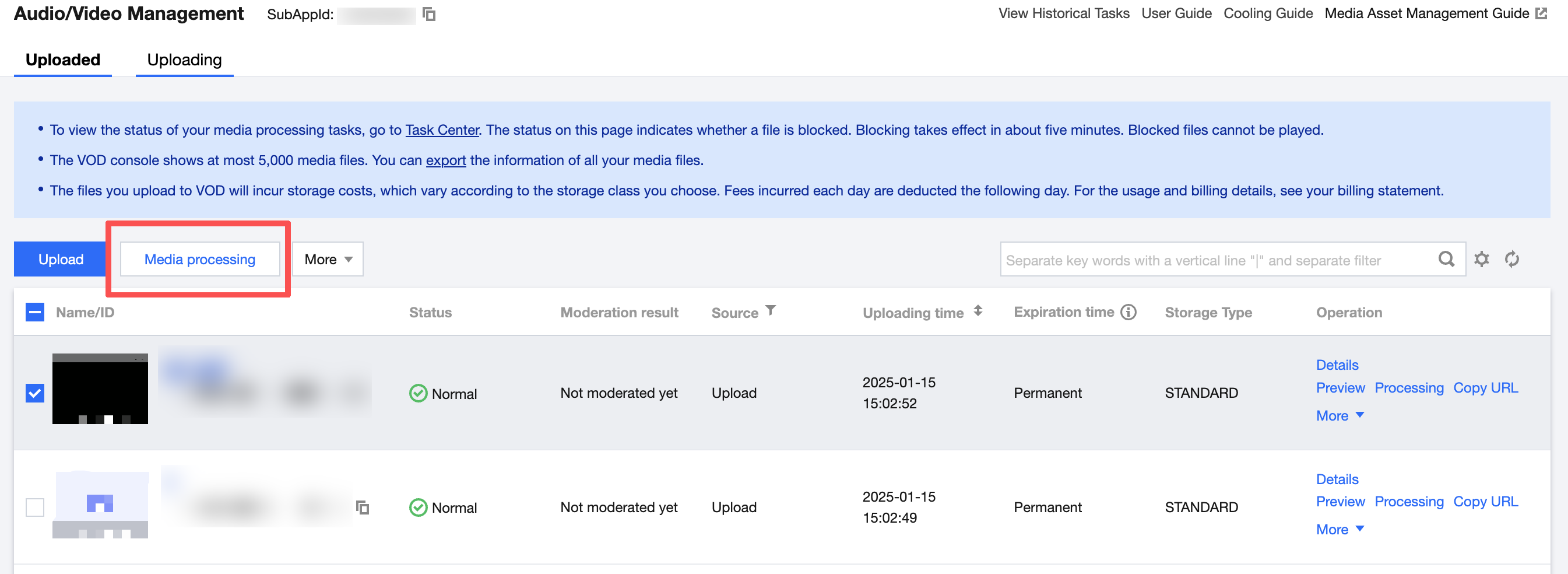
3. In the Media Processing panel, configure the following:
Processing Type: Select Adaptive bitrate streaming.
Select an encryption template that meets your business needs, such as SimpleAES or MultiDRM. Encryption and transcoding are processed together in one template, or you can create a custom processing template. See Pay-As-You-Go for Encryption fees.
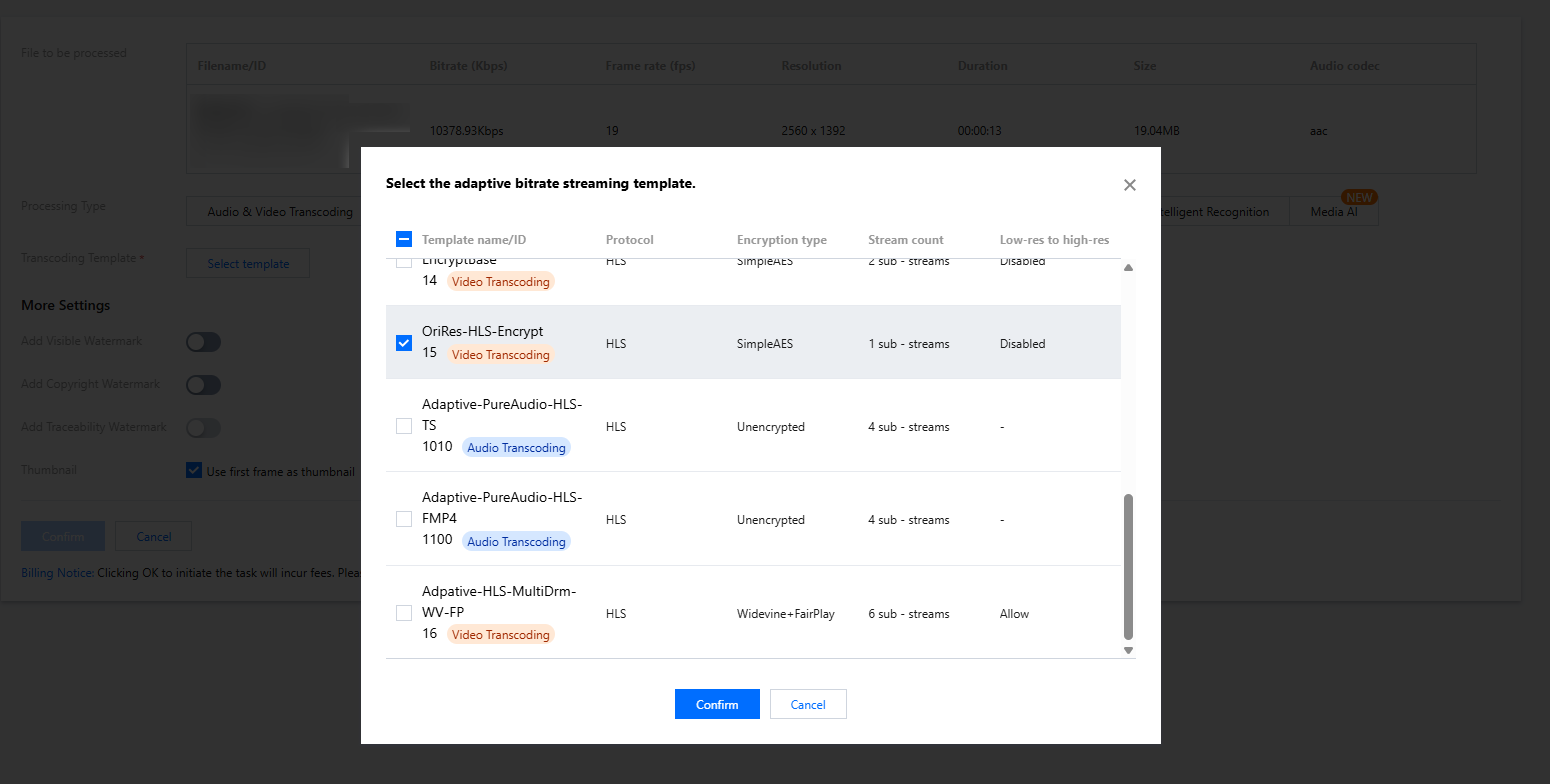
4. Click Confirm and wait until the Task Status in the Task Center changes from Processing to Completed, which indicates that the video has been processed.
5. Go to Video/Audio Management > Audio and Video Management, locate the video that you processed, and click Details in the Operation column to open the management page.

In the Adaptive bitrate streaming Information section, you can view the encrypted adaptive bitrate streaming output

Step 2. Generate a Player Signature
In this step, you can use the signature tool to quickly generate a signature for the player to play back the video.
1. In the VOD console, select Application Management on the left sidebar, and then click the name of the target application to go to the management page.
2. Select Distribution and Playback Setting > Player Signature Tools, and complete the following settings:
Video file ID: Enter the file ID generated in Step 1.
Signature expiration time: Enter the player signature expiration time. If you leave it empty, the signature will never expire.
Playable video type: Select Encrypted adaptive bitrate.
Encryption type: Select which one you choose before.
Playable Adaptive Bitrate Streaming Template: Select which one you choose before.
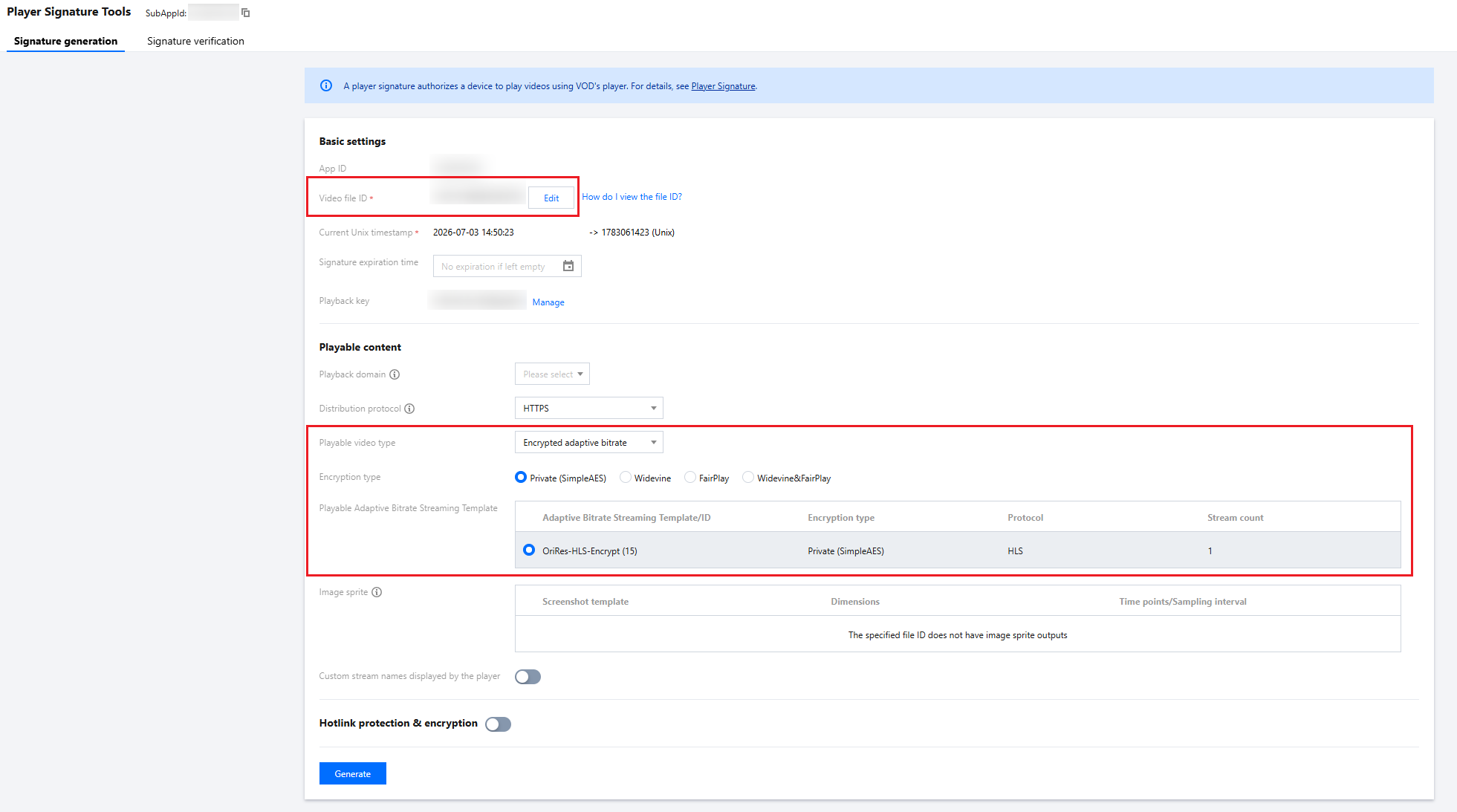
3. Click Generate to get the signature string.

Step 3. Play the Video
After step 2, you have obtained the three parameters needed for video playback: appID, fileID and psign (player signature).
Help and Support
Was this page helpful?
You can also Contact sales or Submit a Ticket for help.
Help us improve! Rate your documentation experience in 5 mins.
Feedback