The Database Audit for TencentDB for SQL Server provides a log shipping feature. Through log shipping, audit logs sourced from TencentDB for SQL Server instances can be collected and delivered to CLS (Cloud Log Service) for centralized management and analysis. This document describes how to configure the log shipping feature for Database Audit via the console.
Prerequisites
To ship logs to CLS, you must meet the following prerequisites:
Before using this feature, ensure that you have activated CLS. The instance status is Running.
Supported Versions and Architecture
Supported database editions are: Enterprise Edition 2012, 2014, 2016, 2017, 2019, 2022, and 2025.
Supported instance architectures are: two-node (local disk), read-only instance (local disk), single-node (cloud disk), two-node (cloud disk), multi-node (cloud disk), and read-only instance (cloud disk).
Billing Overview for Log Shipping
The feature of shipping Database Audit logs from TencentDB for SQL Server to CLS involves CLS, a third-party cloud product billed independently. For its billing standards, see CLS > Billing Overview. |
Chinese Mainland (USD/GB) | Hong Kong (China), other countries and regions (USD/GB) |
0.05882353 | 0.08823529 |
Description of Log Shipping Traffic Monitoring
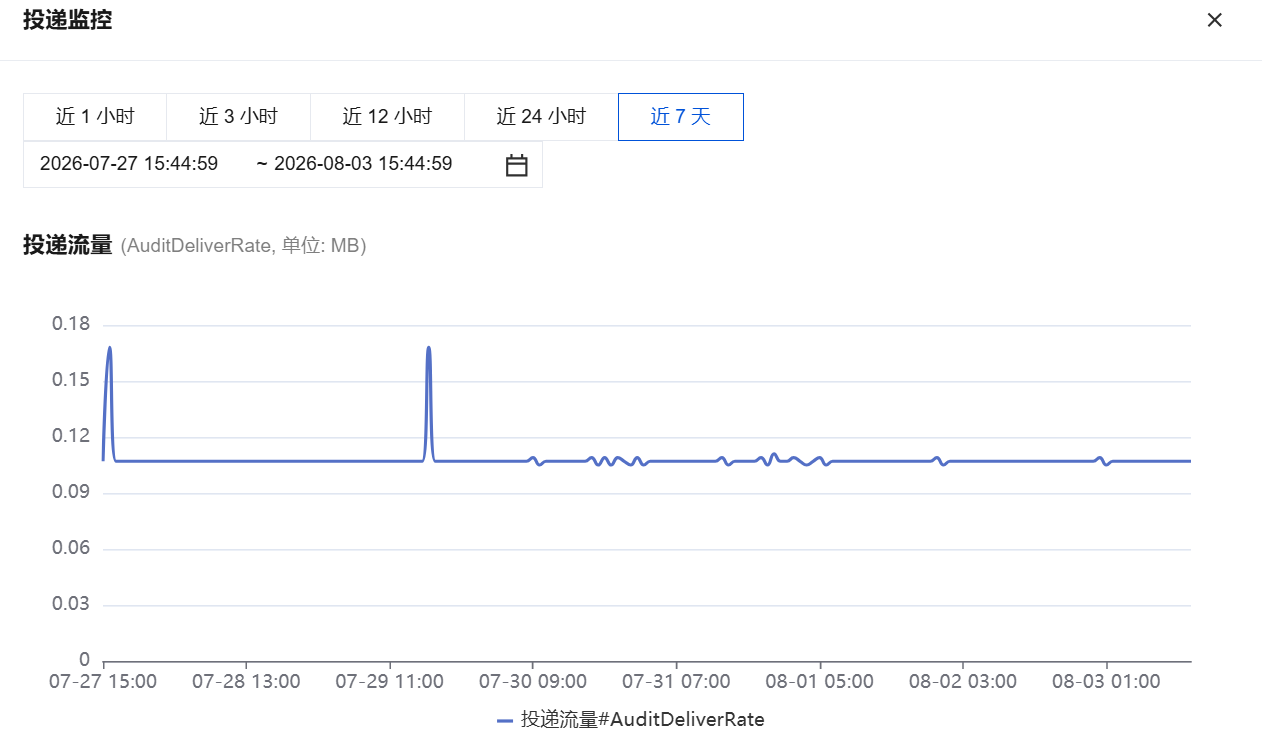
After enabling the log shipping, you can learn about the real-time shipping traffic generated by log shipping through the monitoring feature.
|
Shipping traffic | AuditDeliverRate | MB | Shipping traffic generated by the log shipping |
You can find instances with the log shipping feature enabled in Audit Instance List. Under the Log Shipping field, you can click the monitoring icon to view the monitoring status of the shipping traffic.
Description of Log Shipping Status
On the Database Audit page for TencentDB for SQL Server, the log shipping status for audit logs of the corresponding instance is displayed under the Log Shipping field. The status descriptions are as follows.
CLS: indicates that the Database Audit for the current instance has enabled log shipping to CLS.
Related Operations
Enabling Log Shipping to CLS
2. In the left sidebar, select Database Audit.
3. Select a region at the top. On the Audit Instance page, click Audit Log Storage Status, and select the Enabled option to filter instances with audit enabled.
4. Find the target instance in the audit instance list (or search for the instance by resource attributes in the search box), and choose More > Configure Log Shipping in the Operation column.
5. (Skip this step if CLS has already been activated.) Click go to activate in the pop-up sidebar to activate CLS.
6. (Skip this step if CLS has already been activated.) Return to the console after activation and click Activation Completed in the pop-up window for activation confirmation.
Note:
During the activation process, the system will verify whether activation is successful. If the system prompts that activation has failed, wait for a while and try again.
7. (Skip this step if COS has already been authorized.) In the sidebar, click Go to Authorization. Then, in the Service Authorization pop-up window, click Authorize.
Note:
During the authorization process, the system will verify whether service role authorization is successful. If the system prompts that service role authorization has failed, wait for a while and try again.
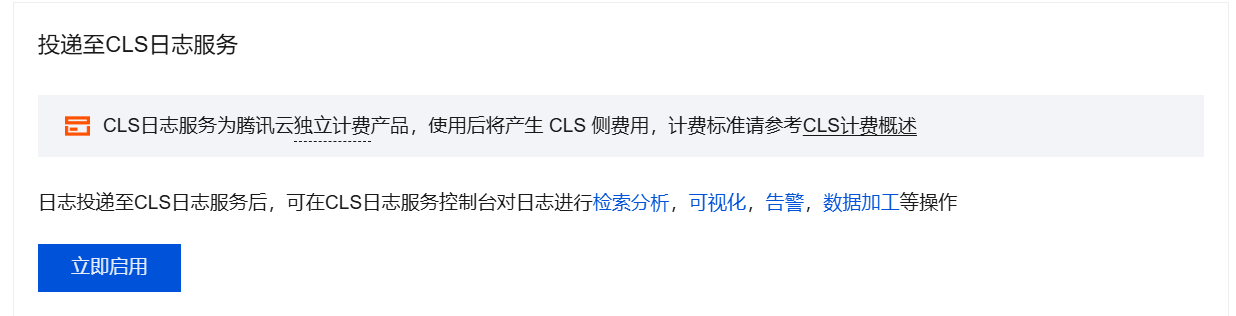
8. Click Enable Now in the Ship to CLS area in the sidebar.
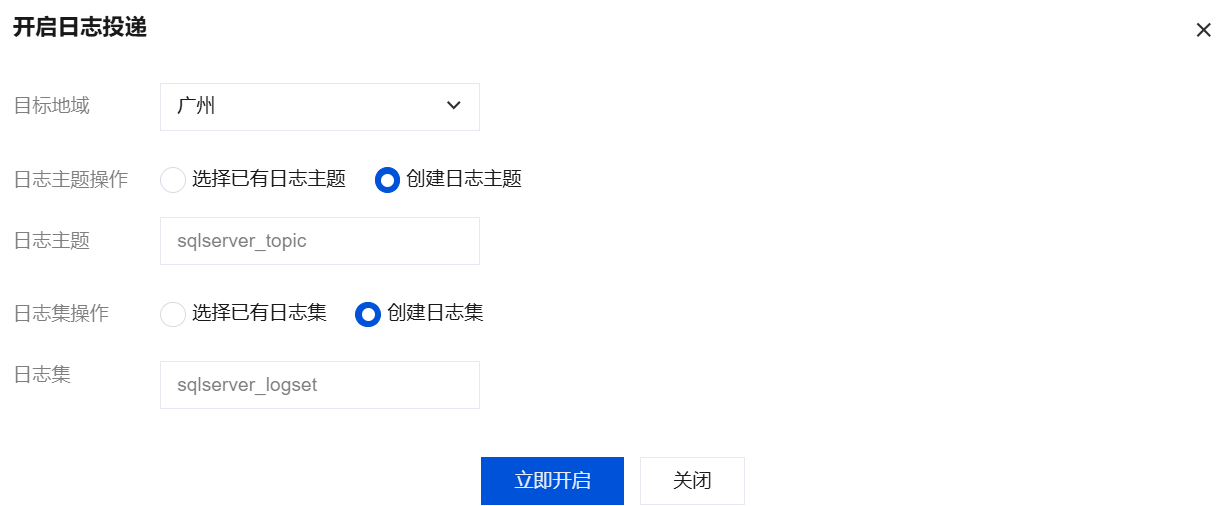
9. Complete the following configurations in the pop-up window and click Enable Now.
|
Destination region | Select the region for log shipping. If the region where the database instance is located is supported on the CLS side, the location of the instance will be selected by default. You can also choose other available regions; if the region where the database instance is located is not supported on the CLS side, you can choose other regions supported by CLS. |
Log topic operations | It supports Select existing log topic or Create Log Topic. |
Select existing log topic | If the log topic is set to select an existing topic, you need to further select the existing logsets and log topics. Logset: Logsets classify log topics to facilitate log topic management. You can filter existing logsets in the search box. Log Topic: A log topic is the basic unit for collecting, storing, retrieving, and analyzing log data. You can filter log topics of the selected logset in the search box. Note: Log topics that can be selected in this step should be those created with the Create Log Topic option selected for log topic operations when enabling log shipping in the console. Log topics created in the CLS console cannot be selected. |
Create Log Topic | If the log topic is set to create a log topic, you need to further customize the log topic and then assign it to an existing logset or a created logset. Log Topic: A log topic is the basic unit for collecting, storing, retrieving, and analyzing log data. You need to create a log topic. Select the existing logset: The log topic to be created will be added to an existing logset. If you select this option, you can filter existing logsets in the search box. Create Logset: The log topic to be created will be added to a newly created logset. If you select this option, you need to create a logset. |
Viewing Log Shipping to CLS
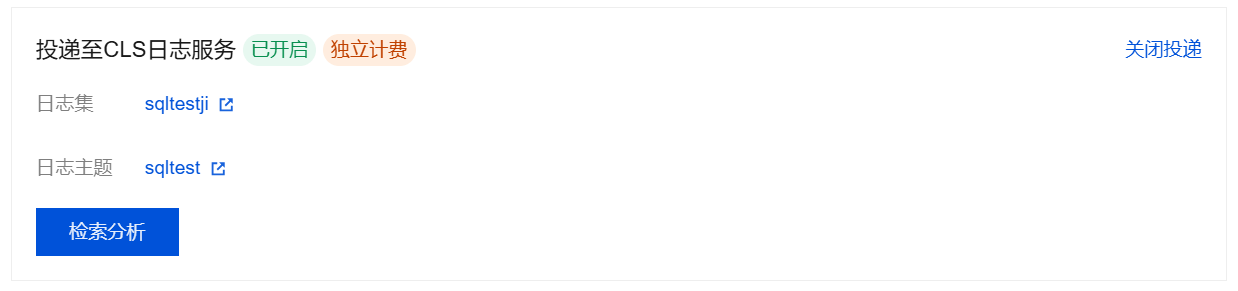
After the log shipping to CLS for the instance database audit is enabled, you can view the current log shipping status to CLS of this instance (view the logset and log topic of the current log shipping).
2. In the left sidebar, select Database Audit.
3. Select a region at the top. On the Audit Instance page, find the target instance (or search for the instance by resource attributes in the search box), and choose More > Configure Log Shipping in the Operation column.
4. In the pop-up sidebar, view the current log shipping information.
5. Click the logset name, log topic name, or search to jump to the CLS console and view log shipping details. Disabling Log Shipping to CLS
Note:
After log shipping is disabled, the shipping of audit logs for the current instance will be stopped. Note that after disabling, only the shipping of new logs will be stopped. Existing logs will continue to be stored in the log topic until they expire, and storage fees will continue to be incurred during this period. If you need to delete the log topic, go to Log Topic Management to delete it. 2. In the left sidebar, select Database Audit.
3. Select a region at the top. On the Audit Instance page, find the target instance (or search for the instance by resource attributes in the search box), and choose More > Configure Log Shipping in the Operation column.
4. Click Disable Shipping in the upper right corner of the Ship to CLS Log area in the pop-up sidebar.
5. Read the precautions in the pop-up window, select Disable, and click Confirm.
Documentation
CLS-related documents are as follows: