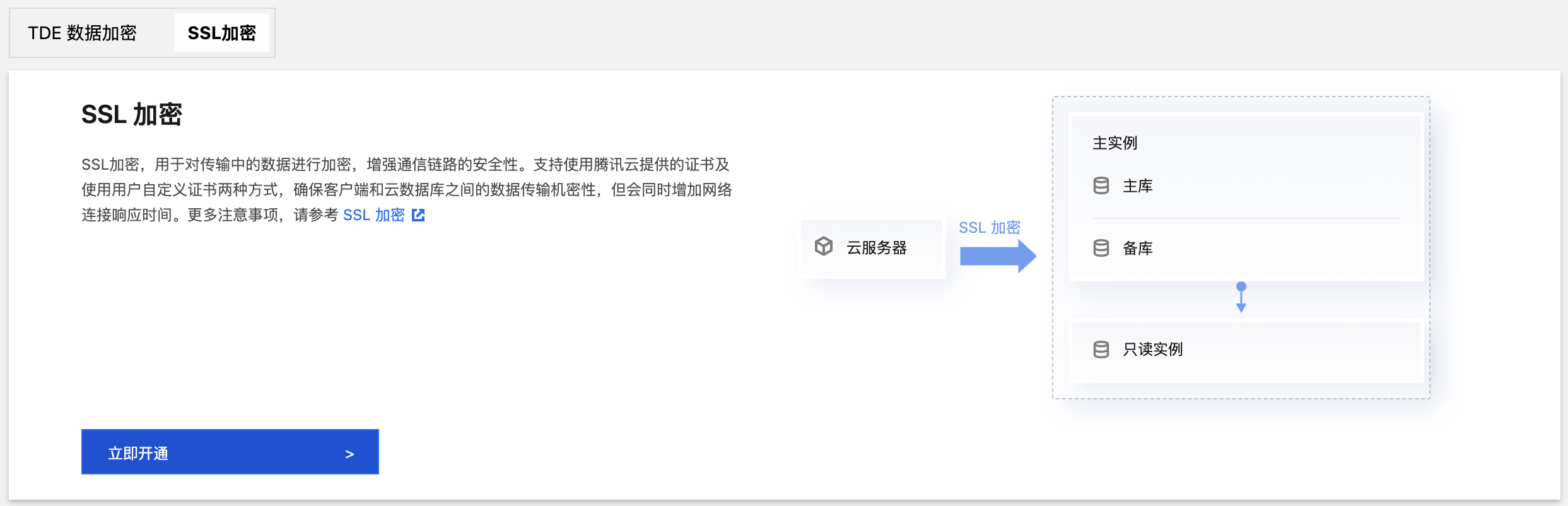
SSL Encryption Overview
SSL (Secure Sockets Layer) authentication is client-to-cloud database server authentication, which means authenticating both the user and the server. When you enable SSL encryption, you can obtain a CA certificate and upload it to the server. When a client accesses the database, the SSL protocol is activated, establishing an SSL secure channel between the client and the cloud database server. This enables encrypted data transmission, prevents data from being intercepted or tampered with during transmission, and ensures the security of information exchanged between both parties.
The SSL protocol is required to run over a reliable transport layer protocol (such as TCP). SSL is independent of application layer protocols, and high-layer application layer protocols (such as HTTP, FTP, and TELNET) can transparently run over the SSL protocol. The SSL protocol has completed data encryption, communication key negotiation, and server authentication before application layer protocols transmit data. In this way, the data transmitted by application layer protocols is encrypted, which ensures communication privacy.
Background
SSL is a secure and confidential protocol proposed by Netscape. It transmits data by establishing a secure channel between the browser and the Web server and uses encryption algorithms such as RC4, MD5, and RSA to achieve secure communication. The Internet Engineering Task Force (IETF) standardized SSL 3.0 and later renamed it the Transport Layer Security (TLS) protocol. Because the term SSL is more commonly used, SSL encryption mentioned in this document actually refers to TLS encryption.
Note:
Tencent Cloud databases support TLS versions 1.0, 1.1, 1.2, and 1.3.
When you connect to a database without encryption, all information transmitted over the network is in plaintext. This poses three major risks: the information can be intercepted, tampered with, or impersonated by unauthorized users. The SSL protocol is designed to address these three risks and can theoretically achieve the following:
Information is transmitted in an encrypted manner, so third parties cannot intercept it.
There is a verification mechanism. Once the information is tampered with, both the communicating parties will detect it promptly.
The identity certificate is equipped to prevent identity impersonation.
TencentDB for SQL Server supports enabling SSL encryption to enhance link security. It also supports downloading and installing the SSL CA certificate to the required application services.
Note:
SSL encryption does not protect the data itself. Instead, it secures the traffic between the client and the cloud database server by encrypting the network connection at the transport layer. This enhances the security and integrity of communication data but also increases the network connection response time.
Supported Architectures and Versions
TencentDB for SQL Server database instances of all architectures and editions support SSL encryption configuration. For read-only instances, no separate configuration is required. After SSL encryption is enabled on the primary instance, its read-only instances automatically take effect.
Business intelligence service instances do not support SSL encryption configuration.
Note:
If you configure SSL for the primary instance and choose to execute the operation during the maintenance window, the SSL effective time for the read-only instances associated with the primary instance will follow that of the primary instance. The instances will be restarted together during the primary instance's maintenance time to make SSL take effect.
Note
Enabling SSL encryption will increase the instance CPU utilization and read/write latency. It is recommended to enable SSL encryption only when encryption is required for the public network link. The private network link is relatively secure, and encryption is usually not required.
Enabling SSL encryption, updating the SSL certificate, or disabling SSL encryption will restart CVM instances, which may result in a few minutes of downtime. Therefore, ensure that your business has a reconnection mechanism in place before proceeding. It is recommended to perform these operations during off-peak hours.
SSL certificates have a validity period (1 year). Please manually update the certificate's validity period in the console before it expires. Otherwise, client programs using SSL-encrypted connections will be unable to connect normally. If the SSL certificate expires and is not renewed, it will only prevent client programs using encrypted connections from connecting to the instance normally. It will not affect the normal operation or data security of the instance.
After SSL encryption is disabled, only non-SSL encrypted connections to the instance are supported.
Enabling SSL Encryption
2. Select a region. In the instance list, click the Instance ID of the instance for which you want to enable SSL, or click Manage in the Operation column.
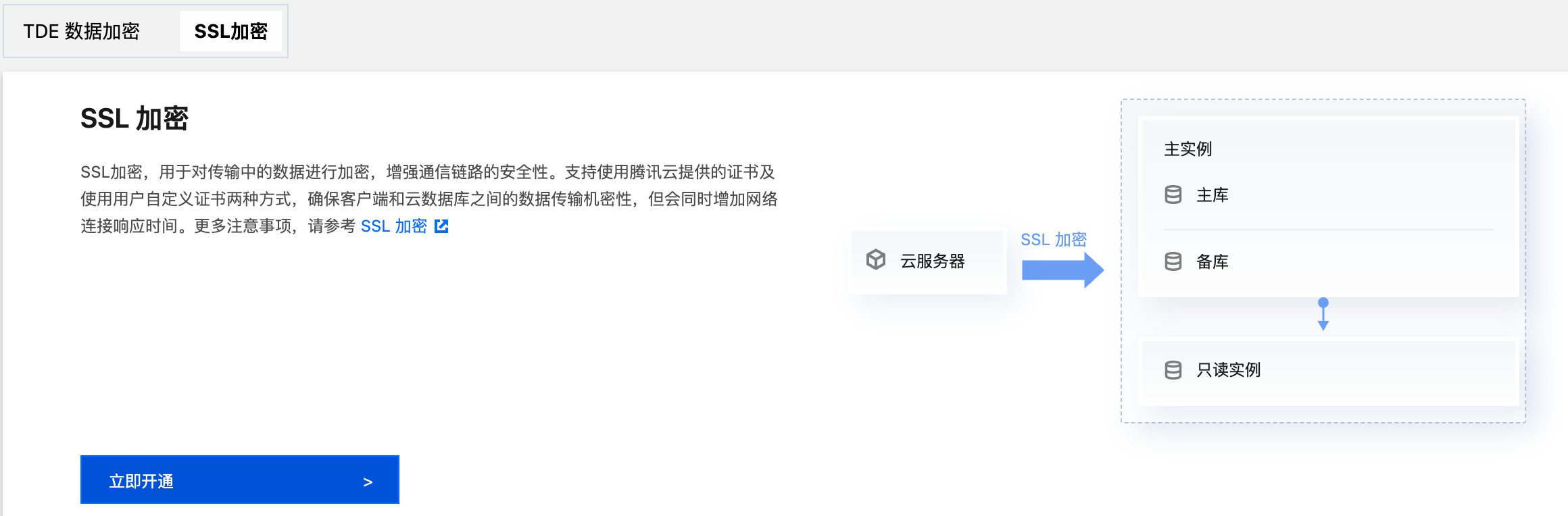
3. On the Instance Management page, choose Data Security > SSL Encryption.
4. Click Enable Now.
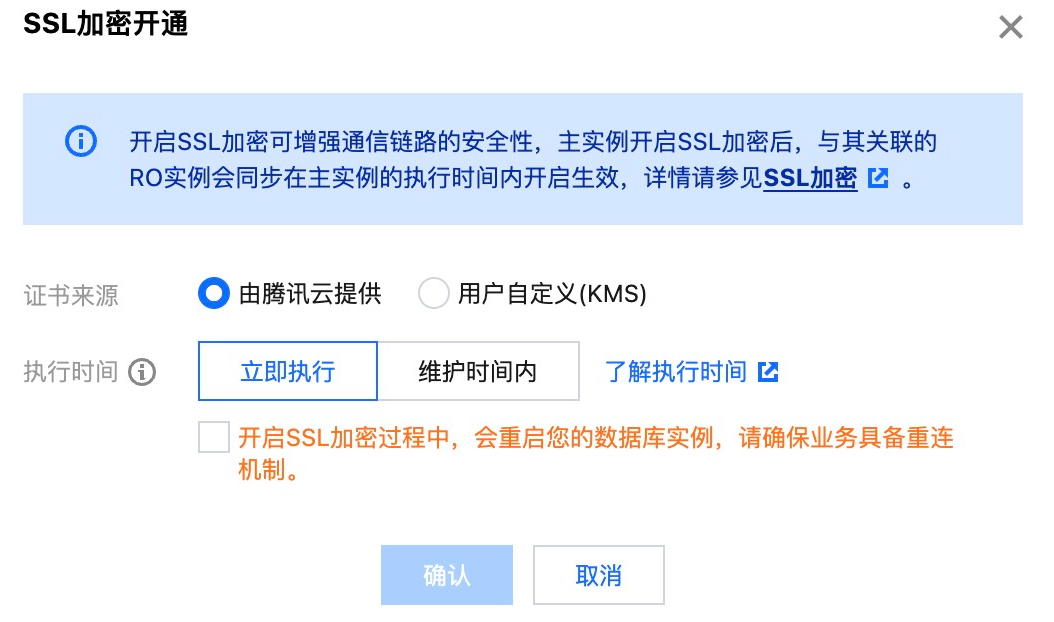
Operation Reference for Certificate Source: Provided by Tencent Cloud
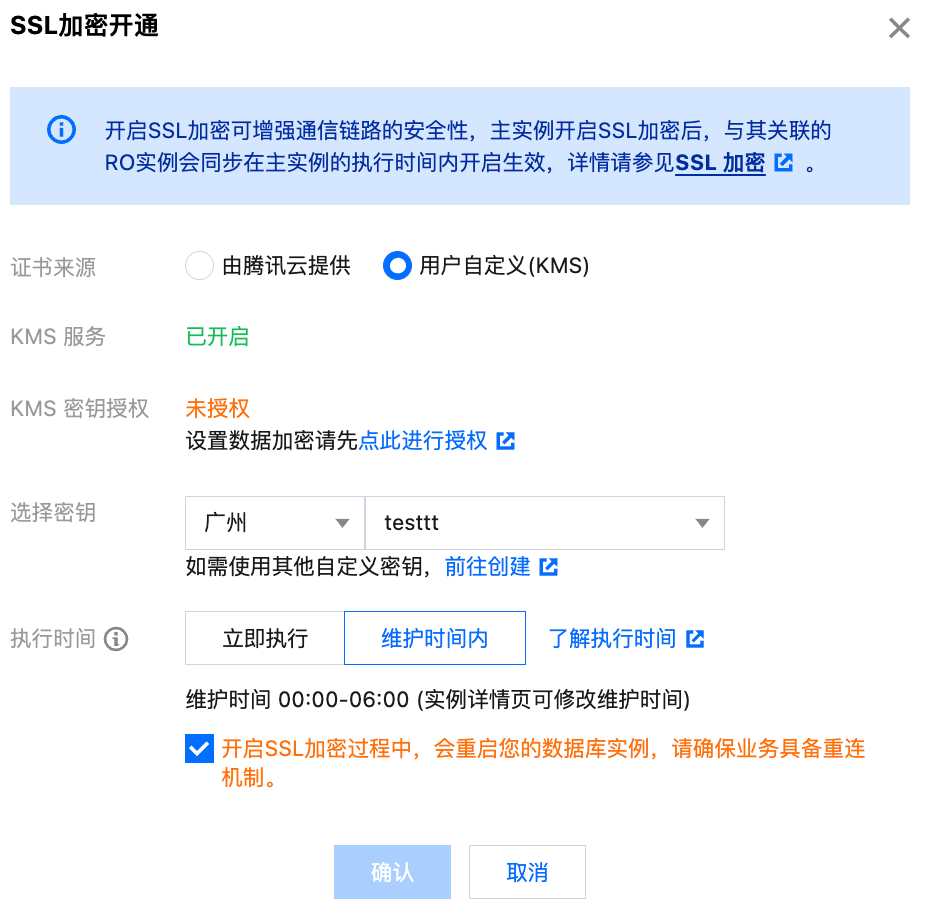
Operation Reference for Certificate Source: User-Customized
In the pop-up window, select the execution time, check the box stating, "Your database instance will be restarted when enabling SSL. Please ensure that your business has a reconnection mechanism." and then click OK.
Execution Time:
Immediate execution: SSL encryption will be enabled immediately after confirmation.
During maintenance time: SSL encryption will be enabled during the instance's maintenance period. You can modify instance maintenance time on the instance details page. 1. Click go to activate to enable the KMS service. Skip this step if it has already been activated.
2. Click click here to authorize to grant KMS key permissions. Skip this step if it has already been authorized.
3. Select the region where the certificate is located and choose the certificate.
Note:
If no optional certificates are available or the existing certificates do not meet your requirements, click go to create to create a certificate in the KMS console, and then return to select the created certificate. 4. In the pop-up window, select the execution time, check the box stating, "Your database instance will be restarted when enabling SSL. Please ensure that your business has a reconnection mechanism." and then click OK.
Execution Time:
Immediate execution: SSL encryption will be enabled immediately after confirmation.
During maintenance time: SSL encryption will be enabled during the instance's maintenance period. You can modify instance maintenance time on the instance details page. 5. After successful enabling
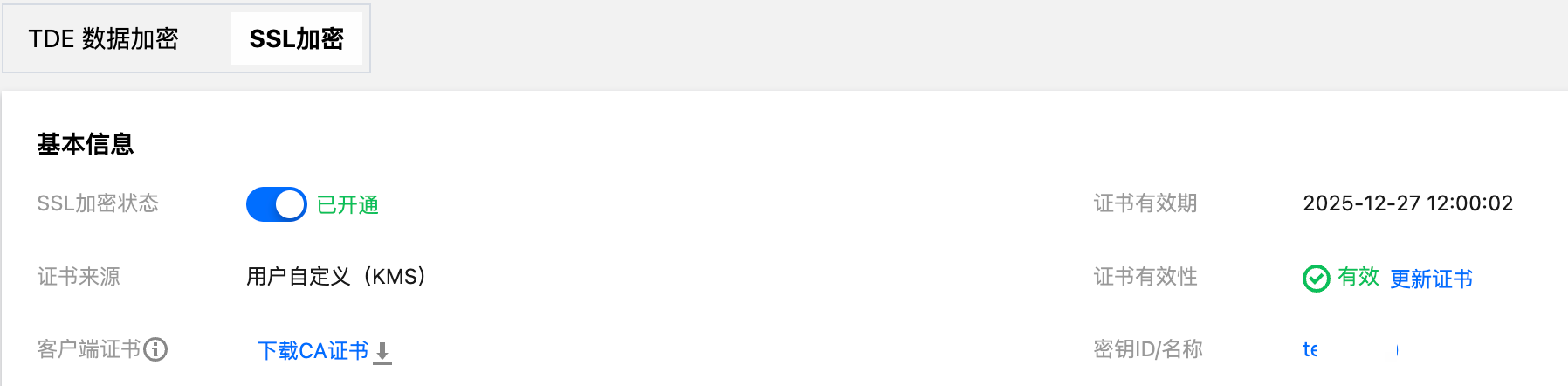
, the page is as follows. Note that configuring a client CA certificate is an optional setting for establishing client trust in the server. Click Download CA Certificate to download the certificate and install it on the client.
The downloaded file is a compressed package (TencentDB-SSL-CA.zip), which contains the following three files:
.p7b file: It is used to import the CA certificate to Windows systems.
jsk file: A storage file for truststore and keystore in Java with a unified password of tencentdb, used for importing the CA certificate chain in Java programs.
.pem file: It is used to import the CA certificate to other operating systems or applications.
Note:
SSL certificates are issued and generated by openssl.
SSL Client Connection Login
After SSL encryption is enabled, two scenarios exist when a client connects to a TencentDB for SQL Server instance: trusting the server certificate or not trusting it. If the server certificate is trusted, an encrypted connection can be established without configuring an SSL CA certificate. If the server certificate is not trusted, you must import and configure an SSL CA certificate before establishing an encrypted connection.
Scenario 1: Encrypted Connection with Server Certificate Trusted
Step 1: Log in with an encrypted connection.
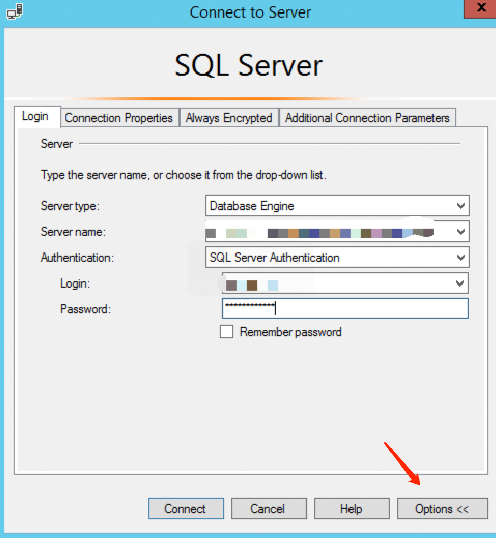
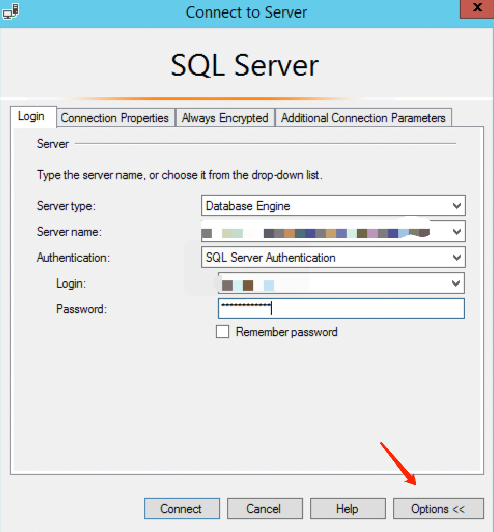
1. Open the SQL Server Management Studio client and click Options in the lower-right corner of the dialog box.
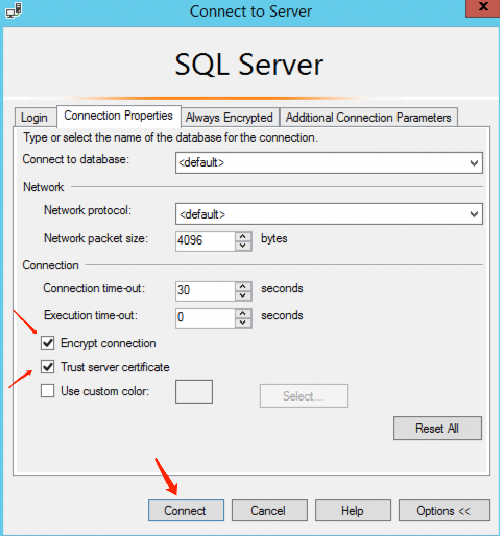
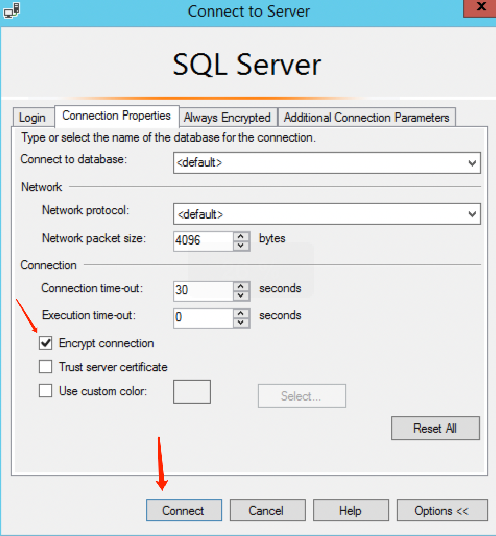
2. In the Connection Properties tab, select Encrypt connection and Trust server certificate, and then click Connect.
Step 2: Check whether the connection is encrypted.
Method 1: Via the SSMS Client Interface
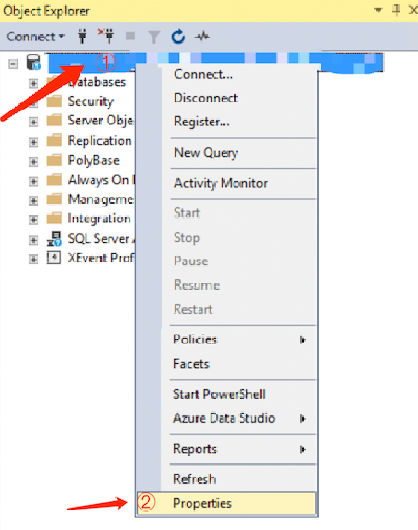
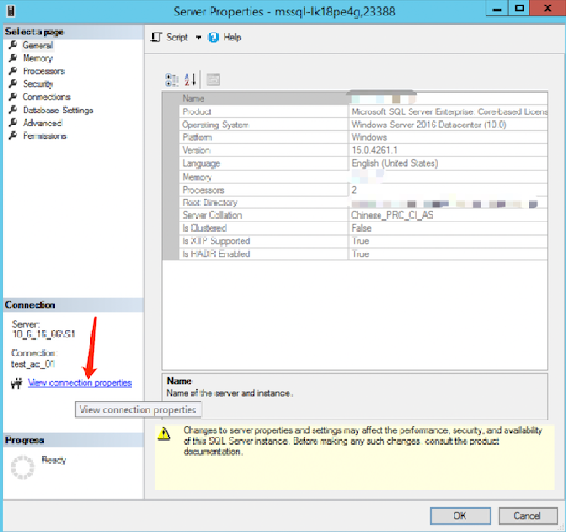
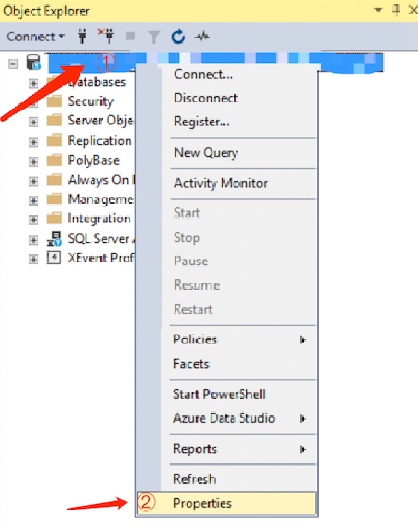
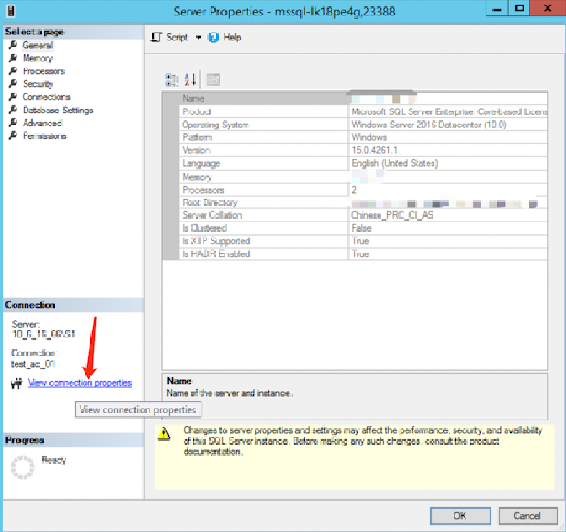
1. After successfully connecting and logging in via SSMS, right-click the instance and select Properties.
2. On the Service Properties page that pops up, click View connection properties on the left.
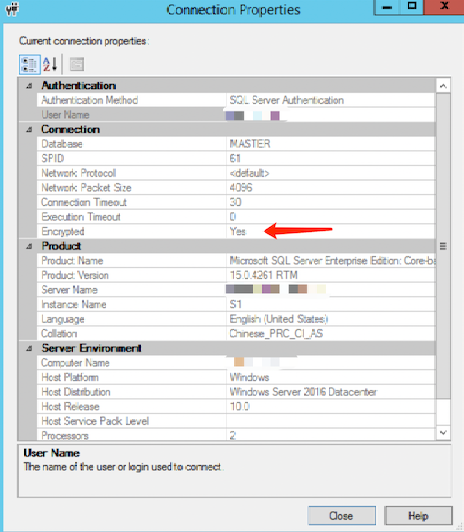
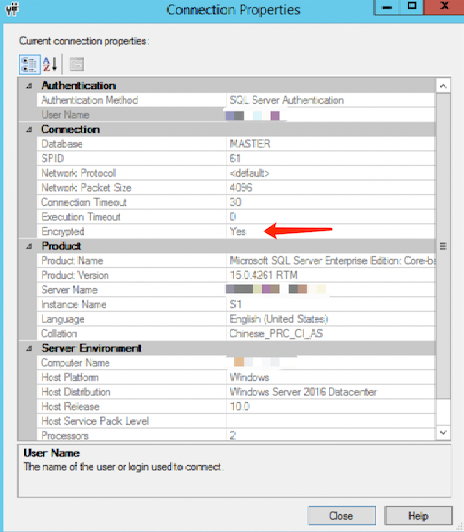
3. On the Connection Properties page that pops up, you can check whether the connection is encrypted.
Execute the following query command. If the query result is TRUE, the connection is encrypted. If the query result is FALSE, the connection is not encrypted.
SELECT ENCRYPT_OPTION FROM SYS.DM_EXEC_CONNECTIONS WHERE SESSION_ID = @@SPID;
Scenario 2: Encrypted Connection with Server Certificate Not Trusted
Step 1: Download the CA certificate.
After SSL encryption is enabled, navigate to Instance Details > Data Security > SSL Encryption and click Download CA Certificate. Step 2: Import the CA certificate on the client.
Method 1: Via the Local Client Interface
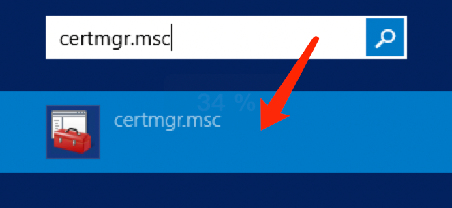
1. Click the search box in the lower-left corner of the desktop, type certmgr.msc, and open the Certificate Manager.
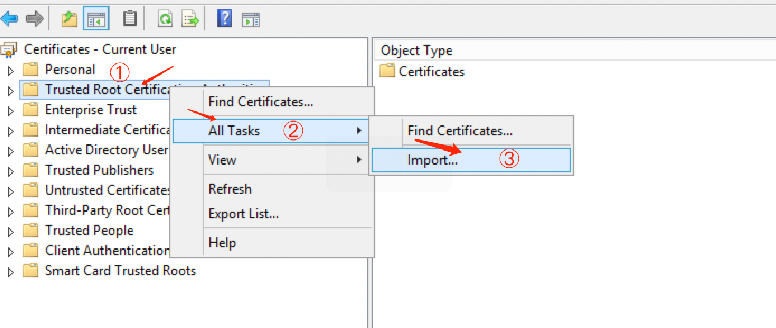
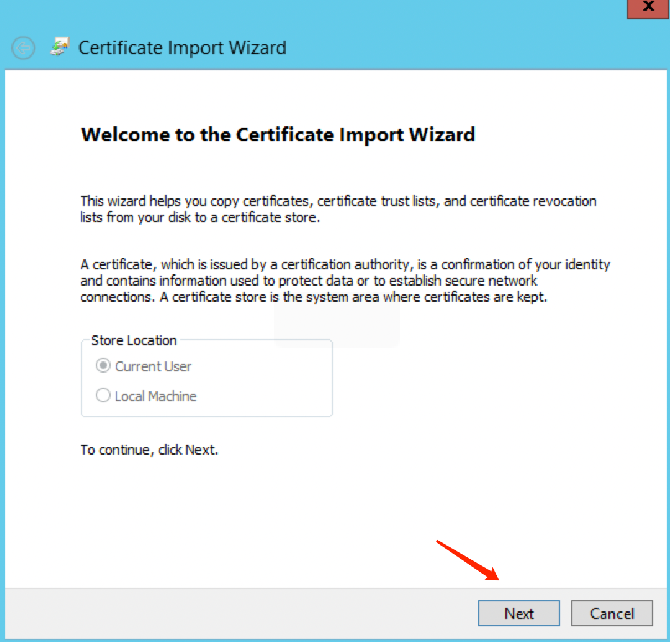
2. In the certmgr dialog box, right-click Trusted Root Certification Authorities and choose All Tasks > Import.
3. Click Next.
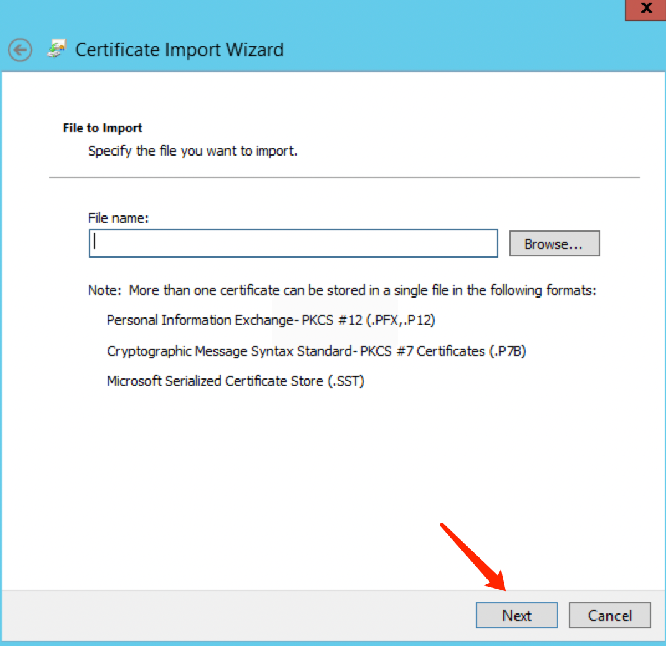
4. On the Certificate Import Wizard page, click Browse to import the downloaded SSL CA certificate, and then click Next.
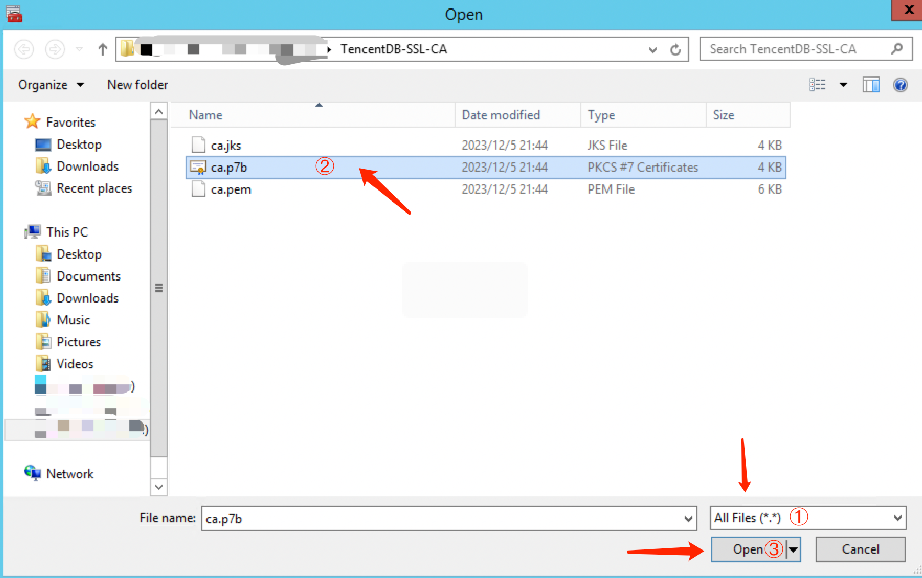
5. Select the TencentDB-SSL-CA certificate file downloaded to your local device and click Open.
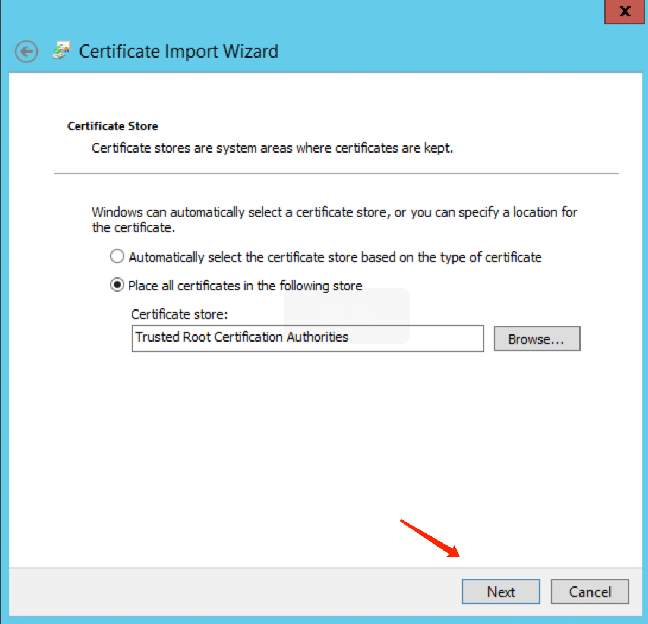
6. After selecting a storage location for the certificate as needed, click Next, and then click Finish.
You can also import the SSL CA certificate via command line. For example, run the following command in CMD or PowerShell to import the certificate.
CERTUTIL -addstore -enterprise -f -v root "ca.p7b"
Step 3: Log in with an encrypted connection.
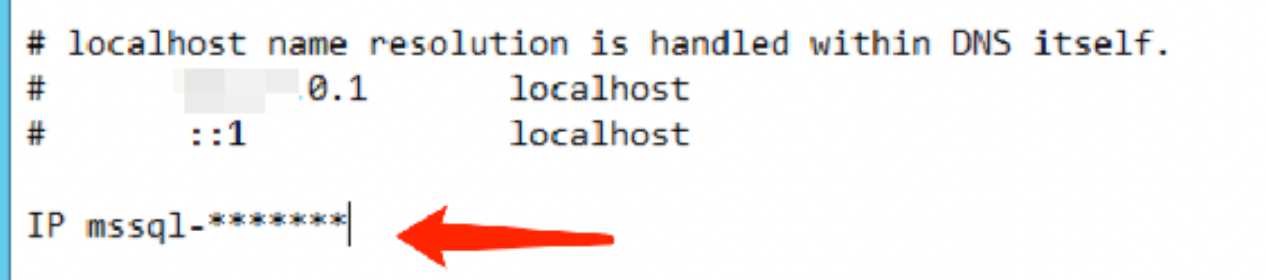
1. Open the hosts file, which is located at C:\\Windows\\System32\\drivers\\etc.
2. Add the IP address mssql-******* to the last line of the hosts file.
Note:
IP: Replace it with the private IP address or public IP address of the corresponding instance.
mssql-*******: Replace it with the corresponding instance ID.
3. Open the SQL Server Management Studio client and click Options in the lower-right corner of the dialog box.
4. In the Connection Properties tab, select Encrypt connection and click Connect.
Step 4: Check whether the connection is encrypted.
Method 1: Via the SSMS Client Interface
1. After successfully connecting and logging in via SSMS, right-click the instance and select Properties.
2. On the Service Properties page that pops up, click View connection properties on the left.
3. On the Connection Properties page that pops up, you can check whether the connection is encrypted.
Execute the following query command. If the query result is TRUE, the connection is encrypted. If the query result is FALSE, the connection is not encrypted.
SELECT ENCRYPT_OPTION FROM SYS.DM_EXEC_CONNECTIONS WHERE SESSION_ID = @@SPID
Updating Certificate Validity Period
Note:
SSL certificates have a validity period. When the certificate source is Tencent Cloud, the validity period is one year. When the certificate source is "user-customized", the validity period is the date configured when creating the custom key in the KMS console. Before the certificate expires, you need to manually update it to ensure that client programs using SSL-encrypted connections can continue to connect normally.
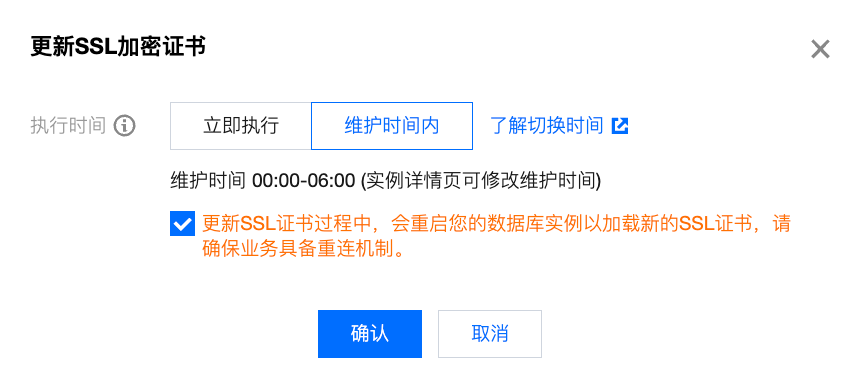
During the SSL certificate update process, your database instance will be restarted to load the new SSL certificate. Ensure your business has a reconnection mechanism in place.
2. Select a region. In the instance list, click the Instance ID of the target SSL instance or Manage in the Operation column.
3. On the Instance Management page, select Data Security > SSL Encryption, and then click Update Certificate after the certificate validity period.
4. In the pop-up window, select the execution time and click OK.
Execution Time:
Immediate execution: The SSL certificate will be updated immediately after click OK.
Modifying Certificate Source
After enabling SSL encryption on an instance, you can modify the certificate source for SSL encryption.
Note:
During the process of modifying the SSL certificate source, your database instance will restart to load the SSL certificate. Ensure your business has a reconnection mechanism in place.
2. Select a region and in the instance list, click the Instance ID or Manage in the Operation column for the target instance.
3. On the Instance Management page, select Data Security > SSL Encryption, and then click Update Certificate after the certificate validity period.
4. In the pop-up window, modify the certificate source, select the execution time, and click OK.
Disabling SSL Encryption
Note:
During the process of disabling SSL encryption, your database instance will be restarted. Ensure your business has a reconnection mechanism in place.
2. Select a region. In the instance list, click the Instance ID of the instance for which you want to disable SSL, or click Manage in the Operation column.
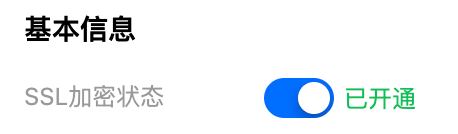
3. On the Instance Management page, choose Data Security > SSL Encryption. Then, after the SSL Encryption Status, click the button to disable the feature.
4. In the pop-up window, select the execution time and click OK.
Execution Time:
Immediate executio: SSL encryption will be disabled immediately after confirmation.
During maintenance time: SSL encryption will be disabled during the instance's maintenance period. You can modify instance maintenance time on the instance details page. Appendix 1: Instance Status Changes When SSL is set
When SSL is configured, if you select During Maintenance as the execution time, the system checks every -10 minutes whether the SSL configuration operation falls within the maintenance time window. Once it does, the system starts to deploy or disable SSL and immediately restarts the service upon completion.
Note:
If a user schedules an SSL operation during the maintenance period, the target instance enters a non-running state before the maintenance window begins. During this time, the instance cannot initiate other tasks until the SSL encryption task is completed.
Example
Assuming the maintenance window is 17:00-18:00, if a user enables SSL encryption within the maintenance window at 17:05, the system starts an asynchronous scheduling task at 17:10. After the SSL certificate is successfully deployed, the service is restarted immediately.
Instance Status Change Description
When the execution time is set to during maintenance, the instance status changes as follows:
Before 17:05, the instance status is Running.
Between 17:05 and 17:10, the status of the primary instance and its RO replica instances is Instance SSL Operation in Progress.
After 17:10, the status of the primary instance and its RO replica instances is Task Execution in Progress.
The status of the primary instance and its RO replica instances will not revert to Running until the asynchronous task is completed.
When the execution time is set to immediate, the instance status changes as follows:
After you initiate an SSL operation task from the console, the status of the primary instance and its RO replica instances changes to Task Execution in Progress. The status does not revert to Running until the asynchronous task is completed.
Instance SSL Operation Status Change Description
When SSL is enabled, the instance operation status changes as follows:
Execution time is set to immediate: Not activated -> Activating -> Activated.
When the execution time is set to during maintenance, the status changes as follows: Not activated -> Waiting for activation within the maintenance time window -> Activating -> Activated.
When a certificate is updated, the instance operation status changes as follows:
When the execution time is set to immediate, the status changes as follows: Activated -> updating -> initiated.
When the execution time is set to during maintenance, the status changes as follows: Not initiated -> Waiting for updates within the maintenance time window -> Updating -> Activated.
When SSL is disabled, the instance operation status changes as follows:
When the execution time is set to immediate, the status changes as follows: Enabled -> Being disabled -> Disabled.
When the execution time is set to during maintenance, the status changes as follows: Enabled -> Waiting for disabling in maintenance time window -> Being disabled -> Disabled.
FAQs
How to Check Whether the Current Connection Has SSL Encryption Enabled
To check whether the current connection has SSL encryption enabled, query the sys.dm_exec_connections system dynamic management view using the following command:
SELECT session_id,encrypt_option
FROM sys.dm_exec_connections;
GO
If the session ID of the current connection is returned and the encrypt_option value is true when you query the sys.dm_exec_connections system dynamic management view, the connection has successfully enabled SSL encryption.
Why Could the Client Program Connect Last Year but Not This Year?
SSL certificates have a validity period of one year. If a certificate expires, you must manually update its validity period. For detailed instructions, see Update Certificate Validity Period. Related APIs
|
| This API is used to enable/disable/update SSL encryption. |