Enabling/Disabling Public Network Address
Download
フォーカスモード
フォントサイズ
Overview
TencentDB for SQL Server supports both private and public network address types. By default, it provides a private network address for you to access the instance internally. If you need to access the instance via a public network address, you must enable public network access. After enabling it, you can also disable it as needed.
Note:
We recommend that you use a public domain name instead of an IP address for access. This is because operations such as adjusting the database instance specification, re-enabling the public network, or performing network upgrades may cause the public IP address to change. Using a public domain name for access minimizes the impact on your business, as it eliminates the need to modify your application.
Description of the New Architecture for Public Network Upgrade
I. New Architecture Release Date
To enhance the security and reliability of the database public network link, TencentDB for SQL Server has released a new public network architecture starting from May 2024, Beijing Time (UTC+8). This new architecture uses CLB as the underlying public network infrastructure.
II. Comparison Between the New and Old Architectures
Difference Item | Legacy Public Network Architecture | New Public Network Architecture (CLB) |
Architecture Differences | The legacy public network architecture is a single-point deployment architecture. When a single point of failure occurs, recovery is slow and it lacks high availability. | The new public network architecture can expand the external service capacity of application systems through traffic distribution and improve the availability of application systems by eliminating single points of failure. |
Product Interoperability Involved or Not | Not involved | Yes. After public network access is enabled, the system automatically creates a free, simple CLB instance in the same region on the CLB console to provide public network capability.  |
III. Precautions
Currently, when public network access is enabled for a TencentDB for SQL Server instance, it adopts a CLB architecture. The system automatically creates a free, simple-type CLB instance in the same region on the CLB console to provide public network capabilities. Please note the policies for the CLB architecture (as shown in the table below). If you have higher performance requirements, you can also purchase a CLB instance directly to meet them.
Category | Concurrent Connections | New connections | Packet rate | Inbound bandwidth | Outbound bandwidth |
CLB | 2000 | 200/s | No limit | 20Mbps | 20Mbps |
Note:
You can use the CLB instance automatically created by enabling a public network address for free.
When the public network address is disabled, the corresponding CLB instance on the CLB console is automatically deleted.
The feature of enabling public network access for TencentDB for SQL Server instances is free of charge. However, during the enabling process, your account's billing status is checked. If your account is in arrears (meaning the account balance is less than 0), you will not be able to enable it. To enable public network access, please ensure your account is not in arrears. After public network access is successfully enabled, the CLB instance automatically created as a result will not incur any charges.
Starting from mid-May 2024, the health probe source IP address for CLB is the 100.64.0.0/10 CIDR block. After public network access is enabled, if the health status of your simple-type CLB instance is shown as abnormal, you can allow the 100.64.0.0/10 CIDR block when configuring the security group for your TencentDB for SQL Server instance. This resolves the issue where health check failures cause the CLB instance's health status to be shown as abnormal. For the operation, see Configuring Security Groups.

You need to configure monitoring alarms for the aforementioned simple-type CLB instance. This allows you to monitor public network connections using metrics after the public network address is enabled, such as the number of new public connections, the number of public connections, public outbound bandwidth, and public inbound bandwidth. For the operation steps, see Setting Alarm Policies. The policy type selection is shown in the figure below.

Note
After you enable the public network address, you can access SQL Server via the domain name and port assigned by the system. The process typically takes about 5 minutes to take effect.
After public network access is enabled, it will be controlled by the security group's network access policies. Please configure the corresponding policies in advance. You need to configure the source information for accessing the database in the security group's inbound rules and open the protocol ports (both private and public network ports must be opened, with the private network port defaulting to 1433). For detailed operations, see Configuring Security Groups.
After you enable the public network address, your database service is exposed to the public network. This may lead to database intrusion or attacks. Using the public network for formal business connections is not recommended, as uncontrollable factors such as DDoS attacks or sudden high-traffic access may cause public network connections to become unavailable. We recommend that you use a private network to connect to the database.
Accessing an instance via a public network address reduces the instance's security. It is only recommended for development, testing, or auxiliary database management and does not come with an availability SLA guarantee. To achieve faster transmission speeds and higher security, it is recommended to connect to the database using a private network address. The public network is not intended to bear the business load. If you need to bear the business load, it is recommended to enable public network service via CLB.
Currently, no charges are incurred for enabling the public network address and the subsequent public network traffic generated. However, the stability of public network bandwidth and traffic is not guaranteed.
Failures occurring on the public network are not included in the overall availability calculation for the SQL Server service.
Prerequisites
The instance's network is: VPC network.
Instance region: Guangzhou, Shanghai, Beijing, Chengdu, Chongqing, Nanjing, Hong Kong (China), Singapore, Seoul, Tokyo, Silicon Valley, Frankfurt, Jakarta, Virginia, Riyadh.
Note:
Public and Private Network Addresses
Address Type | Description |
Private network address | A private network address is an IP address that cannot be accessed by external devices over the Internet. It is the implementation form of Tencent Cloud's private network service. The system provides a private network address by default. This address cannot be disabled. The system supports switching the network type. If the CVM instance and the SQL Server database instance you deployed belong to the same Tencent Cloud root account, are located in the same region, have VPC as their network type, and reside in the same VPC, the two instances can communicate with each other via a private network address. In this case, you do not need to enable a public network address. It provides high security. |
Public network address | A public network address is a non-reserved address on the Internet. A public network address must be enabled manually. You can also disable it when it is no longer needed. Using a public network address reduces instance security. Use it with caution. To access a SQL Server instance from devices outside Tencent Cloud, you need to enable a public network address. |
Operation Steps
The procedures for enabling or disabling a public network address differ slightly between a primary instance and a read-only group. To perform this operation on a primary instance, you need to configure it on the instance details page. To perform this operation on a read-only group, you need to configure it within the read-only group of the corresponding primary instance. The following sections describe these procedures separately.
Note:
You cannot enable or disable a public network address for a read-only instance individually. This operation is only supported at the read-only group level to which the read-only instance belongs. Furthermore, you can only configure this within the read-only group of the read-only instance. This configuration is not available on the read-only instance details page.
Enabling the Public Network Address of the Primary Instance
1. Log in to the TencentDB for SQL Server console.
2. Select a region. In the instance list, click the instance ID or the Manage button in the Operation column for the instance for which you want to enable public network access.
3. On the Instance Details page, locate the public network section within the Instance Info area on the right, and then click Enable.
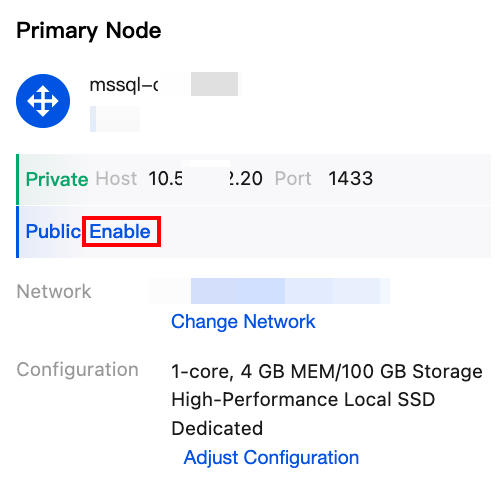
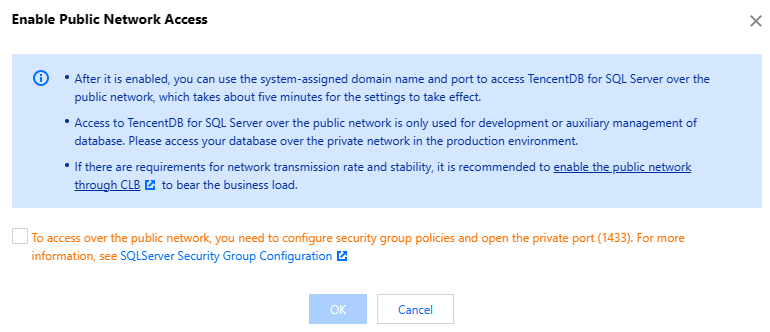
4. In the Enable Public Network dialog box, read and select the prompts, and then click OK. (Before enabling the public network, the system provides different prompts based on whether a security group is configured.)
Note:
After the public network is successfully enabled, you can view the public network address in the Basic Information section. You can disable the public network connection permission using the toggle switch.
If a security group is bound and no high-risk policies are involved, the public network can be enabled normally. The prompt is as follows:
If a security group is bound but contains high-risk inbound rules with addresses
0.0.0.0/0 or ::/0, the prompt is as follows: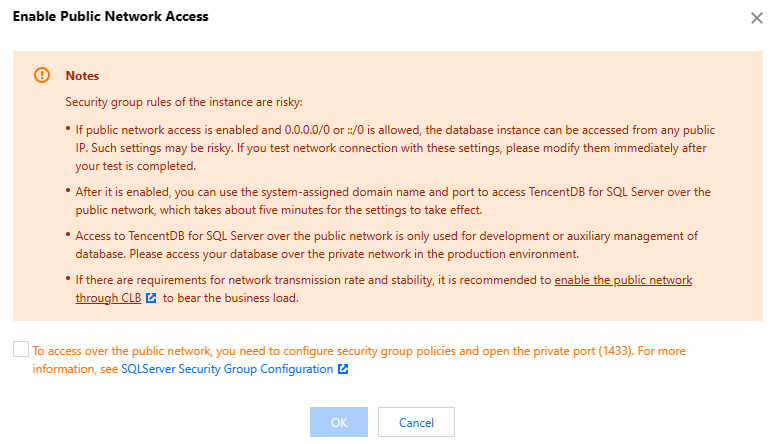
If no security group is bound, enabling the public network is considered high-risk. The prompt is as follows:
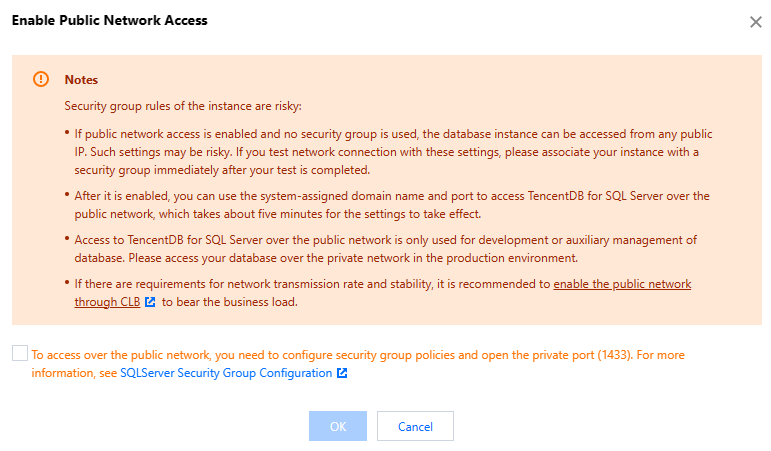
5. After the instance status is updated to Running, you can view the public network address on the instance details page.
Disabling the Public Network Address of the Primary Instance
1. Log in to the TencentDB for SQL Server console.
2. Select a region. In the instance list, click the instance ID or the Manage button in the Operation column for the instance for which you want to enable public network access.
3. On the Instance Details page, locate the public network section within the Instance Information area on the right, and then click Disable.
4. In the Disable Public Network dialog box, click Confirm.
Note:
After the public network is disabled, you will be unable to access Tencent Cloud SQL Server via the public network domain name and port. Please confirm that your system is not using the public network access address to avoid unnecessary losses.
Enabling the Public Network Address of the Read-Only Group
1. Log in to the TencentDB for SQL Server console.
2. Select a region. In the instance list, locate the primary instance for which you want to enable the public network address for the read-only group. Then, click its Instance ID or the Manage button in the Operation column.
3. On the Instance Details page, select the Read-Only Instance tab. Then, locate the Public Network Address under the RO Group and click Enable.

Note:
Alternatively, on the Instance Details page, you can hover your mouse over the read-only instance section in the topology diagram and then click Enable next to the public network. Or, within the Instance Information area on the right, click Enable next to the public network for any read-only instance.
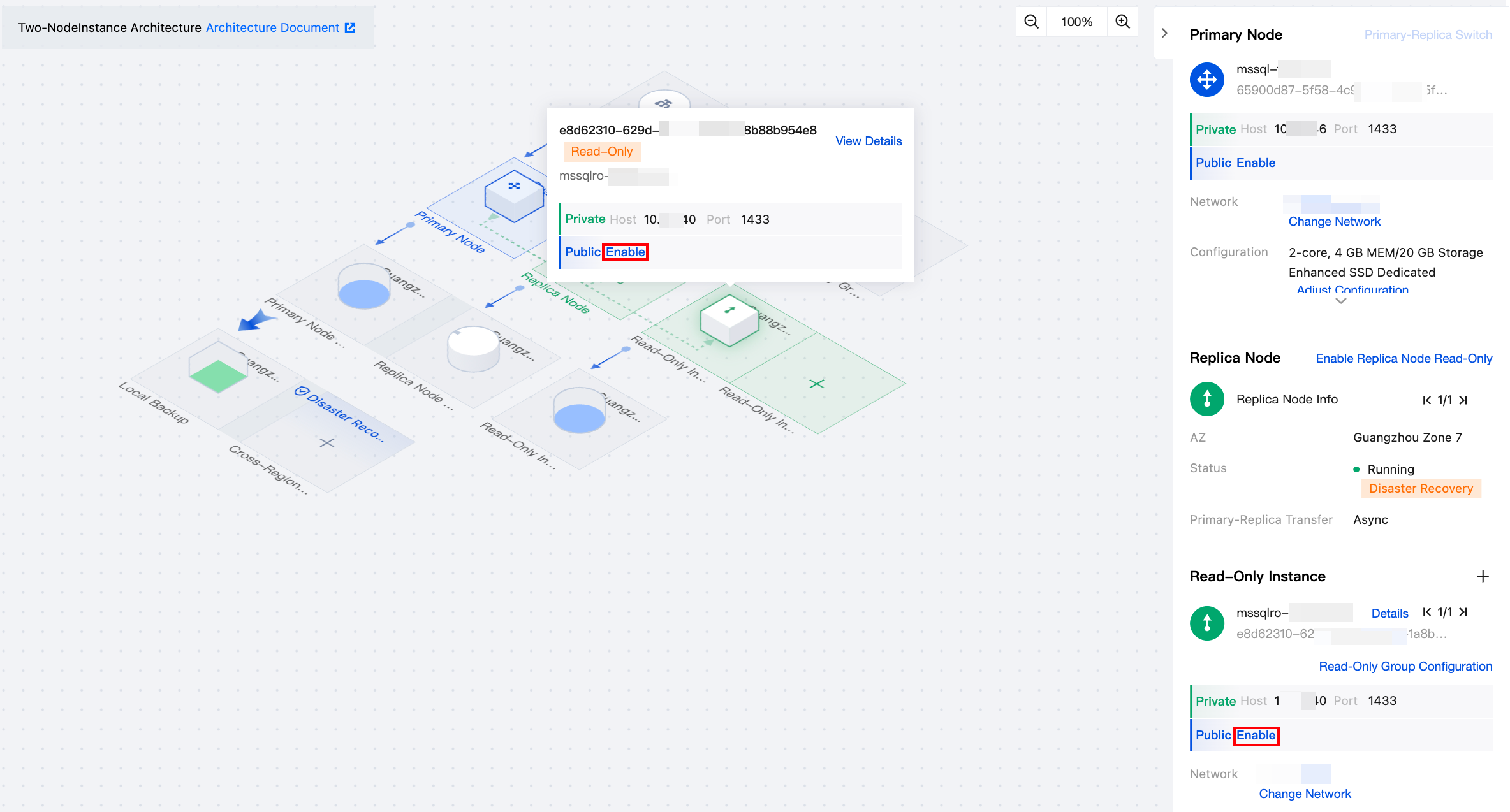
4. In the Enable Public Network dialog box, read and select the prompts, and then click OK.
Note:
After the public network is successfully enabled, you can view the public network address under the RO group or in the basic information of the corresponding read-only instance. You can disable the public network connection permission using the toggle switch.
Disabling the Public Network Address of the Read-Only Group
1. Log in to the TencentDB for SQL Server console.
2. Select a region. In the instance list, locate the primary instance for which you want to disable the public network address for the read-only group. Then, click its Instance ID or the Manage button in the Operation column.
3. On the Instance Details page, select the Read-Only Instance tab. Then, locate the Public Network Address under the RO Group and click Disable.
4. Alternatively, on the Instance Details page, you can hover your mouse over the read-only instance section in the topology diagram and then click Disable next to the public network. Or, within the Instance Information area on the right, click Disable next to the public network for any read-only instance. (You only need to perform either step 3 or step 4.)
5. In the Disable Public Network dialog box, click OK.
Note:
After the public network is disabled, you will be unable to access the read-only group of the corresponding SQL Server primary instance via the public network domain name and port. Please confirm that your application system is not using the public network access address to avoid unnecessary losses.
Related APIs
API | Description |
This interface (ModifyOpenWanIp) is used to enable the public network for an instance. | |
This API (ModifyCloseWanIp) is used to disable the public network for the instance. |
フィードバック