AI 고객 지원
다운로드
포커스 모드
폰트 크기
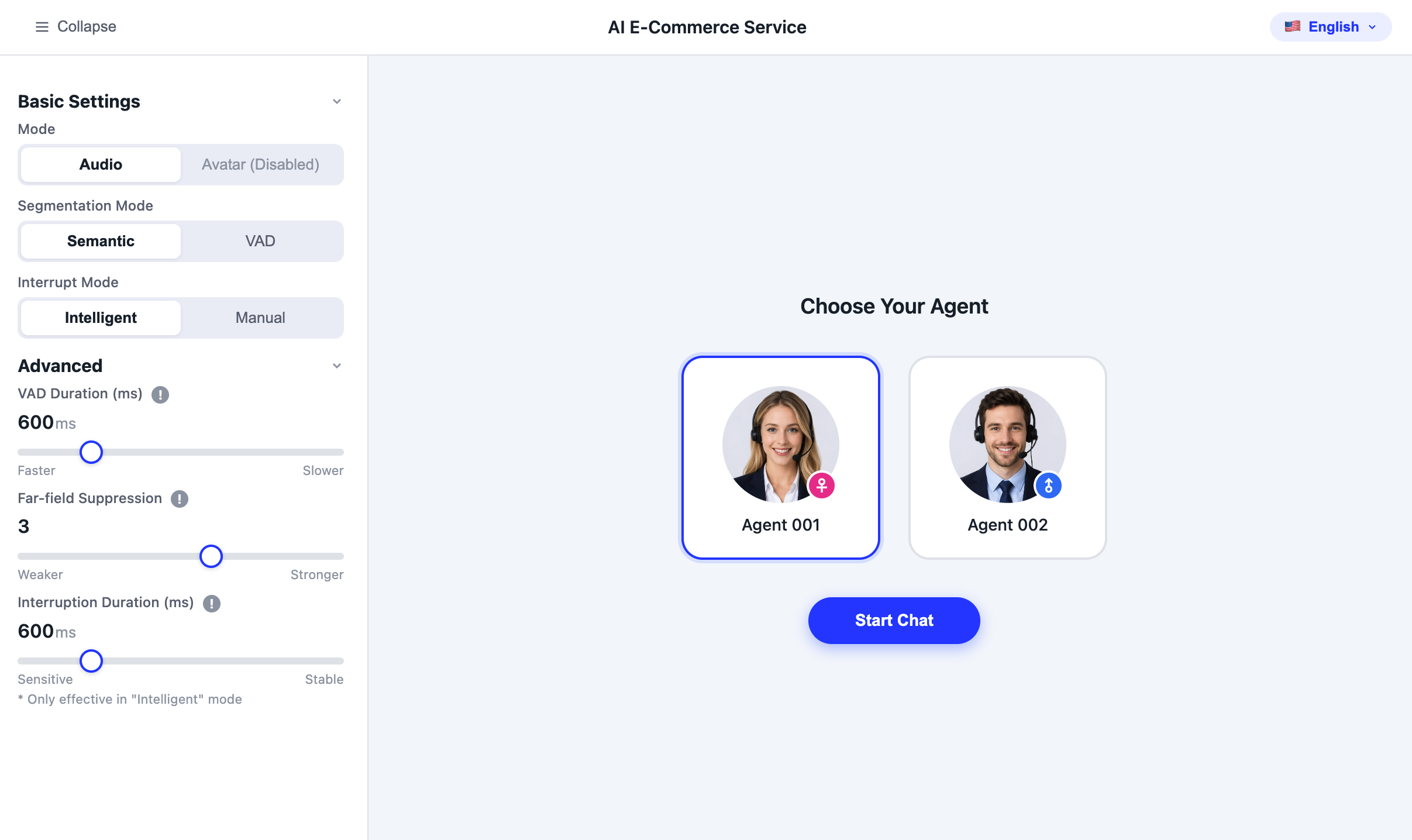
시나리오에 대한 소개
스마트 음성 고객 서비스는 인공지능과 음성 인식 기술을 활용하여 자동화된 인터랙티브과 문제 해결을 구현하는 고객 서비스 시스템입니다. AI 대형 모듈이 나오기 전에는 스마트 고객 서비스가 주로 자연어 처리와 머신러닝 알고리즘을 사용하여 고객의 의도를 이해하고, 미리 설정된 규칙과 지식 베이스에 의존하여 질문을 답변했습니다. LLM의 발전과 함께 점점 더 많은 스마트 고객 서비스가 대형 모듈의 능력을 통합하고 있으며, LLM 기술은 스마트 음성 고객 서비스가 대화의 맥락을 더 잘 이해하여 일관된 대화 교류를 가능하게 합니다.
RTC 기술의 도입으로 스마트 음성 고객 서비스에 실시간 통신 기능이 추가되었습니다. 이는 스마트 고객 서비스가 고객의 요구에 더 빠르게 대응하고 즉각적인 피드백과 해결책을 제공할 수 있음을 의미합니다. 동시에 Tencent RTC는 다자간 통화, 화면 공유 등의 기능을 지원하여 고객 서비스의 효율성과 수준을 더욱 향상시켰습니다.
구현 방안
일반적으로 완전한 스마트 고객 서비스 시나리오를 구현하려면 Real-Time Communication(RTC), AI 실시간 대화, STT, LLM, TTS 등 여러 모듈이 필요합니다. 각 모듈의 주요 작업 및 기능 포인트는 다음 표와 같습니다.
기능 | AI 스마트 고객 서비스 시나리오의 적용 |
RTC | 스트리밍 전송 기술은 음성 및 비디오 데이터의 연속성과 안정성을 보장하여 지연과 지터를 줄이고 실제 고객 서비스 통화에 비슷한 고수준의 체험을 제공합니다. 사용자는 실제 상담사와 대화하듯이 스마트 고객 서비스 시스템과 더 자연스러운 대화를 나눌 수 있으며, 이러한 인터랙티브는 사용자 만족도를 크게 향상시킬 수 있습니다. |
Conversational AI | Tencent Conversational AI 솔루션은 고객이 여러 AI 대형 모듈 서비스를 유연하게 접속할 수 있도록 지원하며, AI와 사용자 간의 RTC 인터랙티브를 구현하여 업무 시나리오에 부합하는 Conversational AI 능력을 구축합니다. Tencent Real-Time Communication(Tencent RTC)의 글로벌 저지연 전송을 기반으로 음성 대화 지연 시간이 1초에 불과하며 대화 효과가 자연스럽고 사실적이며, 접속이 간편하고 즉시 사용할 수 있습니다. |
STT | STT 모듈은 사용자의 음성 스트림을 실시간으로 포착하여 텍스트로 변환한 후 LLM에 전송하여 처리합니다. STT 모듈은 TRTC의 초저지연 오디오 파이프라인과 고급 오디오 처리 능력, AI 노이즈 감소 및 에코 제거를 기반으로 하여, 소음이 많은 환경에서도 선명하고 정확한 전사를 제공합니다. |
LLM | LLM 기술은 지능형 음성 고객 서비스가 대화의 맥락을 더 잘 이해할 수 있도록 하여 일관된 대화 교류를 가능하게 합니다. LLM은 대화의 의미와 맥락 정보를 포착하고사용자 의도를 인식하며, 이전 대화 내용을 현재 대화 내용과 연결할 수 있습니다. |
TTS | 제3자 TTS 연동을 지원합니다.모듈에 개인화된 학습 데이터를 도입하거나 모듈 매개변수를 조정하여 특정 요구 사항에 부합하는 음성 출력을 생성할 수 있습니다. 지능형 음성 고객 서비스는 사용자의 선호도나 특정 시나리오의 요구에 따라 다양한 음성 스타일을 제공할 수 있습니다. |
솔루션 아키텍처
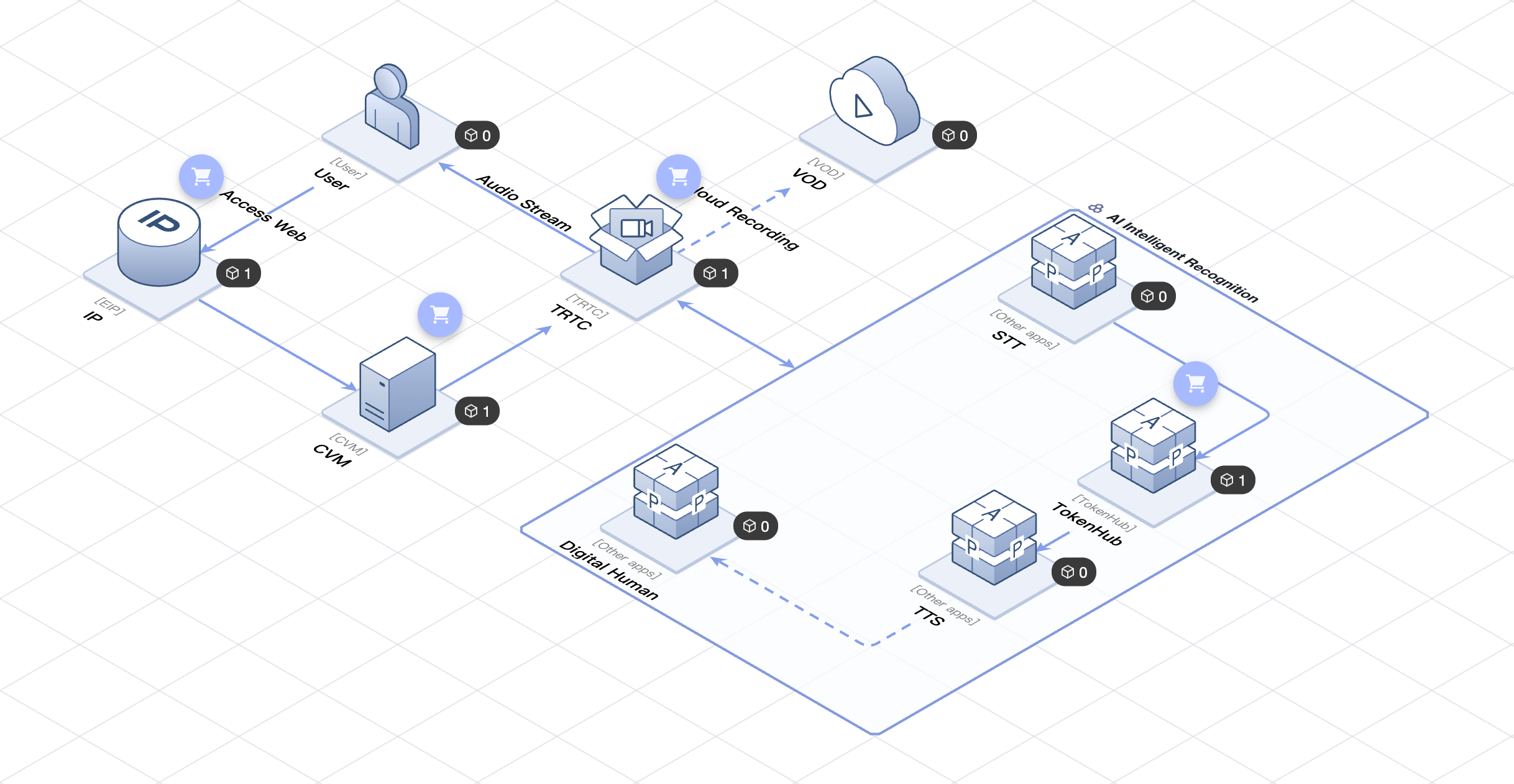
다음은 Tencent Cloud Intelligent Advisor 아키텍처 거버넌스를 기반으로 구축된 AI 스마트 고객 서비스 솔루션의 기술 아키텍처입니다. Intelligent Advisor를 통해 신속하게 배포할 수 있습니다.
전제 조건
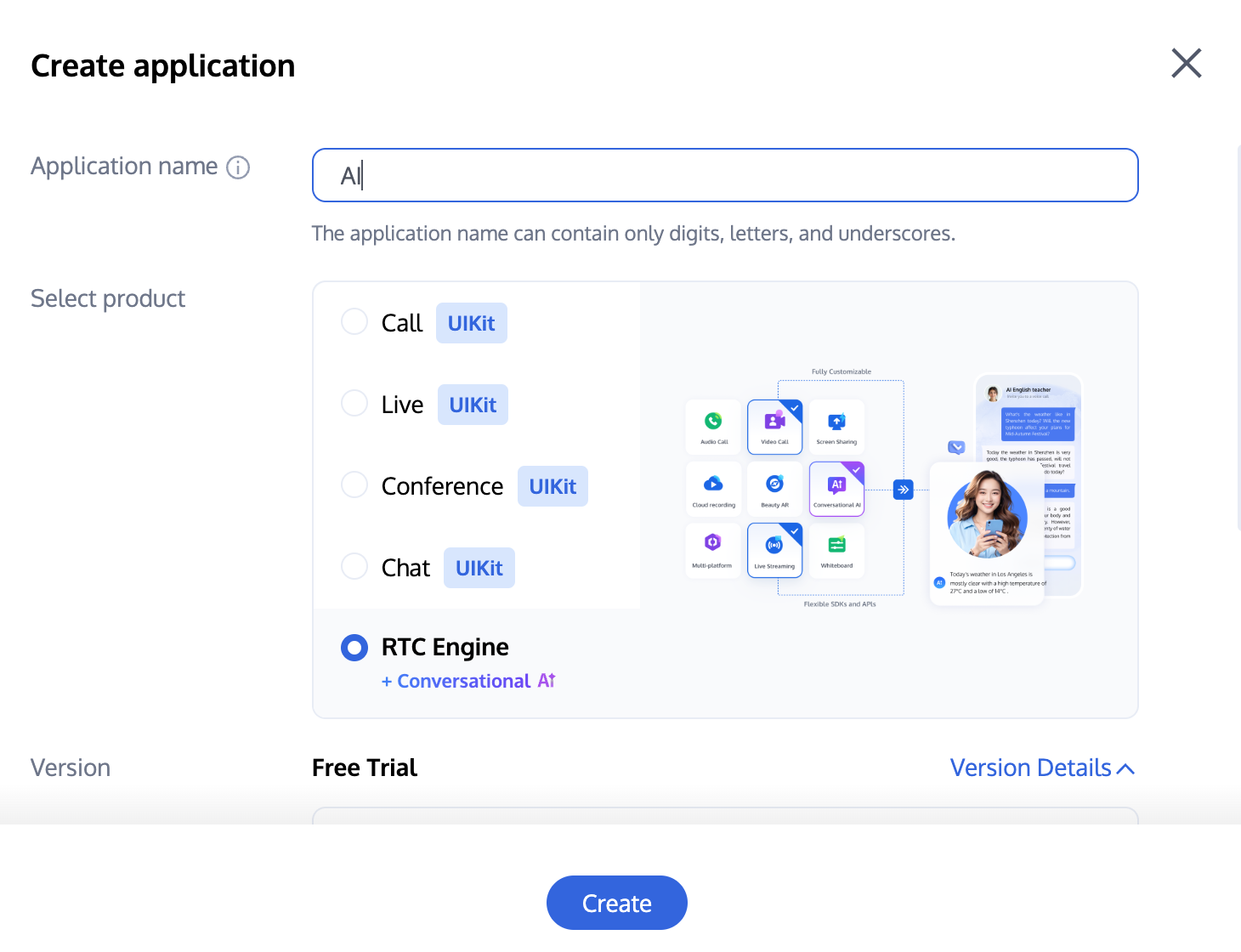
RTC Engine 준비
주의:
RTC Engine 체험판은 AI 실시간 대화 및 AI 지능형 식별 기능을 지원하며, 발생한 사용량에 따라 후불로 비용이 청구됩니다. 구체적인 과금 규칙은 AI 실시간 대화 과금 설명을 참조하십시오.
STT 준비
TRTC 내장 Tencent ASR 사용:
Tencent ASR은 TRTC 내장 음성 인식 엔진입니다. 타사 제공업체(Azure, Deepgram, Soniox)와 달리 CustomParam 필드가 필요하지 않으며 STTConfig 최상위 필드만 구성하면 됩니다. 전체 Tencent ASR 매개변수 참조는 ASR 매개변수 설정 가이드를 참조하십시오.
타사 STT 사용: 현재 지원되는 STT 제공업체는 사용 가능한 제공업체를 참조하십시오.
LLM 준비
TRTC의 유연한 프레임워크는 OpenAI 호환 모델(OpenAI, Gemini, MiniMax, Hunyuan) 및 Dify, Coze와 같은 지능형 플랫폼을 포함한 모든 주요 LLM의 연동을 지원합니다. 구체적인 시나리오에 따라 가장 적합한 엔진을 선택할 수 있습니다. 지원되는 LLM 제공업체의 구체적인 목록은 사용 가능한 제공업체를 참조하십시오.
TTS 준비
TRTC 내장 네이티브 실시간 TTS 사용:
TRTC 내장 TTS 서비스를 사용하려면 Text-to-Speech Configuration을 참조하여 StartAIConversation API의 TTSConfig 필드에 지정된 형식의 JSON 문자열을 입력하십시오. 외부 계정이나 API 키가 필요하지 않습니다.
타사 또는 사용자 정의 TTS 사용: 현재 지원되는 TTS 제공업체는 사용 가능한 제공업체를 참조하십시오.
접속 단계
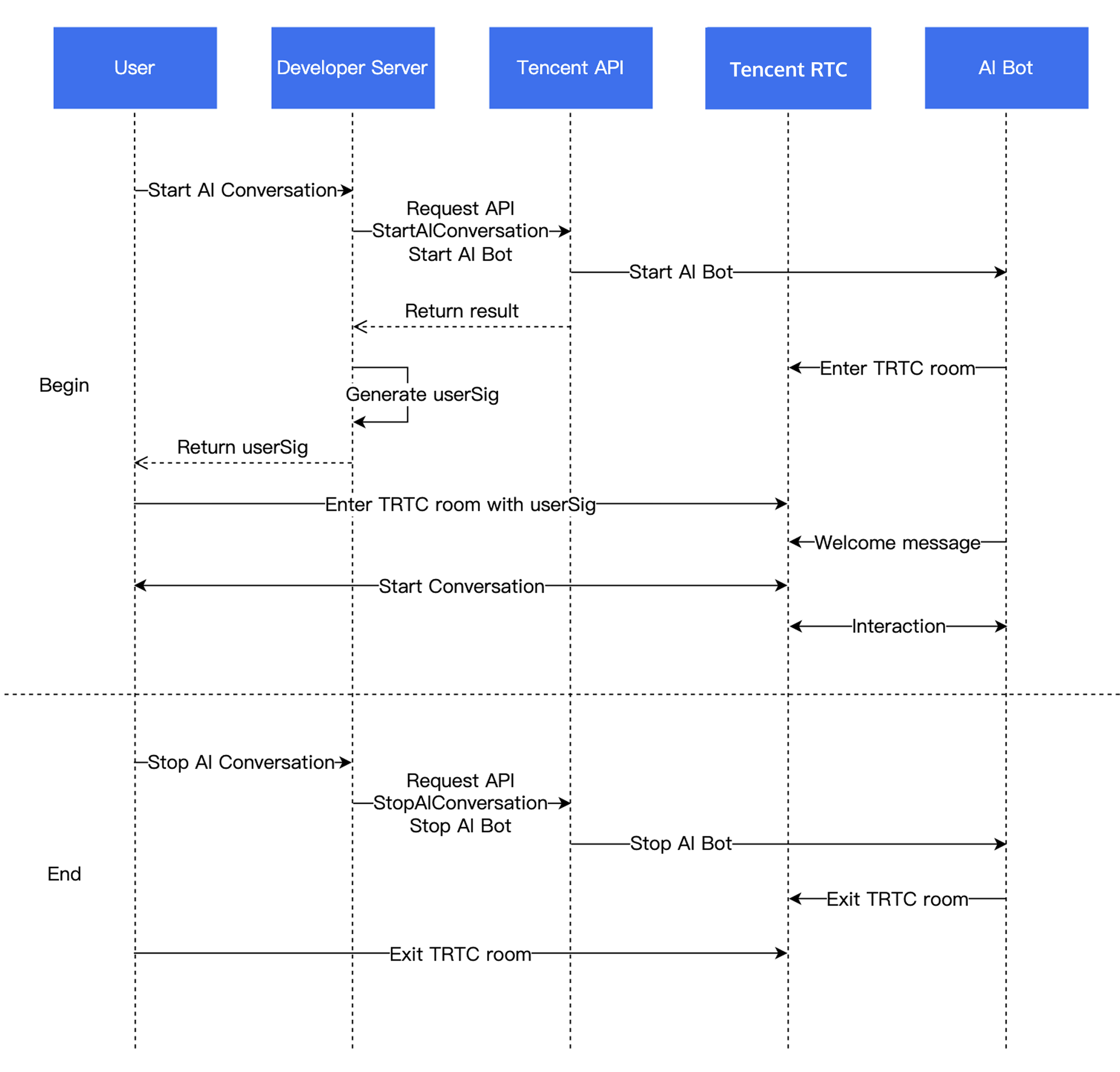
업무 프로세스의 흐름도
단계 1: RTC Engine SDK 통합
프로젝트에 RTC Engine SDK를 도입하고 RTC Engine 방에 입장합니다. 스마트 고객 서비스 방 입장 시나리오 매개변수로는 오디오 대화 고객 서비스:
TRTCAppSceneAudioCall 또는 디지털 휴먼 영상 고객 서비스: TRTCAppSceneVideoCall을 사용하는 것을 권장합니다.단계 2: 오디오 스트림의 게시
startLocalAudio을 호출하여 마이크 수집을 시작할 수 있으며, 이 인터페이스는 quality 매개변수를 통해 수집 모드를 결정해야 합니다. 이 매개변수의 이름이 quality이지만 수치가 높을수록 좋은 것은 아니며, 다양한 업무 시나리오에 가장 적합한 매개변수 선택이 있습니다(이 매개변수의 더 정확한 의미는 scene입니다).
AI 대화 시나리오에서는 SPEECH 모드를 사용하는 것을 권장합니다, 이 모드에서 SDK 오디오 모듈은 음성 신호를 정제하는 데 집중하여 주변 환경 소음을 최대한 필터링합니다. 또한 이 모드에서 오디오 데이터는 열악한 네트워크 상태에서도 좋은 저항력을 가지므로, "영상 통화" 및 "온라인 회의"와 같은 음성 커뮤니케이션에 중점을 둔 시나리오에 특히 적합합니다.
// 마이크 수집을 시작하고 현재 시나리오를 음성 모드(고소음 억제 능력, 강약 네트워크 저항성)로 설정합니다.mCloud.startLocalAudio(TRTCCloudDef.TRTC_AUDIO_QUALITY_SPEECH);
self.trtcCloud = [TRTCCloud sharedInstance];// 마이크 수집을 시작하고 현재 시나리오를 음성 모드(고소음 억제 능력, 강약 네트워크 저항성)로 설정합니다.[self.trtcCloud startLocalAudio:TRTCAudioQualitySpeech];
// 마이크 수집을 시작하고 현재 시나리오를 음성 모드(고소음 억제 능력, 강약 네트워크 저항성)로 설정합니다.trtcCloud.startLocalAudio(TRTCAudioQuality.speech);
trtc.startLocalAudio() 메서드를 사용하여 마이크를 시작하고 방에 게시합니다.
await trtc.startLocalAudio({ option: { profile: TRTC.TYPE.AUDIO_PROFILE_STANDARD }});
// 마이크 수집을 시작하고 현재 scene을 음성 모드로 설정합니다.// 높은 노이즈 억제 능력을 가지며 강약 네트워크 저항력이 있습니다.ITRTCCloud* trtcCloud = CRTCWindowsApp::GetInstance()->trtc_cloud_;trtcCloud->startLocalAudio(TRTCAudioQualitySpeech);
// 마이크 수집을 시작하고 현재 scene을 음성 모드로 설정합니다.// 높은 노이즈 억제 능력을 가지며 강약 네트워크 저항력이 있습니다.AppDelegate *appDelegate = (AppDelegate *)[[NSApplication sharedApplication] delegate];[appDelegate.trtcCloud startLocalAudio:TRTCAudioQualitySpeech];
단계 3: AI 대화의 시작
AI 대화 시작: StartAIConversation
비즈니스 백엔드를 통해 AI 대화 작업 시작 인터페이스를 호출하여 AI 실시간 대화를 시작합니다. 호출이 성공하면 AI 로봇이 RTC Engine 방에 입장합니다. 전제 조건의 STT/LLM/TTS 관련 정보를
STTConfig, LLMConfig, TTSConfig에 입력합니다.다음은 STT 엔진으로 Tencent ASR을 사용하는 예시로,
STTConfig 구성 방법을 설명합니다.구성 설명
구성 예시
{"Language": "zh","VadSilenceTime": 1000}
다음은 OpenAI 표준 프로토콜의 LLM 모델을 예로 들어
LLMConfig 구성 방법을 설명합니다.구성 설명
필드 | 유형 | 필수 | 설명 |
LLMType | String | 예 | 대형 모델 유형으로, OpenAI API 프로토콜을 준수하는 대형 모델은 모두 openai로 입력합니다. |
Model | String | 예 | 구체적인 모듈 이름, 예를 들어 gpt-4o, deepseek-chat. |
APIKey | String | 예 | 대형 모델의 APIKey. |
APIUrl | String | 예 | 대형 모델의 APIUrl. |
Streaming | Boolean | 아니요 | 스트리밍 여부입니다. 기본값은 false이며 true 입력을 권장합니다. |
SystemPrompt | String | 아니요 | 시스템 프롬프트. |
Timeout | Float | 아니요 | 초과 시간입니다. 값의 범위는 [1, 50]이며 기본값은 3초입니다(단위: 초). |
History | Integer | 아니요 | LLM의 컨텍스트 라운드 설정합니다.기본값은 0(컨텍스트 관리 없음)이며 최대값은 50(최근 50라운드의 컨텍스트 관리 제공)입니다. |
MaxTokens | Integer | 아니요 | 출력 텍스트의 최대 token 제한. |
Temperature | Float | 아니요 | 샘플링 온도. |
TopP | Float | 아니요 | 샘플링 선택 범위로 출력 token의 다양성을 제어합니다. |
UserMessages | Object[] | 아니요 | 사용자 프롬프트. |
MetaInfo | Object | 아니요 | 커스텀 매개변수는 요청의 body에 포함되어 대형 모듈에 전달됩니다. |
구성 예시
{"LLMType": "openai","Model": "gpt-4o","APIKey": "api-key","APIUrl": "https://api.openai.com/v1/chat/completions","Streaming": true,"SystemPrompt": "개인 비서입니다""Timeout": 3.0,"History": 5,"MetaInfo": {},"MaxTokens": 4096,"Temperature": 0.8,"TopP": 0.8,"UserMessages": [{"Role": "user","Content": "content"},{"Role": "assistant","Content": "content"}]}
다음은 TRTC 내장 TTS를 예로 들어
TTSConfig 구성 방법을 설명합니다.구성 설명
필드 | 유형 | 필수 | 설명 |
TTSType | String | 예 | 고정값: 'flow'. |
VoiceId | String | 예 | |
Model | String | 예 | TTS 모델 버전입니다. 현재 기본값: flow_01_turbo. |
Speed | Float | 아니요 | 말속도입니다. 범위: [0.5, 2.0]. 기본값: 1.0. |
Volume | Float | 아니요 | 음량입니다. 범위: [0, 10]. 기본값: 1.0. |
Pitch | Integer | 아니요 | 음조 조정입니다. 범위: [-12, 12]. 기본값: 0. |
Language | String | 아니요 | 언어 ID: zh(중국어), en(영어), yue(광둥어). |
구성 예시
{"TTSType": "flow","VoiceId": "v-female-R2s4N9qJ","Model": "flow_01_turbo","Speed": 1.0,"Volume": 1.0,"Pitch": 0,"Language": "zh"}
현재 지원되는
STTConfig, LLMConfig 및 TTSConfig 구성 설명:주의:
RoomId는 클라이언트가 입장한 RoomId와 일치해야 하며, 방 번호 유형(숫자 방 번호, 문자열 방 번호)도 동일해야 합니다(즉, 로봇과 사용자가 동일한 방에 있는지 확인해야 합니다).TargetUserId는 클라이언트 사용자가 방에 입장할 때 사용한 UserId와 일치해야 합니다.LLMConfig와 TTSConfig는 모두 JSON 문자열이며 Conversational AI를 성공적으로 시작하려면 올바르게 구성해야 합니다.단계 4: AI 대화 자막 및 AI 상태의 수신
실시간 자막의 수신
메시지 형식:
{"type": 10000, // 10000은 실시간 자막 전송을 나타냅니다"sender": "user_a", // 발화자의 userid입니다"receiver": [], // 수신자 userid 목록입니다.해당 메시지는 실제로 방 내에서 브로드캐스트됩니다"payload": {"text":"", // 음성에서 인식된 텍스트입니다"translation_text":"", // 번역된 텍스트."start_time":"00:00:01", // 이 문장의 시작 시간입니다"end_time":"00:00:02", // 이 문장의 종료 시간입니다"roundid": "xxxxx", // 한 라운드 대화의 고유 식별자입니다"end": true // true인 경우, 이 문장이 완전한 문장임을 나타냅니다}}
AI 로봇 상태의 수신
메시지 형식:
{"type": 10001, // AI 로봇의 상태"sender": "user_a", // 발신자 userid입니다, 여기는 로봇의 id입니다."receiver": [], // 수신자 userid 목록입니다.해당 메시지는 실제로 방 내에서 브로드캐스트됩니다."payload": {"roundid": "xxx", // 한 라운드 대화의 고유 식별자입니다"timestamp": 123,"state": 1, // 1 듣는 중 2 생각 중 3 말하는 중 4 중단됨.}}
예시 코드
@Overridepublic void onRecvCustomCmdMsg(String userId, int cmdID, int seq, byte[] message) {String data = new String(message, StandardCharsets.UTF_8);try {JSONObject jsonData = new JSONObject(data);Log.i(TAG, String.format("receive custom msg from %s cmdId: %d seq: %d data: %s", userId, cmdID, seq, data));} catch (JSONException e) {Log.e(TAG, "onRecvCustomCmdMsg err");throw new RuntimeException(e);}}
func onRecvCustomCmdMsgUserId(_ userId: String, cmdID: Int, seq: UInt32, message: Data) {if cmdID == 1 {do {if let jsonObject = try JSONSerialization.jsonObject(with: message, options: []) as? [String: Any] {print("Dictionary: \\(jsonObject)")} else {print("The data is not a dictionary.")}} catch {print("Error parsing JSON: \\(error)")}}}
trtcClient.on(TRTC.EVENT.CUSTOM_MESSAGE, (event) => {let data = new TextDecoder().decode(event.data);let jsonData = JSON.parse(data);console.log(`receive custom msg from ${event.userId} cmdId: ${event.cmdId} seq: ${event.seq} data: ${data}`);if (jsonData.type == 10000 && jsonData.payload.end == false) {// 자막 중간 상태} else if (jsonData.type == 10000 && jsonData.payload.end == true) {// 한 마디가 끝났습니다}});
void onRecvCustomCmdMsg(const char* userId, int cmdID, int seq,const uint8_t* message, uint32_t msgLen) {std::string data;if (message != nullptr && msgLen > 0) {data.assign(reinterpret_cast<const char*>(message), msgLen);}if (cmdID == 1) {try {auto j = nlohmann::json::parse(data);std::cout << "Dictionary: " << j.dump() << std::endl;} catch (const std::exception& e) {std::cerr << "Error parsing JSON: " << e.what() << std::endl;}return;}}
void onRecvCustomCmdMsg(String userId, int cmdID, int seq, String message) {if (cmdID == 1) {try {final decoded = json.decode(message);if (decoded is Map<String, dynamic>) {print('Dictionary: $decoded');} else {print('The data is not a dictionary. Raw: $decoded');}} catch (e) {print('Error parsing JSON: $e');}return;}}
설명:
TRTC는 AI 대화 클라이언트에 대한 더 많은 콜백을 제공합니다. 자세한 내용은 AI 대화 상태 콜백, AI 대화 자막 콜백, AI 대화 지표 콜백, AI 대화 오류 콜백을 참조하십시오.
단계 5: AI 대화 중지하고 RTC Engine 방에서 나갑니다
1. 서버에서 AI 대화 작업을 중지합니다. 업무 백엔드에서 AI 대화 중지 인터페이스를 호출하여 해당 대화 작업을 중지합니다.
2. 클라이언트가 RTC Engine 방에서 나갑니다.방에서 나가기을 참조하는 것을 권장합니다.
고급 기능
클라이언트에서 사용자 정의 메시지 전송
클라이언트에서 사용자 정의 신호를 전송하여 ASR 프로세스를 건너뛰고 AI와 직접 텍스트로 소통하거나, 중단 신호를 전송하여 대화를 중단할 수 있습니다.
type | 설명 |
20000 | 커스텀 텍스트를 전송하여 ASR 프로세스를 건너뛰고 AI Service와 직접 텍스트로 소통합니다. |
20001 | 중단 신호를 전송하여 대화를 중단합니다. |
업스트림 신호를 전송하여 ASR 프로세스를 건너뛰고 AI와 직접 텍스트로 소통합니다.
{"type": 20000, // 클라이언트에서 커스텀 텍스트 메시지를 전송합니다"sender": "user_a", // 발신자 userid입니다. 서버는 해당 userid가 유효한지 확인합니다"receiver": ["user_bot"], // 수신자 userid 목록입니다.로봇 userid만 기입하면 되며, 서버에서 해당 userid의 유효성을 확인합니다"payload": {"id": "uuid", // 메시지 ID입니다.문제 해결 시 uuid를 사용할 수 있습니다"message": "xxx", // 메시지 내용입니다"timestamp": 123 // 타임스탬프입니다.문제 해결에 사용할 수 있습니다}}
중단 신호를 전송하여 대화를 중단합니다.
{"type": 20001, // 클라이언트에서 중단 신호를 전송합니다"sender": "user_a", // 발신자 userid입니다. 서버는 해당 userid가 유효한지 확인합니다"receiver": ["user_bot"], // 수신자 userid 목록입니다.로봇 userid만 기입하면 되며, 서버에서 해당 userid의 유효성을 확인합니다"payload": {"id": "uuid", // 메시지 ID입니다.문제 해결 시 uuid를 사용할 수 있습니다"timestamp": 123 // 타임스탬프입니다.문제 해결에 사용할 수 있습니다}}
주의:
현재 미니프로그램 클라이언트는 사용자 정의 메시지의 수신 및 전송을 지원하지 않습니다. 미니프로그램 클라이언트에서 자막 수신 또는 메시지 전송 등의 기능을 구현하려면 Chat에서 제공하는 인스턴트 메시징을 사용해야 합니다. 자세한 내용은 AI 대화 Chat 시그널링 솔루션을 참조하십시오. Chat 시그널링 채널 개설은 영업 담당자에게 문의하거나 티켓을 제출하여 문의하시기 바랍니다.
디지털 휴먼 영상 고객 서비스의 구현
Tencent Cloud AI Digital Human 서비스를 사용하여 AI 스마트 고객 서비스의 시각적 디지털 휴먼 이미지를 생성할 수 있으며, 디지털 휴먼 영상 고객 서비스를 구현하여 상호작용 경험을 향상시킬 수 있습니다.
디지털 휴먼 서비스의 개설
1. 서비스를 개설합니다. 클라우드 AI Digital Human 구매 페이지에 접속하여 이미지 대여 또는 이미지 맞춤 제작을 통해 2D 또는 3D 디지털 휴먼 이미지 자산을 획득하며, 동시에 클라우드 렌더링 대화 상호작용 동시 접속을 구매해야 합니다.
2. 인터랙티브 프로젝트를 생성합니다. 디지털 휴먼 서비스 플랫폼에 로그인하고 인터랙티브 시나리오를 선택한 후 새 프로젝트 생성을 클릭합니다.
3. 이미지와 음성을 구성합니다. 편집 버튼을 클릭하고 탭을 전환하여 이미지, 자세, 음성 및 출력 형식을 수정합니다.
4. 프로젝트 키를 획득합니다. API Integration으로 전환하고 View Key를 클릭하여 키 매개변수
appkey, accesstoken, virtualmanProjectId를 가져옵니다.디지털 휴먼 매개변수의 구성
{"AvatarType" : "tencent", // 디지털 휴먼 유형입니다.현재 tencent만 지원합니다"Appkey" : "appkey", // 디지털 휴먼 서비스의 appkey입니다"AccessToken" : "accesstoken", // 디지털 휴먼 서비스의 accesstoken입니다"VirtualmanProjectId" : "virtualmanProjectId", // 디지털 휴먼 서비스의 virtualmanProjectId입니다"AvatarUserID" : "robot_xxxx", // RTC Engine 디지털 휴먼 사용자 userID입니다"DriverType": 1, // 디지털 휴먼 구동 방식(순수 텍스트 구동)"AvatarUserSig" : "eJw1xxxxxxxxxxxxxxxxxxxxxxxxxxxxxxxxxxxx" // RTC Engine 디지털 휴먼 사용자 서명입니다}
클라이언트에서 RTC 비디오 스트림 구독
AI 대화 작업이 성공적으로 시작되면, 디지털 휴먼이 독립 사용자로 RTC 방에 입장하여 스트리밍을 시작합니다. 클라이언트는 원격 디지털 휴먼 비디오 스트림을 모니터링하고, 구독하고, 재생하기만 하면 됩니다.
1. 방 입장 전 TRTC.EVENT.REMOTE_VIDEO_AVAILABLE 이벤트를 모니터링하여 모든 원격 사용자의 비디오 게시 이벤트를 수신합니다.
2. 해당 이벤트를 수신하면 trtc.startRemoteVideo()을 통해 원격 비디오 스트림을 재생합니다.
trtc.on(TRTC.EVENT.REMOTE_VIDEO_AVAILABLE, ({ userId, streamType }) => {// To play the video image, you need to place an HTMLElement in the DOM,// which can be a div tag, assuming its id is `${userId}_${streamType}`const view = `${userId}_${streamType}`;trtc.startRemoteVideo({ userId, streamType, view });});
1. 방 입장 전 onUserVideoAvailable를 모니터링합니다.
onUserVideoAvailable(userId, true) 알림을 수신하면 해당 화면에 재생 가능한 비디오 프레임이 도착한 것입니다.2.
startRemoteView 인터페이스를 호출하여 원격 사용자의 비디오 화면을 재생할 수 있습니다.// 원격 사용자 robot_xxxx의 메인 비디오 스트림 화면 재생trtcCloud.startRemoteView("robot_xxxx", TRTCVideoStreamType.big, remoteViewId);
1. 방 입장 전 onUserVideoAvailable를 모니터링합니다.
onUserVideoAvailable(userId, true) 알림을 수신하면 해당 화면에 재생 가능한 비디오 프레임이 도착한 것입니다.2.
startRemoteView를 호출하여 원격 비디오 화면을 재생합니다.// 원격 화면 재생TXCloudVideoView cameraVideo = findViewById(R.id.txcvv_main_local);mCloud.startRemoteView("robot_xxxx", TRTCCloudDef.TRTC_VIDEO_STREAM_TYPE_BIG, cameraVideo); // 고화질 대형 화면으로 원격 비디오 콘텐츠 재생
1. 방 입장 전 onUserVideoAvailable를 모니터링합니다.
onUserVideoAvailable(userId, YES) 알림을 수신하면 해당 화면에 재생 가능한 비디오 프레임이 도착한 것입니다.2.
startRemoteView를 호출하여 원격 비디오 화면을 재생합니다.- (void)startRemoteView {// 원격 화면 재생AppDelegate *appDelegate = (AppDelegate *)[[UIApplication sharedApplication] delegate];[appDelegate.trtcCloud startRemoteView:@"robot_xxxx" streamType:TRTCVideoStreamTypeBig view:self.remoteVideoView];}
상담원 좌석으로 전환
인공 서비스는 스마트 고객 서비스 시스템에서 필수적인 요소 중 하나입니다. AI 고객 서비스가 사용자 요구 사항을 충족하지 못할 때 인공 고객 서비스로 전환하는 기능을 제공하면 사용자 경험을 크게 향상시킬 수 있습니다.
클라우드 콘택트 센터(Cloud Contact Center)는 기업이 전화, 온라인 채팅, 오디오 및 비디오 통화를 통합한 고객 연락 플랫폼을 신속하게 구축할 수 있도록 지원합니다. 클라우드 콘택트 센터 SDK는 통신 작업대를 기업 자체 업무 시스템에 내장하여 안정적이고 유연한 통합 통신 기반을 제공합니다. 인공 상담원 서비스 연동에는 클라우드 콘택트 센터(Cloud Contact Center)를 사용하는 것을 권장합니다.
트리거 판단
1. 버튼 트리거. 사용자가 '인공 서비스로 전환' 버튼을 클릭하면 클라이언트 측에서 직접 인공 고객 서비스 전환 업무 오케스트레이션을 트리거합니다.
2. 의도 식별. LLM Function Call을 통해 AI 고객 서비스와의 대화 과정에서 사용자가 표현한 인공 서비스 전환 의도를 의미적으로 판단합니다. 일치하면 LLM이 tool_calls를 반환하고, 비즈니스 레이어에서 인공 서비스 전환 작업을 실행합니다.
인공 서비스 전환 도구 함수 정의 예시:
{"type": "function","function": {"name": "transfer_to_agent","description": "사용자가 명시적으로 인공 서비스를 요청하거나, 문제가 AI 능력을 초과하거나, 불만/환불 분쟁과 관련된 경우 호출합니다. 단순한 잡담이나 불평에는 호출하지 않습니다.","parameters": {"type": "object","properties": {"reason": { "type": "string", "description": "인공 서비스 전환 사유" },"department": { "type": "string", "enum": ["A/S", "기술", "불만"], "description": "대상 스킬 그룹" },"urgency": { "type": "string", "enum": ["low", "high"], "description": "긴급도" }},"required": ["reason"]}}}
LLM은 생성 과정에서 의미 판단을 수행합니다. 사용자의 실제 의도를 이해하고, 각 도구의 description을 대조하여 '이번에 특정 도구를 호출해야 하는지 여부'를 결정합니다.
호출이 필요하다고 판단되면, LLM은 일반 텍스트를 반환하지 않고, 함수명 및 대화에서 자체 추출한 매개변수를 포함한 구조화된 tool_calls를 반환합니다.
비즈니스 미들웨어 레이어에서 finish_reason === 'tool_calls'를 포착하면, 인공 서비스 전환 작업을 실행합니다.
설명:
전환 실행
1. 비즈니스 백엔드에서 StopAIConversation을 호출하여 AI 대화 작업을 중지합니다.
2. 비즈니스 백엔드에서 TCCC를 호출하여 department에 따라 대상 스킬 그룹으로 라우팅합니다.
3. TCCC가 인공 상담원을 할당합니다(IVR 인공 서비스 전환 노드 → 스킬 그룹 → 유휴 상담원).
4. 상담원이 대화를 인계받습니다(SIP 전화기 / 웹 작업대 / SDK 통합).
설명:
커스텀 지식 베이스와 RAG
스마트 고객 서비스 시나리오에서 기업은 일반적으로 자체 지식 베이스, 즉 다양한 문서 및 Q&A 소재 등을 업로드해야 하며, 이는 RAG(검색 증강 생성) 기능이 필요합니다. RTC Engine AI 실시간 대화(Conversational AI) 솔루션에서 RTC Engine 자체는 지식 베이스를 저장하거나 검색을 수행하지 않으며, 지식 베이스와 RAG는 모두 LLM 레이어에서 발생합니다.
핵심 메커니즘
RTC Engine은 StartAIConversation 인터페이스의
LLMConfig 필드를 통해 STT 변환 후의 텍스트를 외부 LLM 또는 에이전트 플랫폼으로 전달합니다. 따라서 '커스텀 지식 베이스 주입/RAG 구현'의 본질은 LLM 단계에서 검색 기능을 갖춘 백엔드 또는 플랫폼을 연동하는 것입니다. RTC Engine은 각 LLM 요청에 다음 HTTP 요청 헤더를 자동으로 주입하며, 이는 비즈니스 백엔드에서 사용자 수준의 지식 베이스 라우팅, 인증 또는 로그 기록 등에 활용할 수 있습니다.요청 헤더 | 설명 |
X-Task-Id | 현재 AI 대화의 고유 작업 식별자입니다. |
X-Request-Id | 요청 식별자로, 동일 요청 재시도 시 일관되게 유지됩니다. |
X-Sdk-App-Id | TRTC 앱의 SdkAppId입니다. |
X-User-Id | 현재 대화의 사용자 ID입니다. |
X-Room-Id | 현재 TRTC 대화의 방 ID입니다. |
X-Room-Id-Type | 방 ID 유형입니다. "0" = 숫자형, "1" = 문자열형. |
사용 가능한 경로
현재 세 가지 사용 가능한 지식 베이스 주입 및 RAG 구현 경로를 권장하며, 아래에서는 여러 차원에서 서로 다른 구현 경로의 차이점을 비교합니다.
1. 자체 구축 OpenAI 호환 미들웨어 레이어: 업무 측에서 OpenAI 규범에 부합하는
/v1/chat/completions 인터페이스를 자체 구현하며, RTC Engine은 이를 일반 OpenAI 모델 호출로 간주합니다. 업무 인터페이스 내부에서 '지식 베이스 검색 → 컨텍스트 병합 → 실제 대형 모델 호출 → 스트리밍 반환'을 완료하며, RAG 로직은 완전히 자체 제어 가능합니다.2. Dify 플랫폼: Dify의 Knowledge는 그 RAG 구현으로, 공식적으로 Retrieval → Augmented → Generation 프로세스를 명확히 따릅니다. Dify 플랫폼에서 지식 베이스 생성, 앱 생성, 지식 베이스 마운트 등의 단계를 통해 지식 베이스 구성 및 검색을 완료한 후, 최종적으로
LLMConfig를 통해 RTC Engine Conversational AI에 연동합니다.3. Coze 플랫폼: Coze의 Knowledge(지식 베이스)는 그 RAG 구현으로, 마찬가지로 Retrieval → Augmented → Generation 프로세스를 따릅니다. Coze 플랫폼에서 새 지식 베이스 생성, Bot 생성 및 지식 베이스 바인딩, Bot 게시 등의 단계를 통해 지식 베이스 구성 및 검색을 완료한 후, 최종적으로
LLMConfig를 통해 RTC Engine Conversational AI에 연동합니다.주의:
컨텍스트 관리와 개인화된 메모리
스마트 고객 서비스 시나리오에서 사용자의 질문 상담은 일반적으로 연속성을 가지며, 이전 대화 기록을 새로운 대화에 포함시키면 AI 고객 서비스가 사용자 상담의 배경 정보를 더 잘 이해하여 사용자의 질문에 더 효과적으로 답변할 수 있습니다. RAG는 AI를 '더 학식 있게'(도메인 지식 이해) 만들고, 메모리/컨텍스트는 AI가 '사용자를 더 잘 이해하도록'(사용자 기억) 합니다. 둘 다 StartAIConversation의
LLMConfig 필드를 통해 주입되며, 중첩하여 사용할 수 있습니다. 아래에서는 LLMConfig에서 컨텍스트와 관련된 세 가지 필드, 즉 세 가지 메모리 계층을 소개합니다.3계층 메모리 시스템
필드 | 메모리 레이어 | 콘텐츠 | 정확도 | 시간 범위 | 관리 주체 |
SystemPrompt | 장기 기억 | 기본 인물 설정 + 사용자 장기 선호도 LLM 요약 | 중(요약) | 장기 | 비즈니스 측에서 요약을 유지 관리하고 병합합니다. |
UserMessages | 단기 기억 | 최근 N개의 외부 이전 메시지 기록 원문 | High(원문) | 단기 | 비즈니스 측에서 대화를 시작할 때 주입합니다. |
History | 통화 내 기억 | 현재 RTC Engine 통화 과정 중의 다중 대화 차례 | High(원문) | 해당 통화 | TRTC에서 자동으로 관리하며, 최대 50라운드입니다. |
컨텍스트 주입 예시
AI 전자상거래 고객 서비스를 예로 들면:
SystemPrompt에 고객 서비스 담당자 설정 및 해당 사용자의 장기 프로필 요약을 작성하고, UserMessages에 사용자의 최근 상담 원문을 주입하며, History를 통해 현재 음성 통화 내 다중 라운드의 연속성을 확보합니다.{"LLMType": "openai","Model": "gpt-5.5","APIKey": "<your_openai_api_key>","APIUrl": "https://api.openai.com/v1/chat/completions","Streaming": true,"SystemPrompt": "당신은 특정 전자상거래 플랫폼의 AI 고객 서비스 어시스턴트로서, 오더 조회, 반품/교환, 물류 추적 및 상품 상담을 담당하며, 간결하고 친절하게 답변합니다.\\n\\n[사용자 장기 메모리 요약]\\n- 사용자 닉네임: 소명, 블랙 카드 회원, 간결하고 직접적인 응답 선호\\n- 자주 구매하는 카테고리: 디지털 3C, 이전 반품 분쟁 없음\\n- 지난 통화에서 '블루투스 이어폰 오른쪽 귀 소리 없음'을 상담했으며, 재페어링을 권장함","Timeout": 3.0,"History": 10,"UserMessages": [{ "Role": "user", "Content": "지난주에 구매한 이어폰을 반품하려고 합니다" },{ "Role": "assistant", "Content": "네, 귀하의 오더 NO.20260528001(블루투스 이어폰)은 7일 무이유 기간 내에 있으며, 반품을 처리해 드릴 수 있습니다." },{ "Role": "user", "Content": "환불은 얼마나 걸리나요?" },{ "Role": "assistant", "Content": "상품이 반송되어 수령된 후 1~3 영업일 이내에 결제 계좌로 환불됩니다." }]}
히스토리 데이터 획득
UserMessages의 단기 상담 원문과 SystemPrompt의 장기 요약 데이터는 어떻게 가져오나요?Chat 텍스트 채팅은 1:1 채팅 이전 메시지 풀링을 통해 가져올 수 있으며, 내용은 사용자와 고객 서비스 담당자가 Chat 1:1 채팅을 통해 생성한 이전 대화 기록입니다.
TRTC AI 실시간 대화에서 생성된 대화 기록은 서버 측 903 콜백 이벤트를 통해 실시간으로 수신하여 저장할 수 있으며, 내용은 ASR(STT)로 식별된 사용자 음성 텍스트와 LLM이 생성한 응답 텍스트입니다.
요약 업데이트 시기:장기 요약은 각 AI 실시간 대화 종료 후 비동기적으로 업데이트하여 통화 시작 속도에 영향을 주지 않도록 하는 것이 좋습니다.
개인정보 보호 규정 준수 요구 사항:장기 메모리 요약은 핵심 사실 정보만 저장하며 원본 대화 전문은 보관하지 않으며, 사용자 계약서에 명확히 고지해야 합니다.
주의:
주입된
UserMessages 항목이 많을수록 LLM의 각 호출 시 Token 소모량이 증가하고 소요 시간이 길어지므로, 실제 요구 사항과 비용을 고려하여 적절히 구성해야 합니다.주입된
SystemPrompt 요약은 300 Token 이내로 제어하는 것이 좋으며, 너무 길어서 대화 컨텍스트 창을 과도하게 차지하여 LLM 첫 Token 지연 시간에 영향을 주지 않도록 해야 합니다.지능형 중단 지연 최적화
AI 실시간 대화 과정에서 지능형 중단 지연 시간을 조정하려면 AI 대화 시작 인터페이스 내의
AgentConfig.InterruptSpeechDuration 및 STTConfig.VadSilenceTime 매개변수를 설정하여 중단 지연 시간을 높이거나 낮출 수 있습니다. 오인 중단 확률을 줄이기 위해 원거리 음성 억제 기능을 함께 활성화하는 것이 좋습니다.원거리 음성 억제
AI 고객 서비스와의 대화 과정에서 AI 고객 서비스가 사용자 측의 다른 배경 음성을 사용자의 발화로 인식하여 오인 중단 및 응답이 발생할 수 있습니다. 이러한 상황을 최대한 방지하기 위해 원거리 음성 억제 기능을 활성화해야 합니다. AI 대화 시작 작업 인터페이스를 호출할 때
STTConfig.VadLevel을 2 또는 3으로 설정하면 우수한 원거리 음성 억제 성능을 얻을 수 있습니다.매개변수 설정 설명
매개변수 | 유형 | 설명 |
AgentConfig.InterruptSpeechDuration | Integer | InterruptMode가 0일 때 사용되며 단위는 밀리초이고 기본값은 500ms입니다. 서버가 지속적으로 InterruptSpeechDuration 밀리초 동안 사람의 목소리를 감지하면 대화를 중단합니다. 예시 값: 500 |
STTConfig.VadSilenceTime | Integer | 음성 인식 VAD 시간의 범위는 [240, 2000]이며 기본값은 1000(단위: ms)입니다. 값이 작을수록 음성 인식 문장 분할이 더 빨라집니다. 예시 값: 1000 |
STTConfig.VadLevel | Integer | VAD의 원거리 음성 억제 기능(ASR 인식 효과에는 영향을 미치지 않음)의 범위는 [0, 5]이며 기본값은 0으로, 원거리 음성 억제 기능을 활성화하지 않음을 나타냅니다. 2로 설정하는 것을 권장하며, 이는 양호한 원거리 음성 억제 기능을 제공합니다. 소음이 많은 사무실 환경에서는 3으로, 더욱 소음이 심한 환경에서는 4 또는 5로 설정할 수 있습니다. 높은 VadLevel은 단일 음절을 잡음으로 필터링할 수 있으므로 주의하십시오. 예시 값: 2 |
LLM 사용자 정의 메시지 전달
대형 모델이 TTS 단계에 참여하지 않는 내용을 반환해야 할 경우, 대형 모델 반환 내용에
metainfo라는 커스텀 필드를 추가할 수 있습니다. AI 서비스가 metainfo를 감지한 후, 커스텀 메시지를 통해 클라이언트 SDK로 푸시하여 metainfo의 전달을 완료합니다.대형 모듈 측의 전송 방식: 대형 모듈이
chat.completion.chunk 객체를 스트리밍 방식으로 반환할 때, 동시에 meta.info의 chunk을 반환합니다.{"id":"chatcmpl-123","object":"chat.completion.chunk","created":1694268190,"model":"gpt-xxxx", "system_fingerprint": "fp_xxxx", "choices":[{"index":0,"delta":{"role":"assistant","content":""},"logprobs":null,"finish_reason":null}]}{"id":"chatcmpl-123","object":"chat.completion.chunk","created":1694268190,"model":"gpt-xxxx", "system_fingerprint": "fp_xxxx", "choices":[{"index":0,"delta":{"content":"Hello"},"logprobs":null,"finish_reason":null}]}// 다음과 같은 커스텀 메시지 추가합니다{"id":"chatcmpl-123","type":"meta.info","created":1694268190,"metainfo": {}}{"id":"chatcmpl-123","object":"chat.completion.chunk","created":1694268190,"model":"gpt-xxxx", "system_fingerprint": "fp_xxxx", "choices":[{"index":0,"delta":{},"logprobs":null,"finish_reason":"stop"}]}
클라이언트 측의 수신 방식: AI 서비스가
metainfo를 감지한 후 RTC Engine의 커스텀 메시지를 통해 전송합니다. 클라이언트는 SDK 콜백의 onRecvCustomCmdMsg 인터페이스를 통해 수신할 수 있습니다.{"type": 10002, // 커스텀 메시지"sender": "user_a", // 발신자 userid입니다, 여기는 로봇의 id입니다."receiver": [], // 수신자 userid 목록입니다.해당 메시지는 실제로 방 내에서 브로드캐스트됩니다."roundid": "xxxxxx","payload": {} // metainfo}
자주 발생한 문제
AI 고객 서비스 응답 없음 / 음성 안내 없음
클라이언트가 마이크 수집을 시작하고 오디오 스트림을 발행했는지, 또는 마이크 권한이 정상적으로 부여되었는지 확인합니다.
StartAIConversation의 RoomId가 클라이언트가 입장한 RoomId와 일치하고, 방 번호 유형(RoomIdType)도 일치하는지 확인합니다.LLMConfig와 TTSConfig의 JSON 문자열 형식이 올바른지 확인합니다.Tencent Cloud API 키(
SecretId / SecretKey)가 유효하고, QcloudTRTCFullAccess 전체 읽기/쓰기 접근 권한이 부여되었는지 확인합니다.서비스 유형 | 오류 코드 | 에러의 설명 |
STT(ASR) | 30100 | 요청 시간 초과. |
| 30102 | 내부 오류. |
LLM | 30200 | LLM 요청 시간 초과. |
| 30201 | LLM 요청이 빈도 제한됩니다. |
| 30202 | LLM 서비스 반환 실패. |
TTS | 30300 | TTS 서비스 요청 시간 초과. |
| 30301 | TTS 요청이 빈도 제한됩니다. |
| 30302 | TTS 서비스 반환 실패. |
LLM 장시간 응답 없음 또는 타임아웃 오류
LLM Timeout 오류가 발생하는 경우, 예를 들어
llm error Timeout on reading data from socket과 같은 메시지가 표시되면 일반적으로 LLM 요청이 시간 초과된 것입니다. LLMConfig의 Timeout 매개변수 값을 적절히 높일 수 있습니다(기본값은 3초). 또한 LLM의 첫 패킷 소요 시간이 3초를 초과하면 높은 대화 지연이 AI 대화 경험에 영향을 미칩니다. 특별한 요구 사항이 없는 경우 LLM의 첫 패킷 소요 시간을 최적화하는 것이 좋으며, 대화 지연 최적화를 참조하십시오.단일 텍스트 응답 시 응답 없음
사용자가 '예', '네' 등 한 단어로 답변할 때 AI 고객 서비스가 응답하지 않는 경우(LLM에 요청하지 않음), AI 대화 시작 인터페이스의
AgentConfig.FilterOneWord 매개변수가 false로 설정되었는지 확인하십시오(기본값은 true이며, 이는 사용자가 한 단어만 말한 문장을 필터링함을 의미합니다).매개변수 | 유형 | 설명 |
FilterOneWord | Boolean | 사용자가 한 글자만 말한 문장을 필터링할지 여부입니다. true는 필터링을 의미하고, false는 필터링하지 않음을 의미하며, 기본값은 true입니다. 예시 값: true |
TRTC 관련 오류 조사
RTC Engine SDK에서 복구할 수 없는 오류가 발생하면
onError 콜백에서 발생합니다. 일반적인 오류는 다음 표를 참조하십시오:오류 | 오류 코드 | 에러의 설명 |
ERR_TRTC_USER_SIG_CHECK_FAILED | -100018 | UserSig 검증에 실패했습니다. 서명이 올바른지 또는 만료되었는지 확인하십시오. |
ERR_TRTC_CONNECT_SERVER_TIMEOUT | -3308 | 방 입장 요청 시간 초과. 네트워크 연결이 끊겼는지 또는 VPN이 켜져 있는지 확인하십시오. |
ERR_TRTC_INVALID_SDK_APPID | -3317 | 입장 매개변수 SDKAppID 오류. TRTCParams.sdkAppId이 비어 있는지 확인하십시오. |
ERR_MIC_NOT_AUTHORIZED | -1317 | 마이크 장치에 권한이 없습니다. |
피드백