Approval Management
Download
Focus Mode
Font Size
Feature description
The superapp admin or approvers can approve the version release requests submitted by mini programs and mini games. The released mini programs and mini games can be viewed and managed in the "Available" list.
Roles and permissions
Feature | Role | Super admin | Platform admin | Superapp admin | Approver |
Pending list | Read-only | Read-only | ✓ | ✓ |
Pending list - Approve | - | - | ✓ | ✓ |
Approved list | Read-only | Read-only | ✓ | ✓ |
Approval details | Read-only | Read-only | ✓ | ✓ |
Available list | Read-only | Read-only | ✓ | ✓ |
Available list - Remove | - | - | ✓ | ✓ |
Available list - Download QR code | ✓ | ✓ | ✓ | ✓ |
Available list - Enable/disable ads | - | - | ✓ | - |
Auto- approval configuration | Read-only | Read-only | ✓ | - |
Super admin/platform admin: Have access to the release approval module. They have read-only access to the pending list, approved list, approval details, and available list. They have permission to download mini program QR codes, but cannot perform actions such as approving mini programs, removing mini programs, or enabling/disabling ads.
Superapp admin: Has full access to all features within the release approval module.
Approver: Has full access to the module, except for enabling/disabling ads and configuring auto-approval.
Feature modules and directions
Pending
The pending list displays submitted version release requests for mini programs or mini games.

Click "Approve"in the "Operation" column to view the submitted version details. You can then choose to "Approve" or "Reject" the release request.
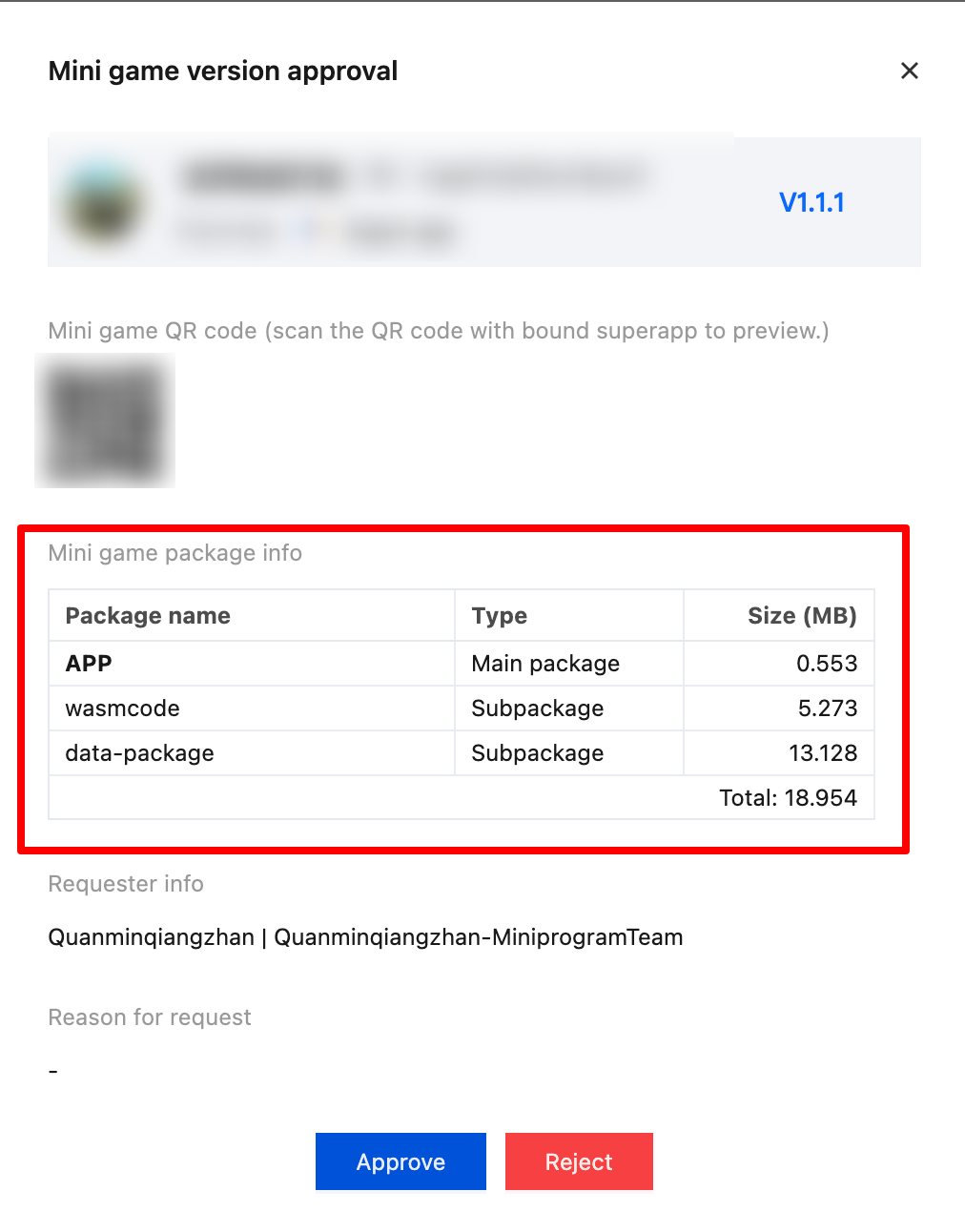
In the approval dialog, you can scan the QR code using the superapp to test the mini program or mini game on a real device. The package size is displayed below the QR code.
Note:
The package size shown here refers to the compressed file. The actual size after extraction will be slightly larger.
Approved
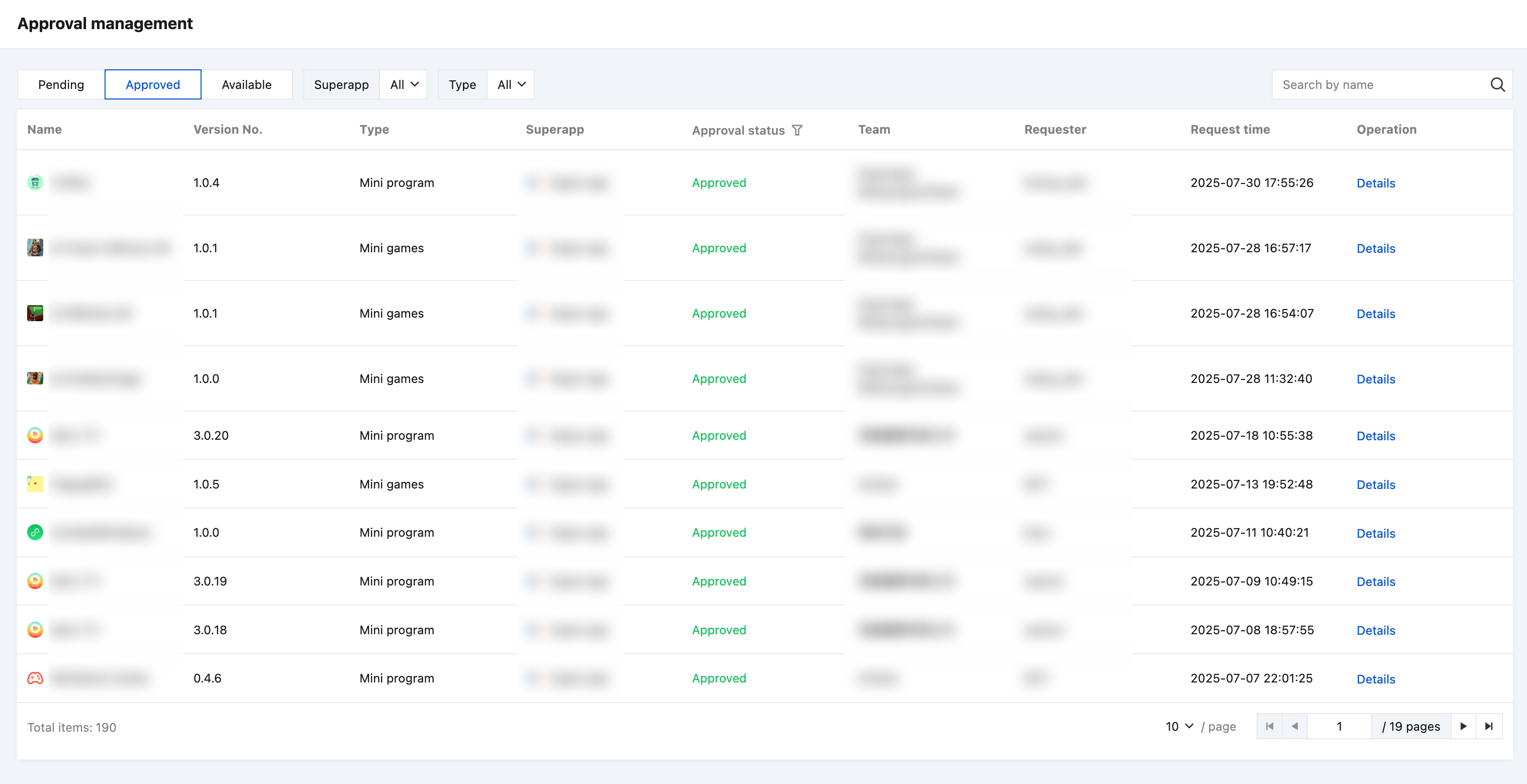
The approved and rejected versions of the mini programs and mini games can be found in the "Approved" list.
Available
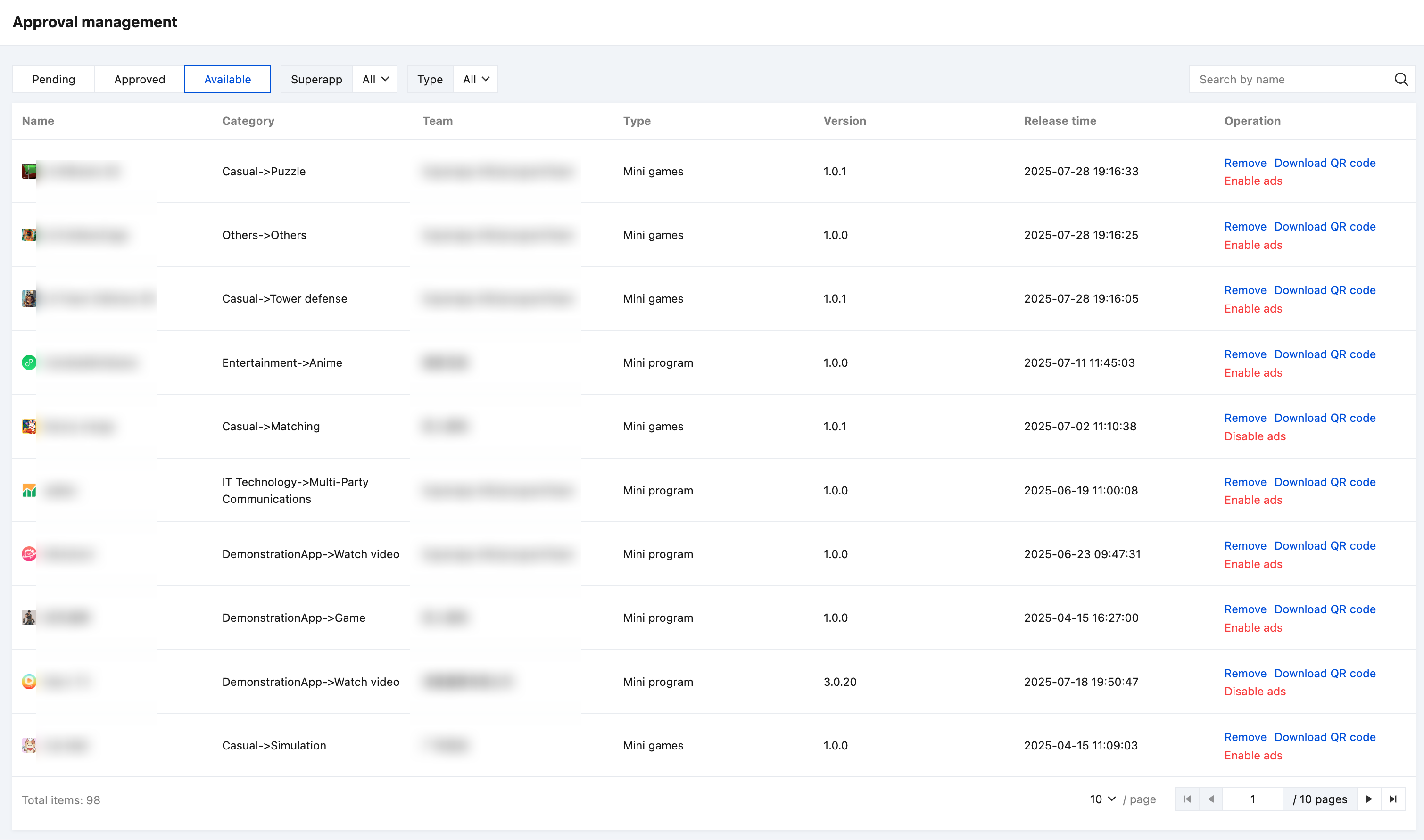
The mini programs and mini games that have been released in the superapp can be found in the "Available" list. The superapp admin or approvers can remove any released mini program or mini game, download the QR code, and disable the ad feature (if the ad feature was enabled).
Remove
If a released mini program or mini game violates the superapp's operational guidelines or engages in malicious behavior that negatively impacts the user experience, superapp admins or approvers can remove it from the superapp.
Download QR code
After the mini program is released, a QR code for the online version is generated. You can go to the "Available" list, and click "Download QR code" for distribution and promotion through various online or offline channels, allowing more users to scan and experience the mini program.
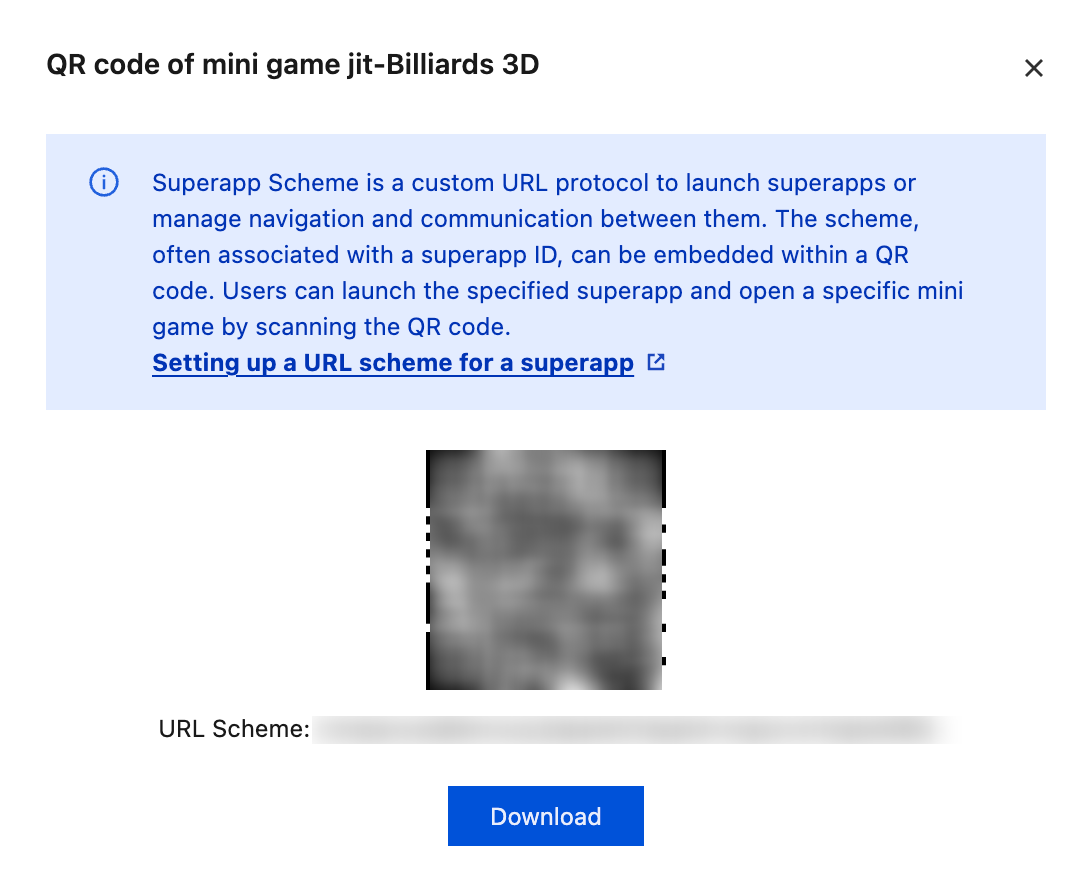
Click "Download QR code", and click "Download" in the pop-up to save the mini program QR code to your computer.
Note:
You can use your phone's built-in QR code scanner to scan the code. Superapp developers need to configure the Scheme in the project during the development phase.
For configuring the superapp scheme, refer to the documentation below:
Disable ad feature
For released mini programs or mini games that have integrated the ad feature, if superapp detects abnormal advertising data such as malicious ad clicks that harm the user experience, the superapp admin or approvers can disable the ad feature.
Auto-approval configuration
Feature overview
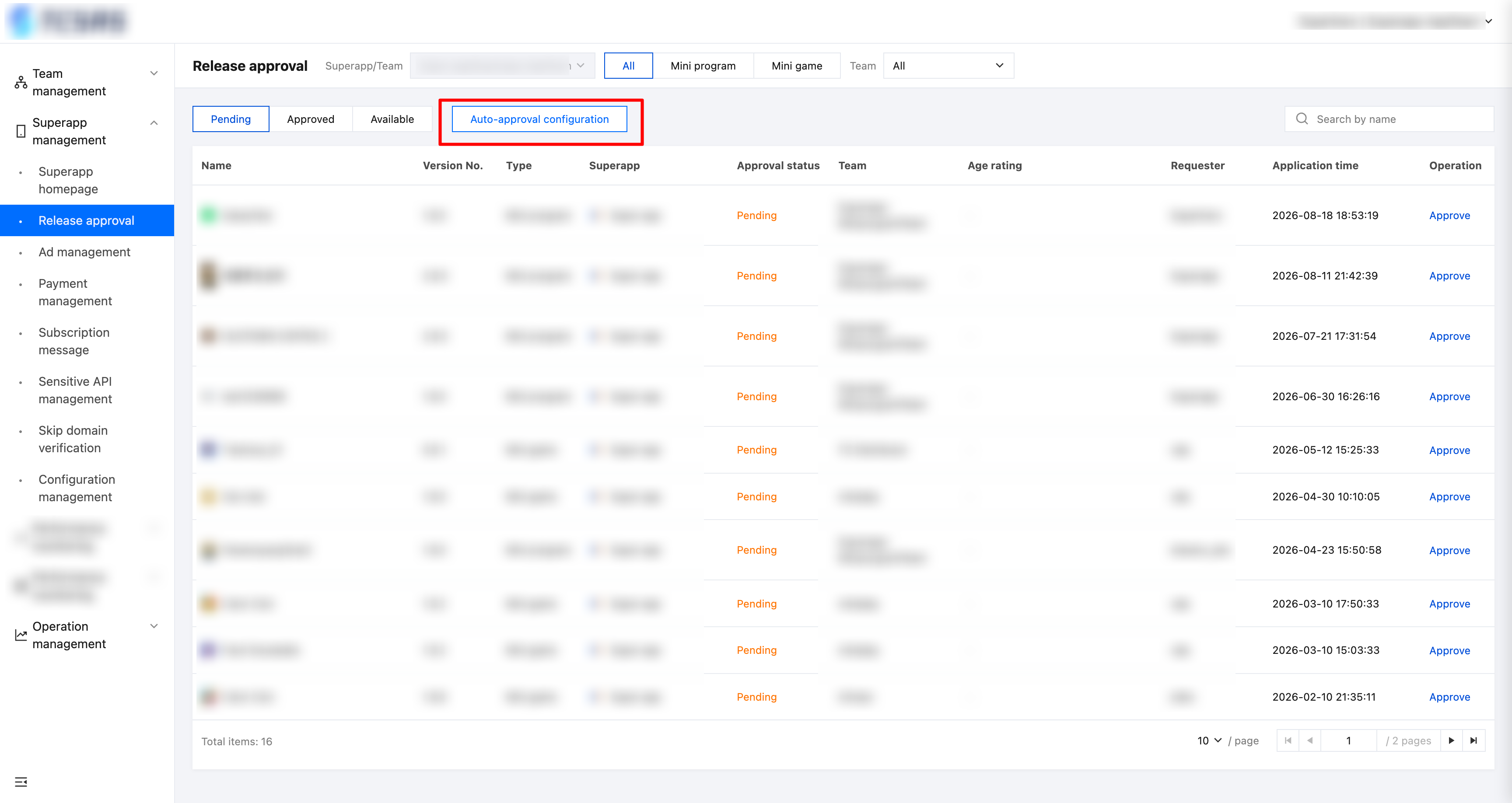
Superapp admins can grant auto-approval status to mini program teams bound to the superapp. Once configured, all release requests for mini programs or mini games from these teams will be approved automatically, bypassing manual approval. Each superapp maintains its own independent list of auto-approved teams.
Feature entry
Go to Superapp management > Release approval, click"Auto-approval configuration".
Directions
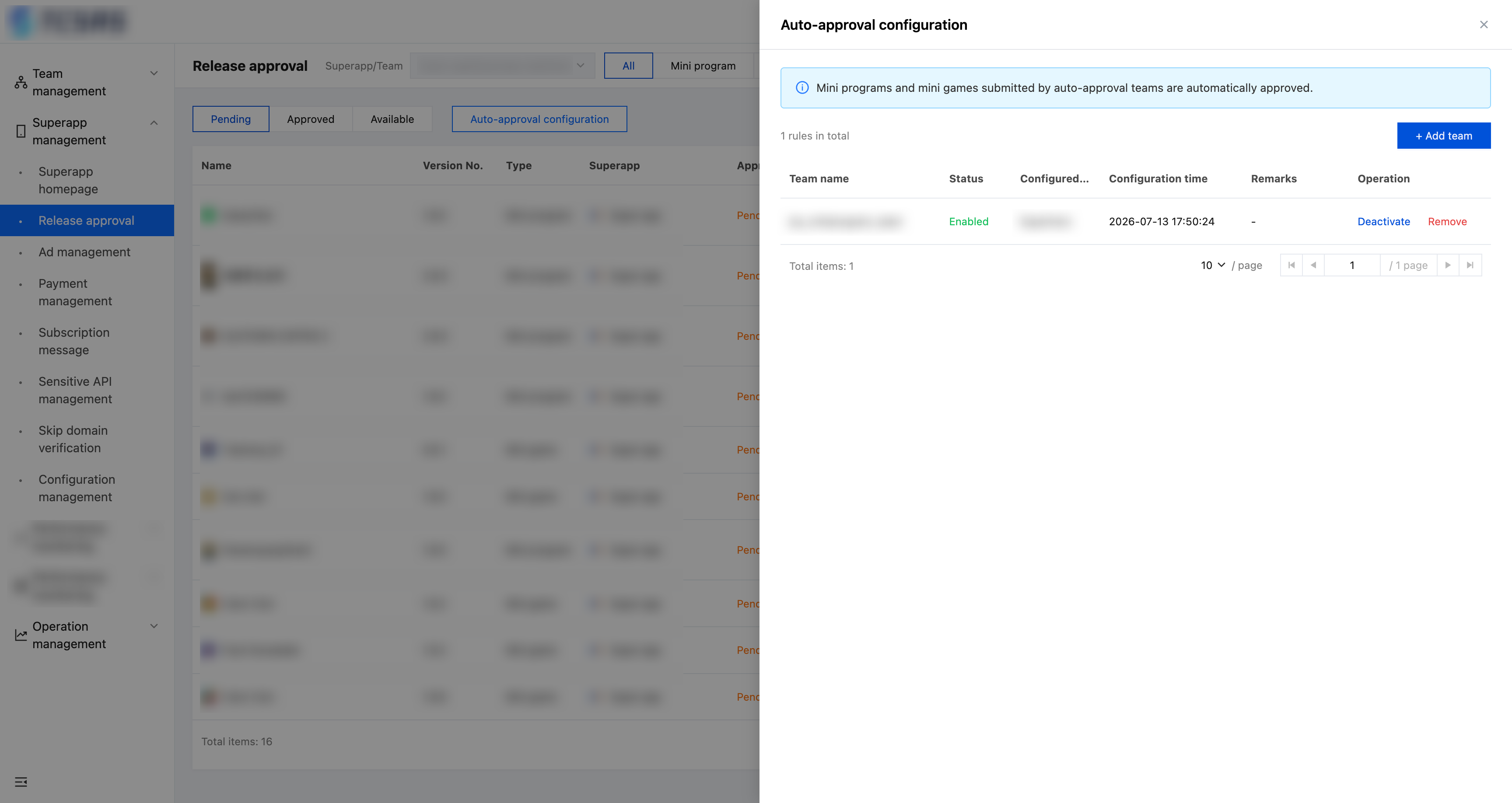
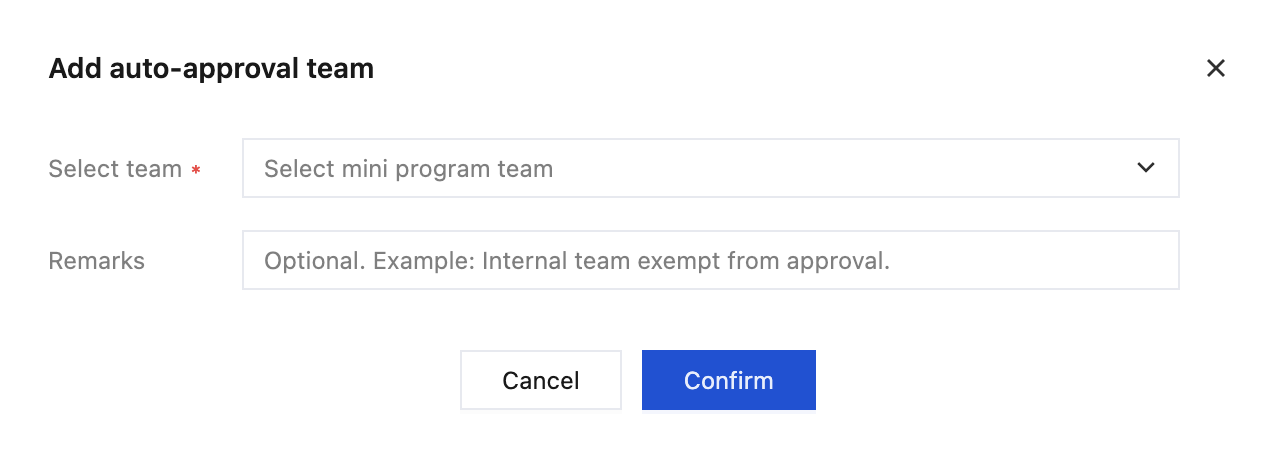
Add a team
Click "+ Add team." Select a team from the drop-down list, enter a remark (optional, up to 255 characters), and click "Confirm."
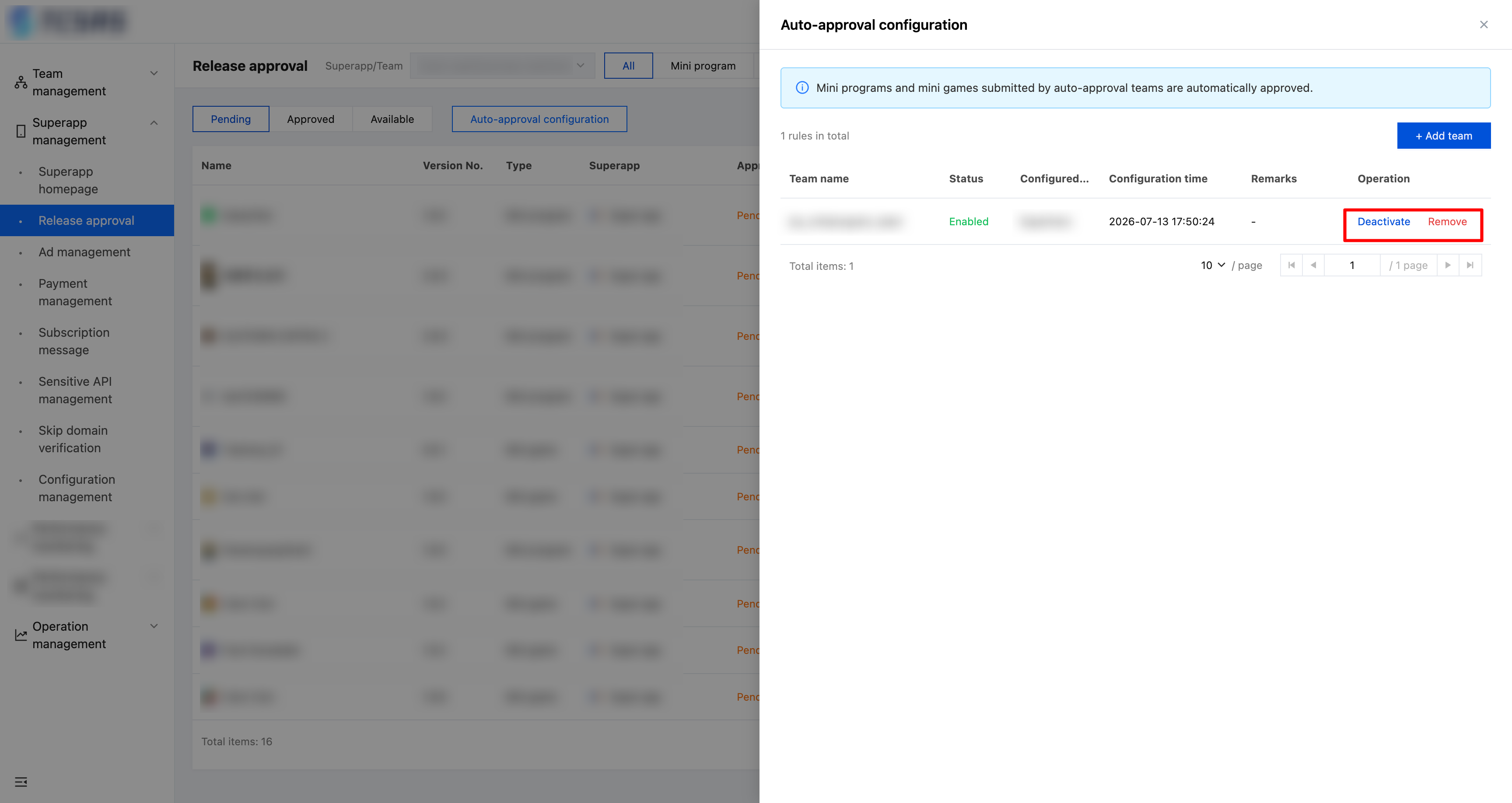
Enable/deactivate/remove
In the "Operation" column, click "Deactivate" or "Enable." For deactivated teams, you can click "Remove." A secondary confirmation is required for removal. If MFA is enabled, you must pass the MFA verification to complete the removal.
Field description
Field | Description |
Team name | Mini program team name. |
Status | Enabled (Green) / Deactivated (Gray). |
Configured by | The account of the user who created the configuration. |
Configuration time | The time when the configuration was created. |
Remarks | Optional. Long text is truncated and can be viewed via tooltip. |
Operation | Enable/deactivate/remove |
Help and Support
Was this page helpful?
You can also Contact sales or Submit a Ticket for help.
Help us improve! Rate your documentation experience in 5 mins.
Feedback