Lightweight Image - Tutorial for Cloud Rendering Scenarios
Download
Focus Mode
Font Size
Image Definition and Acquisition
Lightweight Avatar: This term specifically refers to an avatar rendered using the CPU in cloud rendering scenarios, distinguishing it from GPU rendering modes, hence the name "lightweight". For its detailed definition and custom generation, see: 2D End Avatar Customization and Download Process.
List of SKUs Required for the Scenario
SKU List | Required or Not | Quantity | Diagram |
Custom Quota (Avatar Exclusive, Avatar Generic, choose one of the two options) | Required | 1 | 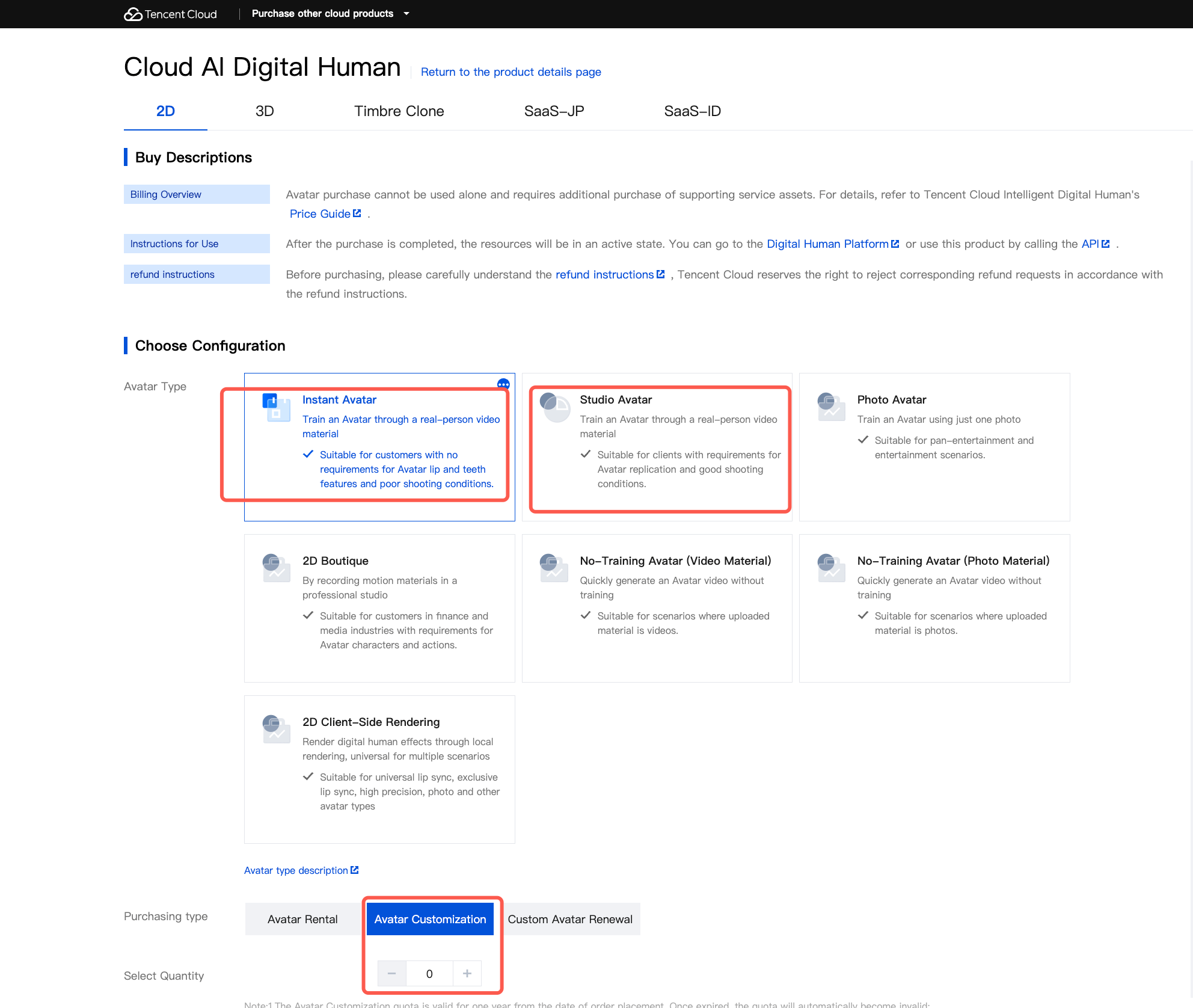 |
Lightweight Cloud Service Hourly Package | Required | 1 | 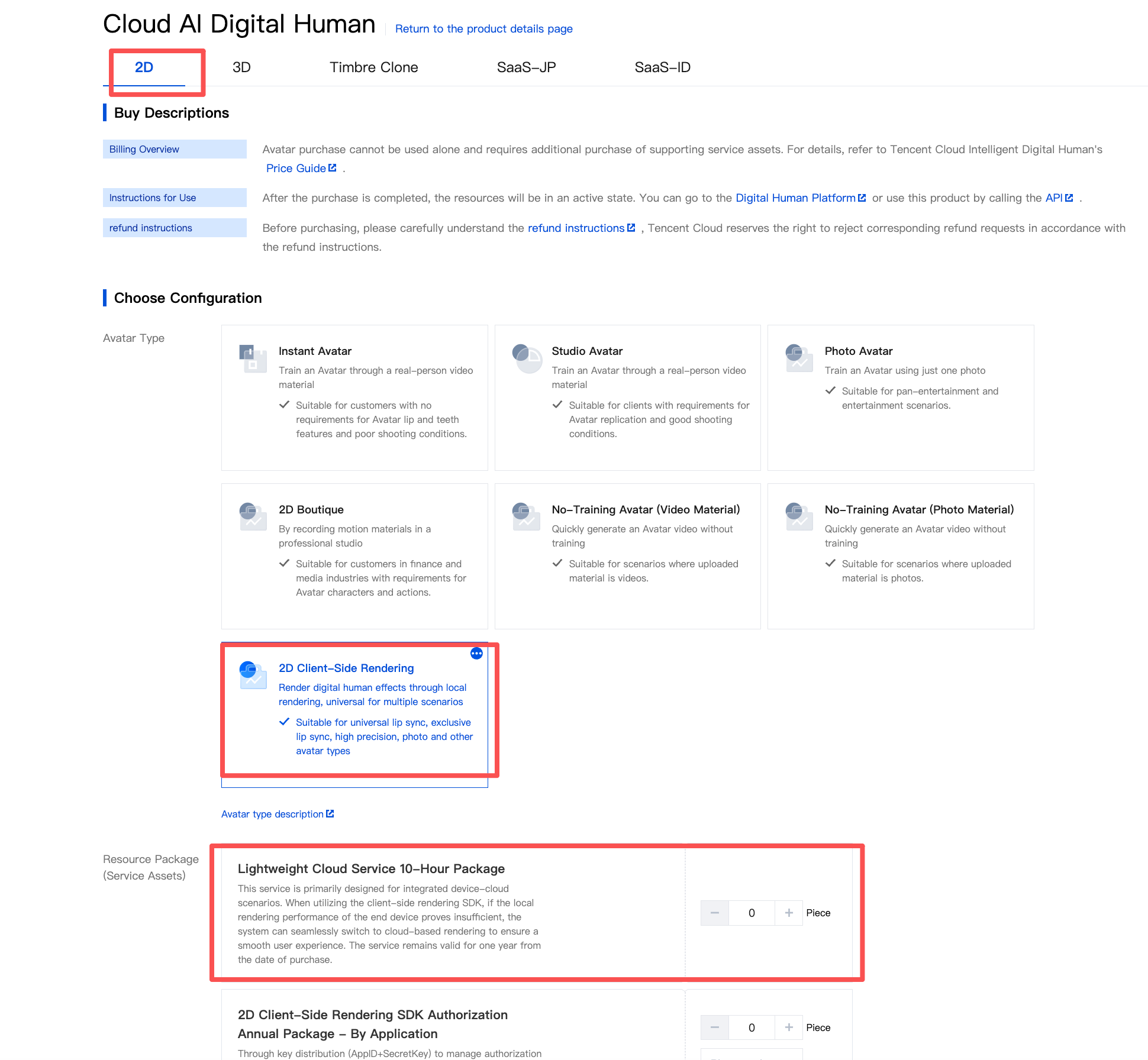 |
Custom Avatar Renewal Service (Monthly or Yearly) | Optional | 1 | 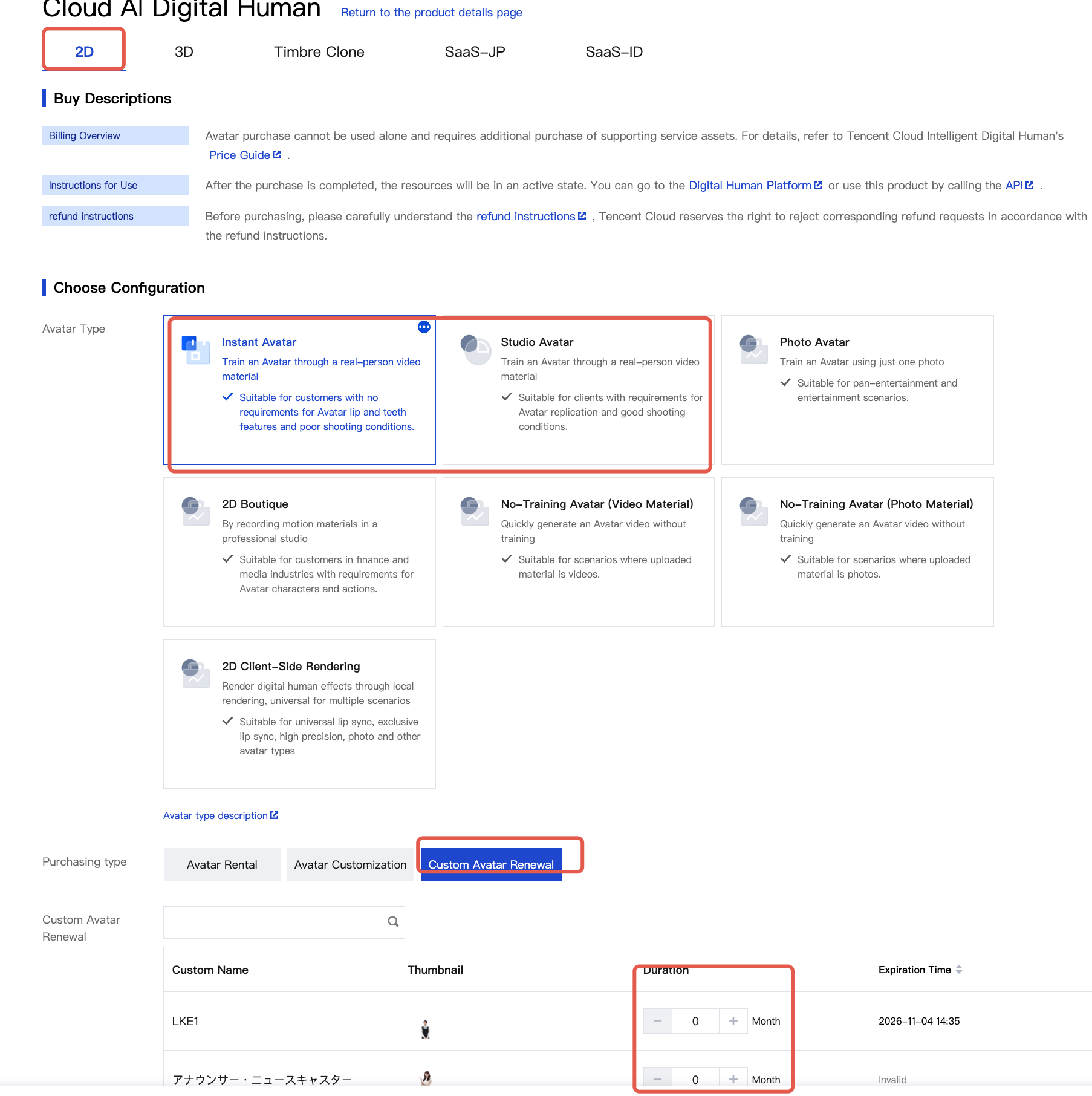 |
API Call Solution
Notes:
The invocation process is the same as before and consists of two steps: Step 1, stream creation, and Step 2, audio-driven.
Step 1: Stream Creation - Outputting a Real-Time Stream (RTMP, TRTC, WebRTC)
1. Complete the stream creation by referring to Stream Creation Using Personal Asset Avatars. Note: Once stream creation succeeds, consumption will continue. When idle, be sure to promptly call the Close Session API to terminate the stream.
2. Refer to Querying Session Status to check whether the session has been created successfully.
3. After the session is created, refer to Enabling a Session to open the stream's session state. Once this is done, you can drive the digital human via the driver API.
Step 2: Parsing and Playing Video Streams
1. If you select RTMP, you can use third-party players that support the RTMP streaming protocol, such as VLC, for playback. The stream URL is generated from the result of the first step, stream creation.
2. If you select WebRTC, you can use the WebRTC Player SDK for playback. The stream URL is generated from the result of the first step, stream creation.
3. When you select TRTC, you need to integrate the TRTC SDK to parse the video. Parse the field information according to the format in the figure below and pass it to the TRTC SDK. Then, run the TRTC SDK as required to play the video.
Notes:
In the TRTC protocol scenario, if the avatar supports a transparent background, you can achieve the effect in two steps:
1. In the TRTC SDK, change the configuration from `trtc = TRTC.create();` to `trtc = TRTC.create({ enableSEI: true });`.
2. During the first step, stream creation, add the AlphaChannelEnable parameter and set the AlphaChannelEnable parameter to True.
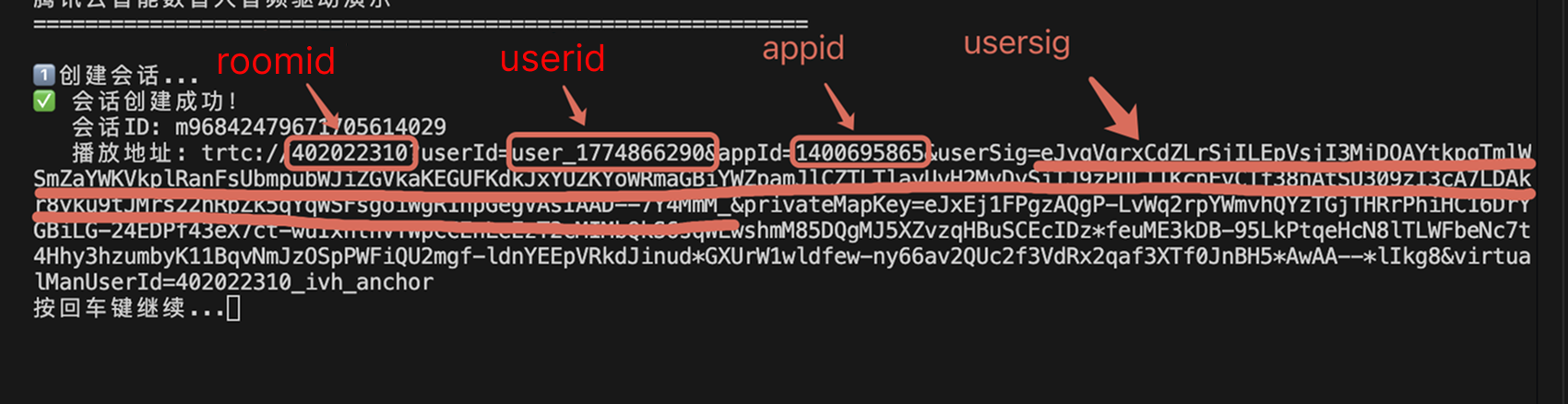
Step 3: Audio-Driven
Notes:
The current lightweight avatar only supports audio-driven. If you need text-driven, you can refer to the End-Rendering Driver API and add a text-to-audio feature in the pre-processing stage of audio-driven.
1. Establish a driver persistent connection channel by referring to Creating a Long Connection Channel.
2. Initiate a driver request by referring to Audio-Driven Instructions.
3. This is an optional integration. You can refer to Heartbeat Instructions to ensure that the persistent connection does not time out and disconnect.
4. This is an optional integration. Perform various business information processing based on the parameter information in the Persistent Connection Downstream Message.
Step 4: Closing a Session
If the video stream is not disconnected, consumption will continue. In business scenarios, if the video stream is no longer needed, promptly call the Close Session API to terminate the stream and close the conversation. By default, if there is no conversation for 10 minutes, it will be closed automatically.
If you are unsure about the number of current streams or have forgotten the sessionid of a stream, you can query it by calling any one of the three APIs for retrieving the session list.
Query Session API 1: Retrieve the session list under a uin
Query Session API 2: Retrieve the session list under the Digital Human project
Query Session API 3: Retrieve the session list under the personal asset avatar
Step 5: Continuous Keep-Alive (Optional)
The video stream will be automatically disconnected by default if there is no driver conversation for 10 minutes. To keep the video stream active for a long time, you need to call the heartbeat instruction.
Best Practices Demo
For details, see: Interactive Digital Human Practice Tutorial (Cloud Rendering)
Notes:
This Demo supports both GPU-based and CPU-based avatars. Since the CPU-based avatar (lightweight version) only supports audio-driven, when you use this Demo to import a lightweight avatar and initiate an interactive session, you can only use audio-driven, and text-driven is not available.
Help and Support
Was this page helpful?
You can also Contact sales or Submit a Ticket for help.
Help us improve! Rate your documentation experience in 5 mins.
Feedback