This document describes the processes and ports feature and how to view the process and port lists.
Viewing the Process Module
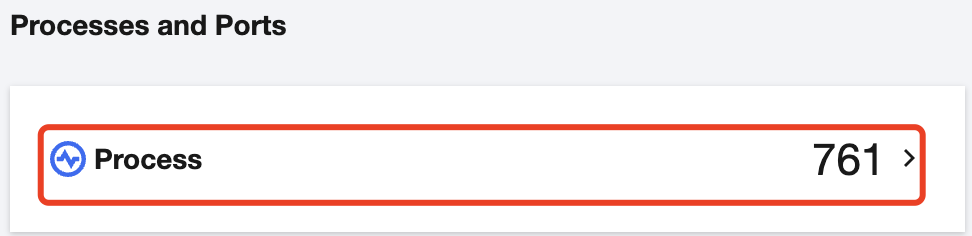
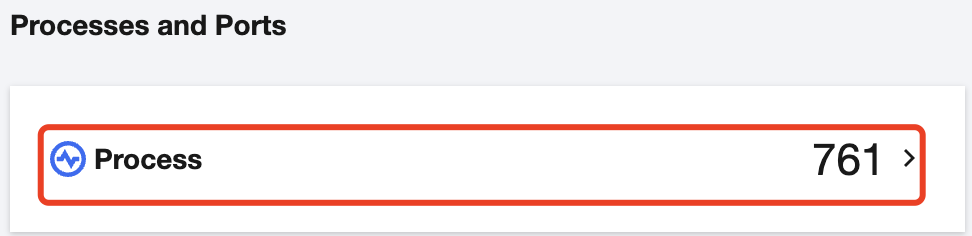
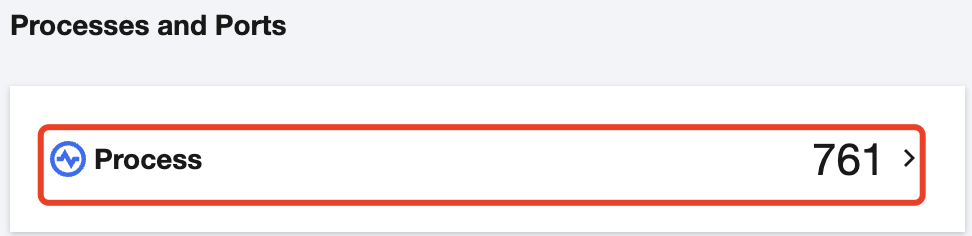
The process module displays the total number of processes.
Filtering processes
1. Log in to the TCSS console and click Asset Management on the left sidebar.
2. On the Asset Management page, click Processes to enter the process list page.
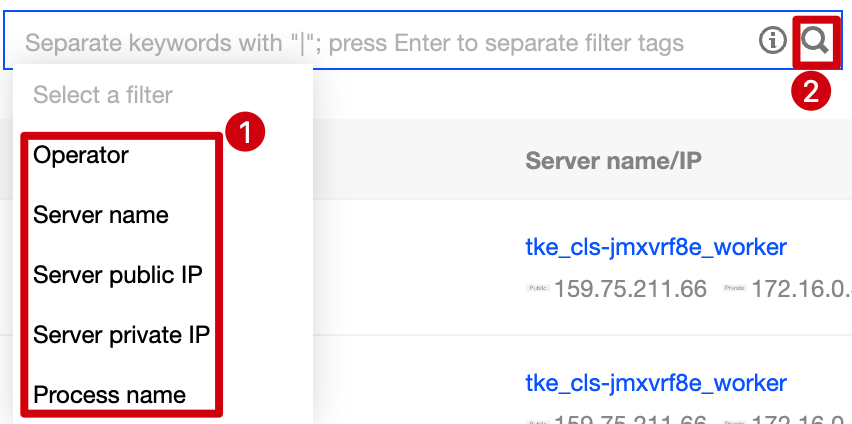
3. On the process list page, click the search box and search for processes by keyword such as initiator, server name, and process name.
Viewing the list of containers
1. Log in to the TCSS console and click Asset Management on the left sidebar.
2. On the Asset Management page, click Processes to enter the process list page.
3. On the process list page, click a Server IP to pop up the drawer on the right, which displays the server details, including the basic server information, Docker information, and the numbers of images and containers.
Note:
In the drawer, click the number to view the numbers of images and containers on the server.
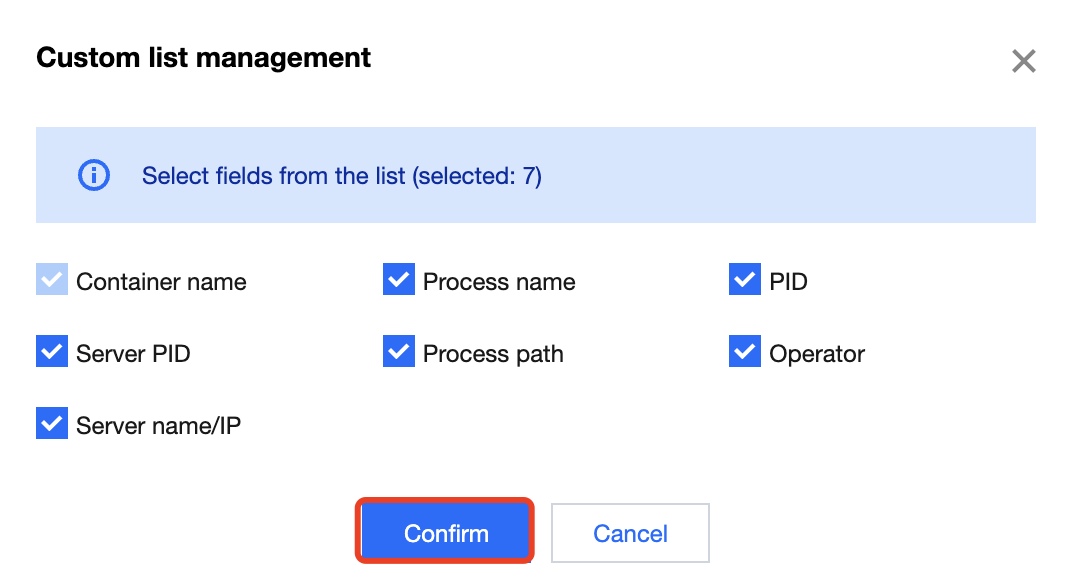
Custom list management
1. Log in to the TCSS console and click Asset Management on the left sidebar.
2. On the Asset Management page, click Processes to enter the process list page.
3. On the process list page, click
to pop up the Custom List Management window.
4. In the pop-up window, select the target type and click OK.
Viewing the Port Module
The port module displays the total number of ports.
Filtering ports
1. Log in to the TCSS console and click Asset Management on the left sidebar.
2. On the Asset Management page, click Ports to enter the port list page.
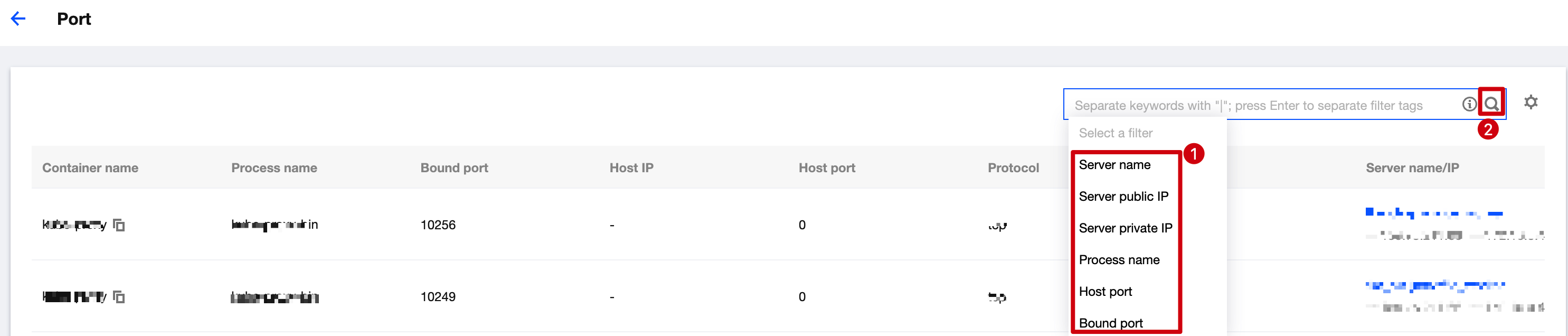
3. On the port list page, click the search box and search for ports by keyword such as server IP, process name, or host port.
Viewing the list of ports
1. Log in to the TCSS console and click Asset Management on the left sidebar.
2. On the Asset Management page, click Ports to enter the port list page.
3. On the port list page, click a Server IP to pop up the drawer on the right, which displays the server details, including the basic server information, Docker information, and the numbers of images and containers.
Note:
In the drawer, click the number to view the numbers of images and containers on the server.
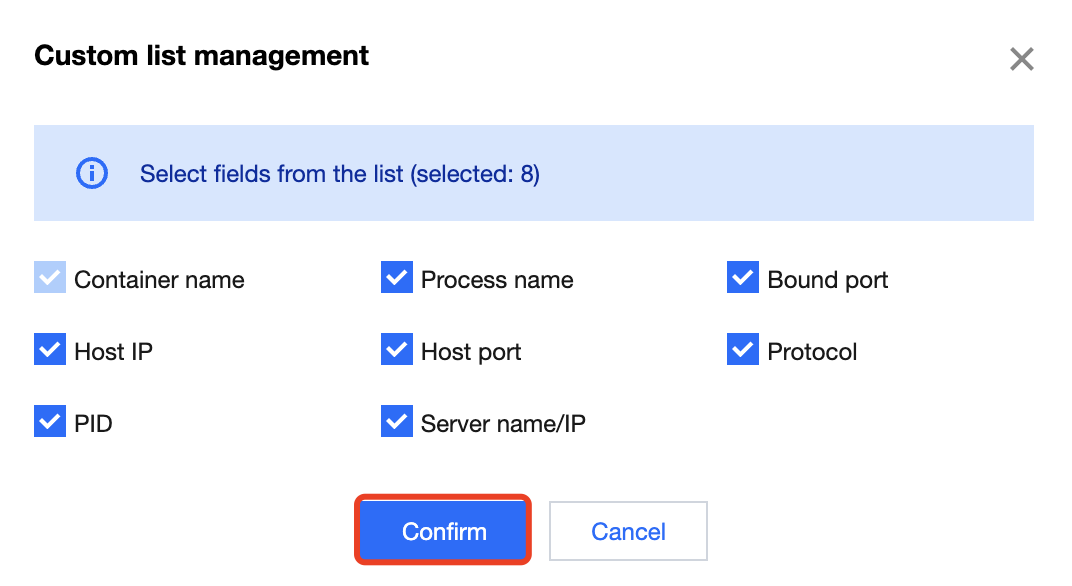
Custom list management
1. Log in to the TCSS console and click Asset Management on the left sidebar.
2. On the Asset Management page, click Ports to enter the port list page.
3. On the port list page, click
to pop up the Custom List Management window.
4. In the pop-up window, select the target type and click OK.