Real-time Image Processing supports one-click enabling of rich adaptive Image Processing features, such as automatic image quality slimming, adaptive format compression, and automatic image straightening. It also supports specifying resizing dimensions and format conversion via parameter suffixes. By having EdgeOne edge servers directly process, cache, and respond to images, your origin servers only need to store the original images, thereby reducing image management costs. EdgeOne edge servers compress images without compromising visual perception to improve page loading speed and optimize image acceleration performance, enhancing user experience while maintaining image quality.
Use Cases
The following table lists common use cases for Image Processing. These use cases are numerous and are not limited to the scenarios listed below.
Applicable Scenarios
Description
E-commerce platform
Image Processing with multiple styles meets the requirements of multi-terminal image display scenarios, making image editing more efficient and convenient.
You can compress product images, image reviews, and similar content by reducing image quality to save bandwidth.
Social software
The requirements for standard Image Processing of social images are met through a simple and flexible image editing approach.
It supports automatic image rotation and straightening to enhance the display of image content in UGC scenarios.
Online Education
A simple and flexible image editing approach meets the requirements for standard Image Processing, such as for online education courseware images.
You can use different compression features based on your scenario requirements to balance compression benefits with visual experience.
Billing Overview
Real-time Image Processing is currently free to use during the public beta. After the public beta ends, you will be billed based on the number of requests to the Real-time Image Processing service. For detailed pricing, see MPS Fees (Postpaid).
Note:
The product is currently in the public beta (Beta) stage. Some features are still being iteratively optimized, and no SLA guarantee is provided yet. For critical business systems or large-scale commercial applications, we recommend that you thoroughly test whether the relevant capabilities meet your expectations.
Supported Image Processing Capabilities
Note:
Enabling the image slimming optimization, intelligent format compression, and automatic rotation and straightening features with one click may cause the hit rate to drop temporarily. Therefore, we do not recommend enabling these features during peak business hours.
When both image slimming optimization and intelligent format compression are enabled, the system first performs intelligent format compression (converting images to an adapted format) and then performs slimming optimization based on the configured parameters.
Image Optimization
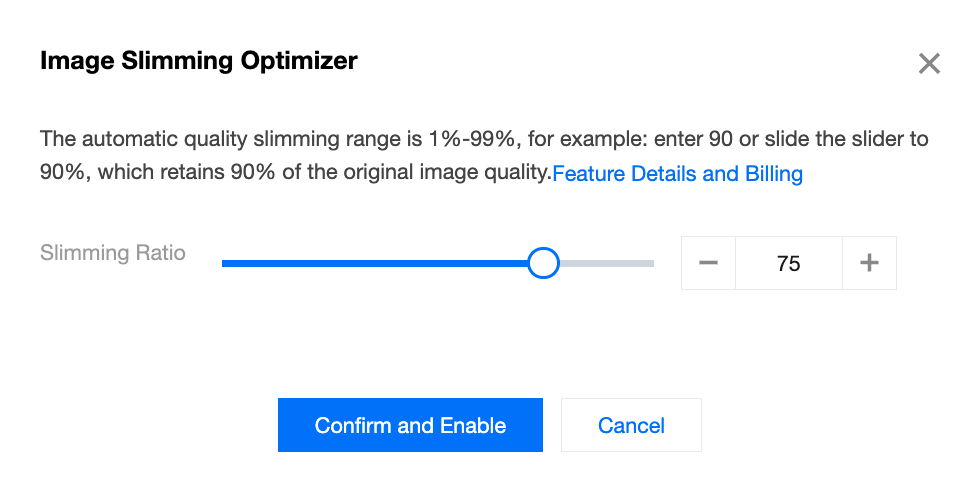
This feature is suitable for most image distribution optimization scenarios. It automatically compresses image file sizes upon access without altering the image resolution, dimensions, or format. This effectively improves image loading speed, has minimal impact on visual quality, and reduces distribution costs. You can enable it with one click, without needing to modify business URL parameters. The automatic quality range is 1%-99%, with a default value of 75, which means 75% of the original image quality is retained.
Usage
1. Log in to the EdgeOne console. In the left-side menu bar, go to Service Overview and click the site that you need to configure within Website SCDN.
2. On the site details page, click Multimedia Service > Image Processing to go to the Image Processing page.
3. Click Edit to modify the percentage for quality slimming. If you do not modify it, the feature compresses images using the default value of 75% after it is enabled.
4. Click the switch for Image Slimming Optimization to start using it.
Intelligent Format Compression
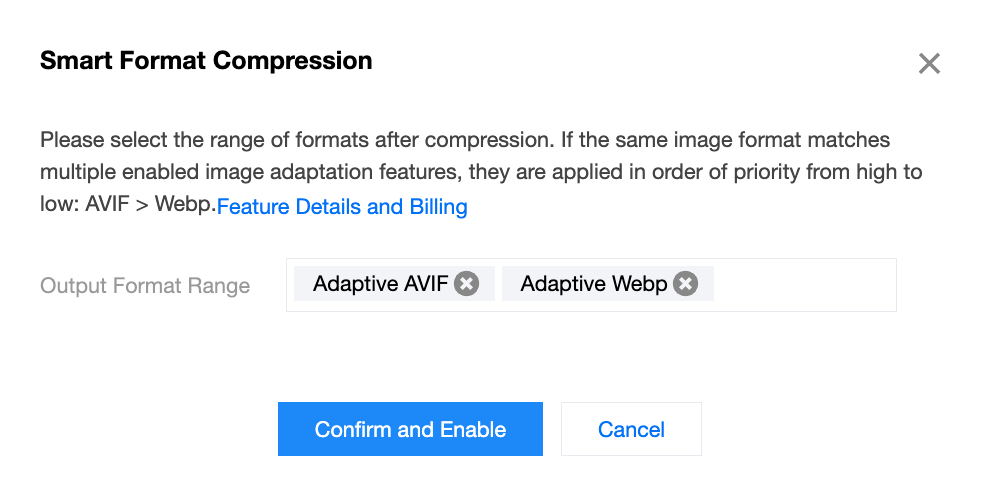
The advanced image size compression feature automatically converts images to Webp or AVIF format based on your configuration after it is enabled. This significantly improves image loading speed and greatly reduces distribution costs. You can enable it with one click, without needing to modify business URL parameters. If the same image format is matched by multiple enabled image adaptive features, the features take effect in the order of priority from highest to lowest: AVIF > Webp. Different compression features have different compatibility with existing image formats and browser environments. For details, see the following table:
Function
Browsers and Systems Supported for Preview
Compatibility
Compression Performance
Supported Formats
AVIF Compression
Supports most browsers, including Firefox, Chrome, and Android.
Supports iOS 16 and above and Android 12 and above.
Supports WeChat Mini Programs.
Strong
Extremely strong
Applies to files in jpg, jpeg, bmp, gif, png, and webp formats.
WebP Compression
Supports almost all mainstream browsers.
Supports iOS 14 and above and Android 4.0 and above.
Supports WeChat Mini Programs.
Extremely strong
Medium
Usage
1. Log in to the EdgeOne console. In the left-side menu bar, go to Service Overview and click the site that you need to configure within Website SCDN.
2. On the site details page, click Multimedia Service > Image Processing to go to the Image Processing page.
3. Click Edit to modify the output format range for format compression. The default values are AVIF and WebP formats.
4. Click the switch for Intelligent Format Compression to start using it.
Automatic Rotation Adjustment
This feature is suitable for UGC scenarios such as community forums and e-commerce platforms, where images uploaded by users may contain rotation parameters. After you enable the automatic rotation feature, EdgeOne Image Service parses the rotation information in the EXIF metadata and automatically adjusts the image orientation without requiring changes to business URL parameters. This ensures correct display and facilitates viewing by end users.
Usage
1. Log in to the EdgeOne console. In the left-side menu bar, go to Service Overview and click the site that you need to configure within Website SCDN.
2. On the site details page, click Multimedia Service > Image Processing to go to the Image Processing page.
3. Click the switch for Automatic Rotation Adjustment to start using it.
Processing with Specified Parameters
This feature is suitable for scenarios that require specifying image scaling dimensions and format conversion. It supports quickly processing specified scaling dimensions and formats by appending parameter suffixes to the business URL. The supported parameters are as follows:
Resizing
Capability
Parameter Name
Parameter Value (type/pixel)
Description
Image resizing
eo-img.resize
w/<Width>, for example: w/100
Specify width, auto-adjust height
h/<Height>, for example: h/100
Specify height, auto-adjust width
w/<Width>/h/<Height>, for example: w/100/h/100
Specify width and height
l/<Long>, for example: l/100
Specify long side, auto-adjust short side
s/<Short>, for example: s/100
Specify short side, auto-adjust long side
Format Conversion
This feature supports converting the original image to a specified format by carrying specific parameters.
Static: jpg, png, bmp, jp2, jxr (the first frame of a gif animation is taken as a single static image).
Dynamic: gif, webp, avif, heif
Usage
If you need to implement image scaling by adding relevant parameters to the client request URL, you can refer to the following steps:
1. Log in to the EdgeOne console. In the left-side menu bar, go to Service Overview and click the site that you need to configure within Website SCDN.
2. On the site details page, click Multimedia Service > Image Processing to go to the Image Processing page.
3. Click the switch for Specified Parameter Processing to start using it.
4. After you enable this feature, you only need to append eo-img-related parameters to the client request URL to convey image scaling requirements. EdgeOne then automatically performs Image Processing based on the Image Processing parameters within the client request URL. For example: https://www.example.com/foo.png?eo-img.resize=w/100.
Image Processing Examples
The original image to be processed is 500*280 and 500 KB. The processing example is as follows:
1. Specify a width of 200px, with the height set to auto.
The size of the original image to be processed must not exceed 32 MB.
The width and height of the input original image must not exceed 30,000 pixels, and the total number of pixels must not exceed 250 million. For animated images, the product of the original image's width, height, and the number of frames must not exceed 250 million pixels.
The number of frames in an input gif animation must not exceed 300.
The width and height of the output image must not exceed 9,999 pixels.
Note:
Under any of the following conditions, Image Processing may fail and return the original image:
1. If any parameter of the original image or the resulting image exceeds the above limits, Image Processing will fail, and only the original image will be returned.
2. When incorrect request parameters are provided, the image will not be processed and the original image will be returned directly. Examples include the following scenarios:
Providing duplicate parameters, such as eo-img.resize=w/100&eo-img.resize=w/200, will be treated as an invalid request.
Misspelling: Any parameter with a formatting error or a spelling mistake, such as eo-img.resize=w=100, will be treated as an invalid request.
Resizing parameter error: The parameters w/ (width) and h/ (height) must not be mixed with s/ (short side) and l/ (long side). For example, w/300/s/200 is an invalid request, and the image will remain unchanged.
3. If the Image Processing feature for specific parameters is disabled in the console, all eo-img-related parameters are treated as ordinary query strings and will not trigger Image Processing.
4. If other abnormal conditions prevent Image Processing, we will return the original image first. In subsequent requests, we will automatically attempt to reprocess the image.