Upgrading Kernel Minor Version
다운로드
포커스 모드
폰트 크기
TDSQL-C for MySQL will release new database kernel minor versions on an ongoing basis. Upgrading to these minor versions can bring improvements to your database instances, including performance enhancements, security upgrades, new feature support, compatibility improvements, and bug fixes. This document describes the procedures and instructions for upgrading the database kernel minor version via the console.
Note:
Scenarios
You can manually upgrade the database kernel minor version via the console when a new version is released or when the current version for your cluster is outdated and needs to be upgraded.
Note:
When an operation that triggers cluster migration occurs (such as a database version upgrade), the system will not proactively upgrade your cluster to the latest kernel minor version. If you need to upgrade, you can do so manually.
Warning:
If a bug occurs in the backend program or if the system identifies a security vulnerability, the system will send upgrade notifications via internal messages, SMS, and other means. TDSQL-C for MySQL will perform system upgrades and fixes at a scheduled time. However, this automatic upgrade is only a system-assisted method and does not guarantee that all instances can be immediately upgraded to the latest kernel minor version. You can check the kernel minor version status on the cluster management page and manually upgrade the kernel minor version in a timely manner to avoid potential risks that may exist in older kernel minor versions. If you have not completed the upgrade within 6 months after being notified of an urgent service upgrade/version upgrade due to your own reasons, you will be responsible for any resulting losses and consequences, such as service interruptions or data loss. For details, see the TDSQL-C for MySQL Service Level Agreement.
Upgrade Rules
To ensure data replication consistency, the associated instances (read-write instances and read-only instances) in the cluster whose database kernel minor version is to be upgraded will be upgraded together.
Upgrade Method Description
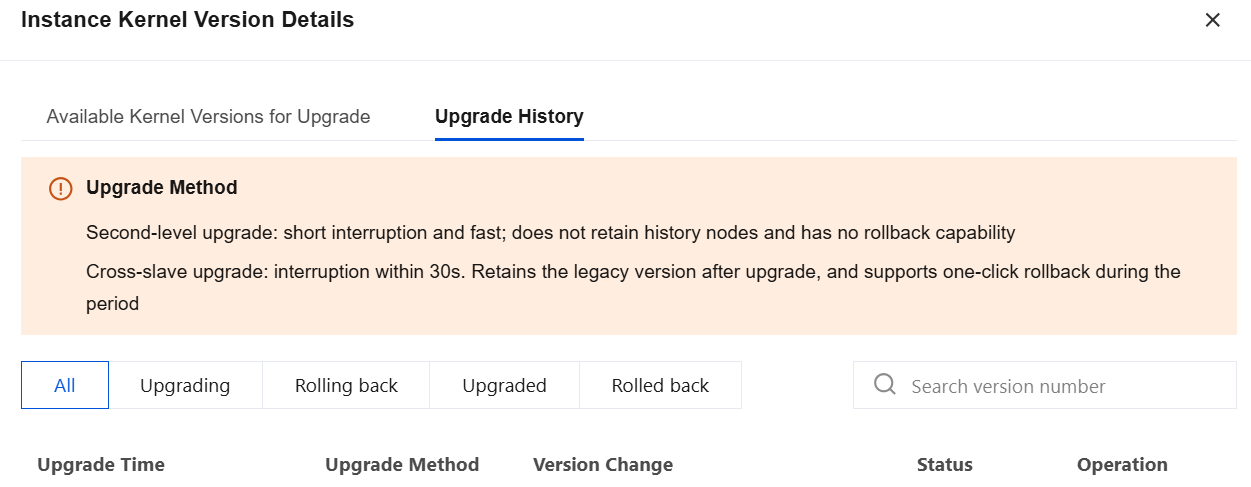
The kernel minor version upgrade feature has been optimized. The upgrade method has been updated from supporting only "second-level upgrade" to supporting both "second-level upgrade" and "cross-slave upgrade". You can choose the desired method in the upgrade configuration dialog based on your business needs. The differences between the two methods are as follows:
Comparison Item | Upgrade in seconds | Upgrade across slaves |
Momentary disconnection duration | Seconds | The switchover causes a momentary disconnection at the millisecond level, and the disconnection lasts less than 30 seconds. |
Retain historical nodes or not | No, no historical nodes retained. | Yes, nodes of the earlier version are retained by default after the upgrade to serve as standby nodes during the rollback window. |
Rollback supported or not | Not supported | Supported. You can roll back with one click within the rollback window. |
Ops operation restrictions | None | Some Ops operations are restricted during the rollback window. For details, see Restrictions on Features During the Rollback Window. |
When the upgrade path involves critical changes (determined automatically by the system), you can only select cross-slave upgrade to ensure rollback capability. For the specific upgrade methods available, refer to the on-screen prompts during the actual minor version upgrade.
Note
A brief second-level disconnection may occur during the database kernel minor version upgrade switchover (for cross-slave upgrades, the switchover disconnection is less than 30 seconds). It is recommended to perform the switchover during the maintenance time or off-peak hours to minimize the impact on your business.
If the number of tables in a single instance exceeds 1 million, the upgrade may fail and database monitoring may also be affected. Please properly manage the number of tables and keep the number of tables per instance below 1 million.
Whether a kernel minor version upgrade supports downgrade depends on the upgrade method: the second-level upgrade method does not support rollback, while the cross-slave upgrade method supports rollback.
During the rollback window of a cross-slave upgrade, the standby node with the older version is retained, and only some cluster features are available. Evaluate your Ops arrangements during this window in advance, or release the standby node with the older version promptly after confirming that rollback is not needed to restore full feature availability.
If you initiate another upgrade (a second upgrade) during the rollback window, you will not be able to access the upgrade entry. You need to first release the standby node with the older version from the first upgrade or wait until the rollback window ends before initiating the second upgrade. A cluster after a successful rollback is equivalent to a regular cluster and can go through the upgrade process again.
You cannot upgrade the kernel minor version of a Serverless cluster in paused status. Resume the cluster to the running state before initiating the upgrade.
Minor Version Number Description
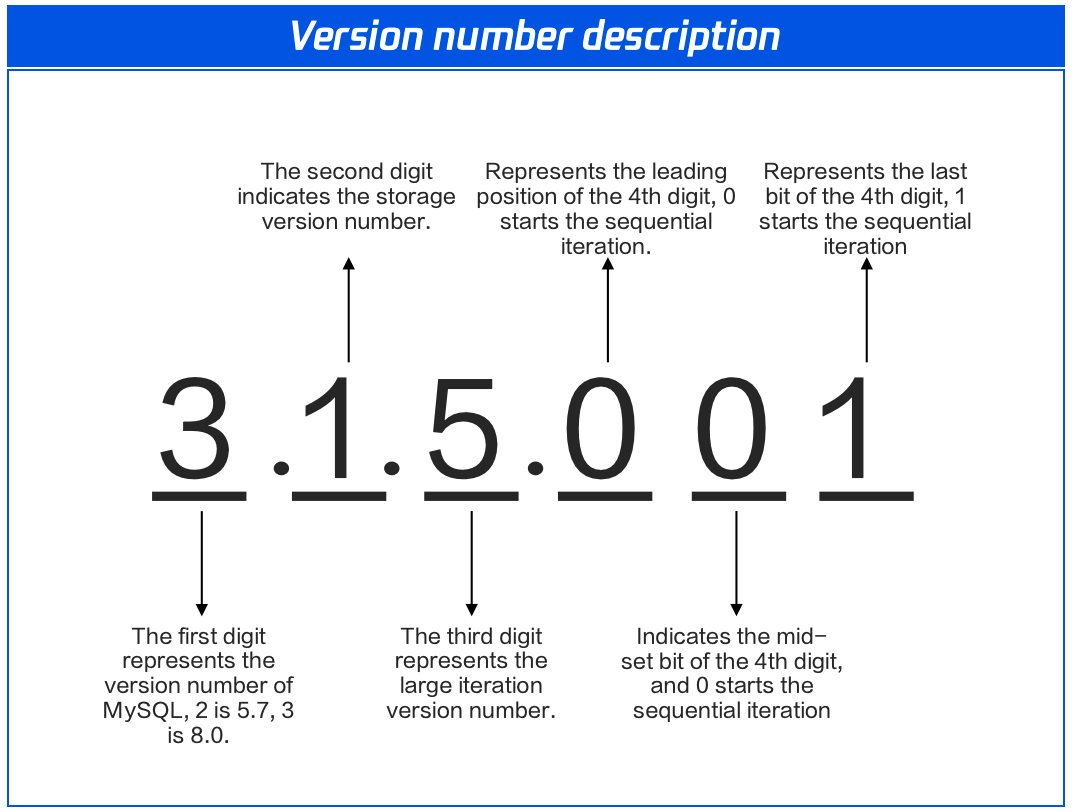
TDSQL-C for MySQL now fully supports a four-digit database kernel minor version number. The version number has been updated from three digits to four, which helps prevent forced upgrades and ensures stable instance operation during version updates. Additionally, within a major version (such as a three-digit major version like 3.1.15), the system can release multiple minor versions with new capabilities, enabling you to better experience the product's new features.
The description of each digit in the four-digit minor version number is shown in the figure below.
TDSQL-C for MySQL provides two options for kernel minor version upgrades. You can select one as needed.
Stable version: version that is stable and has undergone long-time testing, with an update frequency of 3 to 4 months. Currently, all versions with the major version 3.1.16 are stable versions, such as 3.1.16.001, 3.1.16.002, and 3.1.16.003.
New-feature version: version with new features, which is the currently general kernel minor version.
Note: It is recommended that you select the "new-feature version" and maintain periodic upgrades for upgrading the kernel minor version.
Upgrading the Kernel Minor Version
1. Log in to the TDSQL-C for MySQL console.
2. On the cluster list page, perform operations based on the view mode you are using to enter the database kernel minor version upgrade window.
1. Click the target cluster in the cluster list on the left to enter the cluster management page.
2. On the cluster management page, click Details/Upgrade after the database version.

1. In the cluster list, locate the target cluster. Click the cluster ID or Manage in the Operation column to go to the cluster details page.
2. On the cluster details page, click Details/Upgrade after Configuration Info > Database Version.
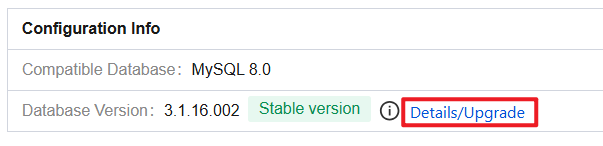
3. In the pop-up sidebar, click Read-Write/Read-Only Instance Upgrade.
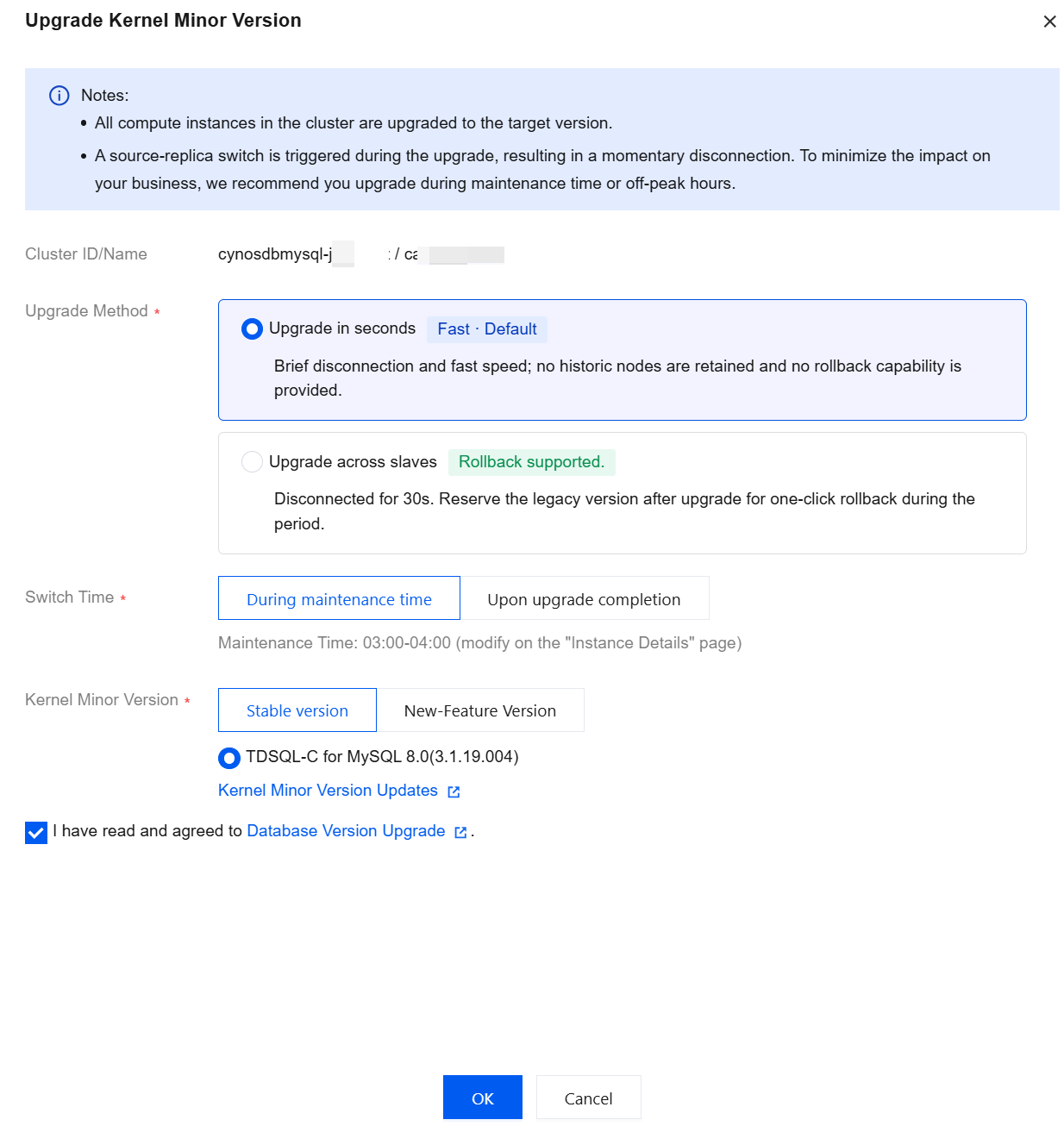
4. In the pop-up window, configure the settings as needed. Select "I have read and agree to the database version upgrade instructions" and click OK.
Parameter | Description |
Upgrade Method | Select a minor version upgrade method. Supported methods: Upgrade in seconds: brief momentary disconnection and fast speed. It does not retain historical nodes and has no rollback capability. Upgrade across slaves: momentary disconnection within 30 seconds. After the upgrade, the previous version is retained, and one-click rollback is supported during the rollback window. |
Rollback window period | A rollback window can be set only when the upgrade method is set to "cross-slave upgrade". Unit: hour. Default value: 24. Value range: 1-24. |
Switch Time | During maintenance time: After the upgrade is completed, the switchover is performed during the instance's maintenance time. To modify the maintenance window, see Set Instance Maintenance Time. Upon upgrade completion: The switchover is triggered immediately after the upgrade is completed. |
Kernel Minor Version | New-Feature Version: This version includes new features and is the general kernel minor version currently used in the production network. Under New-Feature Version, select the required version. Stable version: version that is stable and has undergone long-time testing, with an update frequency of 3 to 4 months. Under Stable version, select the required version. |
5. To check the progress of the upgrade task, you can go to the Task List.
6. When the instance's running status is updated to "Running", the upgrade is completed.
Rollback and Release of slave (Upgrade across slaves)
Roll back Immediately
If your business encounters compatibility or performance issues after a kernel minor version upgrade and you need to roll back to a lower kernel minor version, follow the steps below. Only the cross-slave upgrade method supports the following operations within the rollback window.
Note:
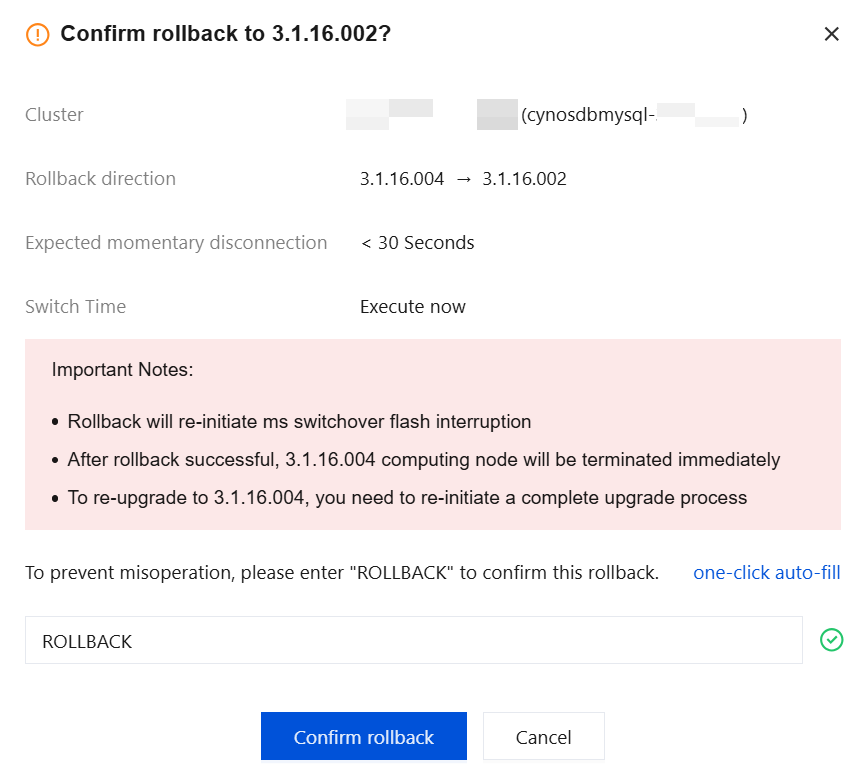
Performing a rollback will trigger another ms switchover, which may cause a momentary disconnection.
After a successful rollback, the compute nodes of the new version will be terminated immediately. After termination, if you need to upgrade to the target new version again, you must initiate the complete upgrade process again.
1. Log in to the TDSQL-C for MySQL console.
2. Click Task List in the left sidebar.
3. In the region selector above the task list, select the region where the target cluster resides. Locate the target cluster in the list and click Roll back Immediately in its operation column.
Note:
You can also go to the target cluster's version rollback dialog box by following this path: Target Cluster Management Page > Details/Upgrade > Upgrade History > Roll back Immediately.

4. In the dialog box, enter ROLLBACK and click Confirm rollback.
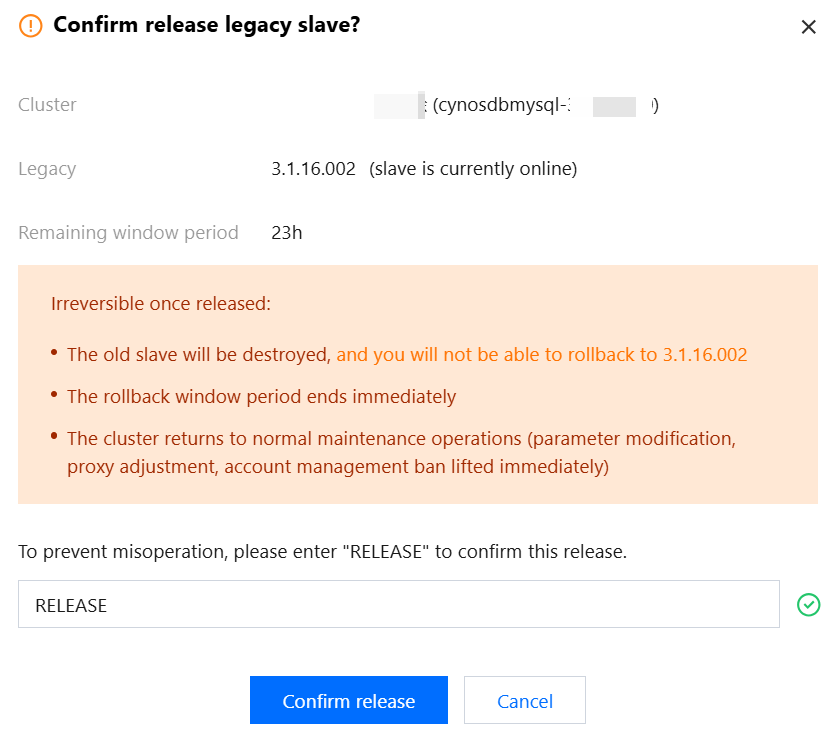
Release the slave immediately
If your business adapts well to the new kernel minor version after the upgrade and you do not need to roll back to a lower version, follow the steps below to end the rollback window early and release the slave immediately to access all features. Only the cross-slave upgrade method supports the following operations within the rollback window.
Note:
After you perform the following operations, the low-version slave will be terminated, and you will no longer be able to roll back to the previous lower version.
After you perform the following operations, the rollback window ends immediately.
After you perform the following operations, the cluster resumes normal Ops operations, and restrictions on parameter modification, proxy adjustment, account management, and other operations are lifted immediately.
1. Log in to the TDSQL-C for MySQL console.
2. Click Task List in the left sidebar.
3. In the region selector above the task list, select the region where the target cluster resides. Locate the target cluster in the list and click Release the slave immediately in its operation column.
Note:
You can also go to the target cluster's version release dialog box by following this path: Target Cluster Management Page > Details/Upgrade > Upgrade History > Release the slave immediately.

4. In the dialog box, enter RELEASE and click Confirm release.
Querying Historical Upgrade Records
You can query the historical upgrade records of the corresponding cluster for kernel minor versions by performing the following operations.
1. Log in to the TDSQL-C for MySQL console.
2. On the cluster list page, perform operations based on the view mode you are using to enter the database kernel minor version upgrade window.
1. Click the target cluster in the cluster list on the left to go to the cluster management page.
2. On the cluster management page, click Details/Upgrade after the database version.
1. In the cluster list, locate the target cluster and click the cluster ID or Manage in the Operation column to go to the cluster details page.
2. On the cluster details page, click Details/Upgrade after Configuration Info > Database Version.
3. In the pop-up sidebar, click Upgrade History.
4. On the Historical Upgrade Records tab, you can query information such as Upgrade Time, Upgrade Method, Version Change, and Status.
Restrictions on Features During the Rollback Window
When the upgrade method is selected as cross-slave upgrade and the cluster is currently in the rollback window period, the system will temporarily restrict some feature operations to ensure cluster stability and data security. The restricted cluster features will automatically become available again after the rollback window period ends, or after you proactively perform an immediate rollback or immediate slave release operation.
You can refer to the following table to understand the unrestricted features in the above scenarios. The actual executable feature operations are subject to the console page display.
Function | Unrestricted Feature |
Billing | Manual storage scale-out |
| Storage overuse |
| Enabling Auto-Renewal |
Elasticity and scalability | Modifying Specifications |
| Cancel specification change task |
Basic feature | Cluster creation |
| Restart |
Account Management | Creating an Account |
| Password modification. |
| Permission modification |
| Modifying a Host |
| Modifying the Number of Connections |
| Modifying Remarks |
| Clone Account |
| Delete Account |
Database management | Database creation |
| Modify the database. |
| Delete a database. |
| Batch database deletion |
| Data import |
Data security | Download CA Certificate |
Database Audit | Enable or Disable Audit Service |
| Modifying Audit Rules |
| Modifying the Audit Service |
| Configure Log Shipping |
| View audit logs. |
| Creating a Rule Template |
| Edit Rule Template |
| Delete Rule Template |
Parameter settings | Save as Template |
| Recent modification records |
| Creating Parameter Templates |
| Modifying a Parameter Template |
| Deleting a Parameter Template |
| Exporting a Parameter Template |
| View parameter template history |
Security Group | Configure Security Group |
| Adjust the Priority of Security Groups |
Operation logs | Query Slow Log Details |
| Query error log details |
| Download logs. |
Backup and rollback | Manual backup |
| Roll back to a new cluster |
| Rollback to the original cluster |
Related APIs
API | Description |
This API (UpgradeClusterVersion) is used to update the kernel minor version. |
피드백