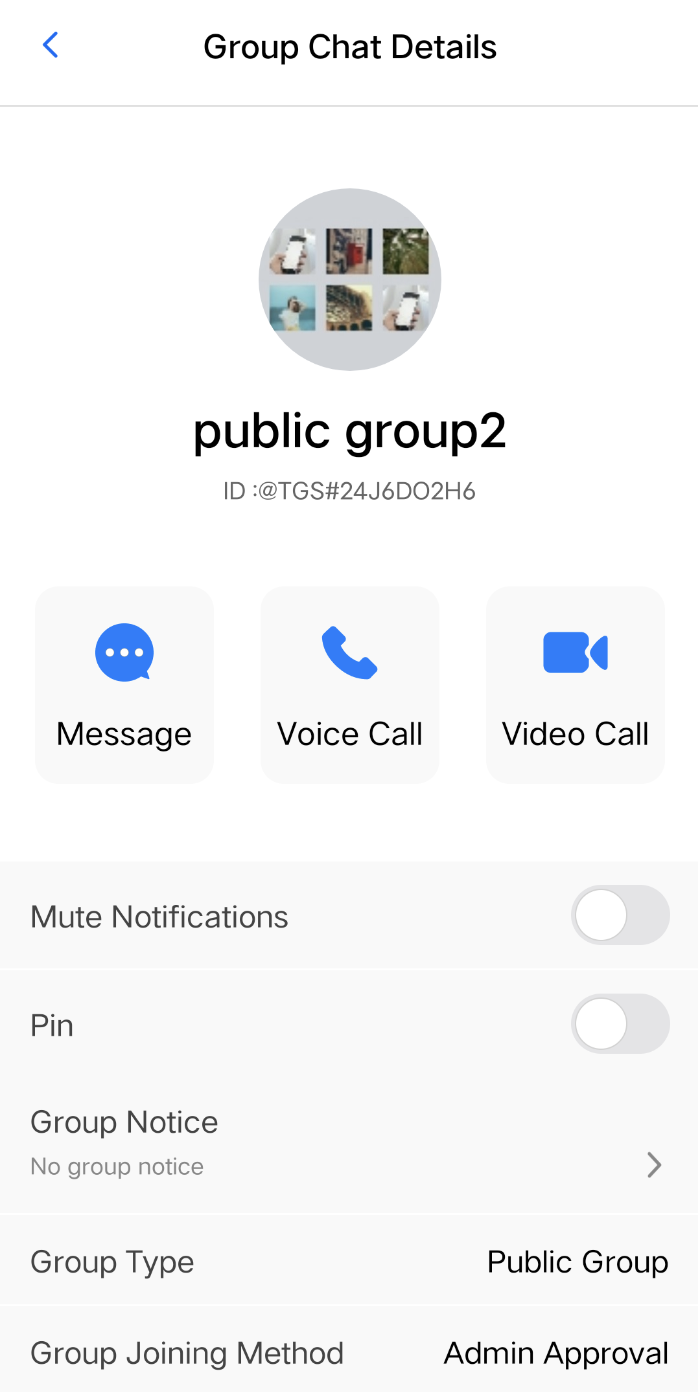
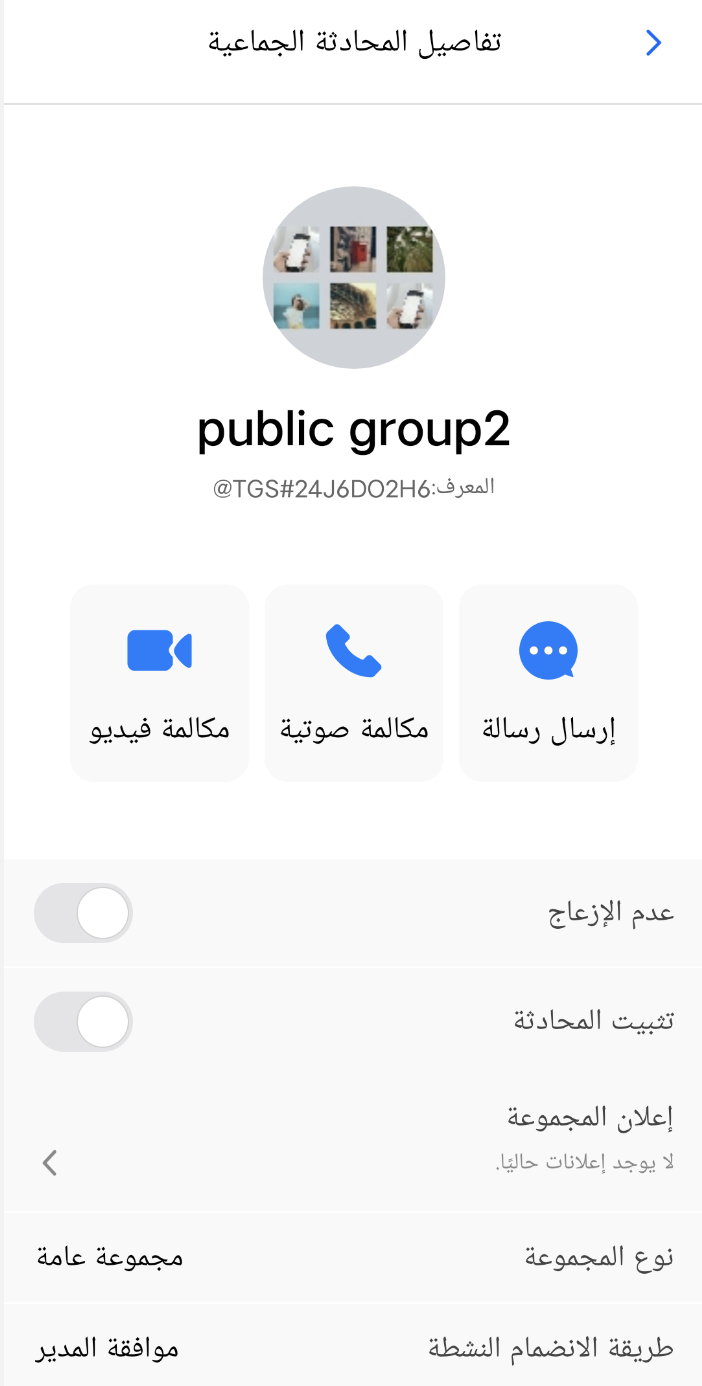
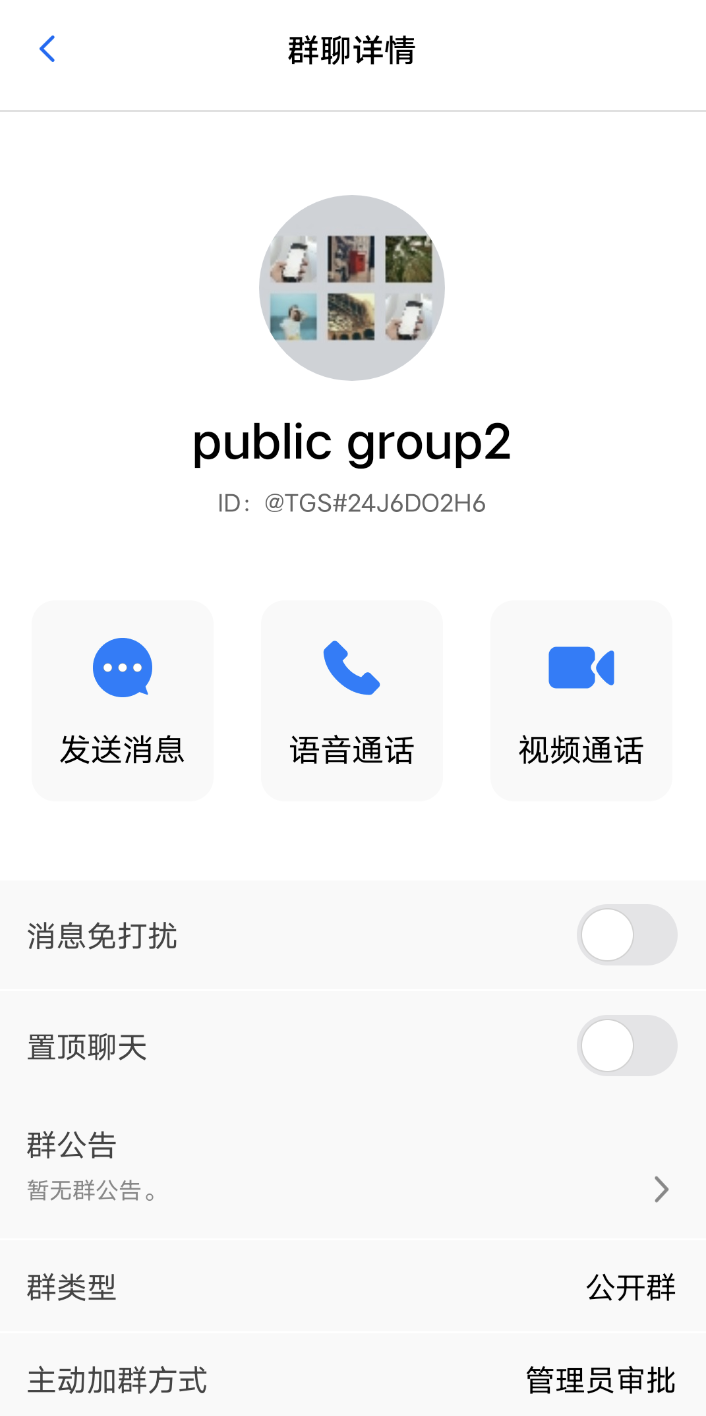
TUIKit Compose includes built-in language packs for English, Simplified Chinese, Traditional Chinese, and Arabic as default interface languages.
You can use these default language packs, customize translation strings, or add additional language packs as needed.
English
Arabic
Simplified Chinese
Using Built-in Languages
If your application only needs to support English, Simplified Chinese, Traditional Chinese, or Arabic, follow the instructions in this section.
Following System Language
By default, TUIKit Compose automatically adapts to the system language without additional configuration. If the system language is not one of the four supported languages, the interface defaults to English.
Setting a Specific Display Language
To manually specify the interface language for TUIKit Compose, use setApplicationLocales to set the desired language. Once specified, the component will not follow the system language. Example:
The setApplicationLocales method requires a dependency on androidx.appcompat:appcompat, version 1.6.0 or higher.
Using Additional Languages or Custom Translations
If your application needs to support more languages or modify specific translation strings, follow the steps in this section.
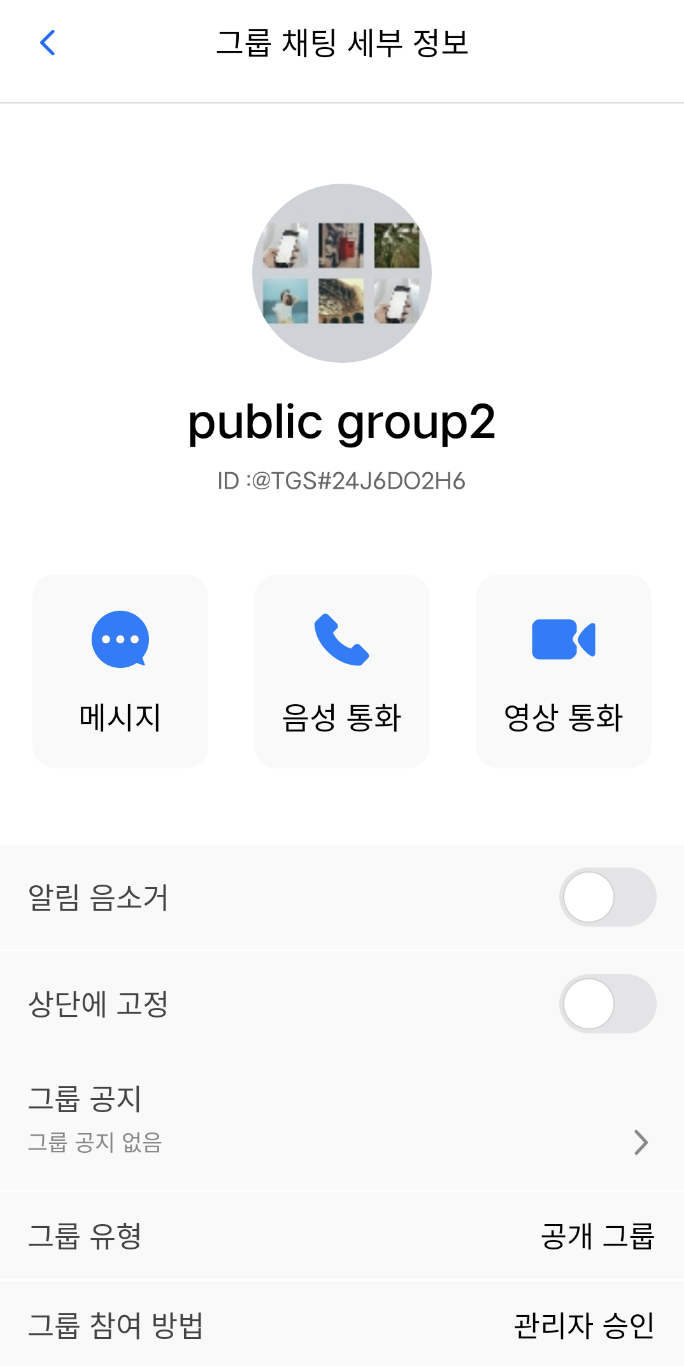
This example demonstrates how to add a Korean language pack and customize translations.
Adding Language Resource Files
Create a values-ko directory and the corresponding string resource files under the res directory for each module. ko is the language code for Korean, following Android resource qualifier conventions. After adding Korean, your project structure will look like this:
chat/demo/app/src/main/res/
├── values/strings.xml
├── values-zh/strings.xml
├── values-zh-rHK/strings.xml
├── values-ar/strings.xml
└── values-ko/strings.xml
chat/uikit/src/main/res/
├── values/strings.xml
├── values-zh/strings.xml
├── values-zh-rHK/strings.xml
├── values-ar/strings.xml
└── values-ko/strings.xml
atomic-x/src/main/
├── res-album-picker/values-ko/strings.xml
├── res-base-component/values-ko/strings.xml
├── res-chat-setting/values-ko/strings.xml
├── res-contact-list/values-ko/strings.xml
├── res-conversation-list/values-ko/strings.xml
├── res-emoji-picker/values-ko/strings.xml
├── res-emoji-picker/values-ko/strings-emoji.xml
├── res-message-input/values-ko/strings.xml
├── res-message-list/values-ko/strings.xml
├── res-search/values-ko/strings.xml
└── res-video-recorder/values-ko/strings.xml
Use the default strings.xml file in each module as a reference and translate each key into Korean.
Note:
1. Multilingual resources for TUIKit Compose are distributed across multiple modules: app, uikit, and atomic-x. Add values-ko to all relevant modules.
2. The res-emoji-picker module includes both strings.xml and strings-emoji.xml. When adding a new language, complete both files.
3. For language codes, see Resource Qualifier Rules.
Customizing Translation Strings
After adding the Korean resource file (values-ko/strings.xml), the string keys remain consistent across language files. Customize translation content as needed for your business. To update specific text, override the relevant entry in the target module; you do not need to modify other language files.
Following System Language
Android automatically matches the resource directory based on the system language. For example, if the system language is Korean, it will load resources from values-ko.
The newly added resource directory must follow Android resource qualifier rules to ensure the component adapts to the system language.
If you previously set a specific language using setApplicationLocales, clear the setting to revert to system language adaptation:
To set the interface language of TUIKit Compose to Korean, use setApplicationLocales with the Korean language code. Once set, the component will not follow the system language. Example: